A record category is a high-level classification that would represent the overall status of a record by grouping related picklist values into broader, meaningful categories. It helps summarize where a record stands without relying on individual or detailed stages.
By mapping individual picklist values to record categories - such as the default categories Open, Success, or Failed, or custom ones - teams can easily interpret a record's status, use it in criteria and automation, and visually track progress through indicators like a transition strip on the record's details page. This brings clarity, consistency, and faster decision-making to everyday CRM operations across both default and custom modules.
Let us consider an example to understand Record Category. In the Leads module, the Lead Status field captures detailed stages like New, Contacted, Lost, Unqualified, Qualified, Junk, etc. While these values provide depth, understanding a lead's overall state often requires scanning individual records, or reviewing status columns in list views. However, viewing lead progress at a high level or understanding a record’s overall state at a glance remains a challenge.
What does Record Category help you achieve?
Record category makes this easier by allowing you to group related Lead Status values into broader categories. This gives you a consolidated view of similar records, helps you instantly understand where the lead stands, and enables quicker navigation and action without you losing access to the detailed status information.
In the above scenario, for the Lead Status options, we have a common grouping: we saw that the user configured Record Category for the Lead status picklist field. Each existing value was then mapped to one of these categories based on its outcome. Users can see this and infer the status of the records. Besides, users can also view, filter, and act on records based on these categories by using Record Category which you will see in detail below.
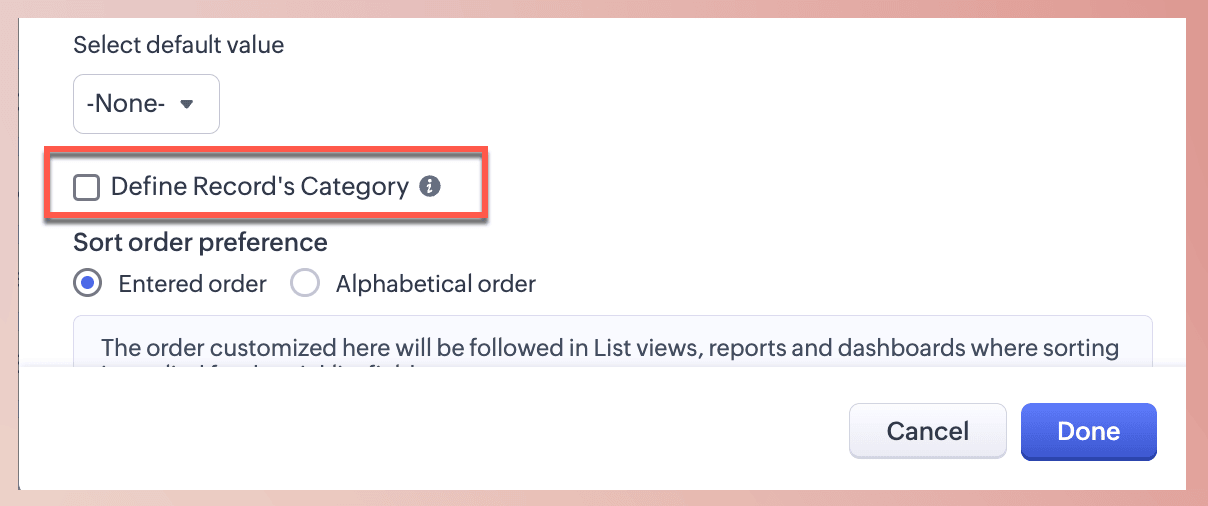
To achieve this, the user needs to enable Define Record Category. On doing so, the user can now define the categories as the default Open, Success, Failed, or as any custom categories as well.
Let's look at some other examples as well:
- In the Payments module, multiple deal or payment related stages such as Payment Declined, Transaction Failed, or Refund Initiated, can all be classified under a single category such as 'Failed'.
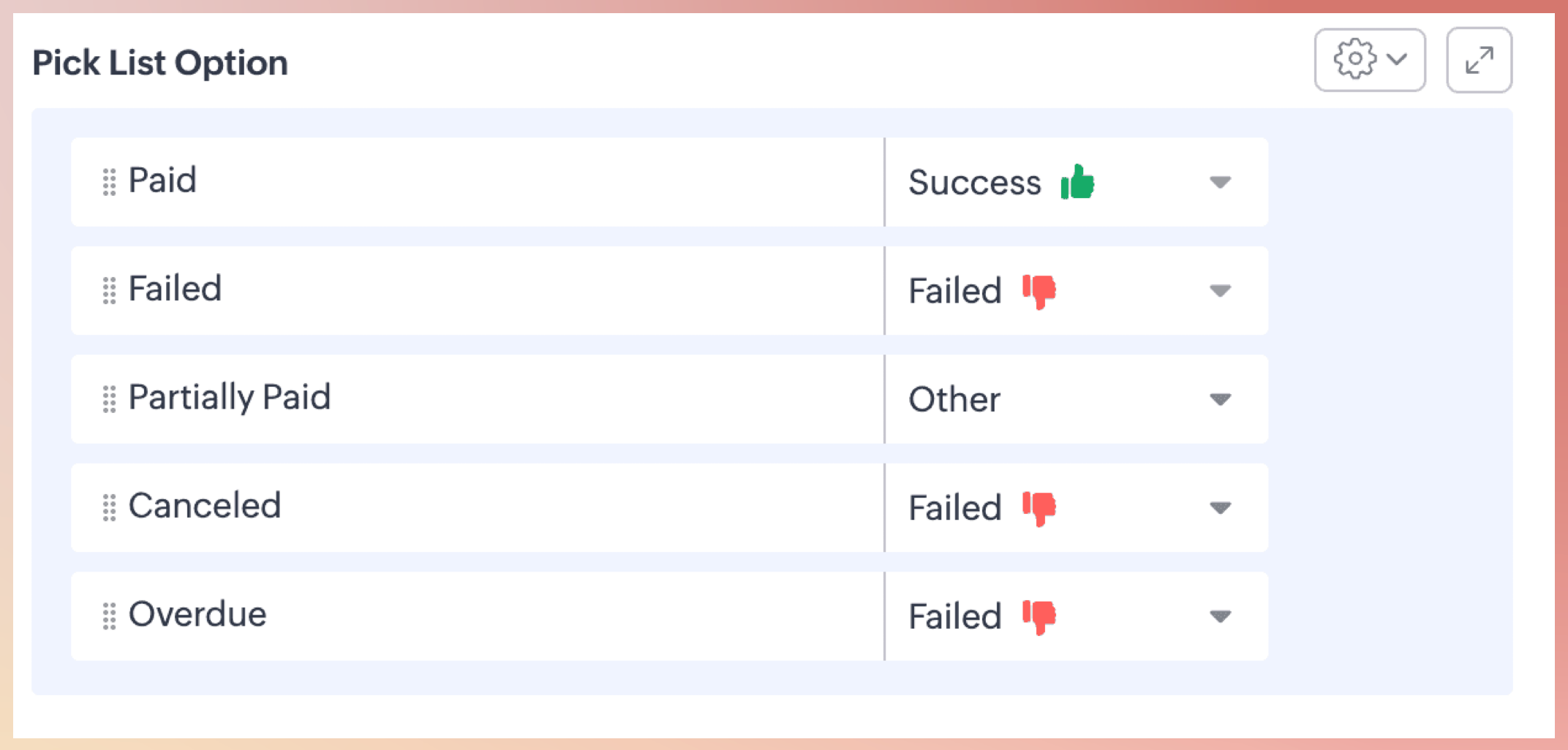
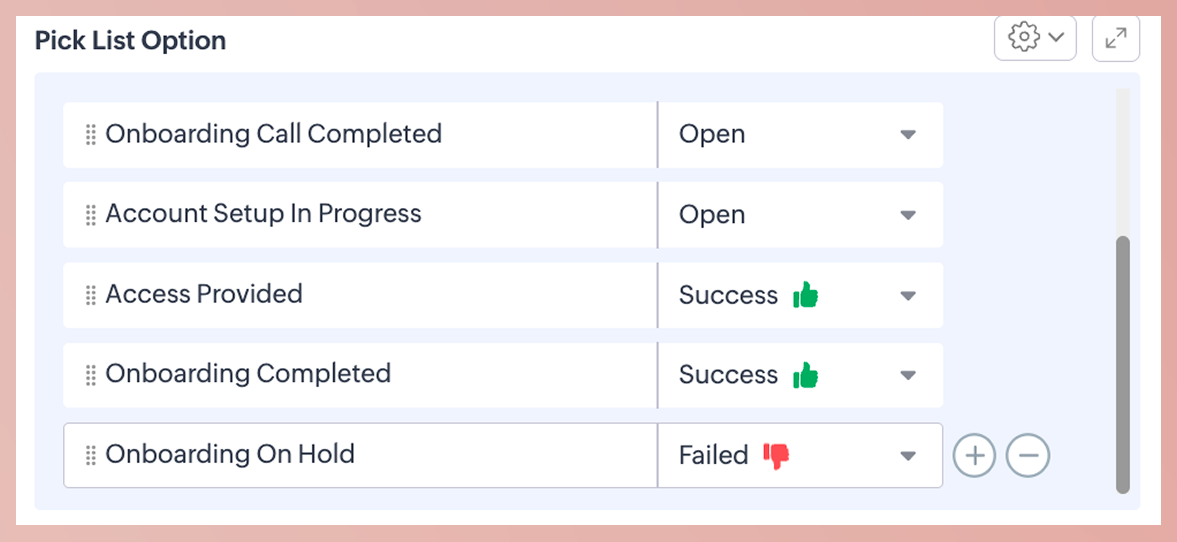
In the Contacts module, each contact represents the primary user being onboarded, and their progress is captured using a picklist field such as Onboarding Status.
Configuration
To configure Record Category mapping for a picklist field, do the following:
Go to Setup > Modules and Fields
Navigate to the desired module > Create/edit a picklist field.
Enable the option: Define Record Category
In the Manage Categories window:
Use the default record categories (Success, Failed, Open/Other), or
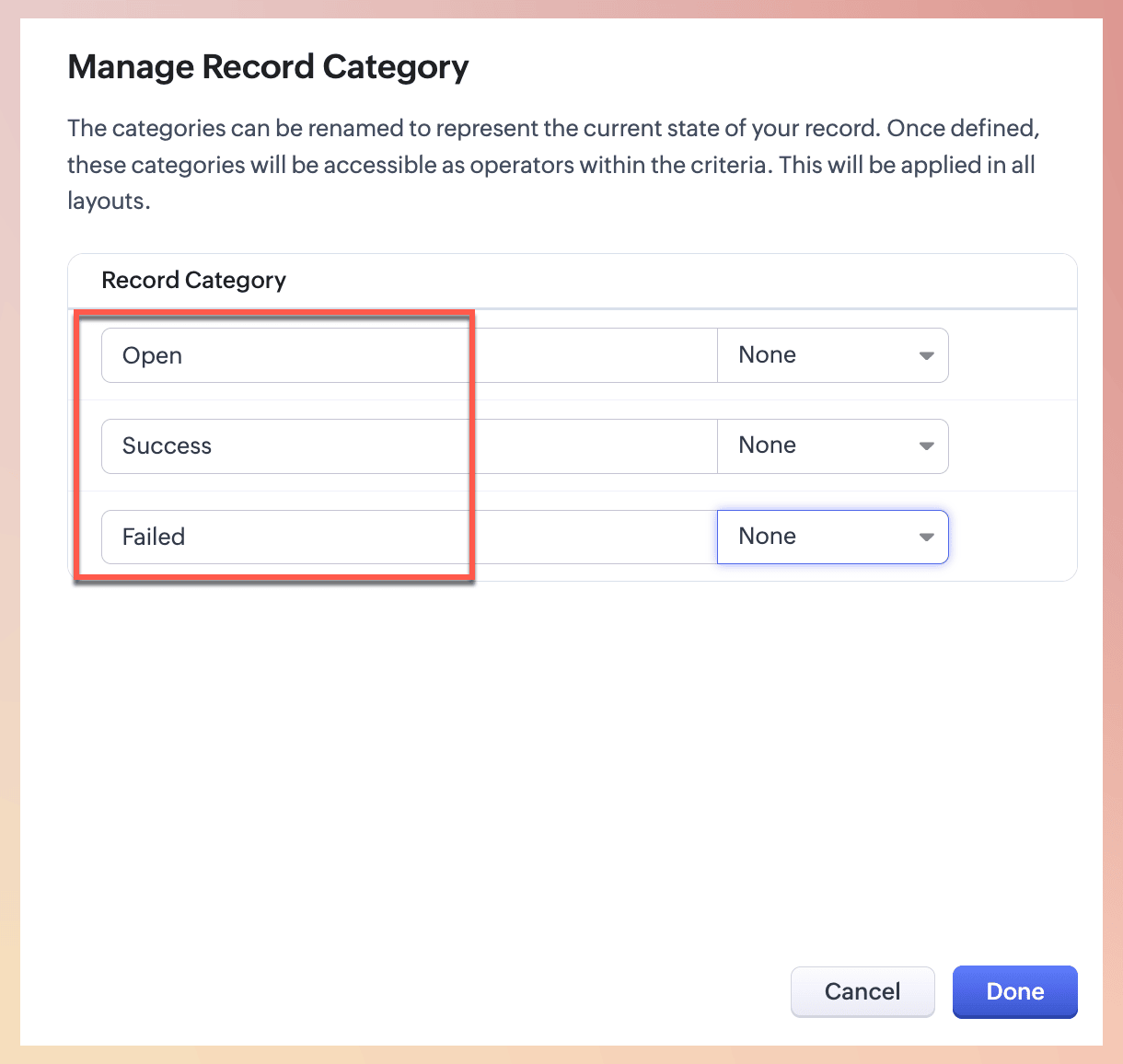
Create custom categories relevant to your process.
Assign a visual indicator to each category: Positive, Negative, or Neutral.
Click Done to save the Record Categories.
In the picklist properties, map each picklist value to a relevant record category.
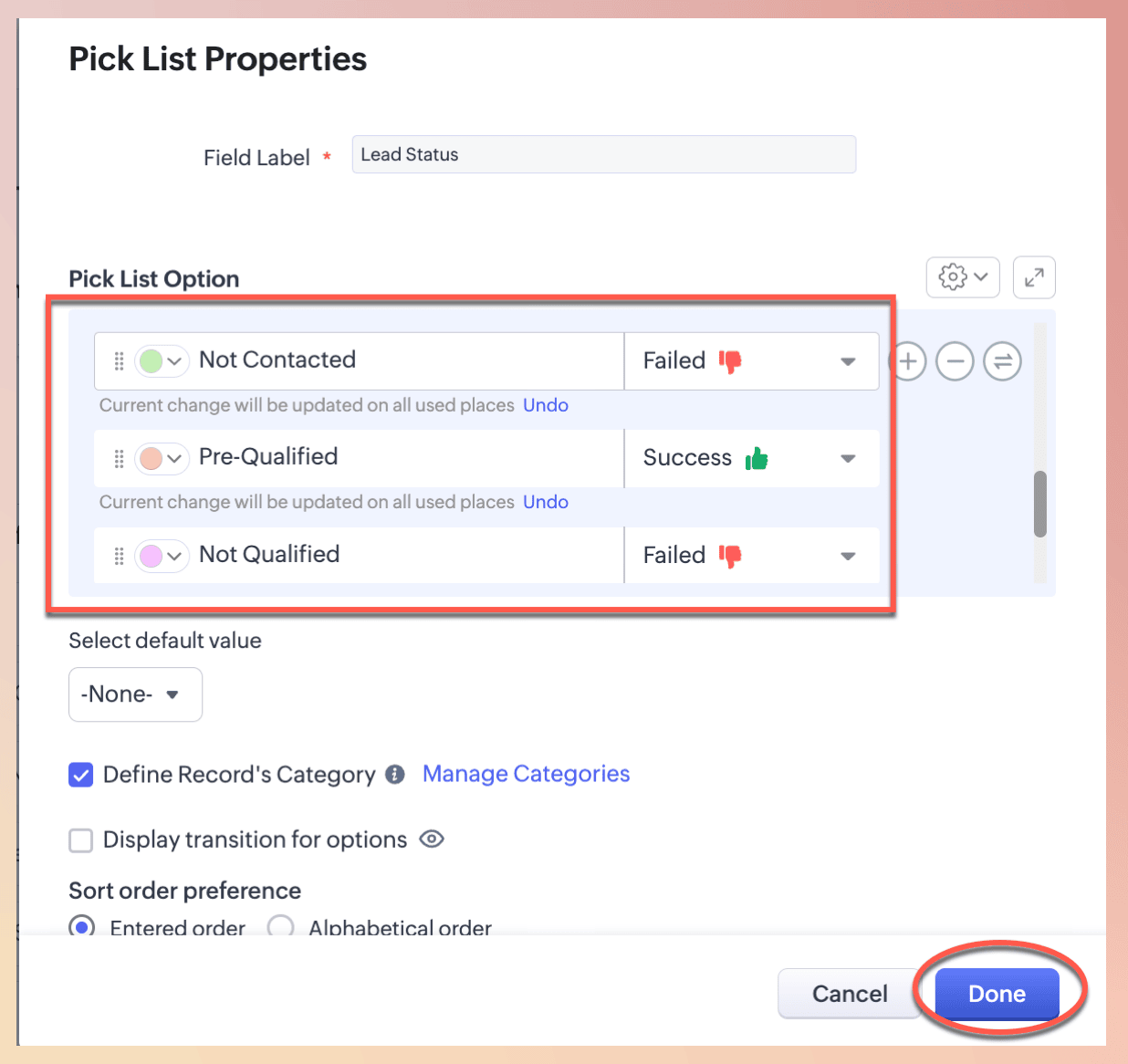
Click Done to complete the configuration.
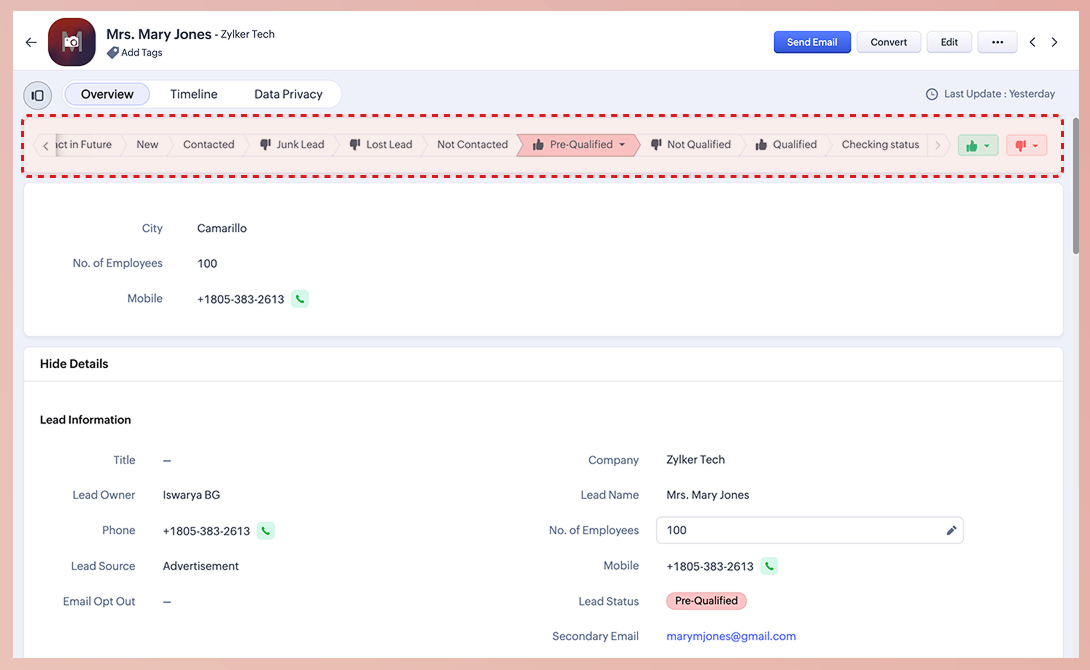
To get a bird's eye view of the record progress in the record's details page, enable Display Transition for options.
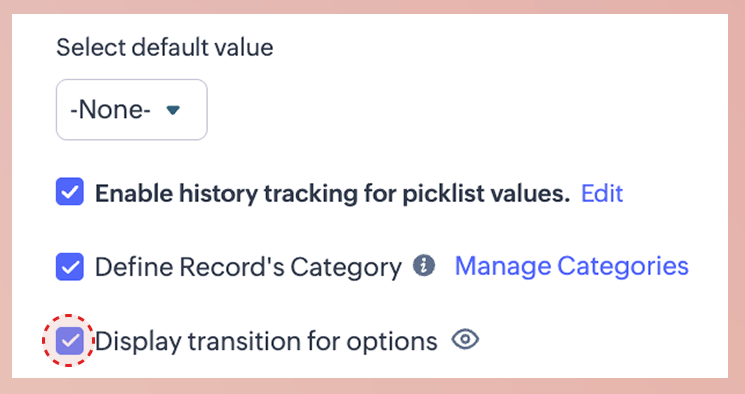
It will provide a transition strip on the record's details page for the user.
Impact areas
The transition strip in the record's details page for the user.
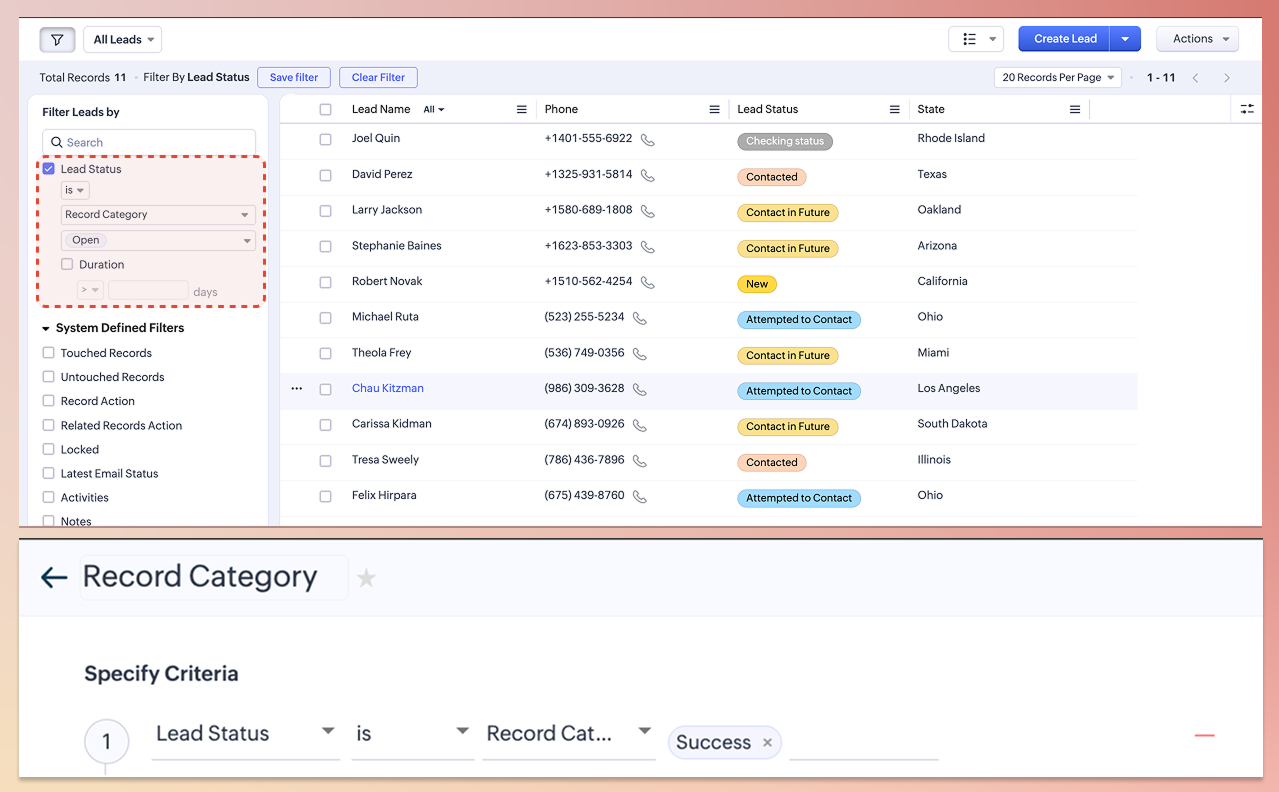
Criteria and Filters
Once the options are categorized, the record’s overall progress is clearly visible on the details page. To go a step further, users can also view, filter, and act on records based on these categories by using Record Category as a criterion in filters and views.
Notes.
A maximum of 5 categories can be assigned to the options.
This can be enabled only for a single picklist per module.
Record categories can be configured for picklists with up to 200 options.
The visual indicators (thumbs up, thumbs down) are not mandatory for the configuration of the record category.
Configuring record category will create a date and time field to track updates in the picklist fields (for internal purpose), and this date and time field will be consumed from the custom date and time field limit.
Module supported: All modules, except a few (Users, Quotes, Invoices, Sales Orders, and Purchase Orders) will be supported.
Editions supported: The feature will be supported in all paid editions.
