Migrating from Highrise to Zoho CRM
Migration from Highrise to Zoho CRM is carried out using APIs and Instance URLs only. You can initiate the migration by entering the API key. The entire migration will take place in the backend and you will be sent an email notification once its completed. You can undo or rerun the migration 3 times.
Get API Token from Highrise
To get API token and Instance URL
- Log in to your Highrise account.
- Copy the Instance URL from the browser.
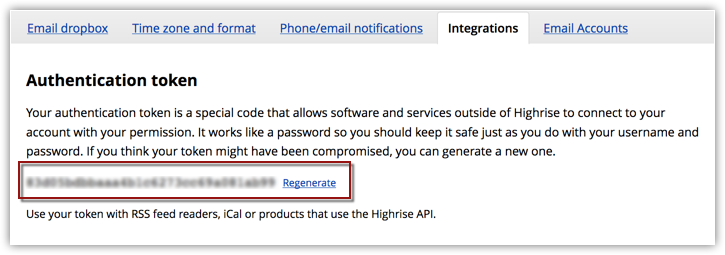
It will be in this format: https://sample.highrisehq.com/ - Click Accounts & settings > My Info > Integrations.
- Under Authentication token, copy the API token.
Migrate data from Highrise
To migrate data from Highrise
- Go to Setup > Data Administration > Import.
- In the Data Migration page, do the following:
- Choose Highrise
- Enter the Instance URL and the API Token.
- Click Migrate Now.
You will be notified when the migration is complete via a pop-up and an email.
- Choose Highrise
Check Data Accuracy
After the data is migrated you will be notified through an email. Kindly check if the files are imported correctly into the Zoho CRM account by visiting the Import History (Setup > Data Administration > Import > Import History). Read more about Import history.
If you are not satisfied with the import or field mapping results, you can delete the imported records and re-import.
For your kind reference: The following table lists the supported Zoho modules and fields equivalent to that of Highrise's modules and fields. Refer this table as you migrate to achieve a successful, error-free migration.
Notes:
- Zoho CRM does not support custom modules in API migrations.
- Attachments, Photos are supported
- Notes of Companies, Deals, Cases, People are supported.
- Custom modules are not supported in API migrations.
- Custom Fields are supported as per the ZohoCRM's edition limit.