Approval Tab | Online Help - Zoho CRM

Managing approvals in Zoho CRM

Approval process help seek and provision record approvals in Zoho CRM. Based on your configuration, records qualified for approval will take its course. They will be
  1. Locked from making further edits.
  2. Queued for approvers’ queue for approval.
    1. The designated approver can approve, delegate, or reject from the Approvals queue in the My Jobs module.
      1. The approver can also explore each record and respond from within the record’s interface.
      2. If required, the approver can also modify all or selected fields before approving.
  3. Meanwhile, the record owner or any authorized user waiting on the approvals, can
    1. View the approval status and the approvers that are assigned for this record
    2. Recall approvals, if required
    3. Modify authorized field values upon rejection
    4. Resubmit
Let’s explore each of these actions!

Approvers actions from the My Jobs module 

In Zoho CRM, approvers get a consolidated view under the My Jobs module.

Info
Permissions required to approve records: 
  1. Users designated as approvers in the Approval process configuration can view, approve, delegate, and reject records sent for their approval.
  2. Administrators can view the records queued for their approvals,  as well as others' approvals in the My Jobs module.

Approving/Delegating/ Rejecting records 

  1. Go to the My Jobs module in your Zoho CRM.
  2. Select the Approvals tab. By default, all the records that are queued for your approval will be listed under the view called My Approvals.
  3. Click on a record to view the following details:
    1. Details of the record - You can view the field and field value that needs your approval. This is the field upon which the approval automation was created.
    2. Criteria and other settings - You can look at other configuration details about the approval rule, if you have access to the approval process.
    3. User details and approval history- You can see the record owner, their contact information  and their approval history.
  4. You can also contact the user right from within the record details view to converse in context.
  5. After evaluating, you can act on the approval request, by choosing to Approve, Delegate, or Reject.
    1. To approve a request,
      1. Click on the Approve button to provide your consent to the requested record.
      2. A popup named Approve <Module name> ? will be displayed.
      3. Provide the optional approval comments. This comment will be displayed as part of approval response of the record. The record owner or any authorized user can view these approver comments to understand the approvers’ point of view.
      4. If you’d like to put the approval comments for further use like triggering automation or even to take reference, you can choose to add the comments as a Note in the record.
      5. Click Approve to confirm your approval.
        Note: In cases where multiple levels of approvals are required, this addition of comments to a record would be of great help to keep track.
      6. Once approved, the request detail page will be updated with the
        ✓ Approved badge in place of the action buttons to signify your decision. You cannot change your decision after this point and the record will be removed from your approval queue.
      7. Based on the record’s approval stage, the record will be approved, unlocked, and all the actions configured upon approval will be executed.
    2. To delegate a request,
      1. Click on the Delegate button. A popup named Delegate <Module name>? will be displayed.
      2. Choose the user to whom you’d like to delegate this approval request to and add your comments for the user. Note that this step is optional and adding so will offer more information to the delegated user and help understand your opinion on the approval.
      3. Like approval, you can also choose to add this comment as a note in the record.
      4. Click Delegate.
      5. After you have delegated, the approval request details page will display to whom the request has been delegated to with their contact information.
      6. The approval request will also be moved from your approval queue to the queue of the delegated user.
        Remember, the record still is in the approval course and the record will be locked even if delegated.
    3. To reject a request,
      1. Click on the Reject button from the request details page.
      2. In the popup named Reject <Module name>?, add your comments for rejection.
        Remember, adding comments is optional. You can also save this comment as a note to the record.
      3. Click Reject.
      4. After rejecting, the request details page will display a Rejected badge, curtailing further approval decisions and the record will be removed from your queue and the record will be unlocked.
      5. Based on your configuration after rejection, the approval process will execute the actions.
 

Convenient approver actions from the Approvals tab in My Jobs module 

As approvals in an organization are always a long list, the Approvals tab in the My Jobs module offers you the following convenience:
  1. View your requests and other approvals by means a of a view switcher.
  2. Respond to each approval request right from the list view. You need not click-open the request to act.
  3. Select multiple requests and respond to them in bulk, at once.
  4. Quickly find records in the approvers queue using advanced filters.
  5. Manage columns by adding desired fields to display, clip-wrap texts, and sort requests for easy approvals.
  6. View overall Approval history. All the requests submitted, approved, delegated, and rejected are captured as logs with their timelines.
 

Approver actions from each record  

The designated approver can view the approval requests from the MyJobs module. Based on their profile and permissions, the approver can further view the record, edit the record despite the record’s lock status, and respond to the approval request right from the record.

See also: Record modification in approval process.
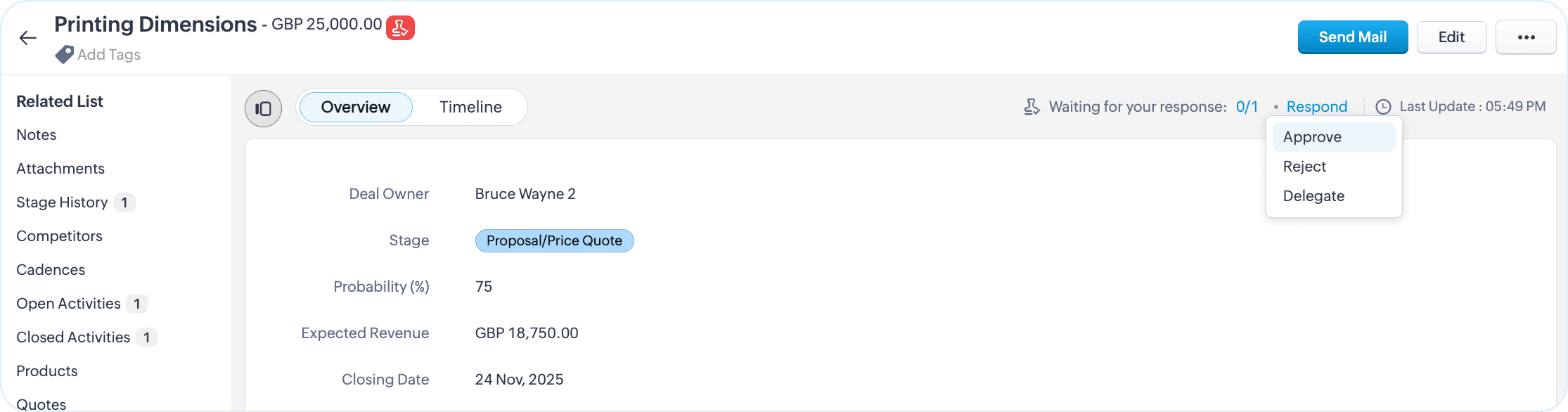
  1. For multi-level approvals, as an approver, you can check for the status by clicking on the pending status icon.
  2. Respond to the request by clicking on the Respond button. You can approve, delegate, and reject.
  3. In addition to adding approval comments, you can also choose to notify other approvers in the configuration about your approval via an email.

Requestor actions from each record 

So far, we saw the role and actions of approvers in the approval process. The requestors submitting these records for approvals also enjoy a set of actions.

A requestor can recall a record from approval and resubmit a record upon rejection.

Info
Recall functionality is in the early access phase and will be enabled on request. To have it enabled for your account, pleadse contact support by mentioning your Org ID. 
For contact support, validate whether to link with CRM Support or submit request.  

Recalling a record 

A record sent for approval will be locked from edits. If you have any changes to it that affects the approval parameters, with the Recall option in place, you can summon the record back to the previous stage, make the changes and resubmit.

To recall a record from approval.
  1. Access the record you want to recall.
  2. Under the approval status, click Recall available under the list of approvers this record is pend for.
  3. Provide an optional comment and click Recall.
  4. The record will be recalled and be returned  to the pre-submisison stage.
  5. After making necessary changes, you can resubmit the record back to the approval process.
Notes
Note: You can view the latest reason of why you have recalled the record for your reference. However, if you have recalled more than once, you can view the respective reasons from the timeline of the record.

Alternatively, if you are a record owner whose record is queued for approval and also happened to be a user with an administrator profile, you can recall your records from other approvals view from the My Jobs module.


Resubmitting a rejected record  

After a record is rejected, the record will be unlocked.  Rejection comments or any field changes the approver made to the record in the approval process will be retained. If as a requestor, you’d like to re-enroll the record back to the approval process, you can resubmit the record after making necessary changes.

To resubmit, click on the Resubmit button you see on top of the record.


See also:


        Create. Review. Publish.

        Write, edit, collaborate on, and publish documents to different content management platforms.

        Get Started Now


          Access your files securely from anywhere

            Zoho CRM Training Programs

            Learn how to use the best tools for sales force automation and better customer engagement from Zoho's implementation specialists.

            Zoho CRM Training
              Redefine the way you work
              with Zoho Workplace

                Zoho DataPrep Personalized Demo

                If you'd like a personalized walk-through of our data preparation tool, please request a demo and we'll be happy to show you how to get the best out of Zoho DataPrep.

                Zoho CRM Training

                  Create, share, and deliver

                  beautiful slides from anywhere.

                  Get Started Now


                    Zoho Sign now offers specialized one-on-one training for both administrators and developers.

                    BOOK A SESSION


                                Quick LinksWorkflow AutomationData Collection
                                Web FormsEnterpriseOnline Data Collection Tool
                                Embeddable FormsBankingBegin Data Collection
                                Interactive FormsWorkplaceData Collection App
                                CRM FormsCustomer ServiceAccessible Forms
                                Digital FormsMarketingForms for Small Business
                                HTML FormsEducationForms for Enterprise
                                Contact FormsE-commerceForms for any business
                                Lead Generation FormsHealthcareForms for Startups
                                Wordpress FormsCustomer onboardingForms for Small Business
                                No Code FormsConstructionRSVP tool for holidays
                                Free FormsTravelFeatures for Order Forms
                                Prefill FormsNon-Profit

                                Intake FormsLegal
                                Mobile App
                                Form DesignerHR
                                Mobile Forms
                                Card FormsFoodOffline Forms
                                Assign FormsPhotographyMobile Forms Features
                                Translate FormsReal EstateKiosk in Mobile Forms
                                Electronic Forms
                                Drag & drop form builder

                                Notification Emails for FormsAlternativesSecurity & Compliance
                                Holiday FormsGoogle Forms alternative GDPR
                                Form to PDFJotform alternativeHIPAA Forms
                                Email FormsFormstack alternativeEncrypted Forms

                                Wufoo alternativeSecure Forms

                                TypeformWCAG

                                  Zoho FSM Video Tutorials


                                        All-in-one knowledge management and training platform for your employees and customers.

                                                  Create. Review. Publish.

                                                  Write, edit, collaborate on, and publish documents to different content management platforms.

                                                  Get Started Now


                                                                    You are currently viewing the help pages of Qntrl’s earlier version. Click here to view our latest version—Qntrl 3.0's help articles.


                                                                        Manage your brands on social media


                                                                          • Desk Community Learning Series


                                                                          • Digest


                                                                          • Functions


                                                                          • Meetups


                                                                          • Kbase


                                                                          • Resources


                                                                          • Glossary


                                                                          • Desk Marketplace


                                                                          • MVP Corner


                                                                          • Word of the Day


                                                                          • Ask the Experts


                                                                            Zoho Sheet Resources


                                                                                Zoho Forms Resources


                                                                                  Secure your business
                                                                                  communication with Zoho Mail


                                                                                  Mail on the move with
                                                                                  Zoho Mail mobile application

                                                                                    Stay on top of your schedule
                                                                                    at all times


                                                                                    Carry your calendar with you
                                                                                    Anytime, anywhere


                                                                                          Zoho Sign Resources

                                                                                            Sign, Paperless!

                                                                                            Sign and send business documents on the go!

                                                                                            Get Started Now


                                                                                                    Zoho TeamInbox Resources


                                                                                                              Zoho DataPrep Demo

                                                                                                              Get a personalized demo or POC

                                                                                                              REGISTER NOW


                                                                                                                Design. Discuss. Deliver.

                                                                                                                Create visually engaging stories with Zoho Show.

                                                                                                                Get Started Now


                                                                                                                                    • Related Articles

                                                                                                                                    • My Jobs module in Zoho CRM

                                                                                                                                      The My Jobs module is an action interface where all of your process actions from different modules and processes are categorized and listed for quick access. You can move your records held in Blueprint transitions, approve records, review and permit ...
                                                                                                                                    • Managing Processes on iPhone

                                                                                                                                      My Jobs module From the MyJobs module, users can perform process-related actions, such as executing a blueprint and working with records that are under an approval process To view the My Jobs module Tap the more icon in your Zoho CRM app. Tap My ...
                                                                                                                                    • FAQ: Grid View in Zoho CRM

                                                                                                                                      What is Grid View in Zoho CRM, and how does it enhance record management? Grid View in Zoho CRM lets you work with your records in a convenient spreadsheet-style layout. It makes it easy to add or update data directly, quickly perform bulk edits, ...
                                                                                                                                    • FAQ: Transition to the Nextgen UI

                                                                                                                                      Switching from old UI to the Nextgen UI 1. Are Zoho CRM and CRM for Everyone the same? We are introducing an upgrade to your existing Zoho CRM, which we've titled CRM for Everyone. This isn't a new CRM, but a significant enhancement to the user ...
                                                                                                                                    • Managing services with Zoho CRM

                                                                                                                                      Services such as consultation, home cleaning, repair and maintenance, pickup and delivery, and salon or spa appointments are time-bound activities that take place every day, often with different customers. Customers often re-request the same service ...
                                                                                                                                      Wherever you are is as good as
                                                                                                                                      your workplace

                                                                                                                                        Resources

                                                                                                                                        Videos

                                                                                                                                        Watch comprehensive videos on features and other important topics that will help you master Zoho CRM.


                                                                                                                                        eBooks

                                                                                                                                        Download free eBooks and access a range of topics to get deeper insight on successfully using Zoho CRM.


                                                                                                                                        Webinars

                                                                                                                                        Sign up for our webinars and learn the Zoho CRM basics, from customization to sales force automation and more.


                                                                                                                                        CRM Tips

                                                                                                                                        Make the most of Zoho CRM with these useful tips.


                                                                                                                                          Zoho Show Resources