Troubleshooting Channels in Zoho CRM
Email Integration
“Unable to get user email” error while performing an email-related action
Why this happens
This usually occurs when your User Principal Name (username) and your primary email address are different in your Microsoft account.
How to fix it
Step 1: Verify user details in Microsoft Admin Center
Ask your IT/Admin to check your account in the Microsoft 365 Admin Center:
Go to Users.
Locate your account.
Check if User Principal Name (UPN) and Primary email address are the same.
Step 2: Update if they don’t match
If the UPN and email address are different, update the User Principal Name to match the email address.
Save the changes.
Step 3: (Optional) Verify via Azure Portal
To double-check the details:
Log in to Microsoft Azure Portal.
Use the search bar and select Users.
Search for the affected user using their email address.
Open the user record.
Verify that the User Principal Name (UPN) and email address match.
Step 4: Try again
Go back to CRM and retry configuring IMAP.
If the issue still persists
Please share the following details:
Screenshot confirming the UPN was updated in Microsoft Admin Center
Screenshot of the error in CRM
The email address being configured
Email sync status shows “In Progress” for a long time
Why this happens
The sync time depends on the number of emails in your mailbox. If your mailbox contains a large volume of emails (for example, thousands), the initial sync can take several hours.
What you can do
Wait for the sync to complete. This is expected during the first sync, especially for large mailboxes.
Avoid making changes during sync. Let the process complete without interruptions for better performance.
When to take action
If the sync status remains “In Progress” for more than 24 hours, raise a support request and include:
A screenshot of the sync status
The email address that was configured
This will help the team check and assist from the backend.
"Account Already Configured" error when trying to integrate email
This means that the email address has already been configured in another CRM account. If you know under which account it has been configured, then deactivate the integration in the old account so that you can do the email integration in the new account.
If you're feeling unsure with it, write to us with your consent (including the super dmin email in CC) to deactivate it from backend.
“Unable to connect” error while performing IMAP integration
For IMAP, the accepted port numbers for incoming ports are 993 and 143 and for outgoing ports are 465, 587, 25.
Ensure you are entering the correct server details. To confirm whether the server details are correct, first confirm who the email service provider is by going to https://zohomail.tools/#domainDetails/MX and entering the email address there. It will let you know who is the email service provider.
Check if the ports are open by going to https://zohomail.tools/#portCheck and entering the server name and port number. If the ports are closed, check with the email service provider to open the ports.
If ports are open but still failing, test configuring IMAP in other application like (Outlook, Thunderbird), if it fails check with your ESP. And if it works write to us with the reference screenshots and recording of the configuration with alternate app to be able to check further.
Customer is receiving a message as "crm.mail.error" while accessing the email in the email-related list
Try updating the password in the email integration setup. If the issue persists, please contact support to connecting on a live debugging session for assistance at support@zohocrm.com
"Authentication Failed," "Invalid Credentials," or "The authentication details provided were rejected by the external server" errors during IMAP configuration
Please ensure that the email credentials used for the configuration are correct. If two-factor authentication (TFA) is enabled, generate an app-specific password and use it for the configuration. Please enter the password manually instead of using autofill or a saved password.
To verify the credentials, log in to your webmail using the same email address and password. If the login is successful, use the same credentials to authenticate the account in Zoho CRM. If issue persists, contact support for assistance.
“javax.mail.AuthenticationFailedException: 535 5.7139” Authentication unsuccessful, the user credentials were incorrect" error while sending emails
Ensure you are entering the correct password; type it in manually instead of using autofill or saved passwords.
To verify, log into your webmail using the same credentials.
Check whether two-factor authentication (TFA) is enabled in your webmail. If so, generate an app-specific password in your webmail and use it in the CRM IMAP settings.
If the issue persists, try configuring the email in another client such as Thunderbird or Outlook.
If the integration works in the third-party client but the issue continues in CRM, ask the customer to whitelist our IP addresses.
If the issue continues, contact support for assistance.
"SMTP Error" or "Unable to get SMTP email: error while configuring Outlook/Office 365 email via IMAP or POP3-OAuth.
Please follow the respective steps to resolve them:
Log in to the Microsoft 365 admin center and go to Users > Active Users.
Select the user whose email address is used to integrate with Zoho CRM. Click Mail in the side pane that appears.
Click Manage Email Apps under the Email Apps section.
Select the Authenticated SMTP checkbox if it is not already selected.
If the option is already selected, deselect it and select it again.
Click Save Changes.
For more information about this error, click here.
Zoho Mail integration fails with the error: "Authentication details rejected by the external server."
This error appears when a customer tries to set up email integration using a free Zoho Mail account. Only paid Zoho Mail accounts can be integrated with Zoho CRM.
Notes:
The Emails tab or module has been deprecated. The Sales Inbox now serves as the unified inbox for both IMAP and POP integrations.
As SalesInbox is not available in the Professional edition, upgrading to Enterprise is required to view emails.
Can we have special characters in the display name when configuring email integration?
When configuring IMAP, only the following special characters are supported in the Display Name field:
"@ [ ] ' ( ) . _ & - | \"
Spaces are also permitted. All other special characters are not supported. Using them will display one of the following error messages: "Pattern mismatch" or "Invalid."
Email Authentication
"DKIM record missing" error occurring
After entering the public key value on your domain settings page, go to https://zohomail.tools/#domainDetails and select TXT from the record type options. Enter the public key value you generated in Zoho CRM and click Lookup.
If the DKIM key is not showing, the record has not been configured correctly. Enter the public key in the Host/Name field without your domain name.
For example, enter: 1522905413783._domainkey
Rather than: 1522905413783._domainkey.yourdomain.com
If the DKIM key is populated but you are still getting the "DKIM record missing" error, wait 24 hours and then click Validate Record in Zoho CRM.
If the issue persists, raise a ticket with a screenshot of the DNS settings page showing the DKIM record and a screenshot of the error in Zoho CRM.
SPF record validation failure occurring
Having multiple SPF records can interfere with the SPF check, which can cause validation failures. As a result, emails may be marked as spam on recipient servers. If you already have an SPF record, do not add a new one. Make sure there is only one SPF entry on your Domain Settings page. If you have already added SPF for another application, include the Zoho CRM SPF value in the same record rather than creating a separate entry.
If there are two or more SPF records, merge the values into a single record. To verify, go to https://zohomail.tools/#domainDetails, select TXT, enter your domain name and click Lookup.
Examples:
If two SPF records are added like this:
v=spf1 include:transmail.net ~all
v=spf1 include:zcsend.net ~all
Merge them as follows: v=spf1 include:transmail.net include:zcsend.net ~all
If two SPF records are added like this:
v=spf1 include:spf.protection.outlook.com include:transmail.net ~all
v=spf1 include:transmail.net ~all
Merge them as follows: v=spf1 include:spf.protection.outlook.com include:transmail.net ~all
If two SPF records are added like this:
v=spf1 include:spf.sendinblue.com mx ~all
v=spf1 include:transmail.net.in ~all
Merge them as follows: v=spf1 include:spf.sendinblue.com mx include:transmail.net.in ~all
If the SPF record is populated but you are still getting the "SPF record missing" error, wait 24 hours, then click Validate Record in Zoho CRM. If the issue persists, raise a ticket with a screenshot of the error in Zoho CRM and a screenshot of the DNS settings page showing the SPF record.
Email Relay
Receiving an authentication failure error
Make sure the password you are entering is correct. To verify, log in to your webmail by typing the password manually instead of using autofill.
Check whether two-factor authentication (TFA) is enabled in your webmail. If it is, generate an app-specific password in your webmail and use it in Zoho CRM's IMAP settings.
If the issue continues, test the account in another email client or contact support for assistance.
Email relay failing
After three authentication failures in a day, the user will receive a warning email detailing the reason for the failure. The relay server will not be used to send emails until the following day.
Note: If outbound emails cannot be delivered through the relay server for any reason, they will be sent through Zoho CRM's server instead.
Email Insights
How can I track my email status in Zoho CRM?
Zoho CRM tracks email opens and clicks using a web beacon—an invisible tracker embedded with your email based on your recipient's email access, this tracker helps you track their open or click action updates.
Along with your email content, Zoho CRM includes a small, nearly invisible image (just one pixel in size) at the bottom of the email. This image is hosted on Zoho's servers. When the recipient opens the email and chooses to display images, that tiny image is downloaded from Zoho's server. This download enables Zoho CRM to track the opens and clicks on the email.
Email tracking is not working
Emails tracking is supported with only those emails sent from Zoho CRM. Here are a couple of options where the email tracking would not work as expected.
Please check and confirm:
If the "Display Images" is enabled in the mail client.
If the email was not sent to multiple recipients in To:, Cc:, or Bcc:.
If the email tracking you are looking for is not sent via MASS Mailing activity in CRM.
After confirming the above, if you still find the tracking is not shown for any or specific email, write to us along with the Record ID and the complete email header for further assistance.
Email Sharing in Zoho CRM
Email sharing permission is set as private, yet the other users can see the emails
First, check whether the email was sent from Zoho CRM or from an IMAP/POP mailbox. Emails sent from Zoho CRM are available to all users with access to the record, regardless of email sharing settings. Email sharing settings only apply to emails sent or received through an IMAP/POP mailbox.
Review the email sharing settings in Zoho CRM. Even if the settings are configured as public, user visibility can still be restricted through the email sharing preferences. Make sure the preferences are not overriding the public setting.
If the issue persists, please contact our support or contact live support for further assistance.
Email Sync or Notification related Concerns
Certain emails are not showing up inside the email related list of records
Check for that email in your webmail, (not in Outlook but any email client where your emails are synced). Emails in the Inbox or Sent folders sync to the CRM by default. If the email is found in a different webmail folder, write to us providing the details of the folder name, screenshots, the Record ID, and the email header for further assistance.
While accessing email settings there is "Permission Denied Contact your admin" error shown in the admin account too
Check the email sharing permissions. If the issue persists, this means that another admin has locked the IMAP configuration. In order to access the email settings from another admin account, it has to be unlocked by going to Setup. Under Security Control, select Zoho Mail Add-on Users. Click Unlock Configuration next to the user’s name to have it work.
Users are not receiving Notes related Notification Emails.
Check if the tagged user email is blocked. Also ensure to check in the Feeds module if the self tag notification is enabled in the Feeds preference. If confirmed, write to us providing the record ID, the recipient’s email address and the exact time of the action for further assistance.
Workflow Emails In Zoho CRM
If emails are associated with actions: In workflows, emails can be associated with the following actions.
Workflow based on incoming emails/outgoing emails is not been triggered or received
First, determine whether the workflow is configured for incoming or outgoing emails. Outgoing email workflows will function even if the user has not configured IMAP in Zoho CRM. However, for workflows triggered by incoming emails, the user must have IMAP configured in Zoho CRM.
If the issue persists, raise a ticket with the following details:
Workflow ID
Record ID
Email header
Email notifications have been triggered or received
Check the intended recipient of the email notification and verify the following:
If the notification is linked to the primary email field of a lead or contact record, make sure the record has a valid email address in that field.
Verify that the email address is not blocked. [Add guidance here on where and how to check this.]
The same checks apply to any internal or external email addresses associated with the notification.
If the issue persists, raise a ticket with the following details: [add required details here, e.g. Workflow ID, Record ID, email header, confirm with the team.]
BCC Dropbox
There are no new records been created via BCC Dropbox
Please check if the email was sent from Approved "From Email Address", if the search pattern setup in your CRM Setup > Channels > Email > BCC Dropbox, and find if there are any relevant records in the module. Additionally, try to locate under the 'Approve Leads', 'Converted Leads' or in the 'Recycle bin' sections. If the record is still not found or created, kindly contact support with the respective email and other details for us to sift and assist further.
Will BCC dropbox emails and their attachments be included in data backups?
The emails will be available in the email.csv file, and the attachments will be available in the [attachments file name] file.
How many email addresses can be added to the approved email list?
Up to 10 email addresses can be added to the list of approved email addresses under Zoho CRM BCC Dropbox feature.
The search pattern under BCC Dropbox search pattern shows only Contact and not Leads?
The user adding the BCC may not have permission to access the Leads or Contacts modules. Check the user's profile permissions and ensure that access to the relevant modules is enabled.
If the issue persists, contact support with the following details e.g. Record ID, profile name, screenshot of profile permissions.
Will BCC emails sync if the email address is in the Secondary Email field?
Yes, emails that are sent to the secondary email address of a lead or contact also will be synced in Zoho CRM.
Will BCC Dropbox or IMAP emails sync with multiple contacts with the same email address?
Yes, the emails synced via both IMAP or BCC Dropbox configuration will sync and associate the emails with all the contacts with the same email address.
I sent an email from Outlook to an existing CRM contact associating my BCC Dropbox email, but that email is not associated under the record’s Email related list.
Ensure that the BCC Dropbox email address was added in the BCC section that sent mail along with the confirmation of the email being sent from one of email added in the list of "Approved Email Addresses" of BCC dropbox configuration.
If the issue persists, contact support with the following details:
Screenshot of the email-related list (full page)
Screenshot of the BCC Dropbox configuration page (full page)
Email header
Record ID
The email sent from a third-party website to BCC dropbox email address reflects twice in CRM
Check Email Integration setup under Zoho CRM includes the "Store Sent Email" checkbox is enabled. If so, uncheck it and try once. If the issue persists, contact live support for further assistance.
An email sent with BCC Dropbox address doesn't show it is associate to the record's Email related list
Check if the To email address matches the record's email address.
Check if the email is sent from one of the Approved Email Addresses.
Check if the correct BCC Dropbox email address is being used.
Check if the To email address is blocked in Zoho CRM.
If all of the above checks pass, contact support with the following details:
Record ID
Screenshot of the email sent from webmail
Screenshot of the record's email-related list
Email header
Organization Email
While trying to send an email from particular Organization Email, there is an error saying the specific email is not allowed to send
Check if there is an email block for those specific Emails used in the "From" or "To" sections. Also confirm if the organization email address you are trying to use was verified. If the issue persists after checking both cases, contact support for further assistance.
"You need to verify the ReplyToAddress" error while sending emails using a specific organization email address
Please add and verify the Reply-to address in the your mailbox settings and then try sending the email from CRM. Bleow is a sample screenshot from Gmail:
If the issue persists, please contact support.
Not receiving reply emails whenever they were sent out via organization email address in our CRM
Ensure you have checked all the folders including Spam, Promotions, Updates, and All mails in your Mailbox. If it is not found in any of the folders, contact support with all these details like the Record ID, a screenshot of the organization email address configured page, and a screenshot of the Email Related List and the respective email header to be able to check and assist further. We suggest to confirm if you have completed the Email Authentication to improve deliverability in your CRM.
Issue while sending out an email via CRM Deluge function using the organization email
As CRM will allow you to send emails from verified email addresses only. Verified email addresses include "The primary email", "The organization's email addresses" or the Email addresses that have been configured through email integration.
Error message:
"sendMail: {"data":[{"code":"INVALID_DATA","details":{"api_name":"email","json_path":"$.data[0].from.email"},"message":"Email can't be sent using this from address. Kindly check the allowed from address list","status":"error"}]}"
When you set "org_email" value to true, the mail is sent through Zoho CRM's server, not through the SMTP server that the customer had configured. So Add the parameter "org_email" and give the value as true; only then will the send mail API will work for sending emails from organization email. Here is a quick reference link on the same.
The authentication status shows as "Required" in the organization email settings page.
Check whether the domain is already authenticated on the Email Authentication page.
If the Authentication status remains same even after confirming the respective domain being Authenticated, contact support with full page screenshots of the Organization Email and Email Authentication page showing domain status authenticated.
Not receiving the code to verify the organization email address.
Contact support by sharing the email address you want to add as an organization email to see if we have a block on it and get it unblocked to proceed further.
"535.5.7139 Authentication Unsuccessful, the user credentials were incorrect" error while sending emails via organization email
If you have configured IMAP and also added an organisation email address, the IMAP configuration takes precedence. In this case, verify that the IMAP configuration is set up correctly. If it is not, reconfigure the IMAP settings and try sending the email again.
If the issue persists, please contact support.
"Email address is blocked or invalid" error while adding an organizational email address
Check and ensure there are no spelling mistakes while you entered the domain or email address. On correcting the domain name it should work. If not, can check for blocks and unblock them to proceed. If still issue persists, contact support for further assistance.
Social
A user is facing an issue while accessing the Facebook from the Zoho CRM Marketplace and occurred in all browsers.
Contact support to check by connecting to a live screen sharing session for further assistance.
A user is unable to upload/import the brand from the integration page
Please check the brand limits from the Configuration page. If there is availability and still you are unable to setup a new brand and import, contact support for further assistance.
Chat
A user is getting permission error while trying to access the attachments associated to a respective Chat synced from SalesIQ to CRM
Please check if the Visits and Attachments permissions are enabled in the respective user's profile and if the issue persists, contact support for further assistance.
A user is unable to find Zoho SalesIQ related list in the record
Please check if the user has permission to view and access the Visits module, if not enable the permission for the respective user profiles to be able to view the same.
If all users are finding this trouble, ensure to check if the Visits module is enabled for all profiles by checking under CRM Setup > Customization > Modules and Fields > Status. Contact support if you still have any concerns.
Portals
Portal user did not receive the portal invite emails
Please check with the portal user to see if they have received the email in any of their folders like in spam or junk or any other folders. If not, kindly share the invited user's email along with your org account details for assistance.
The portal invite sent to a contact from a portal invite page is being failed
Please contact support by collecting the failed page screenshot from the Portals, contact record id and its email address to get further assistance.
Portal users are getting "account disabled" error after they sign up accepting the invite and when tried to re-invite, it shows "portal user already exists"
Check if the portal user invited is active by going to CRM Setup > Channels > Portals > Users. If the user is found active, share those details and write to us or contact live support further assistance.
This issue can occur when a contact has signed up through the portal form but the record has not yet been approved by an admin in Zoho CRM. Once the record is approved, the contact can access the portal.
If the issue persists, contact support.
While trying create a portal in Zoho CRM there is an error "Portal name already taken"
Please check if the same portal name has been used in any multi-org. If so, share the other org details to check from the backend and remove the label association.
The account name lookup field is unavailable to set permissions on the portal configuration on the contacts and the Accounts module.
Please check if the Accounts module has been enabled for the portal users. Only when the module is enabled in the Portal settings the field access will be available.
When portal user tries to access a multi-select lookup field they get an error “You do not have sufficient permission”
The module referenced by the multi-select lookup field is a public module. For users to be able to select records in the multi-select lookup field, the public module must be related to the Contacts module through a lookup field. This relationship enables the option, which allows users to select records in the multi-select lookup field.
Mass Mail
Emails sent from CRM show sent from "mailer.zoho.in," which is not what the customer wants
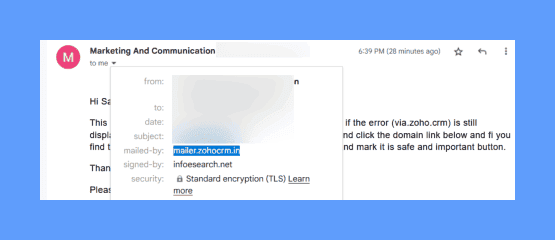
Email sent via Mass Mails or Automation emails are sent via Zoho servers. If you would like to send them through your email servers, Email Relay in Zoho CRM is the solution for it. Email Relay configuration allows you to route emails through your email server from CRM following a path like CRM Setup > Channels > Email > Relay server > Recipient.
Learn how to configure Email Relay
If the issue persists, contact support.
A batch of mass mail scheduled shows sent in the email notification, but the stats shows the sent count as 0
Filter the contacts matching the criteria used to create the batch of emails and validate with the below details to compare the sent email count.
Check if the email address field has a valid email address.
Ensure the email opt-out field is not selected for those records.
Check for blocked email addresses.
If there are still number mismatch, then contact support with all the details for further assistance.
Mass email sent from CRM is landing in spam.
Please test through the following steps:
Send two test emails to the same email recipient: one with that email content and the other empty. Note which goes to spam and the Gmail specified reason for it to verify if the issue occurs with or without that template content.
RAlso run the same test using your own email account configured with (IMAP/POP) in your CRM to the same recipient to check its delivery.
Disable Email Insights in Zoho CRM and send a test email. Then re-enable and check the email delivery. Also check for the attachments in that email which might trigger spam filters.
If the issue continues, please share the results to support along with the Mass Mail ID, a screenshot of the Email Authentication page, one sample email header for further assistance.
The Right Navigation key to select multiple records and send mass mails is grayed out and not working
Try it with different browsers; if the issue persists please contact support.
Getting error stating "issues with email delivery problems" when attempting to send mass emails
Please check if any selected records have blocked email addresses and unblock them if needed. You can also test by sending individual emails to a few records. If the issue persists, please contact support.
Unable to send mass emails again from CRM
Verify that you have not exhausted your MassMail count for the day according to your edition based on the number of mass emails already sent and the number of mass emails scheduled for the day. If you still have concerns, contact support for further assistance.
Mass mail "Sent" status from the statistics do not match the scheduled and the sent count
Please check if any selected records had any blocked emails or even if there were records with email value available in the Email field. Verify the initiated email count with the sent mass mail statistics and contact support if you need any further assistance.
Parser
Getting Error message: "Content didn't match, Unable to map field(s)"
Ensure the email content matches the parser template and that all fields are mapped correctly. Date/time values must be in ISO format (e.g., 2020-07-10 or 2020-07-10 15:00:00.000) for records to be created in CRM.
If the issue persists, contact support to verify whether the HTML elements, parsing rules, and email content are aligned correctly and get further assistance.
There is an error while setting up email parser by forwarding email, although sending it manually works
Email forwarding settings vary across email service providers. Since the email parser is working correctly for manually sent emails, the issue is likely related to the forwarding configuration. Ask the user to refer to their email service provider's instructions for setting up email forwarding correctly.
If the issue persists, contact support for further assistance.
Email sent to parser email address has details that are not captured
Ensure the incoming email's structure exactly matches the Email Parser template, since the field mapping depends on it. If you have confirmed the email content matches the mapping correctly, but the created record has no details or no record was created at all, contact support for further assistance.
Parser doesn't receive emails even when sent from the approved email address
This issue might occur if the SPF fails for the sender's email address. To overcome this please do email authentication and try it again. Learn more about email authentication in Zoho CRM
If issue persists, contact support by sharing the screenshot showing "From" and "To" email addresses of the email sent along with the Email Parser Configuration page for further assistance.
The email sent while creating parser rule to be the parser template is not received after multiple trials.
This could happen when the email address or the auto-forwarding setup in your email client is blocked. Unblock it and try again. On confirming these if there is still an issue, contact support for further.
Are there any limits on how many records can be created using parser in a day?
The email parser will support the parsing of 100 incoming emails per user license with a maximum cap of 2,000 emails per day per organization.
Salesinbox
Specific emails are not showing up in Salesinbox
First, verify whether the email is available in your webmail and identify the folder where it is stored. If it is not found, check whether it appears in the record's Email Related List.
If the email is listed in the Email Related List but not in SalesInbox, run the filter again by navigating to SalesInbox → Settings → Filters and selecting the Run Through Filter option.
If the issue persists, then write to us with the screenshots of the webmail showing the folder name, the email-related list, and one of Salesinbox, and of the email integration settings for further assistance.
The email thread was deleted from webmail but still appears in the record's Email Related List and SalesInbox
Emails deleted from webmail are automatically removed from CRM. Please wait up to 15 minutes, as email synchronization can take 3–6 minutes due to Mail360's polling cycle.
If the delay exceeds the expected sync time and would like to investigate further, contact support with all these details like the Record ID, screenshots of the Email Related List, SalesInbox, the webmail Trash folder showing the email, and the email
Customer has done email integration and the email sent via Automation is not showing up in SalesInbox
Automated emails, notification emails, and reminder emails that are sent will not be synced because the emails will be sent from the Zoho CRM server.
Upon completion of email integration in CRM, there is instant email sync, but there is a delay in syncing to Salesinbox
In general, the email will take four to five minutes to show up in the SalesInbox after the sync. If it is taking more than these limits, share the email’s sent time from the webmail, the record URL, and the email header.
While sending emails from SalesInbox, it shows "We are unable to process the request" error
Check if the same error pops up while sending the email from the record. Or if there are any errors on the email configuration page. If yes, update the password in the email integration settings and try again. If the issue persists, contact support for further assistance.
While creating a contact from SalesInbox, incorrect account name is fetched automatically .
Check if the unknown user's email has a domain matched to the account record. According to the default feature behavior, if the domain and the existing account record's name match, it automatically shows that account name in the contact quick-create page. If there are no matching references but issue persists, kindly contact support for further assistance.
One of the email thread is not found when searching in SalesInbox
Check whether the email is available in the record's Email Related List. If it is listed but inaccessible, contact your administrator to verify access permissions. If the email exists in webmail but not in CRM, review the Email Configuration status. If the issue persists, contact support for further assistance.
No longer receiving the email updates from 'notifications@zohocrm.com' which was working earlier
Please check if the expecting email address of the user is blocked. If yes, validate the blocked email address and contact support for assistance to get it unblocked.
Unsubscribe Link
Is it possible to test the unsubscribe link before associating it?

Unsubscribe linked button does not appear
The unsubscribe linked option will only be available when the user was redirected to the respective web page after clicking on the unsubscribe link in the email or on the embedded website.
Note: The unsubscribe button won't show up if you access the page separately.