Troubleshooting Customization in Zoho CRM
Modules and Fields - Layout Customization
Getting "Mapping seems to be invalid" error while trying setup lead conversion mapping.
This issue usually occurs when the field is already mapped to another field that was removed from the layout. Verify that the field lengths match and check the corresponding unused field based on its field type. If you cannot identify the field, share the Layout ID, field name, and a screenshot of the error for further investigation.
Unable to import files/images in file upload/image upload field
Check the storage limit by going to CRM Setup > Data Administration > Storage > File storage. If you are running out of storage, you can choose to purchase additional storage or delete unwanted files from the CRM to be able to proceed.
Getting a "File not supported" error while uploading files to a file or Image upload fields.
The "File not supported" error appears based on format-related issue. In such cases, check the file format of the upload and test by uploading in different formats like (.PNG, .JPG, .JPEG). If the issue persists, write to support with these details like the record ID, file format, screenshots or recording for us to debug further.
Unable to find the related module while creating a multi-select lookup field
The limit for multi-select lookup fields is two per module. This means if two multi-select lookup fields have already been connecting to a module, that specific module will no longer be available for selection when attempting to create a new multi-select lookup field in another module.
Screen freezes when editing or saving a field in the layout.
Try again after refreshing your web browser or try on an incognito window. If the issue persists, contact support with reference screenshots or a recording to debug further.
Unable to edit a picklist field.
Else, if the issue persists, contact support along with these details like Layout ID or Record ID, Field name along with a screenshot or Screen recording explaining the issue.
I add rows to Subform, But I am unable to save when values are modified.

First, try it in different browsers and also check for any validation rules or client scripts associated. If yes and possible, try disabling them and check. If the issue persists, please contact support by connecting on a live session to help us debug and assist further.
The numerical values in the subform are displayed incorrectly
The subform values are not populated in the Lead converted Contact.
Layout Rule
Certain fields or sections not listed to set them as Show/ Mandate fields in the Layout Rules.
Apart from the basic section of each module, like Lead or Contact Details or any check box fields, check whether the field permission is available for all profiles of the fields. Only these fields will be listed under Show or Mandate options in the layout rules. It includes the fields used in the criteria or the sub-criteria as well.
Other than these conditions, if you have any concerns, contact support with these details like the layout rule ID, the field/section name that is not listed for selection, long with a screenshot or recording for further assistance.
Layout rule is not working for certain profile users.
Check whether the user has the field permission for all of the fields used in the layout rules. That includes the fields used in the criteria as well as the sub-criteria.
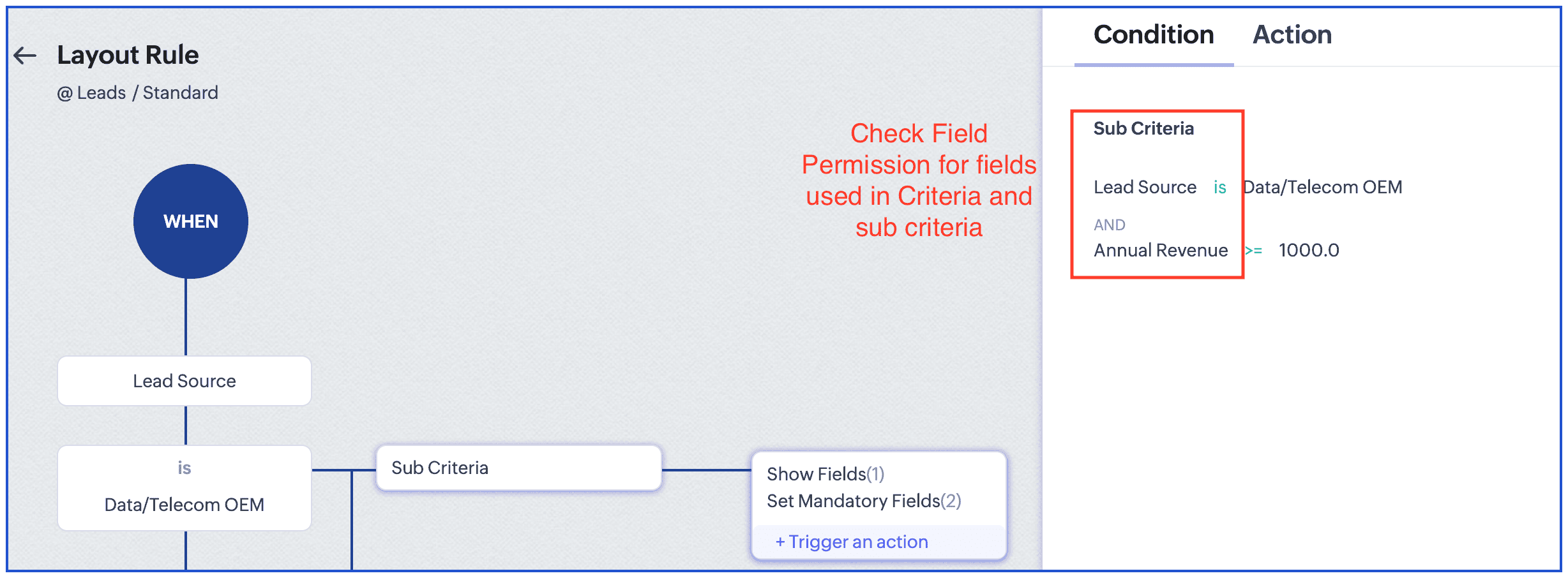
Layout rule is not working for a specific record
Check if you have sufficient field permissions to edit the fields mentioned in the criteria. If the issue persists, then share the record ID, the layout rule ID, and a screen recording showing the issue for further assistance.
Layout rule does not trigger when the primary field of the layout rule is updated via the during action of the blueprint.
The layout rule is expected to or trigger. if it doesn't, then write to us along with a detailed screen recording to check and assist further.
When a deal stage is changed to 'Lost', it doesn't show "Reason for Loss" which was working earlier.
The "Reason for loss" field in the Deals module is a picklist field, and the visibility depends upon the Stage field. The reason for loss will only be shown when the default stage value like "Closed Lost" is selected. If any custom Lost stage values are chosen, it would not work.
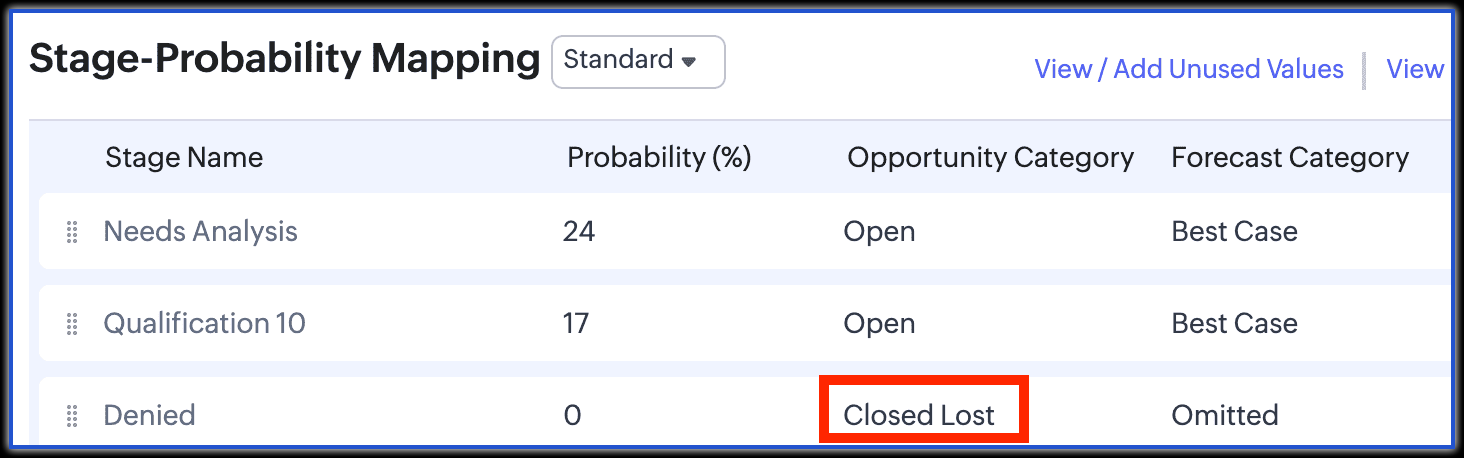
Layout rule works in standard view but not in Canvas.
As this could not be a common issue, it will need technical assistance. Please contact support for further assistance.
A rule to make the default currency field be set as mandatory is not showing when the stage is updated.
Currently, the Currency field won't be shown even though it should be a mandatory field.
While setting a Layout rule based on any Date field, there are no aspects of setting criteria based on Before, After, Between or so like in Reports.
Currently there is a known Date Field Limitation within the Layout Rule feature, which doesn't support the criteria options based on any date field like After, Before, or Between.
Validation Rule
Getting "INTERNAL ERROR" while accessing the validation rule setup page.
Refresh the page or check if you get the error in an incognito window. If issue persists, contact support on a live session for further assistance.
Validation rule is not working for a specific set of users.
The validation rule will not execute if the Field permission is set as read-only for any user profiles. If the issue persists even when the field and other access permissions are available, contact support with the validation rule ID, record ID, and a screenshot showing the issue details for further assistance.
The validation rule doesn't work even when the criteria is met.
Check if there are any field permissions or layout rule configured that blocks the validation action, or if the record is undergoing any blueprint transition. If there is no clear cause found, contact support for assistance.
Record Locking
Even if Record Locking option lists fields as "Fields allowed to be modified", cannot edit or modify them.
Check whether the record is shared with the respective user via Data sharing settings with View only permission. If sharing is not specified, check the field permission for that profile. If the field permission is disabled, the user cannot edit the fields even when they are added under Fields allowed to be modified in the record-locking feature.
I am not able to access a locked record through the Automatic Record Locking Configuration without affecting other records meeting the same condition.
Verify whether the record is shared with the user via Data Sharing Settings with View only permission. If no sharing exists, check the field permissions for the user's profile.
Note: If a field is disabled for that profile, the user cannot edit it even when it's listed under Fields allowed to be modified in the record-locking feature. Additionally, if the record criteria is not satisfied, it will be unlocked automatically.
Will the record locking be triggered when a record is either approved or rejected?
Record Locking only works for the approved records, not for the rejected record like the same applies for the record entering the blueprint process.
Buttons and Links
There is an issue when there is a Custom button associated with Custom function.
For issues related to buttons with function, first try executing the function manually and check if there is any error. If it works on manual execution and doesn't work when you click on the function, then contact support.
Unable to rearrange buttons.
Open a record, click the Buttons dropdown, and drag to rearrange the buttons. If you have any trouble while doing so, contact support for assistance.
A user is unable to access a custom button.
Check whether the user has permission for the button.
If the customer has permission and the issue persists, contact support. If the profile name doesn't show up when added to the permission, contact support.
A custom button is not showing in the Related list
The custom button associated with any related list, make sure you select the records from the related list to have the button be visible. If it still does not show, contact support for assistance.
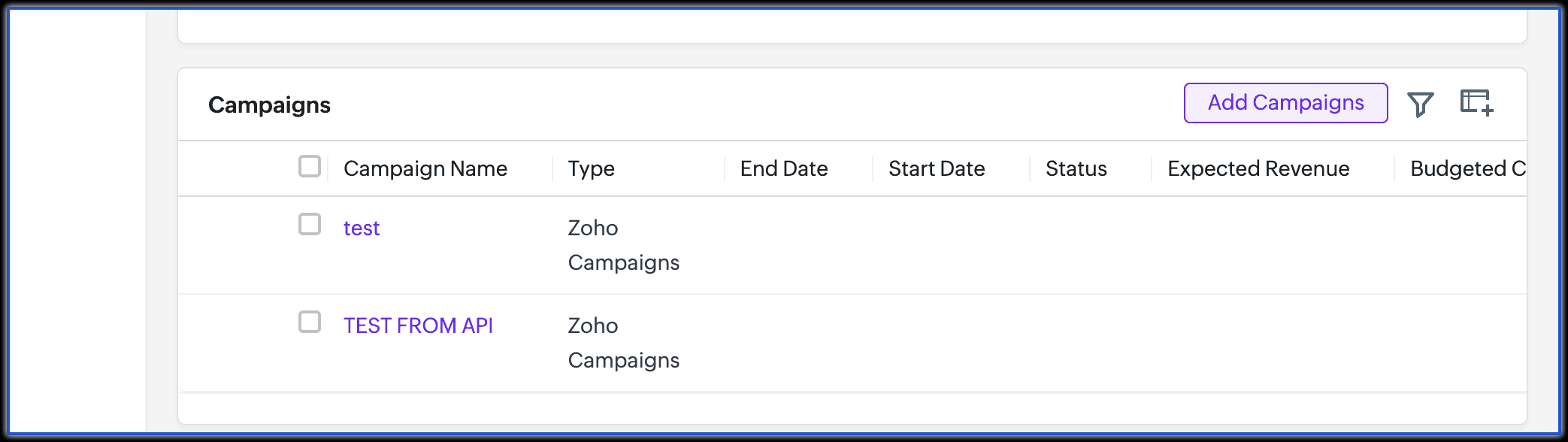
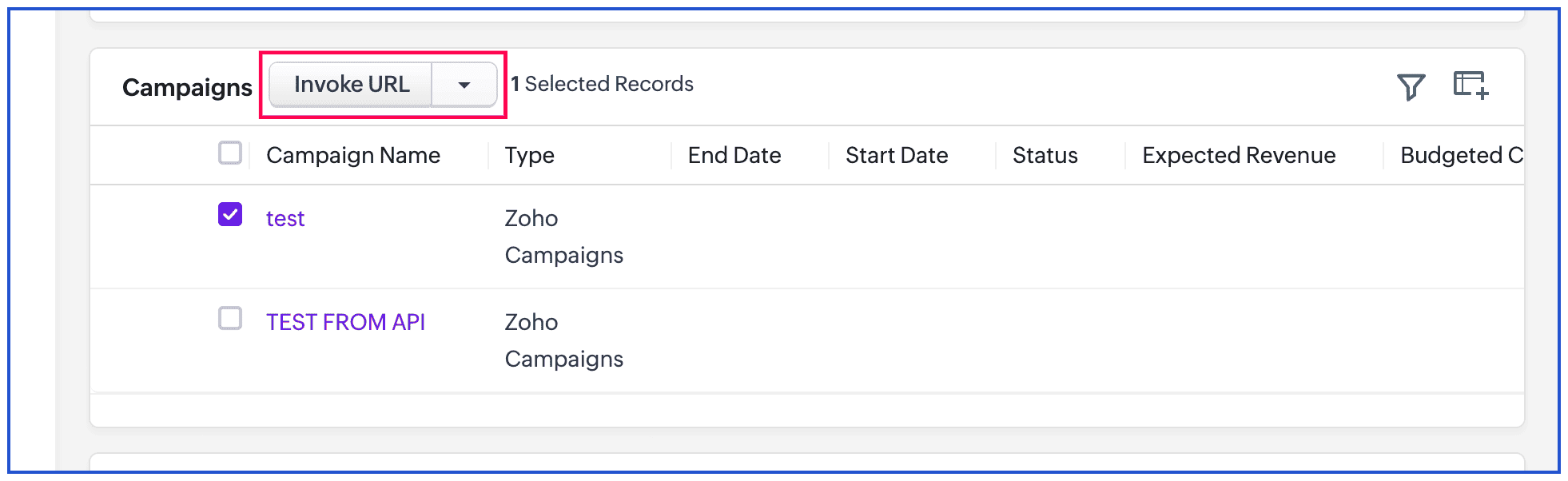
Links:
Is it possible to re-order the links?
Unfortunately, it is currently not supported to reorder the links.
Unable to merge a field in a link.
According to the feature limitation, please check if the field is marked as "External Field". As of now, the external fields are not supported to be associated in the invoke URL. If you have any other concerns, contact support for further assistance.
Web Tabs
Facing an error while accessing the web tabs.
When there are third party web links associated in the webtabs, these websites restrict their content from loading inside another website to avoid click-jacking attacks. They use the X-Frame-Options HTTP response header to indicate whether a browser should be allowed to render a page in an iframe.
Here is the link for your reference
A configured analytics report URLs in our CRM web tabs is not working.
Check if the user has the required profile permissions in both the CRM and analytics end. If the issue persists, connect with support to check by connecting on a live session and get assistance.
Receiving an error when attempting to disable the X-Frame for webpages created on Zoho Sites when embedded that on the Zoho CRM web tabs.
The X-Frame can be disabled from the Zoho Sites end. However, if your subdomain includes Zoho sites, then it is not possible to remove the X-Frame. You will need to have a custom domain for which we can disable the X-Frame.
Certain web tabs in our CRM are not loading properly.
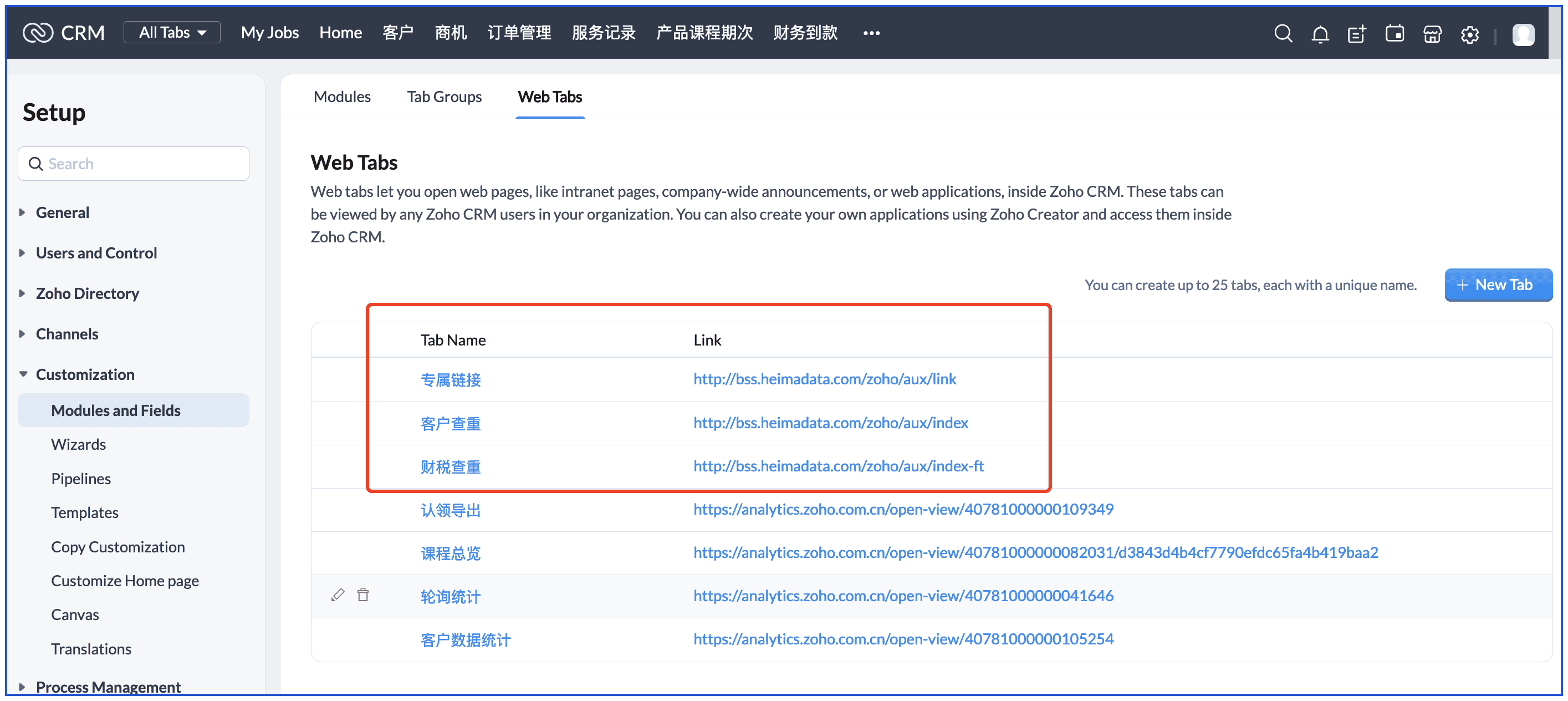
Use https:// instead of http://. When opened in a browser tab, both work, but the CRM loads web tabs as iframes. Because Zoho CRM uses https://, loading an http:// iframe causes a security error, so the iframe URL must use https://. If the problem continues, please contact support and share screenshots or a screen recording and the URL you used in the WEB tab for further assistance.
An associated dashboards page URL in a web tab. is throwing a "one.zoho.com refused to connect" error when attempting to access it.
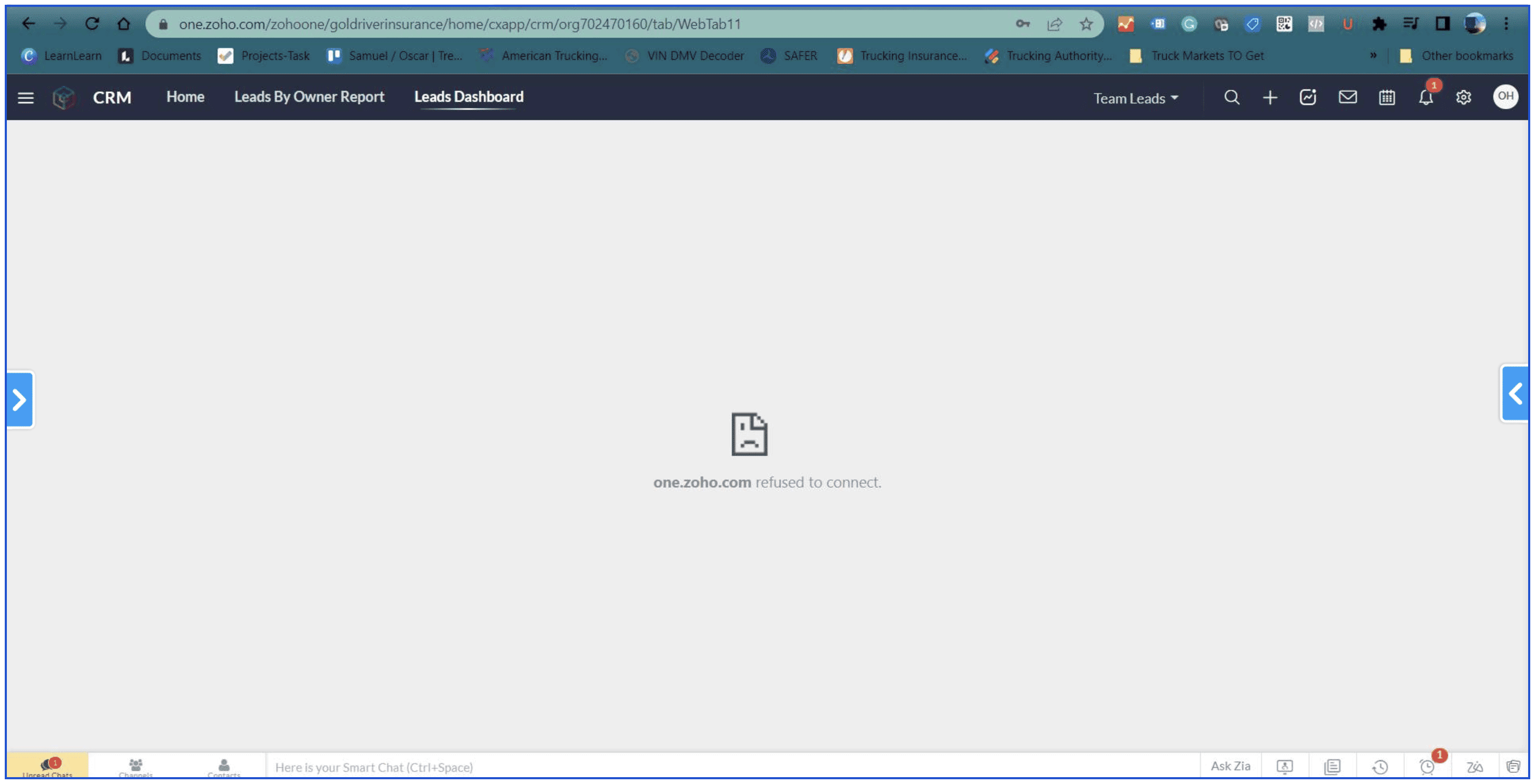
This is a know behavior from our end. 'one.zoho.com' does not support loading in an iframe, therefore it does not load in the web tab.
While trying to add a website link in the web tab, there is an error stating "You cannot make a web tab out of this website".
CORS (cross-origin resource sharing) error occurs when a webpage requests a different domain and the server blocks the request because the Origin header isn’t allowed due to the website provider being restricting the request. Please contact your provider for further update on this.
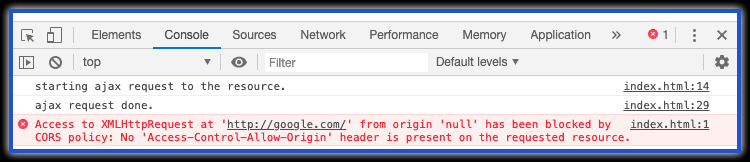
If you're still looking to know any further detail, contact support by sharing your ZUID & ZGID, the URL you wanted to add, along with a screenshot of the console error.
One of our WebTab is set to be accessible for Portal Users. However, they cannot access it.
Please contact support along with the access of both Production Account Admin access and a Portal user access to be able to troubleshoot connecting on a live session.
Global Sets
While trying to add or modify values in a picklist field associated with global set shows the following error: "You cannot edit this property here for fields associated with a global set."
This is a notification message that appears when the user tries to edit a Global Set Picklist field values in the layout field Edit Properties option.
If you need to edit the options of a Global set - Picklist field, navigate to CRM Setup > Customization > Modules and Fields > Global Sets and edit the respective values. If you have any trouble through these steps, contact support for assistance.
Getting an error while trying to change a Local-PickList Field to Global Set that the maximum limit has been reached.
This notification message appears indicating to check the number of Picklists that are associated as Global Set and if you have reached the maximum limit of associating any local picklist field as a Global Set.
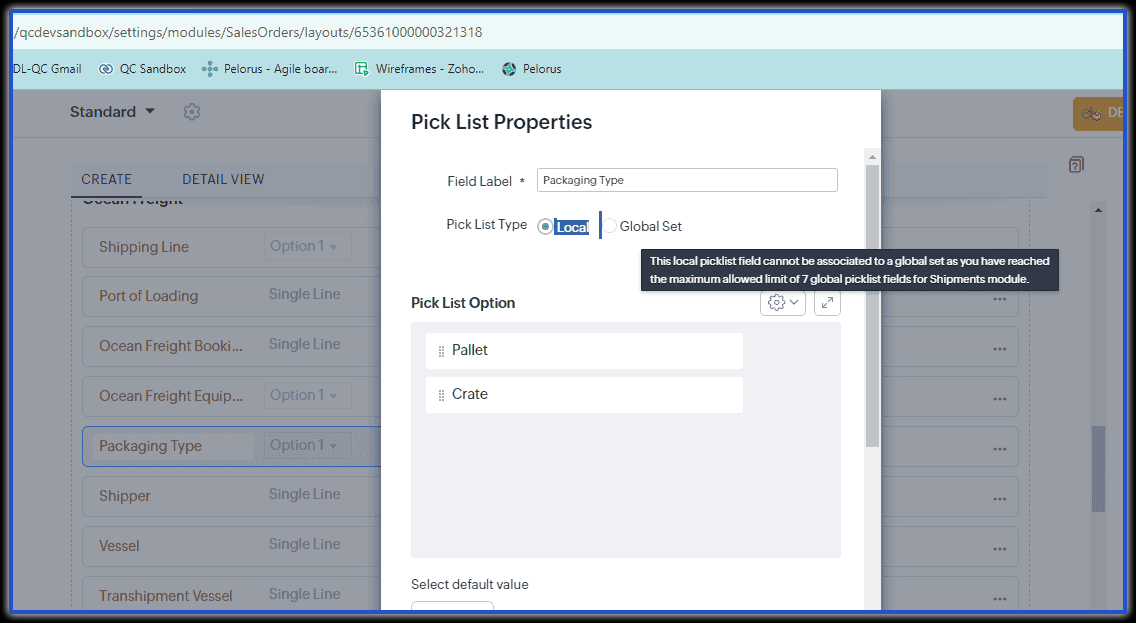
Check the fields and the associated Global set and if you are looking for any assistance contact support.
Pipeline
The Pipeline Field is not visible while creating a Deal record which was showing every time.
First, check if the Deal record you are creating is on any custom Layout. If yes, check if there is a pipeline setup for that custom layout.
If there are no pipelines created for the custom Layout, create one to find the Pipeline field to be shown while creating a Deal from each respective layout. If you have any trouble, contact support for assistance.
Unable to edit pipeline from the record view like Stage field.
Currently, editing the Pipeline in the record view is not supported, unlike Stage or other fields.
As a Pipeline field works similarly like "Map Dependency Fields". Pipeline is like a parent field, while Stage is like a child field. The options shown in "Stage" will depend on the value in the Pipeline field. Contact support for any other questions.
Our New Stage values are not shown when selecting custom pipeline.
Ensure that those Stages are added under the respective pipeline.
Navigate to Setup > Customization > Pipeline, choose the respective layout, check in that Pipeline, then Add the required stages and click Save.
While moving deals to different stage in the Kanban view, the record does not update to the respective Stage.
Update the stage in the record view page or edit the record, then save by modifying it to any other Stage and check if it was updated and saved. If yes, and you still find trouble in updating the records only in the Kanban view, contact support for further assistance.
Only a few stages of the pipeline in the Deal are visible. However, it shows all values for other records.
Compare the Stage values included in the respective Pipelines to then check if there is any 'Map dependency' set up for this Stage field as a Child file due to which the values listed will depend on the Parent value selection. If the issue persists, contact support for further assistance.
Unable to delete 'Unaccounted' pipeline in the Kanban view drop-down list and it shows an Error.
The Unaccounted option is not a pipeline. Records also turn Unaccounted when they were deleted from a pipeline or never assigned to one, when they were previously associated with a pipeline but later removed, or when a stage value added to the Deal layout is subsequently removed.
While setting up a Leads Convert action via Blueprint in the "after" section, unable to select Custom Layout pipelines.
Currently, this is a limitation from our end, where custom pipelines won't be listed within the Convert action.
As a workaround, we suggest the following:
Create a picklist field in Lead Module with the same values as in your Custom Pipelines.
Map this picklist to the Deal Pipeline field during the conversion process This ensures the value selected in the Lead record automatically updates the Pipeline field on the new Deal.
Canvas
Facing alignment issues in Canvas, and it overlaps with other components.
Try to move the components one by one and check it. If it is a fluid component, try to switch to a fixed component and vice versa per your requirements. Move each component and try to fix the issue through trial and error method. If you have any difficulty with this, please connect with support for further assistance.
Attempting to prevent the top bar from moving while scrolling in Canvas view.
Currently, it is not possible to set a fixed state of a component while scrolling up and down in Zoho CRM canvas view.
Some users are getting a "Permission Denied" error when clicking on Custom List View.

Check the user profile and ensure if the Manage views permission is enabled for the respective profiles to get access and work on it. If this still doesn't work, contact support.
Records are not opening up in the canvas view according to the Canvas assignment.
Go to Canvas assignment on the setup page and check if the corresponding layout is mentioned and associated with the canvas view as default. If the issue persists, contact support for further assistance.
Getting an error while trying to delete a Canvas stating that it is associated with a portal.
Go to Portal Tab Configuration under CRM Setup > Portal Configuration to see if the canvas view has been associated. If so, change it to default to release the Canvas association, after which it will be available to delete. If the issue persists, contact support.
Customize Home Page
Unable embed CRM app calendar in the CRM dashboard because Zoho Calendar doesn’t allow creating public URLs for app calendars.
Embedding the Zoho CRM calendar on the CRM homepage dashboard is currently not supported. However, it should not be necessary, as you can access it anytime via the Calendar icon located in the CRM top bar.
If you would like to embedded a calendar on the home page, then try using Zoho Calendar (instead of the CRM app calendar) using a widget.
Unable to add the widgets or Kiosk to the homepage dashboard customization.
In order to get appropriate guidance, please contact support connecting on a live session along with these details like, the profile permissions, the component name, and the home page name and ID you are facing trouble with for assistance.
Dashboard components sorting is temporary, but the sort isn’t saved. After a page reload, the components revert to unsorted.
Although records can be sorted in a custom view from the home page component, the sort order doesn't stay constant. Upon refreshing the page, it gets reversed and unsorted. However, this feature may be implemented at a later date.
A user is unable to add a custom Home page. Is there any limit for custom home pages in CRM account?
There is no limit on creating a custom home. However, there is a limit to how many custom hom pages can be shared with each role or profile. A maximum of five custom home pages can be shared which includes adding 20 components per home page. Users can have up to 10 Home pages, including five per Role and Profile respectively.
Translation
The field name or picklist values for two CRM users are not the same for the same record.
Check if translation is enabled. If yes, the values will be shown based on the user's selected language in their personal settings.
Example: If you enable translations then rename a field, the new name is treated as the translated value. Users with CRM set to English (UK) will see the change; users set to English (US) will still see the old name.
All picklist values in different values, but the selected language in CRM is English, and translation is not enabled.
You can translate the account’s picklist values to English as a one‑time, irreversible backend change. Before we proceed, we will need an email from super-admin sharing their consent to be sent to our support along with :
Only default picklist values for system (predefined) fields will be translated.
Custom fields and custom picklist entries won’t be changed.
If a default value was previously edited in a language, only that language’s default will be translated/updated.
Specify which English variant you require (US, UK, or other).
Templates
Unable to show the current date in the email template.
Currently, we do not have a feature supporting to show the current date in the email template.
Here is a workaround we suggest for this:
➤ Create a custom date field in the respective module.
➤ Create a custom function to update the date field with the current date.
Function: list = {1,2,3,4,5} for each item in the list.
{
Allleads = zoho.crm.getRecords("Leads",iter,200);
if(Allleads.size() > 0)
for each ele in Allleads
{
update = zoho.crm.updateRecord("Leads",ele.get("id"),{"Field_Name":zoho.currentdate.toDate()});
info update;
}
}
Replace the API Name in the above code.
➤ Associate the function with Schedules so it can be triggered automatically at 12 a.m.
➤ Add the custom date to the email template.
Unable to find an email template while creating an email notification in the Workflow Rule.
Check if the customer has selected the Send this notification as a Single Mass Email with all recipients displayed option.
If so, ensure that the email template does not contain an unsubscribe link. If the template has an unsubscribe link, it cannot be used for a Single Mass Email workflow rule.
As we allow adding recipients in CC: and BCC: in Single Mass Mail, we do not permit the inclusion of the Unsubscribe option.
Template stats have not been populated properly.
It will take 24 hours to update the stats. If the stats are missing after 24 hours, then it could be that the customer has made changes to the template and hasn't sent any emails yet. If an email is sent before modifying the template, those stats will not be visible here.
If you want to view the stats for the older version, click on the template, then go to Analytics > Versions and check the stats.
All permissions have been enabled, along with "Send Mail" for the Invoice module, but users are getting a "Permission Denied" error.
All inventory modules require users to select a template before sending the email after clicking the send mail button. Users must have print preview permissions enabled to avoid this error.
While exporting using a HTML - Inventory template, the line items are not available in the exported file.
If you missed adding the tag for the line items subform in the HTML code, the line items will not be visible. You need to include the following tags in the table element source code for the line items table:
<tbody id="subform_Subformname"> and </ tbody>.
Kiosk
Unable to save Kiosk; getting a "Something went wrong. Please try again later" error.
Please contact support by joining a live session for further assistance.
While configuring the Kiosk screen element to get records based on Deals, the "Products" is not available under the child module.
Currently, this is a known limitation on our end. As a workaround, we suggest creating a custom lookup in the Products module to Deals module which would list in the Child module drop list. Custom - Products lookup can be used in kiosk.