Troubleshooting Data Administration in Zoho CRM
Import
Imported data not found in leads.
You can also check the imported detail by going to CRM Setup > Data Administration > Import > Import History to see the imported records. If you still have any concerns, contact support for further assistance.
Import not working and throws an error every time.
While migrating data from Pipedrive to Zoho CRM, a "Migration Limit exhausted" error is occurring.
Zoho CRM allows migrating data a maximum of three times using their API integration tool. This error notification shows when exceeding this limit. Please contact support by sharing a screenshot of the error, to have the migration limit reset.
A "Record Creation limit reached" error is occurring while trying to import.
This error might show when there is a Sub-form in the module and the sub-form row limit exceeds for the specific record. Check whether the record has reached the number of rows in the specific sub-form.
If the sub-form row limit has not been exceeded and the issue persists, contact support by connecting on a live session for further assistance.
Duplicate entries are still occurring in records after using an undo on a duplicate sub-form import.
Upon confirming these, if the duplicate row of data still remains after undoing, contact support for further assistance.
One of the unique field is missing from the "Skip existing accounts based on" drop-down list during import.
The import status shows "In Progress" and never completes.
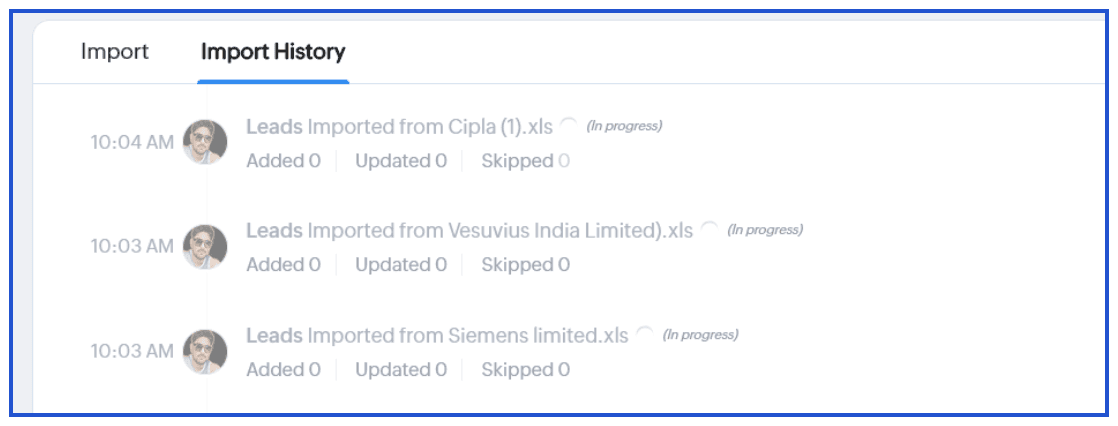
Check the file size and check if the record numbers are within the Import Limit and once after waiting for a couple of minutes. Otherwise, please contact support for further assistance via a live screen sharing session.
While trying to upload a file to Import, the page keeps prompting to reload.
Try checking the same action on any alternate browsers and if the issue persists, contact support with the file to check.
Although the data migration from Highrise is completed, there is no data found in the CRM.
Check the record details in the Highrise account and connect with support for assistance. Please provide the data files, if any, for reference when needed.
Unable to Undo Import.
You can see Undo Import option for up to 30 days. While Importing to any module the Undo Import option will only be available for the records added new via import. This is not the case for the Update existing and Both options. If the import was only to Add" but still you are still unable to find the Undo Import option, contact support for assistance.
Partial records are skipped in the import and shows "Matching Parent Record not found".
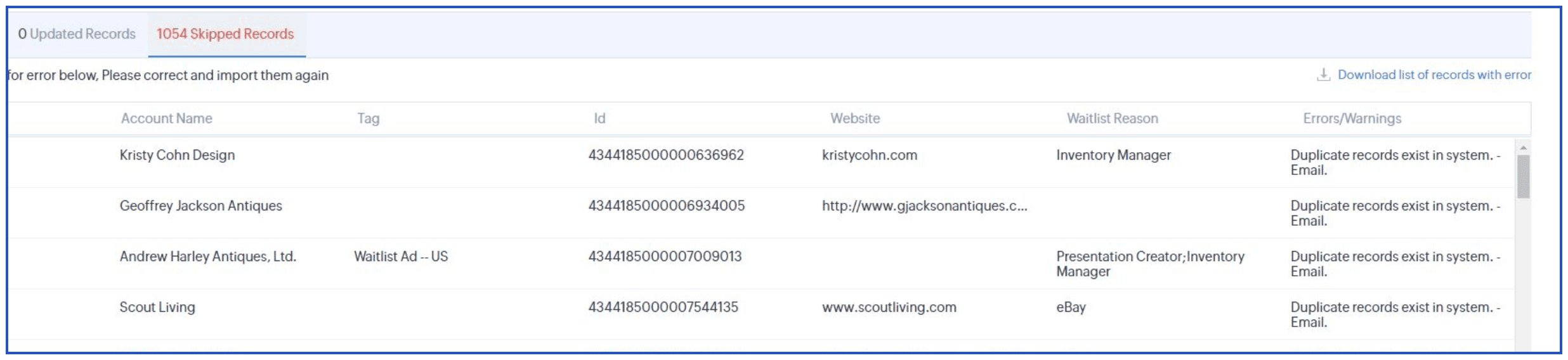
While trying to Import Leads, it skips showing a "Duplicate records exist in the system" error.
All the imported record values have been updated in the wrong format.
Data Migration fails every time, showing "Migration failed due to internal error".
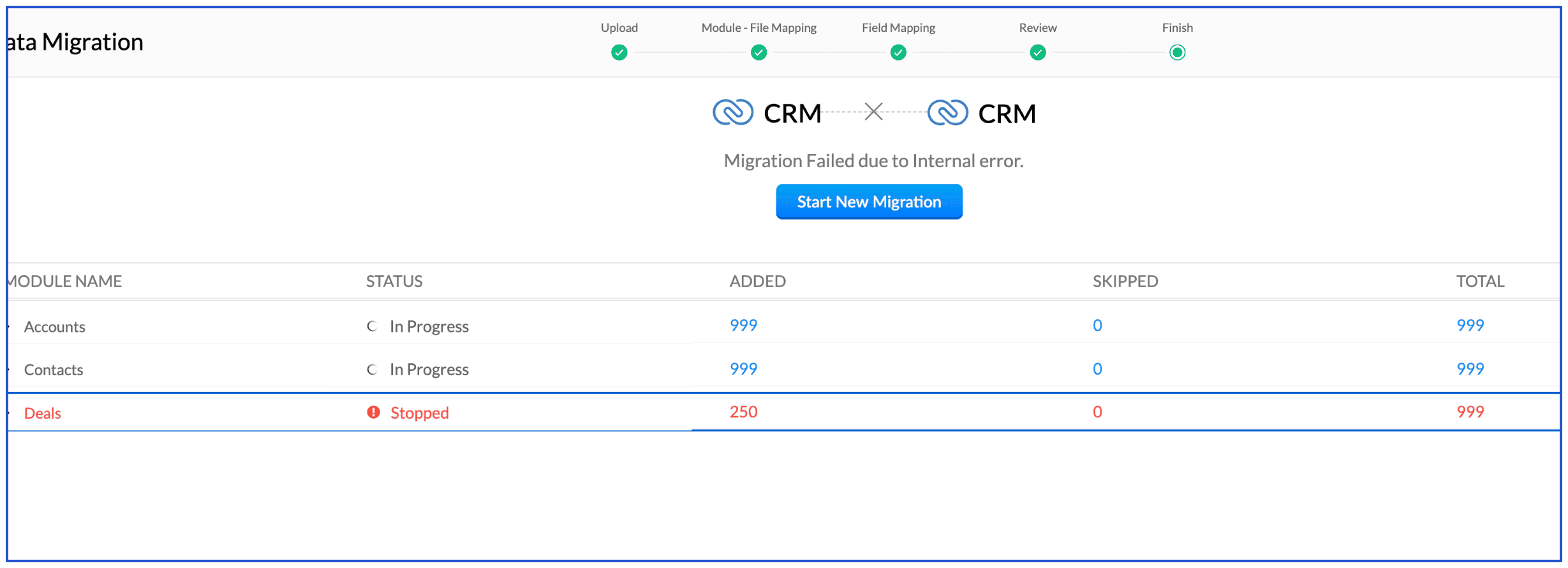
Try importing any alternate data file via import and if issue persists, contact support by in a live session for further assistance.
Import fails while trying to import and update all deals to a specific stage.
While trying to migrate data from a Zoho CRM account to another CRM, it throws "crm.migration.api.error. INTERNAL_SERVER_ERROR".
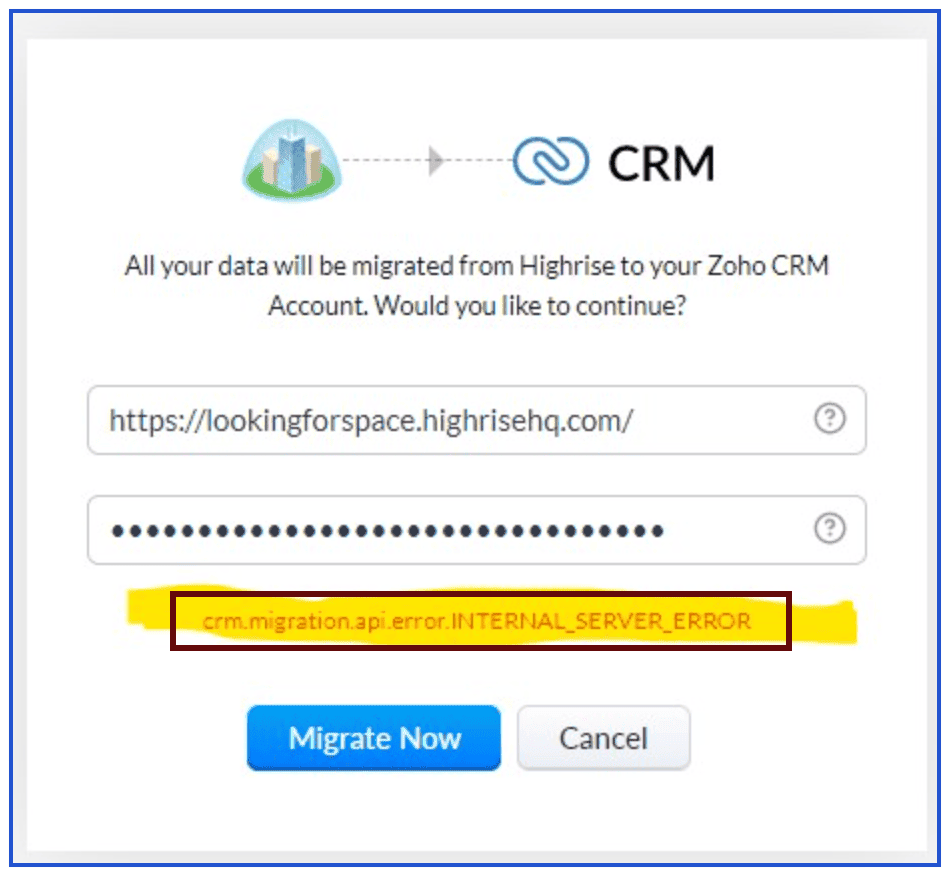
Contact support to check by connecting on a live session with the Super Admin access for further assistance.
Export
While exporting a specific view, an "Invalid field" error is being thrown.
Navigate to Setup > Customization > Modules and fields > Module Layout. Update the user profile’s module and field permissions. Contact support if the issue continues.
The exported data is appearing in a different format or scrambled.
The exported data file is empty.
Check the criteria used to export and apply the same criteria on the specific module list view and check if the data is present. If the data is present, contact us via call or chat, as we will need to check this in a remote session.
Data Backup
Unable to find the Data Backup links.
Unable to find the Attachment - Backup link available for download along with the Data Backup link.
Storage
The CRM File Storage-Addon purchased is not reflecting in the account.
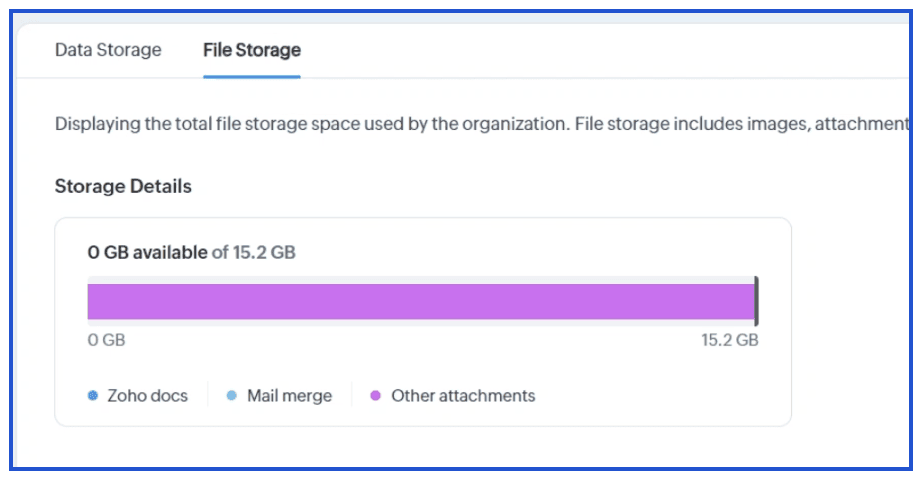
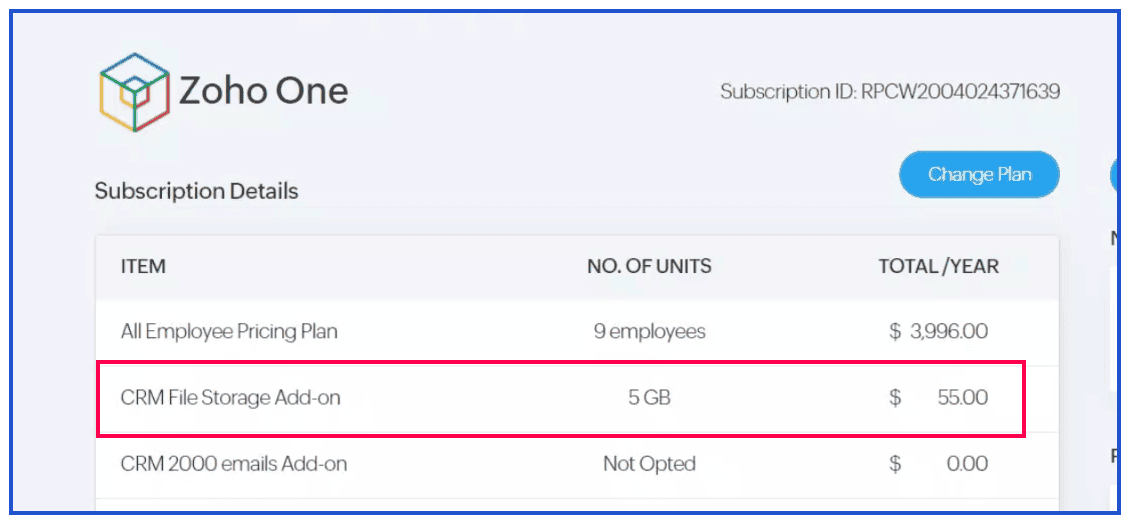
Check your total storage (default + add‑ons) and current usage to assess the available storage. If you still have any concerns, contact support for assistance.
There is a "file storage exceeded error" while trying to save a template.
The Other Attachment" storage includes all CRM attachments (related list, email, image fields, file uploads). Delete to clear the unused attachments to free space, and retry saving the template. If issue persists, contact support for assistance.
Unable to create new records. It shows "No new records can be created as you have reached your maximum data storage limit".
We suggest you confirm available data storage space and verify external sources that are creating records in your Zoho CRM. Remove junk records and validate records in your recycle bin to restore or empty them. After reviewing the steps, if you still have trouble, contact support.
An "Upload Failed" error occurs while trying to upload files under the Attachments related list.
Check if there is enough file storage available, then try uploading different file formats (PDF, PNG, TXT) to identify which format causes the issue. Additionally, check if there is enough file storage space available according to your CRM Edition. If the problem continues, contact support with your findings for further assistance.
Sandbox
Unable to deploy from Sandbox, as it shows "Deploying the current change exceeds the allowed feature limit" error.
If there are no issues with the field limit, but still finding trouble deploying the same, contact support connecting on a live session for assistance.
Sandbox Developer users are unable to accept the invite and are facing "{"code": "INTERNAL _ERROR", "details": {3, "message" :"Internal Server Error", "status":"error"}".
Receiving a "Sorry, something went wrong. Please try again later" error while trying to deploy from Sandbox changes.
Please try checking on the changes listed for Sandbox with the changes deployed earlier to the production account. If issue persists, contact support connecting on a live session for further assistance.
Receiving "Sorry! We're unable to create a Sandbox account for this email address su****t@zo****st.com. Please contact us at support@zohocrm.com for further assistance." error while trying to create a sandbox account.
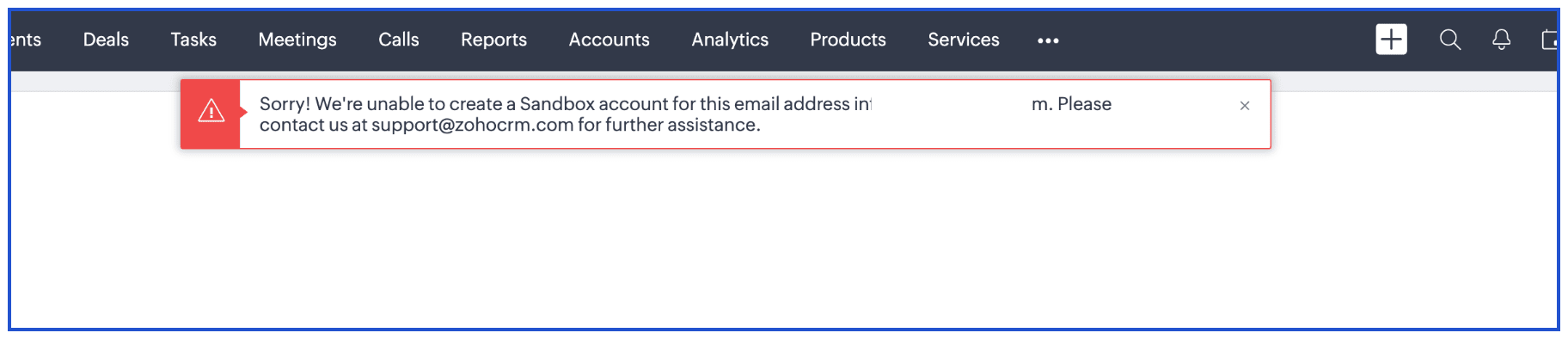 Connect support to debug and assist further with a live session.
The generation of the Create Sandbox has been in progress for more than 24 hours.
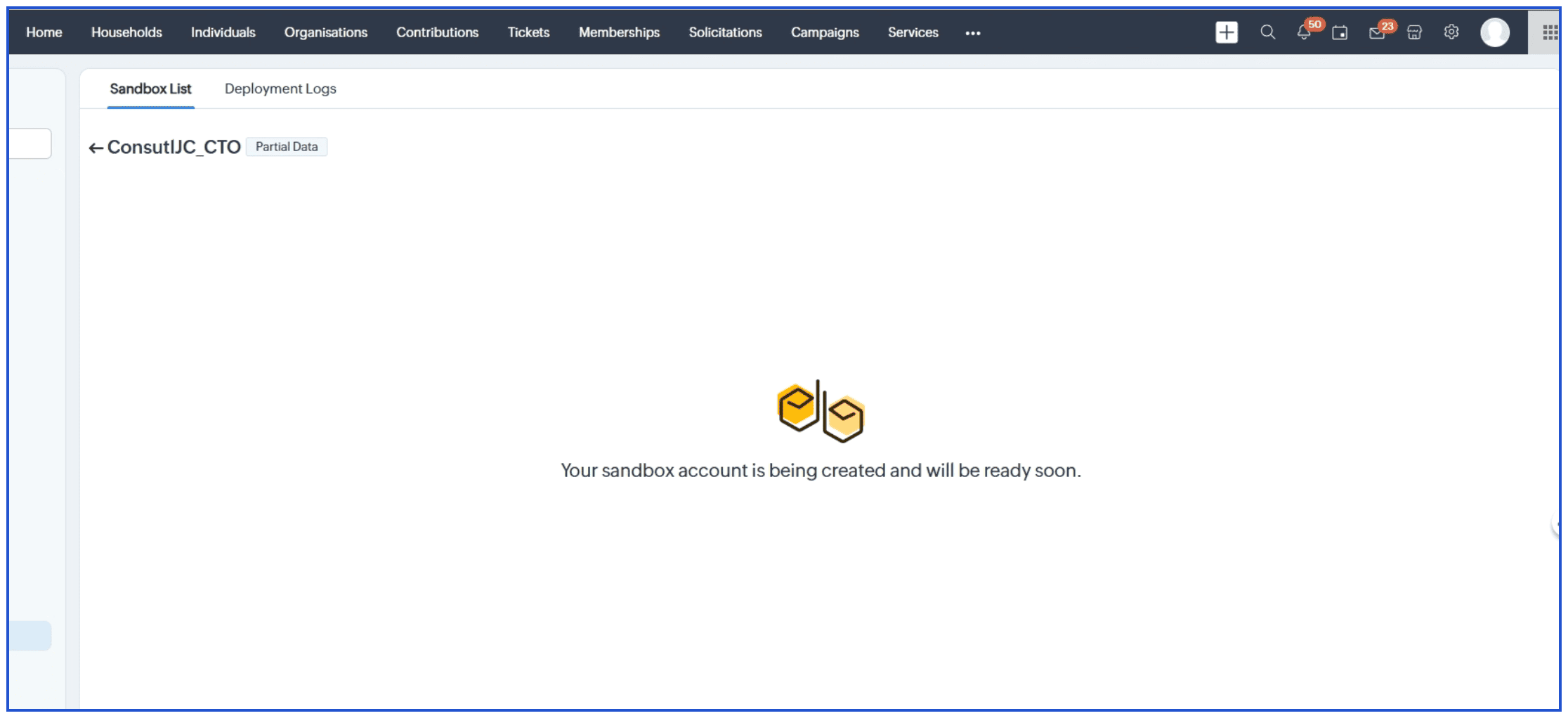
While trying to edit a Canvas within Sandbox Environment, it keeps loading without saving any changes.
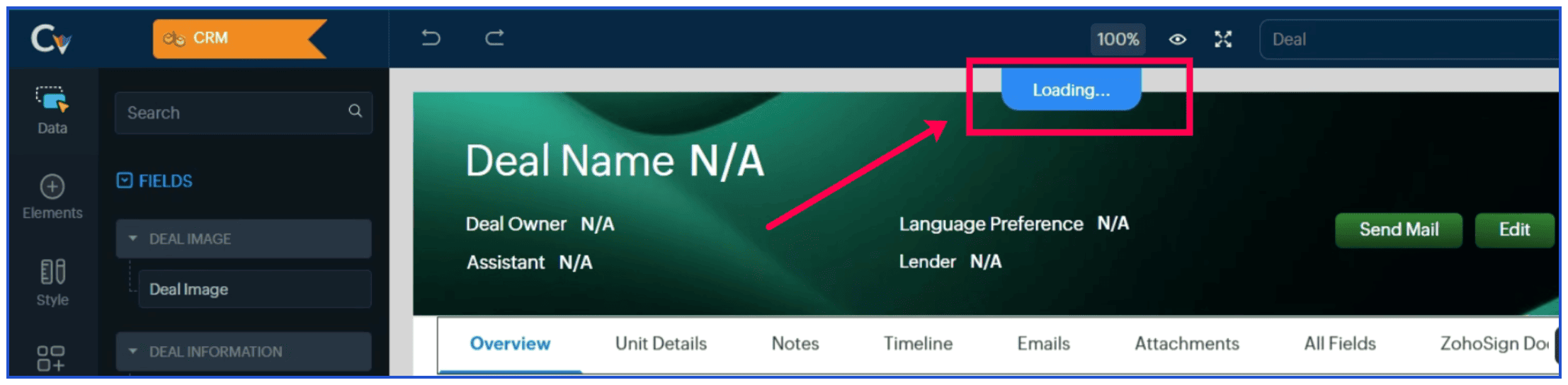 Rarely the cause of such loading issues occur due to temporary UI-related issues. Connect with our support to get further assistance to debug with a live session.
Getting a ZDK Console error while trying to execute Client Script in Sandbox account.
Check if the URL used in the function contains any spaces. If yes, remove the unwanted spaces and try once more. If not, contact our support for further assistance in a live session.
While trying to deploy functions from Sandbox to the production account, there is a "Deployment Failed" error.
Otherwise, we suggest you connect with our support for further assistance to debug in a live session.
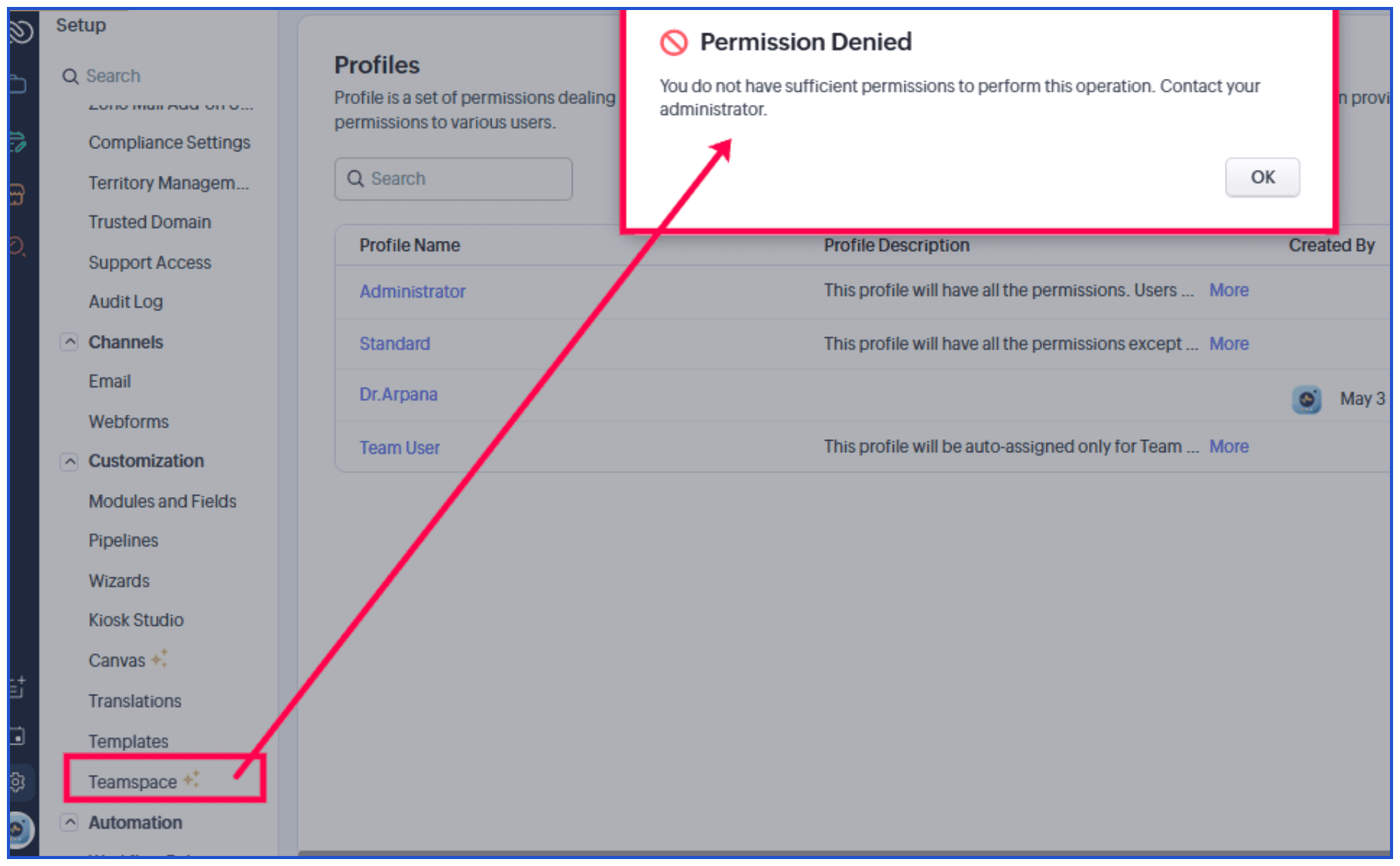
Getting a "Permission Denied" error while accessing Teamspace in the sandbox environment.
Unable to add a developer user in the Sandbox CRM and getting a"This email address is already registered with another datacenter and cannot be registered with this account's data center (US)" error.

Adding a user or developer whose email address is registered in a different data center is not currently support. Cross check and ensure the same email is not taken by any user's account in any other data centers. If the issue persists, contact support for further assistance.
Unable to retrieve a mistakenly deleted the sandbox in the Zoho CRM account.
Cannot see Mail Merge Templates in Sandbox CRM account.
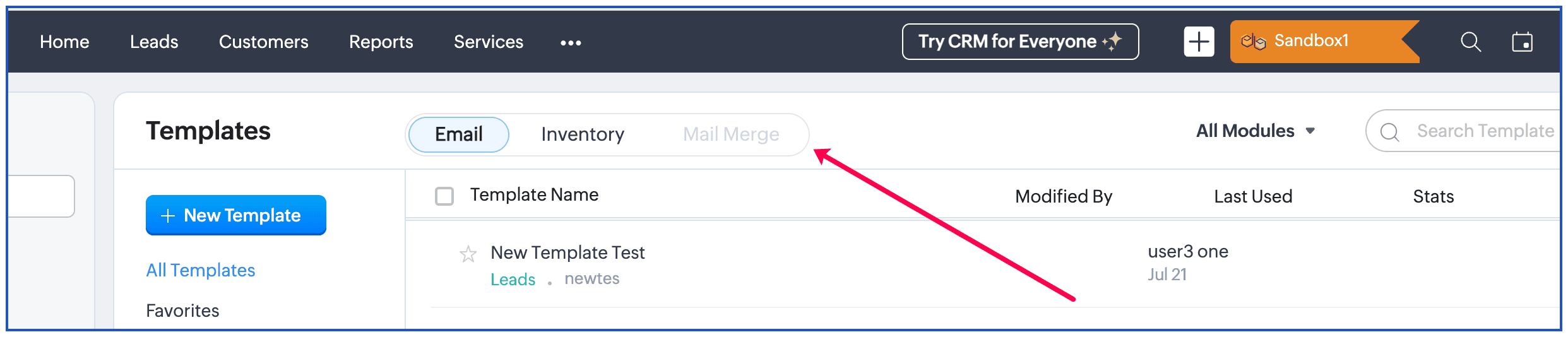 Sandbox supports only the standalone features of Zoho CRM. As Mail Merge is a feature powered by Zoho Writer, it is not supported in the sandbox environment.
Unable to edit to make any changes in the Sandbox, which shows a "You cannot proceed until the next rebuild is available" alert.
According to the behavioral limit, Sandboxes of the Configuration and Data type can only be rebuilt once every three days. Rebuilding overwrites the sandbox with exact details from Production and any sandbox changes not deployed to Production will be lost. Ensure updates are deployed before editing or rebuilding.
Sandbox Developer user is getting "Permission Denied" error while accessing Workflow Rules.

Copy Customization
While trying to initiate copy customization, it shows an internal error.
This error can occur when there are any active integrations, or if there any issues in the user’s setup from the backend. Please contact support for further assistance.
While generating Copy Customization URL, there is an error indicating an existing integration available.
Unable to generate the copy customization key due to CRM-Desk integration being active. Deactivation leads to an error page.
Try to log in to your Zoho Desk portal and check if the integrated organization is as same as the CRM organization. Next, try deactivating the integration from the Desk setup. If you're still having trouble, contact support for assistance.
While deactivating the Zoho Project integration with CRM to initiate Copy customization, there is an error.
Try to log in to your Zoho Project portal and check if the integrated organization is as same as the CRM organization. Then try deactivating the integration from the Projects setup. If the issue persists, contact support for assistance.