Troubleshooting Process Management in Zoho CRM
Blueprint
Is it possible to make a read-only field be editable during a Blueprint transition in Zoho CRM?
Yes, under Blueprint Transition's During action, if a field is added as required, then the respective read-only field becomes editable in order to be filled. According to the feature behavior, Blueprint's mandatory setting overrides the profile-based, read-only permission.
Lead-to-contact conversion fails for a user during Blueprint transition, while it works for another user on the same record.
According to the conversion process, the user initiating the conversion action must have permission to access the Contacts module and the specific Contact record when updating to merge the lead with an existing contact. Verify that the user experiencing issues has the necessary access rights. If the issue persists, contact support for assistance.
A record shows irrelevant blueprint transition for the record's current state.
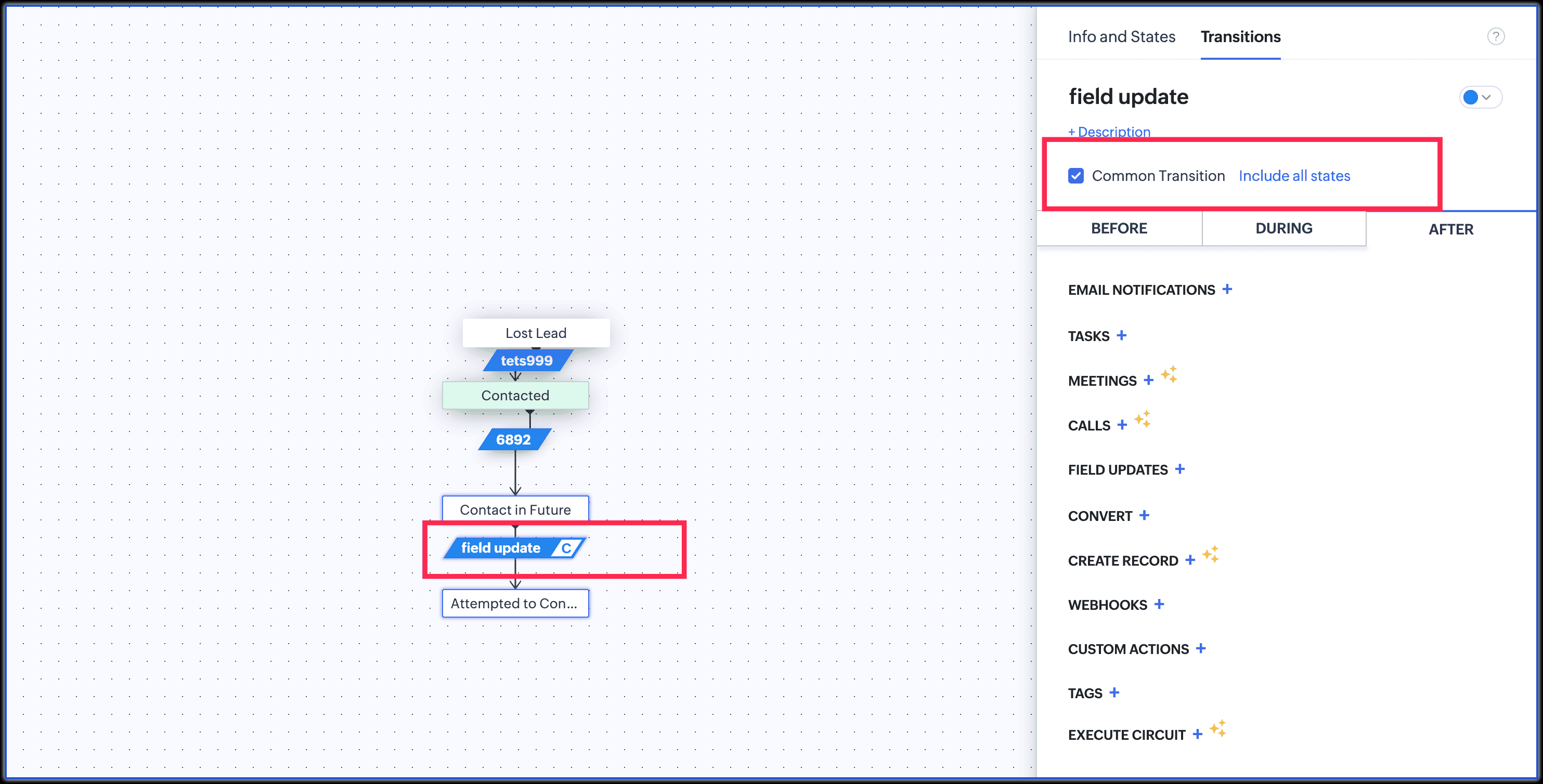
This could happen when a transition in the blueprint is marked as a Common Transition. Check the process layout for a C indicator in the transition name. If present, it means the transition appears throughout the process. To remove it, select the transition and uncheck the Common Transition option to revert it to a normal transition. Contact support if you have any trouble.
Blueprint transition pop-up is blank, without any action detail.
Please verify if the respective transition is configured to be Continuous.
Is it possible to retrieve a deleted blueprint?
The records created via a function associated in a workflow do not enter the blueprint process.
The option to select Roles is unavailable while configuring an email action in the blueprint transition.
Navigate to that blueprint and edit the email notification to uncheck that option, then proceed with updating the notification.
The associated Blueprint "After" Transition to Create Meetings is not working.
Check the business and shift hours setup under company settings, based on which the host availability is calculated.
Accordingly, the meeting creation could have failed when the given meeting start time or duration not falling within the business hours.
Attemtping to exit the records that are missed while republishing the blueprint.
Navigate to CRM Setup > Process Management > Blueprint > Filters > Include or Exclude. Utilizing these filters, you can exit the records.
Approval Process
All approvers associated in the approval process are unable to approve a record at once.
Out of the two models of approval process models available in Zoho CRM, Parallel Approval is the method that allows multiple approvers to handle their approvals simultaneously. Alternatively, when a process is set up based on sequential approval process, it is expected to move through each approver in the defined order.
Check both working models and setup according to the required style of approval. If you find any trouble, feel free to write or contact support for assistance.
Unable to edit a record that is pending for approval.
According to the expected feature behavior, when the records are submitted for approval, the edit access will be restricted to only those users who are configured as Process Admins. If there no process admins setup, any user with the Administrator profile will be allowed to approve records in the process. If you are facing any other issues with record approval, contact support for further assistance.
The record is not submitted for second approval process although the criteria is met.
First, verify how the matching-criteria field setup for Approval Process 2 was updated. If the respective field was updated (on Accept/Reject) based on Approval Process 1, it will not trigger another approval. Therefore, in order to start Approval Process 2 after Process 1, use a custom function in the first Process defines that updates the field and includes the parameter to trigger the next approval. Contact support if you have any trouble.
The record is not submitted for approval process despite the criteria being met.
Ensure that the record is currently in any other process like Blueprint or Review. In such a case, the approval process will not be triggered even if the edit trigger conditions are satisfied. Only once the record exits the blueprint or review process, upon the next edit action performed that meets the approval criteria, the approval process will be triggered as expected. Contact Support if you find any trouble setting up the same.
Is it possible to have records approved using APIs in Zoho CRM?
Currently, the APIs up to version 8, do not support approving records using APIs in CRM. Besides, there is a possibility to make records enter approval process via API by updating the fields to meet the approval criteria, but the actual approval or rejection of records must be done manually from the CRM interface by users with the necessary permissions.
The field update on approval triggers a blueprint during a configured approval process, but the same update on rejection doesn't.
When a record is rejected, the approval status stays Rejected, keeping the process active allowing it to be resubmitted for approval. Even if a field update runs, the record hasn’t exited the approval flow and won’t enter the blueprint. Either complete the approval (prevent resubmission) or ensure the approval is fully closed before using a field update to trigger the next blueprint.
Review Process
Unable to configure a level-wise Review Process for two users based on record creation in Zoho CRM.
A record created via API has triggered the review process without matching the passing criteria.
The review process doesn't require a parameter to trigger. Irrespective of the record been created through API, webform, and any third-party applications, it triggers automatically based on record creation as the criteria.
Unable to find the records which were submitted for the review.
According to the feature behavior, when the records are submitted for review and stay for approval under "waiting for Review" for more than 90 days from the day of creation, those records will get deleted automatically.
Unable to submit some records for the review process.
Ensure the records that you were trying to submit are not existing records. As existing records will not automatically be added to the review queue, confirm if the Review is configured to trigger for record update action and the respective batch of records satisfy the Review entry criteria.
Unable to see the records submitted for review in the module list.
The records which have entered the review queue on creation will be available to see in the Review List view. For example, when the review is setup for leads creation, those records submitted to review will be available in the "Leads in Review" List view instead of "All Leads" view. If you are still unable to see the records, contact support for assistance.