Troubleshooting Reports and Dashboard in Zoho CRM
Reports
Scheduled reports have not been received.
Check if the recipient email address has been blocked. If so, and if the email is valid, write to us to have it unblocked from our end.
Duplicate values are shown in the report.
Check the details of the Parent and Child modules associated in the generated report along with the grouping applied. The results will be listed according to the Parent - Child - Related Module and its grouping. Sometimes results may look repeated without being actual duplicates. Check the record name and its ID to which whether they are repeated. If you are still having issues, please contact support for further assistance.
Is it possible to retrieve a deleted report?
The user-deleted reports will be available in the recently deleted report folder to restore.
If they are deleted from recently deleted folder as well, they cannot be restored, and you will have to create them again.
The record ID from a deal-related invoice report is missing when exported.
Verify whether the exported report includes the Deals ID column. If it does not, recreate the report with Deals as the primary module and Invoices as the related (child) module. This ensures that both the parent (Deals ID) and child (Invoice ID) record IDs are automatically included in the exported report.
While exporting a report in formatted version, only 100 rows can be exported. Is it possible to increase this limit to over 1,000 rows?
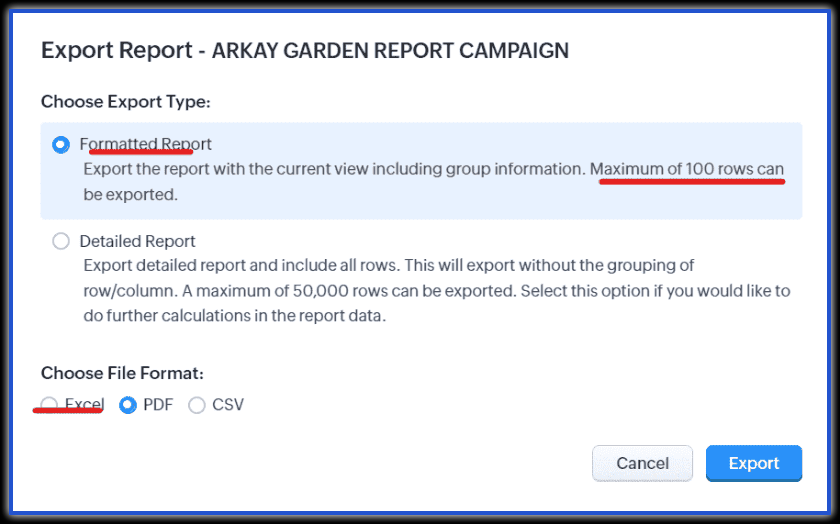
The report's formatted form is considered a matrix. According to the matrix report, only record counts are exported, not the actual records. Therefore, the export limit is restricted to 100 rows. Otherwise, the normal reports support up to 2,000 rows, or max 50,000 in the CSV format. Try to validate your requirement and choose the appropriate format to export.
Some users are facing "Failure error" while downloading a report.
Check if the user's profile have the required module, field, and export permissions for those modules and fields associated in the report. If you are still having issues after confirming these permissions, contact support for assistance.
The report doesn't include latest records added in the module, even after a browser refresh.
In the new reports, when the report includes 1 million or more records matching the report category and filters, the processed report is cached in order to optimize performance, making subsequent access significantly faster. The latest records will reflect within some time or some time when refreshed manually. Post that if the latest records are still not reflecting in the report, contact support for assistance.
The record names appear blank in the reports.
Records moved to the Recycle Bin are hidden from the UI, and are permanently deleted after 60 days. In Reports, deleted child module records appear as "-" until they are permanently removed, allowing the mapping to remain if the record is restored. To view only existing data, add the filter "Created Time (Secondary Module) is not empty."
Unable to view the standard or default reports.
Reports which were deleted within the last 30 days will show up in the Recently deleted reports folder. If not found there either, contact support with a screenshot or recording. We may be able to restore them for you.
Multi-line fields display fully in detailed report exports, but are truncated with "..." when emailed scheduled reports, leaving no option to view the complete text.
To ensure consistent performance, exports are currently limited to 10 multi-line fields with 255 characters each, as multi-line fields can contain up to 32,000 characters and may impact report performance. We are working to increase this limit (e.g., up to 3,000 characters for the first two multi-line fields) and to support detailed exports for scheduled reports. Until then, use manual detailed export to access the full content.
Dashboard
Funnel dashboard shows incorrect Leads data.
When a Funnel Dashboard is created from Leads to Contacts and Deals, the total lead count includes converted and merged leads. For example, if the All Leads view shows 15 leads but the funnel dashboard shows 34, it means 34 leads were created during that period, including 19 converted leads.
The analytical dashboard component criteria appears in a different language when the Zoho Finance module is included.
Ensure the same language is selected in both CRM and the book's end. If not, update them to match. Additionally, verify that translation is enabled in CRM if field names differ. If the issue persists, contact support for assistance.
Is it possible to download the entire dashboard Folder as a PDF?
Currently, it is not possible to download the entire dashboard page (that includes multiple dashboards in the folder) into one.
The dashboard results do not display according to the specified criteria or grouping.
Create a new dashboard from scratch using the same criteria and grouping to verify it shows correct values. Check the record count by applying smart filters within the module. If the dashboard is based on a different module, create a report with the same criteria and compare results. If the issue persists, contact support for further assistance.
While saving a dashboard it throws an "In the current edition you cannot create more than 10 Dashboards" error.
Check the count of the dashboards components created and check across your Zoho CRM edition limit. If it is less than 10 and the issue persists, contact support for further assistance.
While accessing or editing the dashboard the page freezes.
Try accessing in different browsers to check if the page freezes only while accessing a specific dashboard component or the dashboard page itself. If the issue persists, contact support for further assistance.
The bar size looks different for two dashboards created from the same report.
While embedding a dashboard in a website, it shows an "Unable to process the request" error.
The code has to be embedded in the iframe format. Here is a sample for reference.
<iframe src="https://crm.zoho.com/crm/specific/ViewChartImage?width=1000&height=500&embedDetails=be2a9ba14012f908efce2ae71e0f7b91e8bef396373e3a369c9ce7e012c440b6e952721c9dd25680d66dd4d6efa8479d393d8e77d38cb61c9fb3098ce34c8c71e77b36ad5d852edfb6727c0b9d69af7a71a5d553197449702319ee1c76e1906a56e72b8e0840094680540fa2d5f4fe4" width="1000" height="500" frameborder="0"></iframe>
If the issue persists, please contact support for further assistance.
Picklist field values in the dashboard sometimes shows incorrect, non-existing, or like a coded ID value.
Check and verify whether the dashboard value matches the field value in the record or if it is a translated value in the account. If the value is not available in the translation settings or the layout (including Unused Values). Confirming these, if the picklist values still unexpected, please contact support and share the dashboard name, screenshot, field name, and layout ID for further assistance.
Dashboard components do not display the latest data until they are manually refreshed.
This is the current behavior. Dashboard components display updated data only after a manual refresh. A scheduled backend sync runs once a day, but updates only components that have been accessed within the last three days. To view the latest data immediately, the component must be refreshed manually.
Numbers displayed in the dashboard components are incorrect.
Create a report using the same Smart Filter and verify whether the count matches the dashboard. Also, check for duplicate records by comparing a few imported samples. If the issue persists please contact support.