Building Blocks Using Automation Studio

We are opening Automation Studio on a request basis for Professional and Enterprise editions. Kindly raise a request using the Early Access Form.
A flow in Automation Studio is built using two essential elements - Events that trigger the rule, and blocks that define the logic and actions within the rule.
This document explains how and where events and each building block can be used.
Events
Events are the triggers that initiate automation flows and they determine when a rule begins execution. For example, if an automation runs when a ticket is created, the ticket creation is the event that triggers the flow.
A rule can be triggered by multiple events, such as ticket creation, field update, or comment updates, allowing shared triggers across different scenarios.
Criteria can be used for each event to ensure that the flow executes only under specific conditions instead of getting executed every time the event occurs.
If an event has a criteria set as 'Status is Open', the flow will only be executed when this criteria is met.

Note:
- The Moved to Recycle Bin event must be selected separately and cannot be merged with any other event in the same rule.
- At least one event must be configured for a rule to be valid. The same event (for example, Ticket Created) cannot be added more than once in the same rule.
- Maximum of 25 blocks (inclusive of Action, If, and Delay blocks) can be added to a rule.
Events - Business Scenarios
Sending auto-response on ticket creation
The zPad support team receives a high volume of customer tickets every day. Manually sending a customized acknowledgement for each ticket is time consuming and takes effort away from resolving customer issues. To improve efficiency and ensure timely communication, the support team wants to automatically send an acknowledgement whenever a ticket is created.
Flow Configuration
- Event: Ticket Created
- Criteria: Product Name is zPad
- Action: Send Email Reply
- Email Content:
Hi ${tickets.contactId.$firstName},
Thank you for contacting us.
We have received your ticket on zPad and will be providing a resolution within 48 hours.
Thank you, zPad Support team.
The Ticket Created event triggers the acknowledgement immediately upon submission, ensuring customers receive instant confirmation without manual effort. Criteria refines the trigger to execute only for zPad tickets, keeping the automation targeted and relevant.
Assigning escalated tickets to support manager
When support teams handle a high volume of customer queries, some tickets may exceed their SLA targets and move to the Escalated status. This could happen due to unresolved issues, delay in customer responses, or other factors that prolong the resolution process. Tickets that remain open for an extended period can negatively impact the customer experience and require immediate attention.
To ensure escalated issues are addressed promptly, the support team wants to automatically assign escalated tickets to the support manager whenever a new ticket is created with the Escalated status or an existing ticket's status changes from Open to Escalated.
Flow Configuration
- Event 1: Ticket Created
- Criteria: Ticket status is Escalated
- Event 2: Field Updated
- Criteria: Ticket status is changed from Open to Escalated.
- Action: Assign Ticket to support manager.
Multiple events in a single rule capture escalations at both creation and during lifecycle changes. Both events share action, ensuring consistent handling regardless of when escalation occurs, while eliminating the need for separate rules.
Action Block
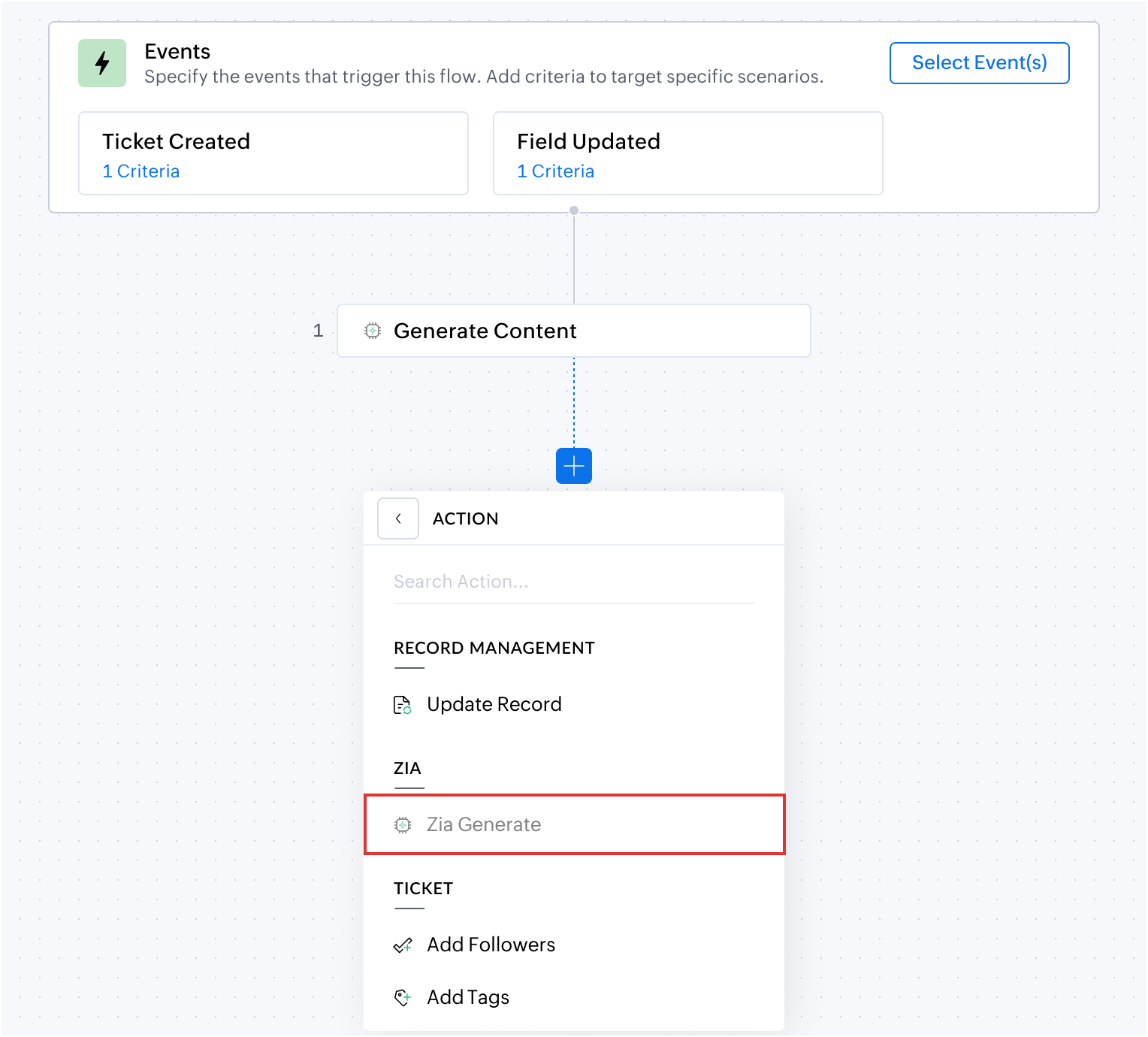
Action blocks define the operations executed by an automation rule, such as updating fields, executing tasks, sending alerts, or sending IMs. Multiple blocks can be added to a flow, and will execute in the order configured.
Note: The Generate Content (Zia) action can only be configured once per rule.
Action Chaining
Action chaining allows one action to rely on the outcome of the previous one in a sequential order. Some actions generate output variables that can be passed to subsequent actions, allowing information to flow seamlessly through the process.
To simplify variable mapping, every action block is automatically assigned a unique identifier (such as 1, 2, or 3) during configuration. This identifier is prefixed to the action's output variables, making it easier to distinguish data generated by different actions within the same workflow.
Dot Walking
Dot walking allows to access fields from related modules without creating additional queries or actions. While configuring a workflow, a module can be selected and the respective fields available in that module can be mapped.
For example, from a Ticket record, contact details such as the email address can be accessed during the configuration. This makes it easier to use related data in conditions, actions, and notifications without manually fetching records from another module.
Action Block - Business Scenarios
Generating a customized troubleshooting guide using Zia Generate Content
The IT team uses the ticket summary feature to summarize the entire conversation thread and generate a troubleshooting guide. However, the default Zia ticket summary cannot be customized, making it challenging to create a guide that meets the team's specific requirements.
To address this, the IT team wants to create a flow that generates a customized ticket summary. This customized summary will then be used to produce a troubleshooting guide tailored to their requirements.
- Flow Configuration
- Module: Ticket module
- Event: Ticket Created
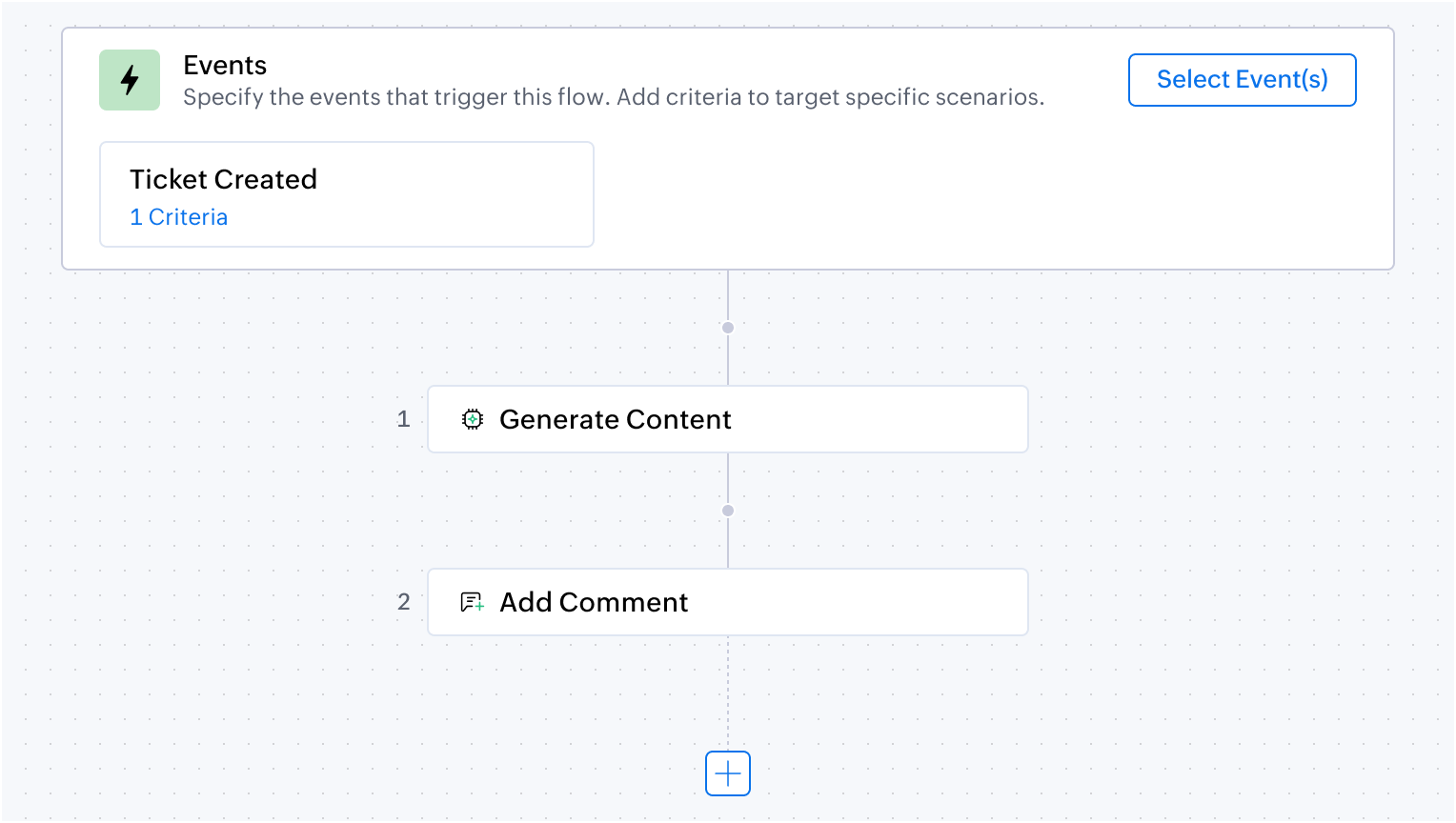
- Action 1: Generate Content
- Context:
- Latest thread content: ${tickets.$recentThreadContent}
- Subject: ${tickets.$subject}
- Description: ${tickets.$description}
- Status: ${tickets.$status}
- Created Time: ${tickets.$createdTime}
- Product Name: ${tickets.productId.$productName}
- Prompt:
Analyze the support ticket using the provided context and generate internal troubleshooting guide for support agent.
<Issue Summary>
<Current Situation>
<Possible Cases>
<Information Required>
<Recommended Next action> - Action 2: Add Comment
- Content: Troubleshooting guide from Action 1 output
Action chaining passes the Generate Content output directly to Add Comment, posting the customized guide to the ticket automatically. Dot walking pulls related fields like Product Name from associated records, enabling rich context in the generated content without additional lookup steps.
Updating Logistics for approved replacements
When customers report an issue because they receive damaged products, a support ticket is created and linked to the existing Logistics record for the original order. The support agent reviews the request and decides whether to approve a replacement.
Manually updating the Logistics record after approval can be overlooked, leading to delays in preparing the replacement shipment. To ensure the logistics team is promptly notified when a replacement is approved, the support team wants to automatically update the linked record to Replacement Pending in the Logistics module whenever the ticket status changes from In Review to Replacement Approved in the Tickets module.
Flow Configuration
- Event: Field Updated
- Criteria: Ticket status is changed from In Review to Replacement Approved
- Action: Update record:
- Record ID: Logistics ID
- Module: Logistics module.
- Assignment Values: Update Logistics record status to Replacement Pending.
By using the dot walking method, the record from another module is pulled automatically. The action block eliminates manual coordination between teams, reduces the risk of missed updates, and ensures the logistics team can immediately begin preparing the replacement shipment.
If Block
The If block provides conditional logic to an automation flow. It evaluates the criteria provided and allows the flow to execute only if the defined condition is met. If the condition is not met, that path terminates.
For example, if the criteria is provided as Priority is High, then the subsequent block will only be executed if the priority is high.
Note:
- While adding a criteria in the If block, dot walking can be done to fetch the information from the related modules.
- The If block currently supports only a true-path. If/Else branching (true and false paths) is not supported for the time being.
- The If block must always be followed by an action and it cannot be the last step in the execution flow.
- The If block cannot be added after another If block.
Using Time-Based Comparators
The If block supports advanced comparators for time-based conditions.
Comparator | Description | Example |
age in | Evaluates how much time has passed since the ticket was created. | A ticket was created at 10:00 AM. If the current time is 1:00 PM, the Age In value is 3 hours. |
due in | Evaluates how much time is left before the ticket reaches its due date or SLA deadline. | A ticket must be resolved by 5:00 PM. If the current time is 2:00 PM, the Due In value is 3 hours. |
These comparators enable time-relative conditions directly within the If block without requiring custom functions.
If Block - Business Scenarios
Priority-based auto-assignment
A small scale startup team wants to automatically assign performance related tickets to a senior resource while routing other tickets to the general queue.
Flow Configuration
- Trigger: Ticket Created
- If Block: Subject contains "Performance issue"
- Action: Assign Ticket
- Record ID: Ticket ID
- Assignee: Agent
- Support representative name: John
The If block filters tickets at runtime, ensuring only performance-related tickets trigger the assignment action. Other tickets bypass this path entirely, maintaining balanced workload distribution without creating separate rules for each ticket type.
SLA breach prevention with escalation
An IT helpdesk wants to proactively identify tickets that could breach SLA and automatically escalate them with appropriate notifications to the respective team.
Flow Configuration
- Trigger: Ticket Updated
- If Block: Due Date: Due in 2 hours AND Ticket status is not Resolved
- Action 1: Update Record - Set priority to 'Critical'
- Action 2: Send Email Reply - Select team to be notified
Time-based comparators in the If block enable dynamic evaluation relative to the due date. Only tickets within the 2-hour window and still unresolved trigger escalation, preventing unnecessary alerts on every update while ensuring timely intervention.
Fork Block
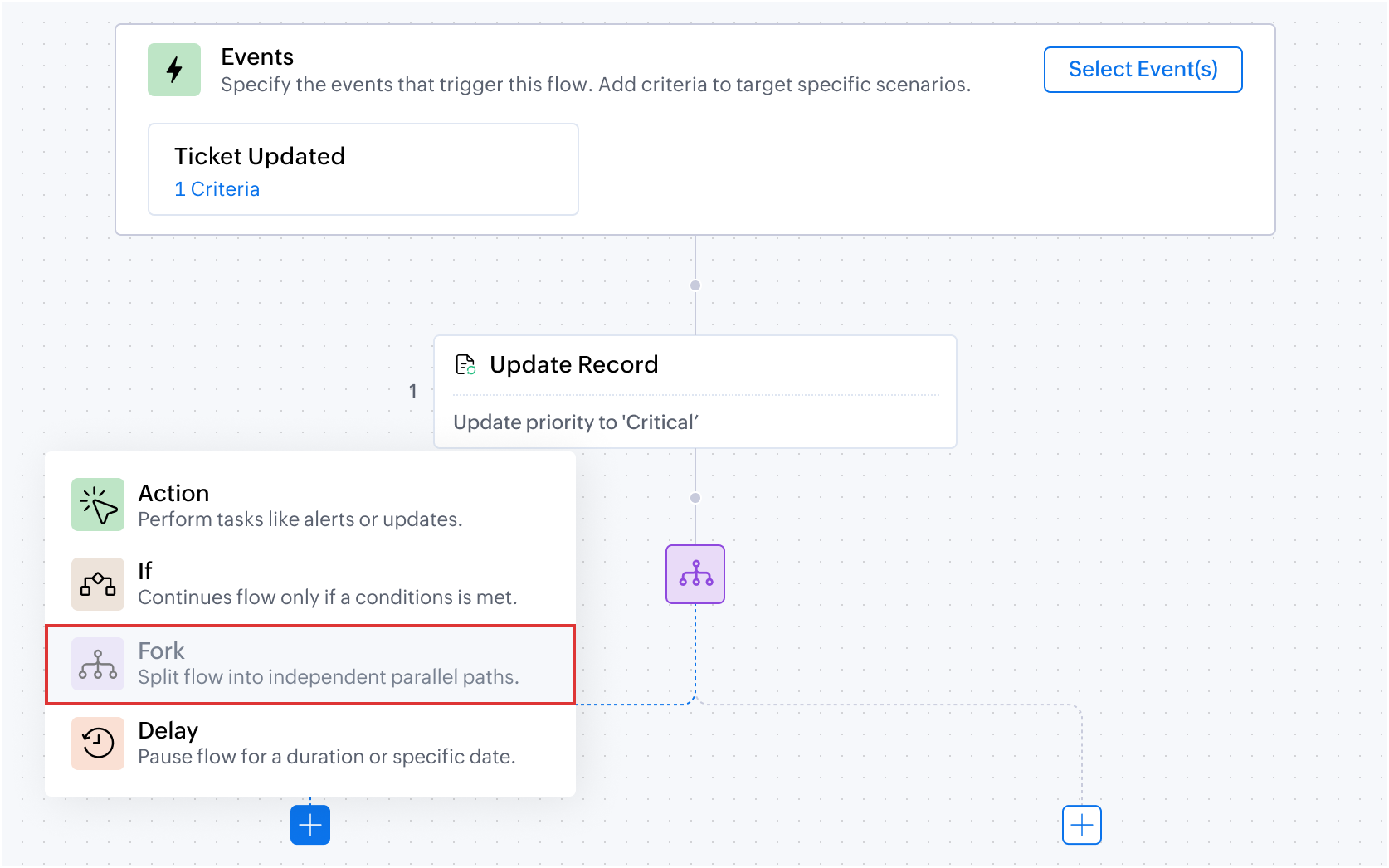
The Fork block splits an automation flow into multiple independent, parallel paths. Each path executes simultaneously, enabling unrelated actions to run concurrently without sequential dependencies.
For example, if priority is High, send an immediate acknowledgment to the customer and assign the ticket to L1 support reps. If priority is Medium, send an acknowledgment and assign to L2 support reps. If priority is Low, assign directly to L3 support reps without sending an acknowledgment.
All these conditions can be executed independently by adding three paths in the fork block.
Note: A Fork block cannot be directly added under another Fork block. Either Action, If, or Delay block must be added to separate the fork block.
Fork Block - Business Scenarios
Product-based ticket assignment
Zylker Electronics sells three products: zPhone, zPad, and zWatch. When a customer raises a support ticket, the team wants to send an acknowledgment and route the ticket to the correct product team.
Flow Configuration
- Event: Ticket Created
- Action: Alert: Email Template - Acknowledgement to the customer
- Fork:
- Path 1:
- If Block: Product Name is zPad
- Action: Assign Ticket to zPad Support team
- Path 2:
- If Block: Product Name is zPhone
- Action: Assign Ticket to zPhone Support team
- Path 3:
- If Block: Product Name is zWatch
- Action: Assign Ticket to zWatch Support team
The Fork block evaluates all product conditions simultaneously, with only the matching path executing. Parallel processing ensures immediate routing regardless of product type, without sequential condition checks that would slow down the flow.
Automated ticket assignment based on subscription
An organization wants to automate ticket assignment based on the customer's subscription type. If the customer is a paid user, an acknowledgement must be sent, and the ticket must be assigned based on its priority. If the customer is not a paid user, the ticket must be assigned to a different team for handling.
Flow Configuration
- Event: Ticket Created
- Fork:
- Path 1 for Paid Users:
- If Block: Contact Name - Field Type is Paid User
- Action: Alert: Email Template - Acknowledgement to the customer
- Fork:
- Path 1.1:
- If Block: Priority is High
- Action: Assign to L1 team
- Path 1.2:
- If Block: Priority isn't High
- Action: Assign to L2 team
- Path 2 for Non-Paid Users:
- If Block: Contact Name - Field Type isn't Paid User
- Action: Assign to L3 team
The Fork block separates paid and non-paid user handling into independent paths, each executing based on subscription type. Nested If blocks within each path add further refinement, demonstrating how Fork and If blocks combine for multi-level routing logic.
Delay Block
The Delay block pauses the execution of an automation flow for a specified duration or until a specific date and time. This is crucial for time-sensitive workflows such as sending follow-up emails or reminders.
When the flow reaches the delay block, all subsequent actions are paused. The actions resume execution only after the defined delay period has passed.
Note:
- The delay block can be scheduled for a minimum of 10 mins and a maximum of 120 days.
When a ticket is moved to another department, delay scheduled more than 10 minutes later are skipped. Actions due within 10 minutes may still run as they may already have been picked up by the scheduler. - When scheduling the delay block beyond the specified time, the delay block and its subsequent blocks will not be executed.
- When an action is scheduled based on a date-time field (for example, a due date), any subsequent changes to that field will not affect the already active scheduled action.
- When the flow reaches the delay block, all subsequent actions are paused. The actions resume execution only after the defined delay period has passed.
To configure the Delay block, either duration or a specific date and time must be specified. On using a specific date and time, offset can be configured to trigger the delay before, on, or after the provided date and time.
For example, if an email must be sent after 24 hours, a delay block must be added for 24 hours and an action block to send an email can be added after the delay block.

Points to remember:
- The delay block cannot be the final block in a path. At least one action block must be added after the delay block for the flow to be executed.
- Multiple Delay blocks cannot be configured in the same path.
- If there is a delay block for 3 days added to a rule, the system will wait for 3 days after the ticket update. If the same ticket is updated within 3 days, the existing delay is overridden and the 3 day delay timer restarts from the latest updated.
For example, a ticket is updated on Day 1. The action is scheduled with a delay block to run on Day 4.
If the same ticket is updated again on Day 2, then the previous schedule is cancelled, and the action is rescheduled to run on Day 5. - Delay execution is not specific to any time zone. It will be executed based on the configured execution time.
- When a Delay block is deleted, all pending scheduled jobs created by that delay block are also deleted.
- Similarly, if a rule is deleted, all scheduled jobs created by that rule will also be deleted.
- If an executed record is moved to the Recycle Bin, any pending actions for that record will not be executed. If the record is restored before the scheduled execution time has lapsed, the pending actions will be executed as scheduled.
Delay Block - Business Scenarios
Sending a follow-up after resolution
The support team wants to send a follow-up email to customers two days after a ticket is resolved to check whether they need any further assistance. This ensures that if the resolution is not satisfactory, customers have an opportunity to reach out for additional support.
Flow Configuration
- Event: Ticket Updated
- Criteria: Ticket Status changed to Closed
- Delay Block: 2 Days
- If Block: Status is Closed
- Action: Send Email Reply
- Email Content:
- Hi. We just wanted to check if your issue is resolved. You can reply to this email if you need further assistance.
The Delay block introduces a 2-day waiting period before sending the follow-up, giving customers time to verify the resolution. Timely follow-ups demonstrate proactive care and provide an easy channel for customers to request additional assistance.
Automated ticket follow-up and escalation
A support team wants an end-to-end flow configured for a ticket lifecycle.
When a new ticket is created, and if it is unassigned for 30 mins, the ticket must be assigned to a support rep, the priority must be marked as High, and the support rep must be notified.
If the ticket is not closed for more than 7 days, the ticket must be escalated with notifications to the assignee and support manager.
Flow Configuration
- Event: Ticket Created
- Fork:
- Path 1 for Unassigned Ticket Alert:
- Delay Block: 30 mins
- If Block: Ticket Status is unassigned
- Action 1: Assign Ticket to the support rep
- Action 2: Alert - Notify the support rep
- Action 3: Update Ticket Status to High
- Path 2 for Long-Running Ticket Escalation:
- Delay Block: 7 days
- If Block: Ticket Status isn't closed
- Action 1: Alert - Notify both the assignee and the support manager
- Action 2: Update Ticket Status to Escalated
Delay blocks create time-based checkpoints within the ticket lifecycle. The 30-minute delay catches unassigned tickets early, while the 7-day delay identifies stale tickets requiring escalation. Combined with the Fork block, both checks run independently from ticket creation, enabling automated lifecycle monitoring without manual tracking.