Enabling Privacy and Security in Android
The privacy and security settings protect the app and the data within from unauthorized access and use. While privacy ensures that the user's information is secure, security controls access to the said information.
Enabling app lock and biometric unlock
App lock is a functional control that only allows the user to access the Desk app upon entering a 4- or 6- digit pin. Biometric unlock enables users to access the app without a passcode and use the biometrics the mobile supports instead.

Biometrics can be set only after setting up a PIN.
To enable app lock
- Tap the Hamburger menu icon
on the top-left corner of the homescreen.
- Go to Settings
> Privacy and Security > Enable App Lock.
- Set the pin and confirm it by re-entering the same pin again.
The user can also disable the app lock if not needed.
Changing pin
The user can change the passcode PIN by tapping Change PIN and setting a new PIN.
Asking for pin
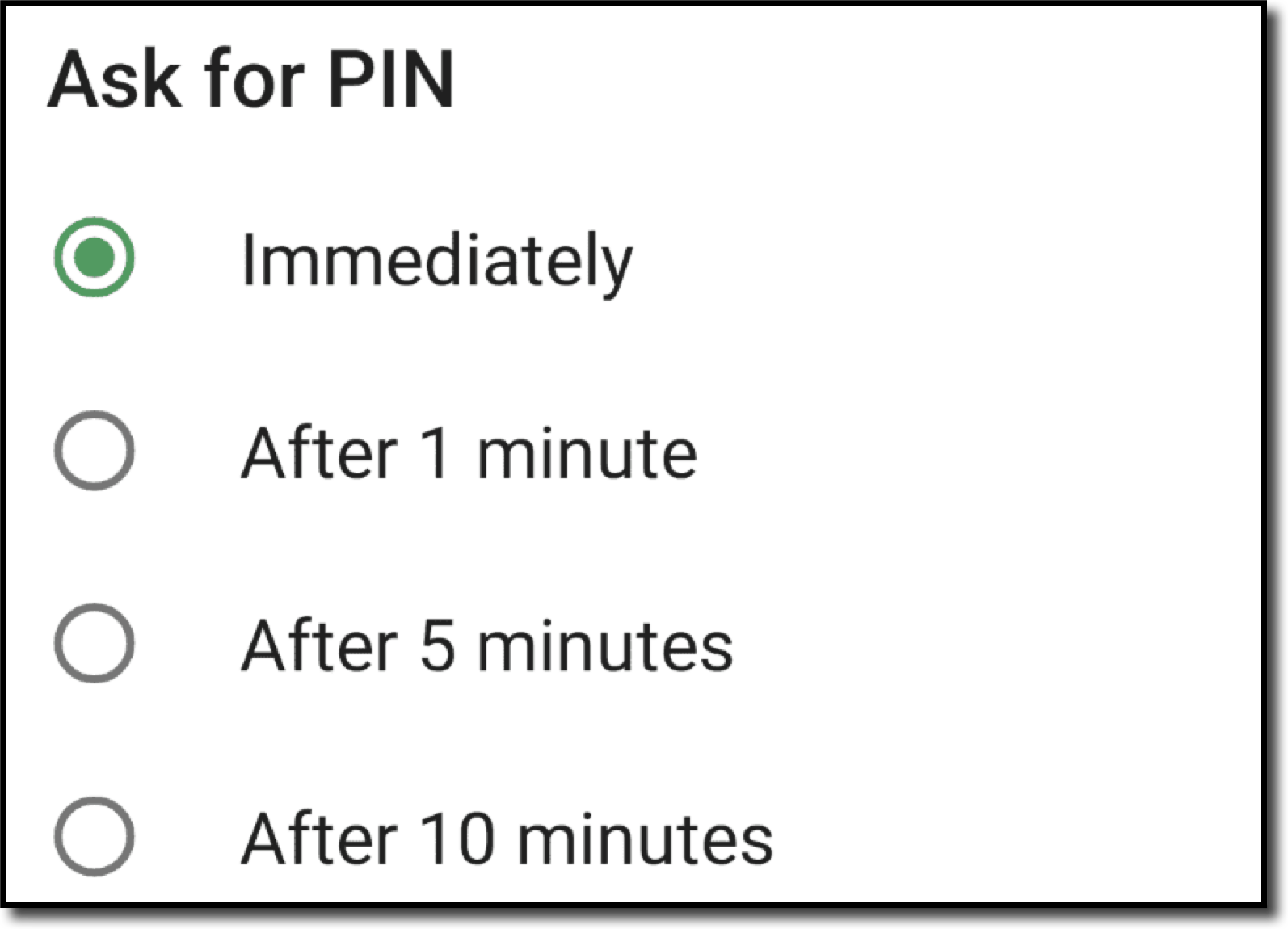
The users can choose when they want the passcode to activate after entering the app by selecting Ask for PIN, then choosing the preferred option.
To enable biometric unlock
- Go to Settings
> Privacy and Security > Enable App Lock.
- Set the pin and confirm it by re-entering the same pin again.
- Click Biometic Unlock and select Yes in the Alert page.
Showing content in the recent apps screen
Recent apps screen shows all the apps opened by the user. The users can decide if the app's content should be displayed in the recent apps screen. If users do not want to show content in the recent apps screen, they can enable that option.
Send diagnostics reports
Enabling this option allows you to send diagnostic information to Zoho Desk, helping the team understand app performance and identify the root cause of the issue. You can send information via email, either using your email address or anonymously.
Crash reports
This option enables you to identify crash details or reports, such as stack traces, type of crash, trends, and software version. It also alerts you about crashes, providing you with information for maintaining app stability.
Text copy
Text Copy enables the text copied in the app to be stored in the device's clipboard that can be accessed by other apps. Disabling the text copy option will restrict access to the clipboard.
To enable send diagnostics and usage statistics, crash reports, and text copy
- Navigate to
>
> Privacy and Security.
- Toggle the Send diagnostics and usage statistics, Crash report, and Text copy switch on.