Tracking tickets using the Tickets Dashboard in Help Center
Customers can access individual ticket records from the Help Center to view ticket details, status, resolution progress, and communication history. However, the ticket list provides only basic details and the customers must open each ticket individually to find information such as status, priority, support tier classification, and department.
The Tickets Dashboard addresses this by providing a consolidated view of all submitted tickets. It displays status, department, and channel distribution at a glance, giving customers better context and eliminating the need to open each ticket for a summary view.
The Tickets Dashboard allows customers to:
- View and track My Tickets and Team Tickets from a consolidated dashboard.
- Analyze ticket distribution by status, department, and channel.
- Filter ticket data using custom date ranges and view historical data for up to one year.
- View interactive charts for a quick overview of ticket distribution.
- Monitor ticket trends over time.
Viewing Tickets by status
The dashboard displays tickets grouped by their status. The default statuses are:
- Open
- On Hold
- Overdue
- Closed
Customers can view the status distribution through a pie chart, providing a quick visual summary of ticket progress.
Viewing tickets by department
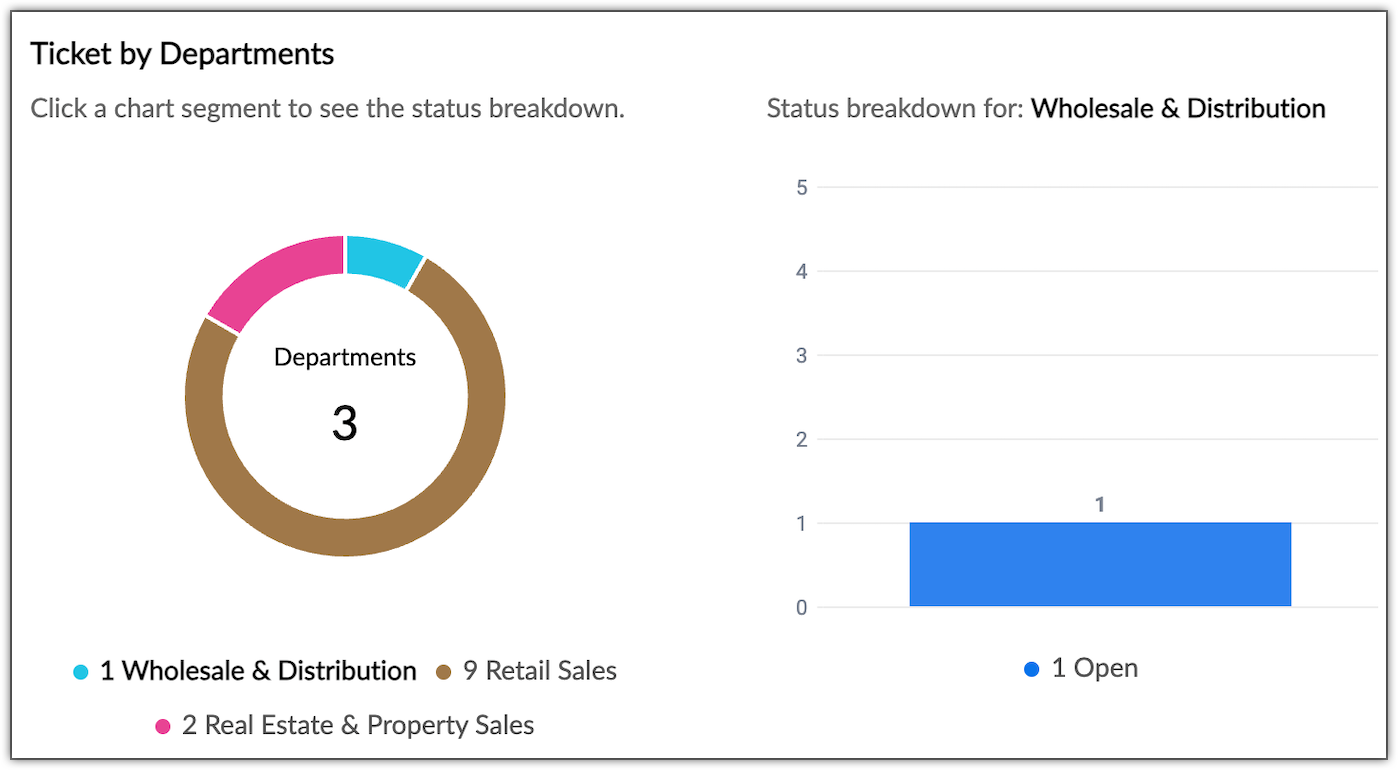
The dashboard displays ticket distribution across departments, allowing customers to understand which teams are handling their tickets. When a customer selects a specific department, the right panel displays detailed status information for that department, including any custom statuses.
For example, if a customer has submitted tickets across multiple departments, the dashboard shows the ticket count and status breakdown for each department.
Viewing tickets by channel
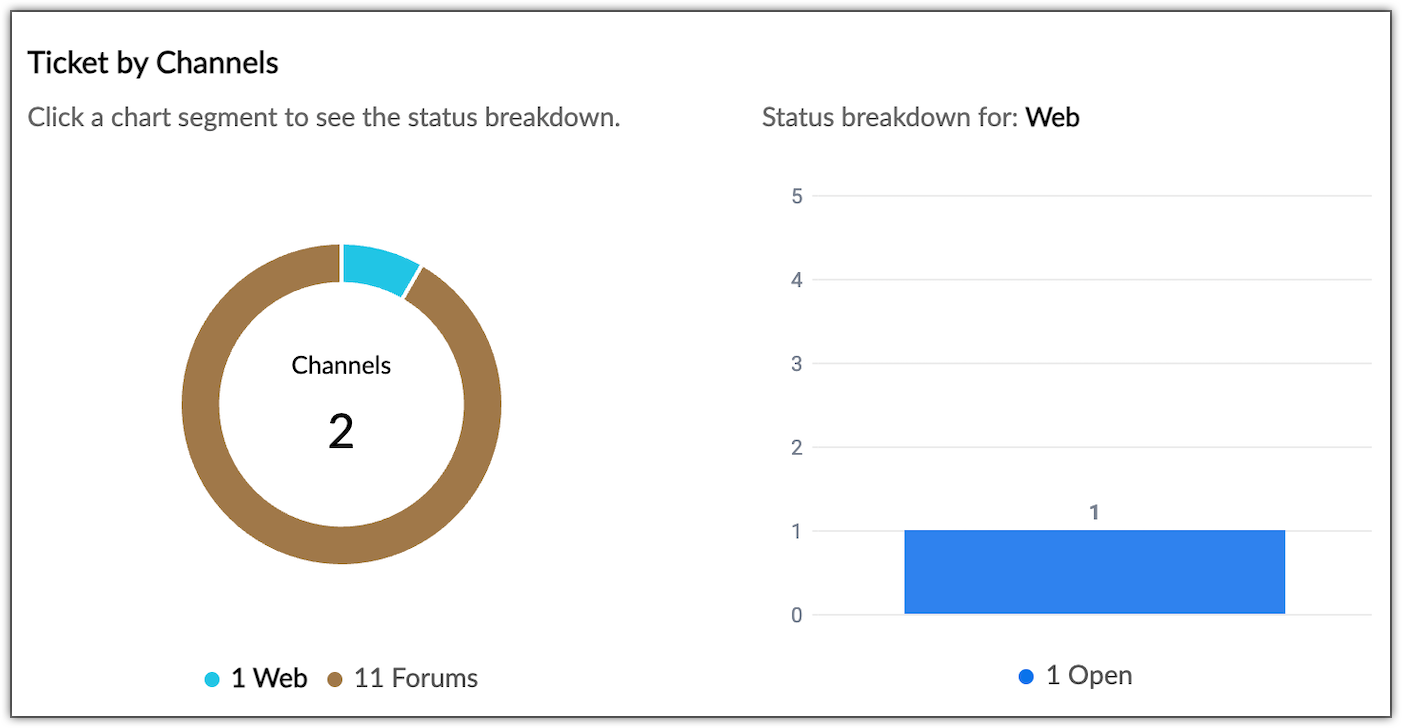
Customers can view ticket distribution based on the channel from where they submitted the ticket. For example:
- Web
- Email
- Twitter
- Facebook
- Web forms
- Knowledge Base Comments
Selecting a specific channel displays the detailed status breakdown in the right panel, including any custom statuses.
Viewing team tickets
Customers can view tickets submitted by their team members. The dashboard consolidates all accessible tickets, which can be filtered by status, department, and channel.
For example, a manager can view all the software requests submitted by the team and track the status of those requests.
Applying date filters
Customers can filter dashboard data using custom date ranges. Historical ticket data for up to one year is available for analysis.
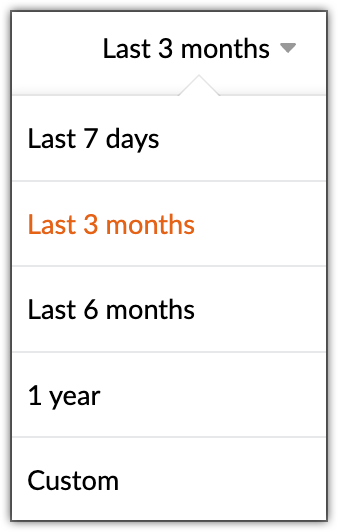
For example, you can filter data from June 2020 to June 2021. The end date cannot exceed the current date or extend beyond one year from the start date.

Note: Currently, the dashboard provides consolidated views by status, department, and channel. Team-specific filtering is not available at this time.
To access the Tickets dashboard
- Navigate to Help Center > View Profile > Dashboard.
- Click Tickets.