SalesLoft for Zoho Directory
Prerequisites
SalesLoft's administrator access is required.
Configure SAML in Zoho One /Directory
1. If you're a Zoho One user:
- Sign in to Zoho One
, then click Directory in the left menu.
- Go to Marketplace, then click Browse Applications.
- Use the search bar to find and install SalesLoft.
2. If you're a Zoho Directory user:
- Sign in to Zoho Directory
, then click Admin Panel in the left menu.
- Go to Applications, then click Add Application.
- Use the search bar to find and add SalesLoft.
3. Provide a name for your app.
4. If you want to test the SAML configuration before allowing users to access SalesLoft, uncheck Display app to users. You can later make the app visible to all users.
5. Click Add.
6. Click the Single Sign-On tab.
7. Click Service Provider Details to check and verify the SP details. You can also edit them if needed.
8. Click Identity Provider Details, then download the IDP Metadata file by clicking on the Download IDP Metadata button.
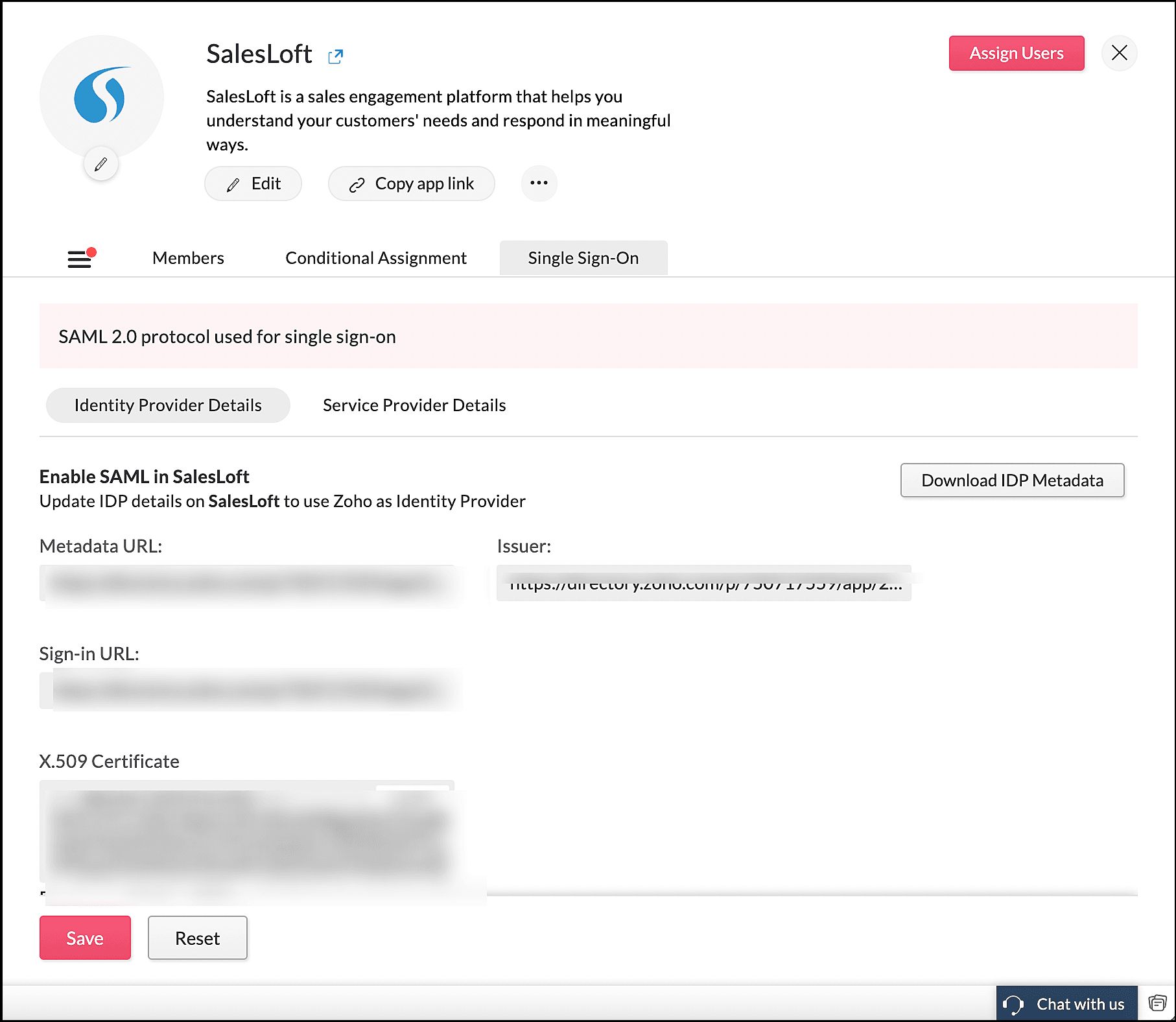
Configure SAML in SalesLoft
- Sign in to SalesLoft with admin account credentials.
- Navigate to Team settings, scroll down to Administration, then click Single Sign-On.
- In the Upload Metadata File field, click Upload File and upload the IDP Metadata file previously downloaded from Zoho Directory.
Test the SAML connection
Return to the Zoho Directory Admin Panel.
- Go to Applications, then click SalesLoft.
- Click Assign Users, choose yourself from the list, then click Assign.
- Now sign in to SalesLoft again with the admin account credentials.
- Navigate to Team settings, scroll down to Administration and then click Single Sign-On on the left pane.
- Click Test Login to test your SAML configuration.
- After you see the Test Successful page, click Enable SSO via SAML.

Note: After testing SAML, if you encounter a Test Unsuccessful error page, review your setup. If the issue persists, refer the Salesloft Troubleshooting Guide. After resolving the issue, try testing SSO again.
Make the app visible to all users
After successfully testing the SSO, you can make SalesLoft available for all users to access from their My Apps page.
To make SalesLoft visible to all users:
- Sign in to the Zoho Directory Admin Panel.
- Go to Applications, then click SalesLoft.
- Click Unhide.
- You can now access SalesLoft from Zoho Directory's My Apps page.