BigCommerce
What is BigCommerce?
BigCommerce is an ecommerce platform that you can use to design and customize your online store. It provides features to set up a global store, drive traffic, convert visitors, and even analyze your business statistics.
How to connect your BigCommerce account to Zoho Flow
- Select the required trigger or action. If you select a trigger, then click Next.
- If there are no existing BigCommerce connections in your account, click Connect. Otherwise, click New connection.
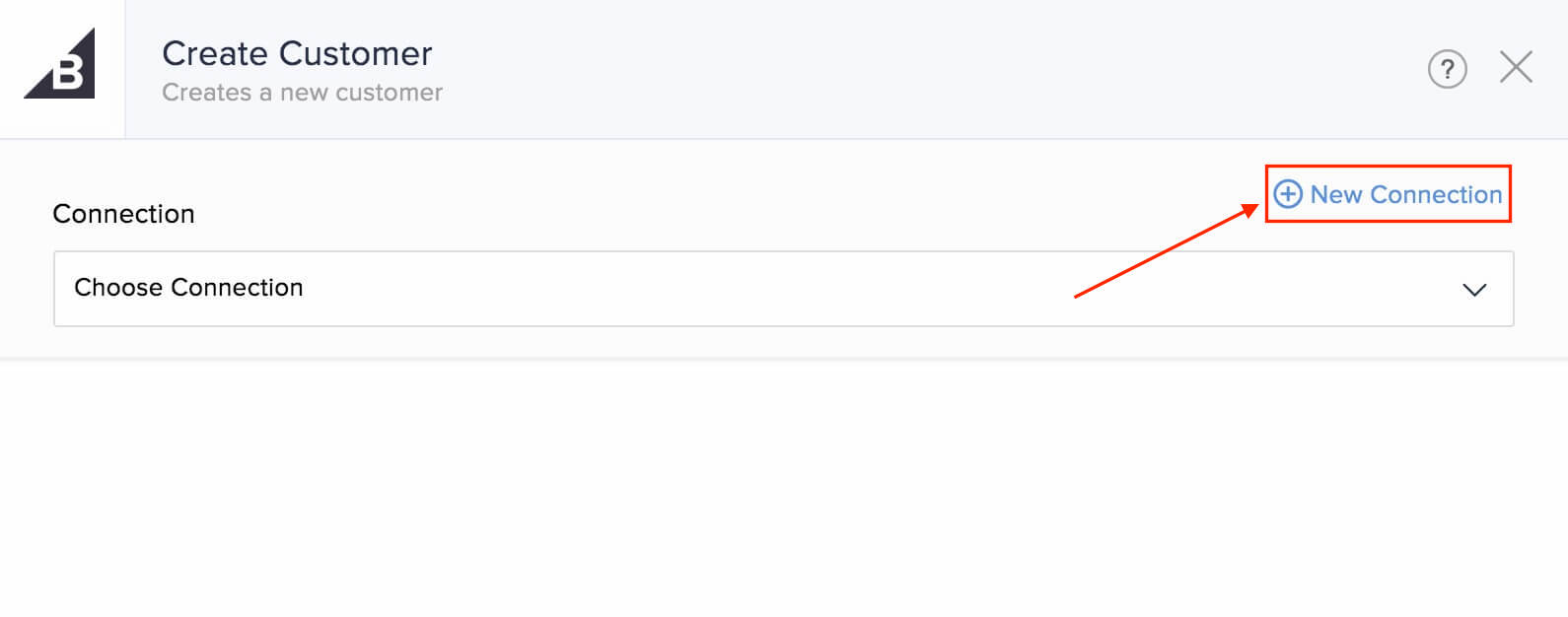
Alternatively, you can create a new connection by navigating to Settings, then Connections. Click Create connection and choose BigCommerce. - Enter a connection name.
- Log in to your BigCommerce account in a different browser tab. Remember that this must be the store owner's account.
- Navigate to Advanced Settings in the left section of the page, then select API Accounts.
- Click Create API Account and enter a name.
- In the API Path field just below the Name, you can find your store hash key. If your API path is https://api.bigcommerce.com/stores/example123/v3/, then example123 is your store hash key.
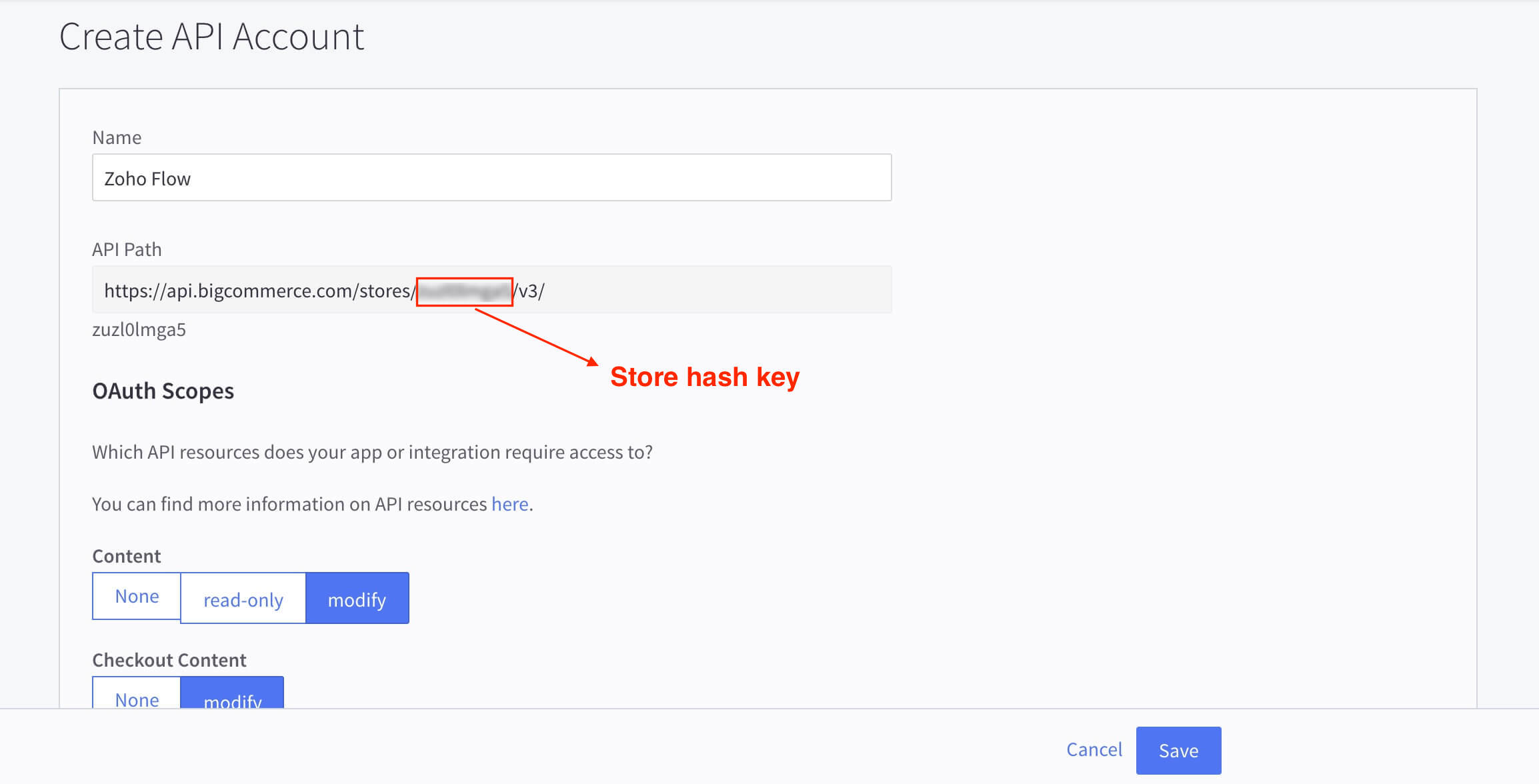
- Select the required scopes in the OAuth Scopes section. This will determine the level of access Zoho Flow will have to each module through this connection.
- Click Save.
- Copy and paste the Client ID, Client Secret, and Access Token generated in your flow configuration.
- Click Authorize.
API documentation
Triggers and actions available in BigCommerce
Triggers
New coupon
This trigger lets you notify your team and announce on social media when a new coupon is created.
New customer
Welcome new customers with an email and add them to your campaign list based on their consent.
Note: When you test and debug a flow with this trigger, the flow can fetch customer data only from the last 24 hours. If you haven't created any customers in this time frame, add a sample customer to test your flow.
New order
Use this trigger to send a confirmation SMS, create and send an invoice, and initiate payback offers if the order amount is more than a particular value.
Updated order status
This trigger allows you to update the task status in your project management tool and notify the customer via email or SMS for an updated order status.
Actions
Create coupon
This action lets you create coupons based on a schedule or form entries.
Create customer
Create new customers in your BigCommerce store based on new customers in your CRM, marketing automation tool, or support tickets.
Create customer address
This action allows you to add customer addresses based on form submissions or new delivery addresses the customer provides.
Fetch order
Use this action to fetch order details when status is updated, and notify the customer and your team.