Calendly
What is Calendly?
Calendly is a customizable scheduling app that works on all devices. With features like time zone detection, round robin meeting allocation, and calendar integration, you can simplify the scheduling process.
How to connect your Calendly account to Zoho Flow
- Select the required trigger and click Next.
- If there are no other Calendly connections in your account, click Connect. Otherwise, click New connection.
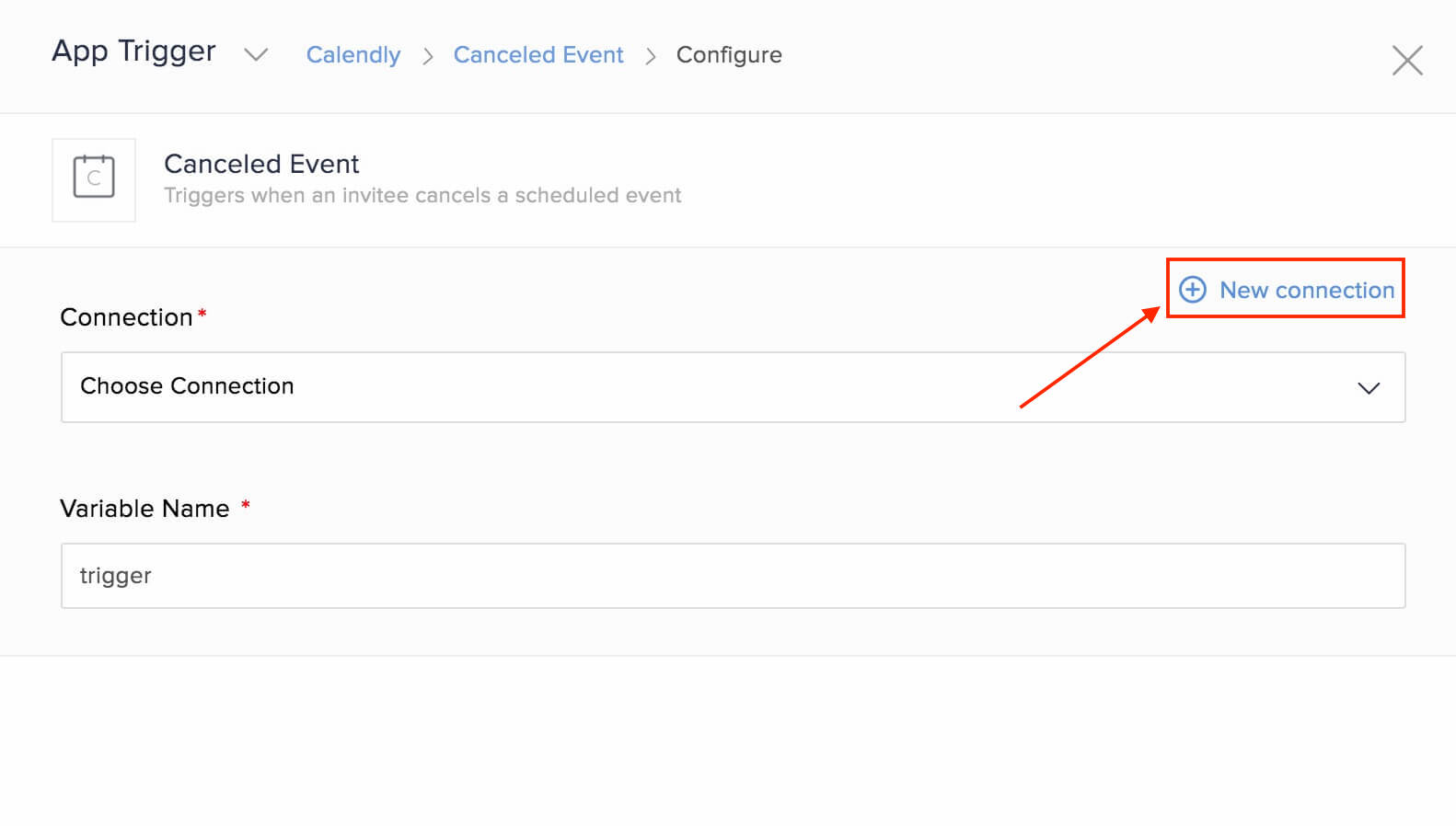
- Alternatively, you can create a new connection by navigating to Settings, then clicking Connections. Click Create connection and choose Calendly.
- Enter a connection name and click Get an API key.
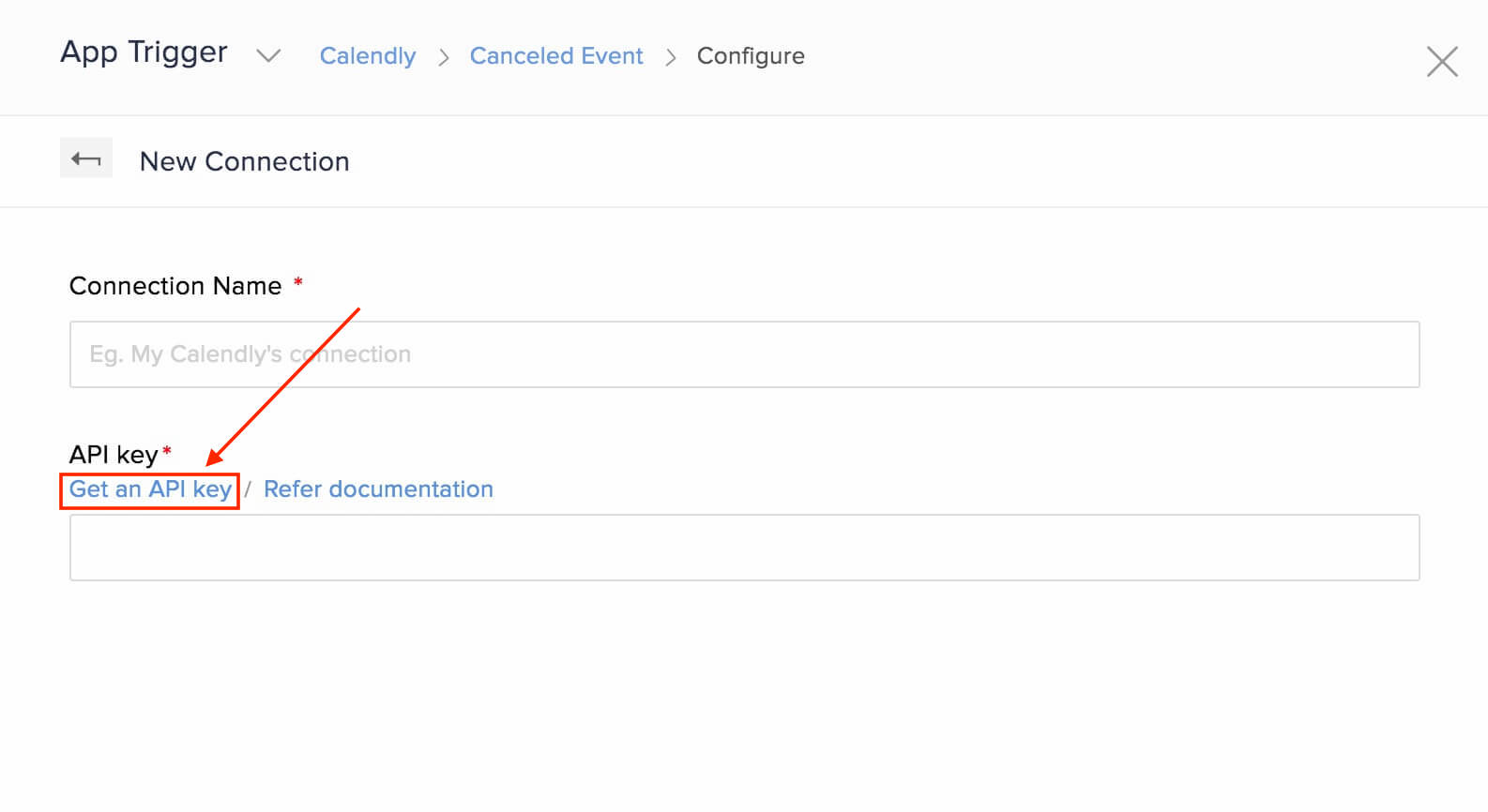
- Copy and paste the API key generated.
- Click Authorize to allow Zoho Flow to access your account.
API documentation
If you experience any Calendly-related errors in your flows or if you wish to learn more about the Calendly API, the API documentation can be found here.
Triggers and actions available in Zoho Flow
Triggers
Canceled event
Send follow-up emails, update record in CRM, or notify the associated agent on chat when an event is canceled.
Scheduled event
Use this trigger to create tasks, send documents to sign, or create a reminder when an event is scheduled.
Actions
None, for now.
Common problems
- I'm not able to view the invitee questions I've added in Calendly as variables in Zoho Flow.
The questions you've added and their responses will be available in the Questions and answers variable. ${trigger.questions_and_answers[0].question} gives the first question value (E.g.: Phone number), and ${trigger.questions_and_answers[0].answer} gives the first question's response value (E.g.: 123456789).
Similarly, you can fetch the question or response value of any of the questions you've added. For example, to fetch the response of the third question, use ${trigger.questions_and_answers[2].answer}.