Gmail for Workspace
What is Gmail?
Gmail is an email service developed by Google. It supports up to 15 GB of storage, high-priority notifications, and smart compose that lets you draft emails faster.
Important Note
As per the latest security update by Google, Gmail can be used in Zoho Flow only by G Suite customers. In their latest policy update they have stated that even as a paid G Suite user, you need to complete a verification process for apps that connect to Gmail and other Google apps for accessing data using OAuth. Also, you need to be logged in to Google Admin console as a super administrator to perform these steps. For more information, click here.
To complete the verification process, you need to whitelist Zoho Flow as a trusted app in G Suite. Here is how you can whitelist Zoho Flow in G Suite:
- Click here to log in to Google Admin console as an administrator.
- Navigate to Security > API controls.
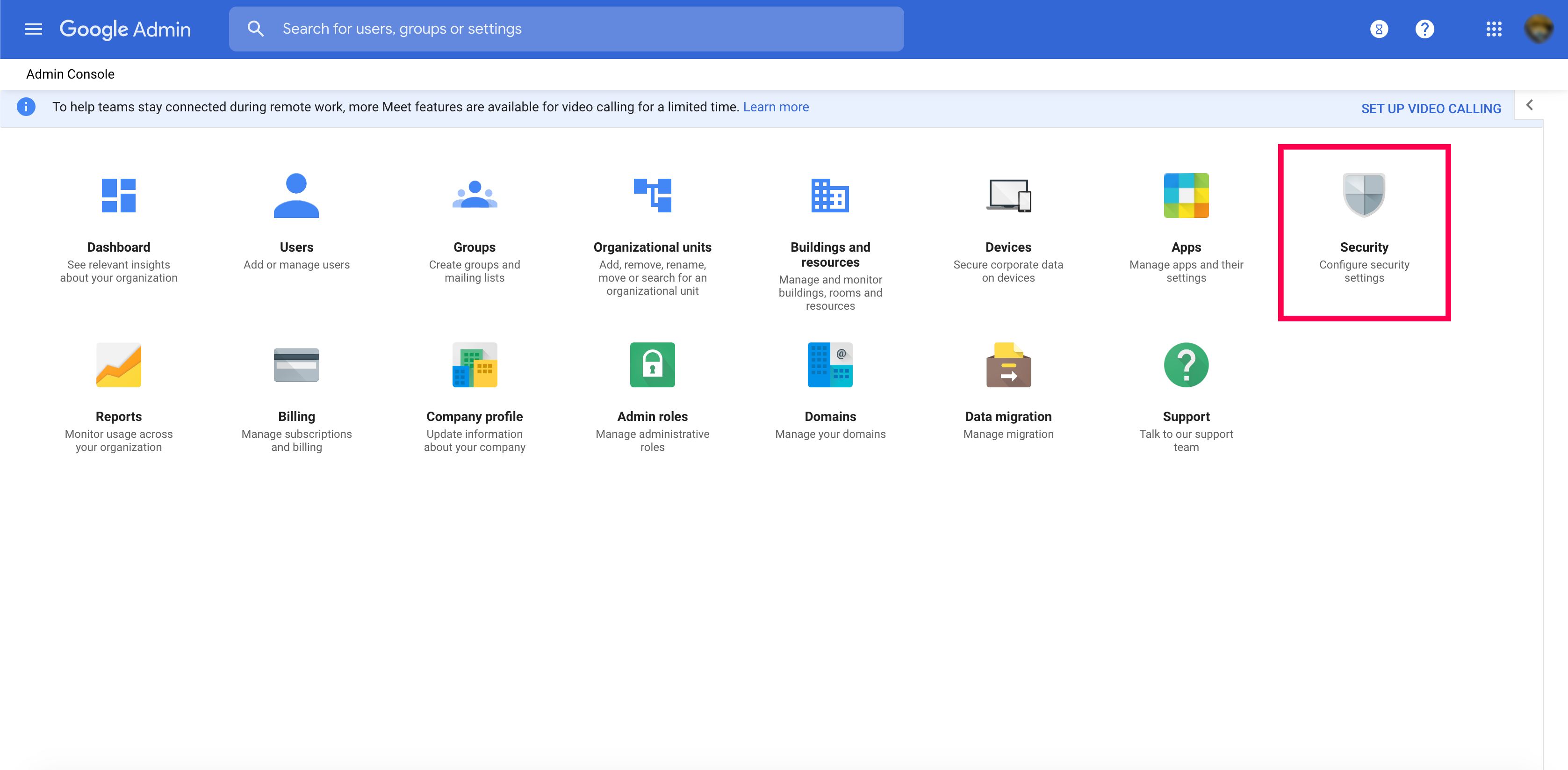
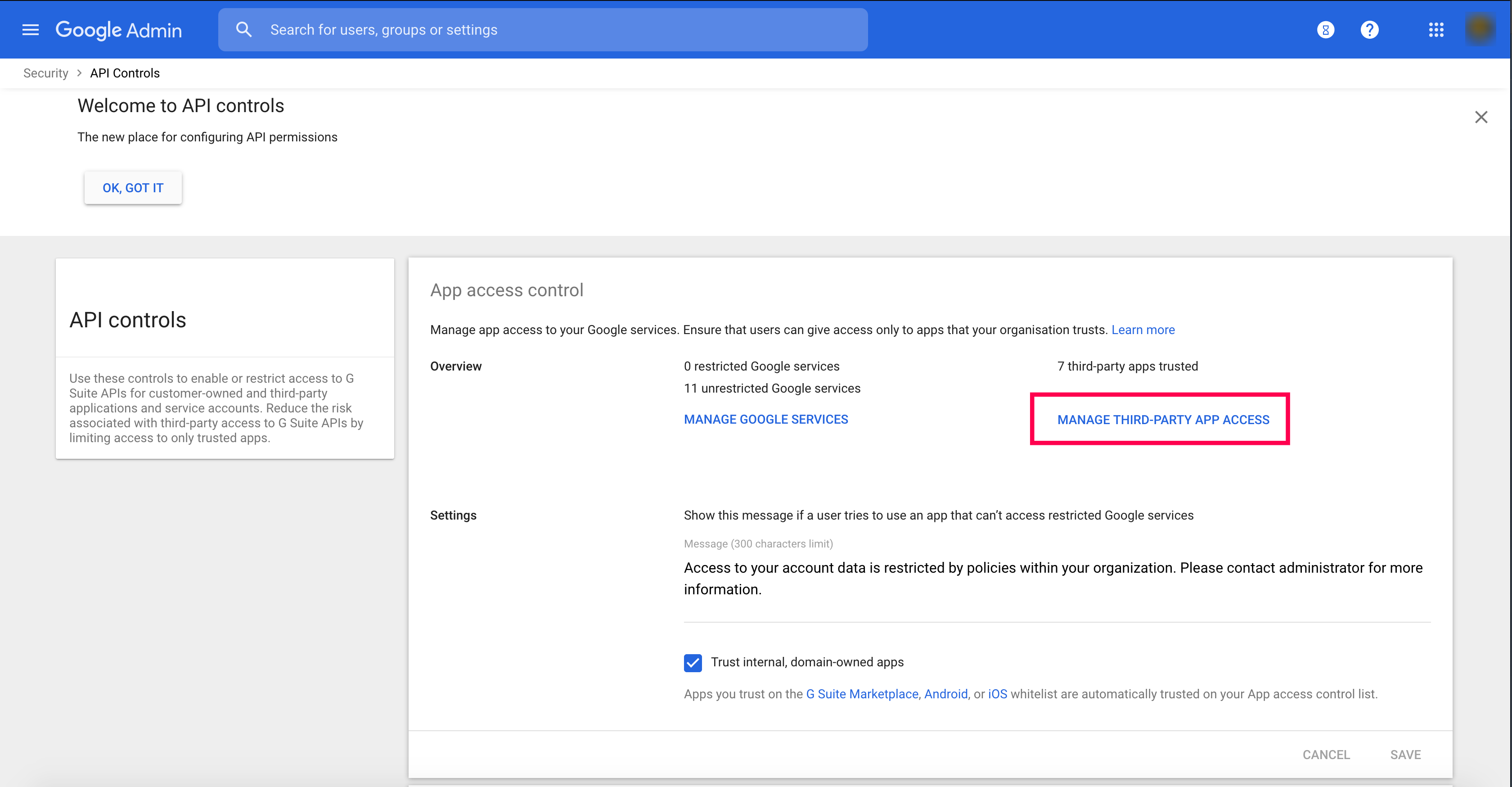
- Under App access control section, click Manage third-party app access.
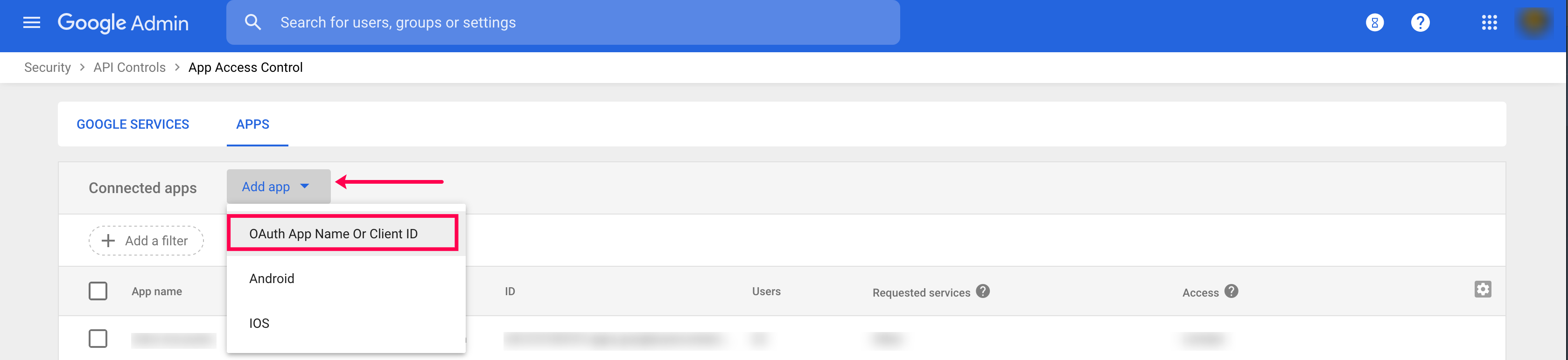
- Click on Add app under the Apps tab. Select OAuth App Name or Client ID from the list.
- You will be asked to search for your OAuth app. Copy the following OAuth2 Client ID for Zoho Flow without quotes and paste it in the field provided. Click Search.
"561258302803-crub3gkpqrt0o40k86o6m8g0a70tf7oe.apps.googleusercontent.com"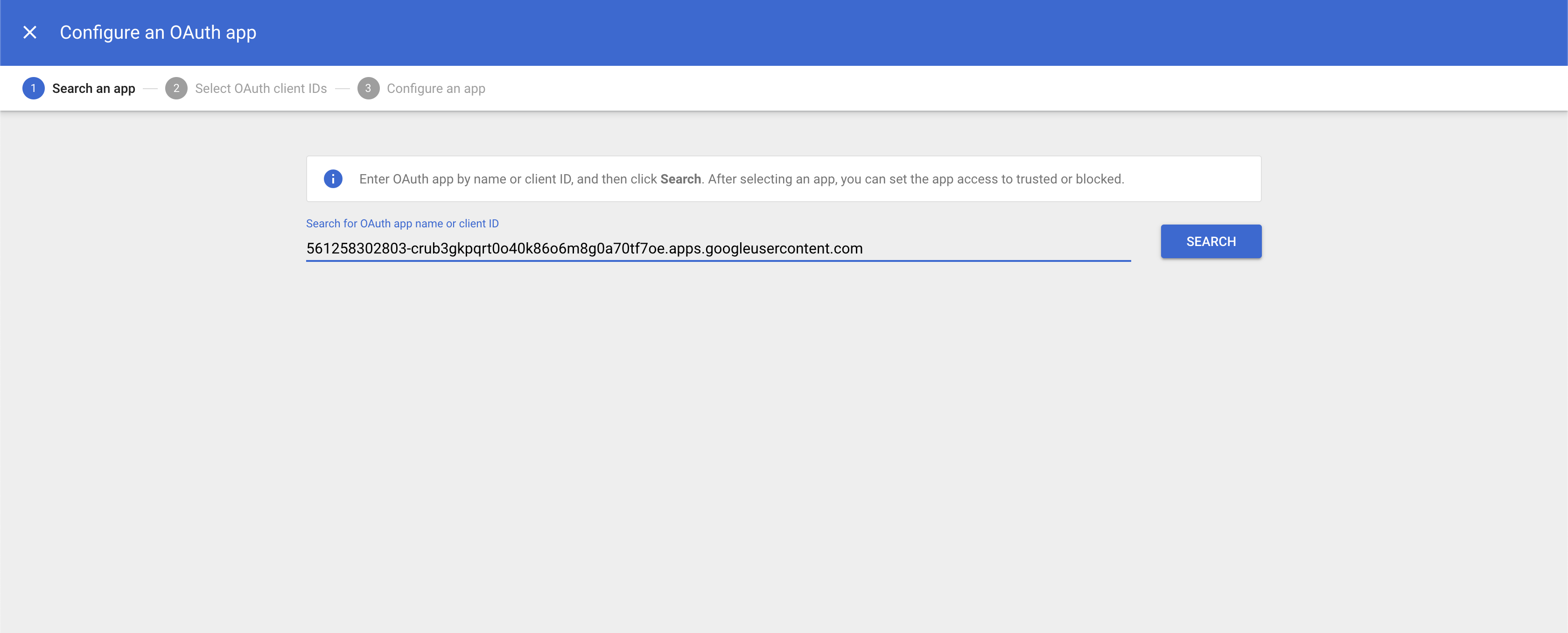
- The search will return Zoho Flow for G Suite as the result. Click Select.
- Select the checkbox with the OAuth Client ID, then click Select.
- You will be asked to provide the access type for Zoho Flow. Select Trusted: Can access all Google services, then click Configure.
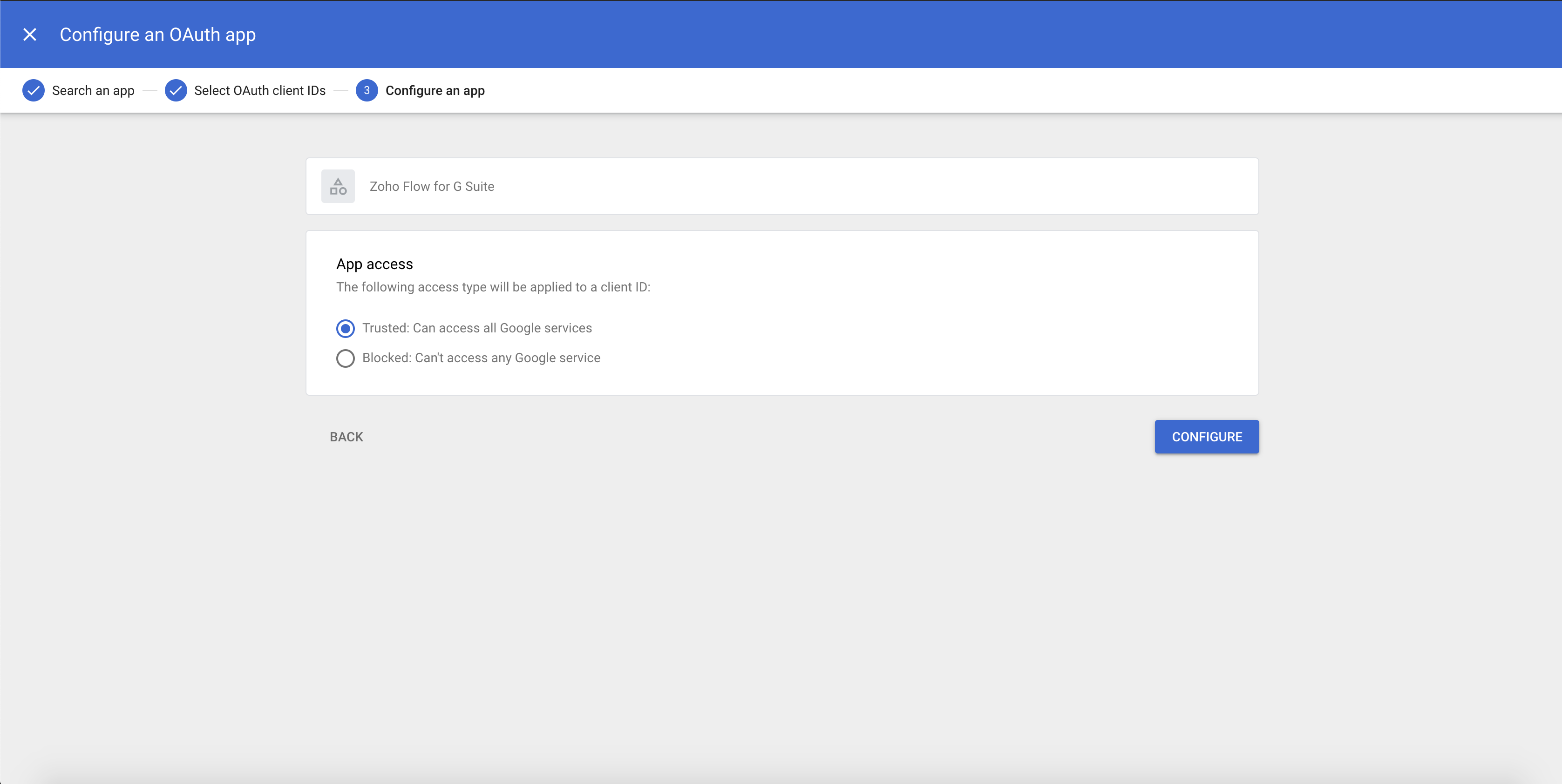
This grants read, compose, and send permissions to Zoho Flow for the triggers and actions that you use.
Once the whitelisting (verification) is complete you can start connecting Gmail to hundreds of other cloud apps easily.
API documentation
How to connect your Gmail account to Zoho Flow
- Select a trigger or action. If you select a trigger, click Next.
- If there are no existing Gmail connections in your account, click Connect. Otherwise, click New connection.
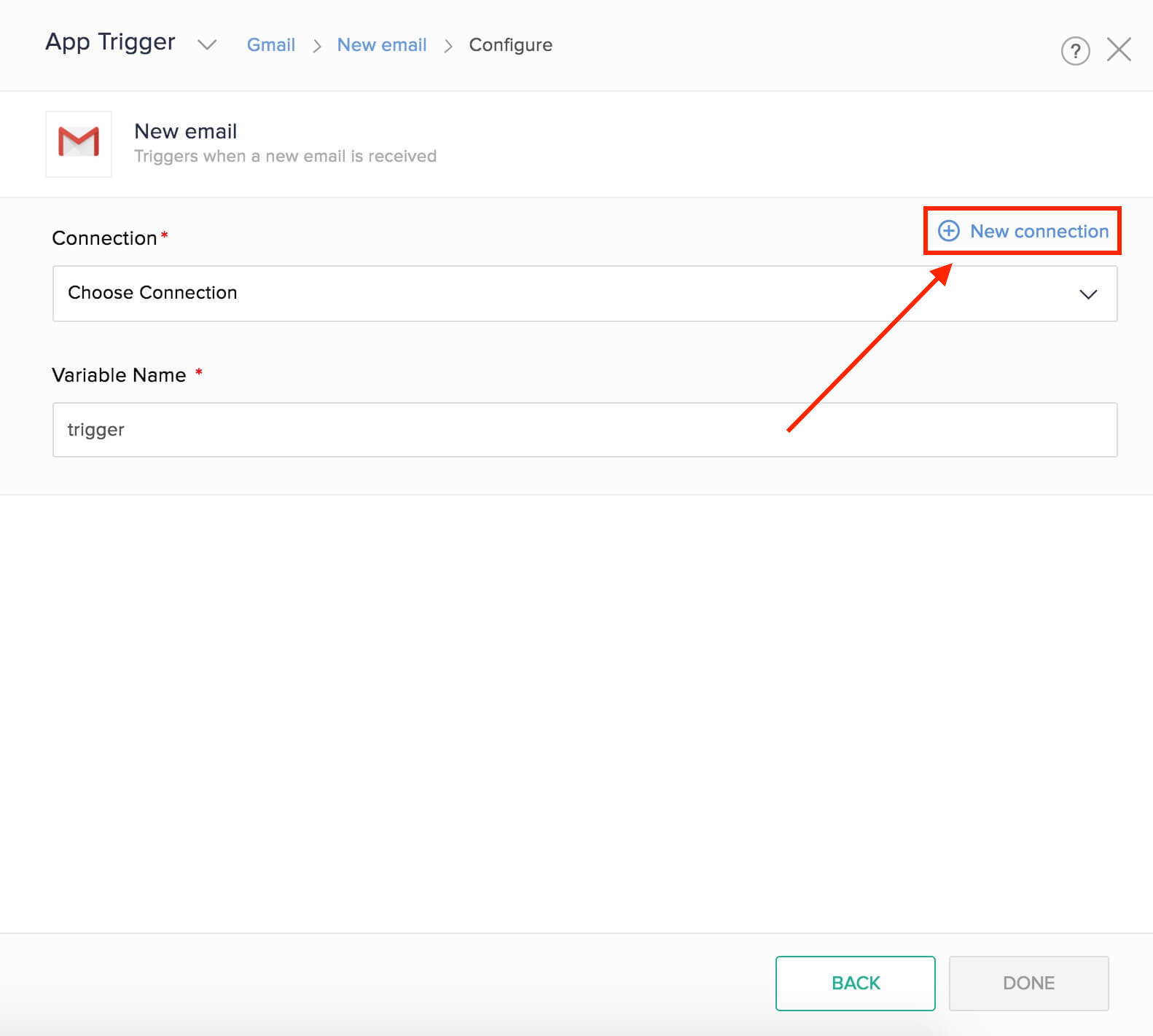
Alternatively, you can create a new connection by navigating to Settings, then Connections. Click Create connection and choose Gmail. - Enter a connection name and click Authorize.
- Enter the credentials of your Gmail account in the pop-up and click Next.
Triggers and actions available in Zoho Flow
Triggers
New email
Use this trigger to add data to spreadsheets, create reminders, and create or update details in your contact manager tool.
New email from a user
Notify your team through chat, create tasks, or add form entries when you receive emails from a specific email address.
Starred email
Create projects, add an item to your to-do list, or schedule an appointment when an email is starred.
Actions
Fetch email
Use this action to get more details about a new email.
Fetch labels
Before adding a new label, use this action to fetch all labels in your mailbox and check if it already exists.
Send email
This action lets you send emails when a form entry is submitted, deal is closed, or based on a periodic schedule.
What is message ID in Gmail?
Message ID is a unique identifier for an email. To find a message ID in Gmail, click on the email, then click the More icon (three dots) and select Show original.
Working with the New Email trigger
The New email trigger can't fetch the details of the email. You can use the Fetch email action after the trigger to solve this. Map the dynamic Message ID from the trigger to the action to get data such as the subject, body, and CC in the next step.