Google Sheets
What is Google Sheets?
Google Sheets lets you create and edit spreadsheets online. You can collaborate with others, define formulas, and easily create graphs and charts.
How to connect your Google Sheets account to Zoho Flow
- Select the required trigger or action. If you select a trigger, click Next.
- If there are no other Google Sheets connections in your account, click Connect. Otherwise, click New connection.
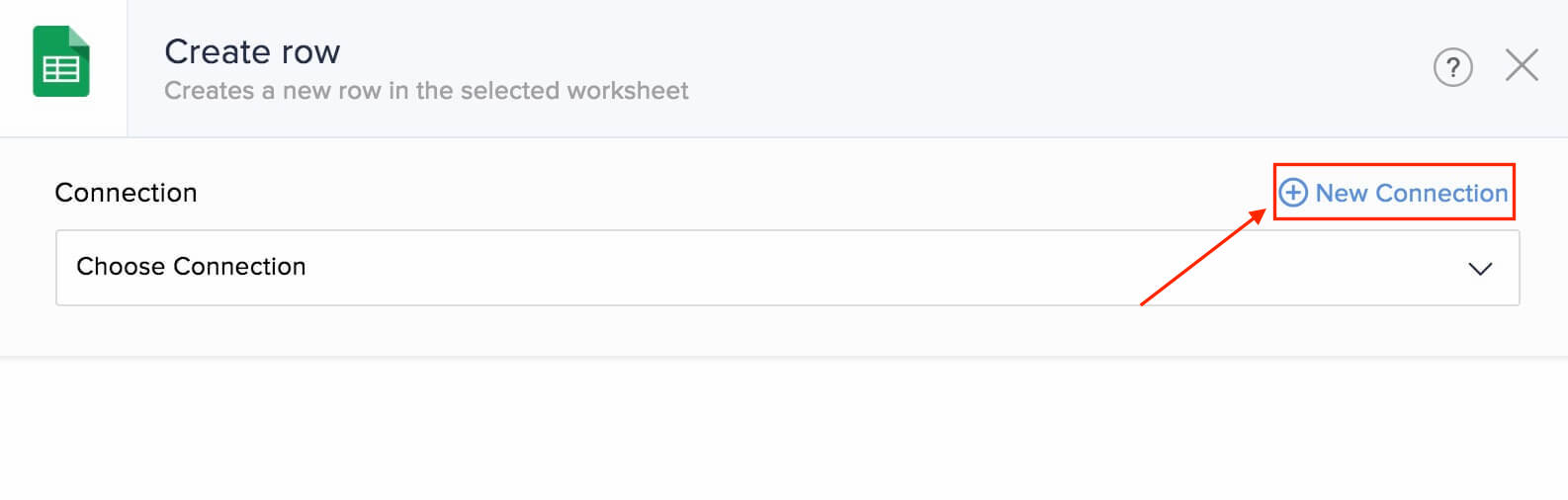
Alternatively, you can create a new connection by navigating to Settings, then Connections. Click Create connection and choose Google Sheets. - Enter a Connection name and click Authorize.
- Enter your Google account credentials in the pop-up.
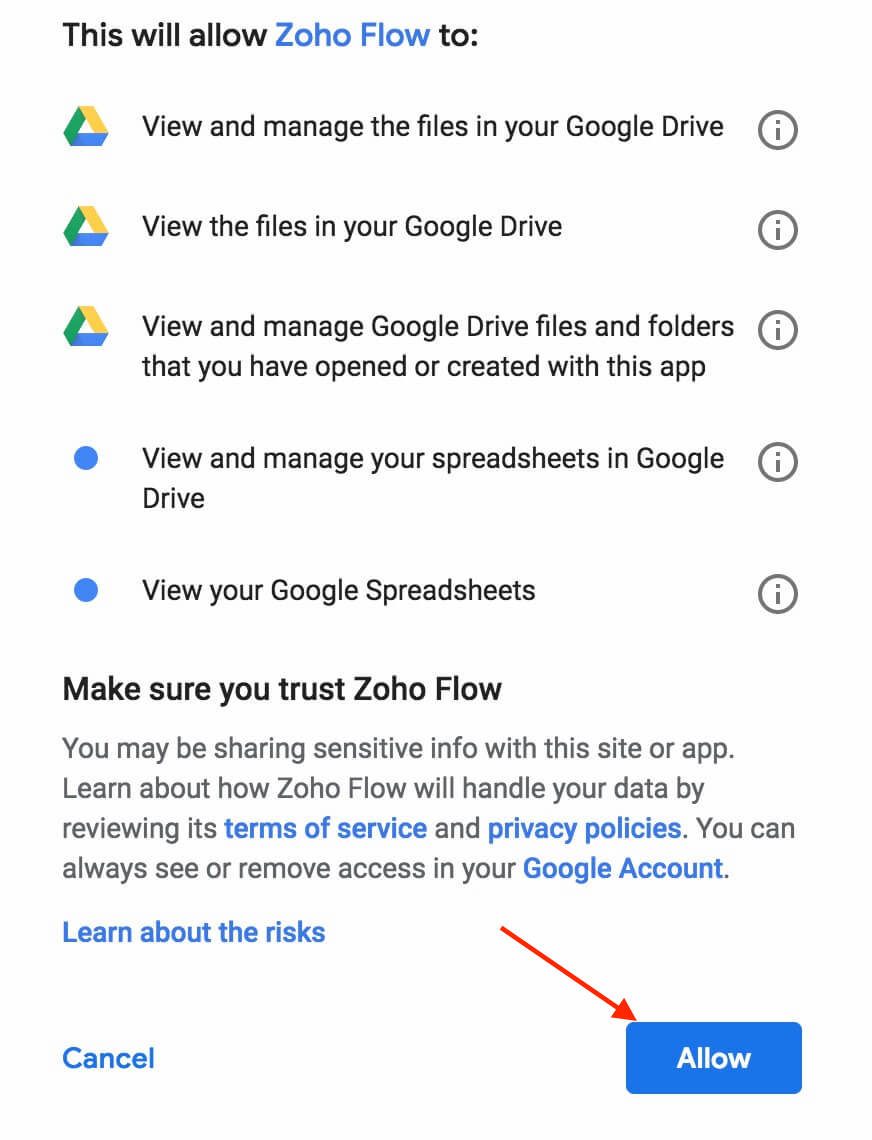
- Click Allow to authorize Zoho Flow to access your account.
API documentation
Triggers and actions available in Zoho Flow
Important note regarding Google Sheets triggers and actions:
- Row added (Old version)
- Create row (Old version)
- Fetch row (Old version)
- Update row (Old version)
Additionally, there will be changes in how you configure triggers and actions in Google Sheets. Previously, when configuring triggers and actions, you were required to select your spreadsheet from a dropdown list. Moving forward, you'll need to find the spreadsheet ID of your required spreadsheet and use it to search for the spreadsheet in the 'Spreadsheet' field.
- Open Google Sheets in a new browser tab and access your required spreadsheet.
- If your spreadsheet's URL looks like https://docs.google.com/spreadsheets/d/1TVlZfssp_Tmvfto4dhop0bTzLvhSIqK_BYttO89F75Q/edit#gid=1020652250, the spreadsheet ID will be the string of characters between /d/ and /edit, which in this case is 1TVlZfssp_Tmvfto4dhop0bTzLvhSIqK_BYttO89F75Q
- Do not include any slashes (/) in the spreadsheet ID.
- Enter the ID in the Spreadsheet field, then click Search. Select the spreadsheet from the search result.
Triggers
Row added
Use this trigger to add to-dos, create appointments, or notify your team via chat when a new row is added.
Spreadsheet created (No longer supported)
Worksheet created
Add tasks, create products in your inventory, or add events to your calendar when a new worksheet is created.

Actions
Create row
Add records from survey responses, subscriber data from your mailing list, or orders from your ecommerce website to worksheets using this action.
Create spreadsheet
Create spreadsheets based on new events, marketing campaigns, or a recurring schedule.
Fetch row
Use this action to fetch the details of a specific row to update values.
Update row
This action lets you update the row details based on updates in other apps.
Working with Google Sheets on Zoho Flow
Columns must be properly labeled
For your flow to work properly, all column names must be in the first row of your worksheet without any gaps. If there is a gap, your flow will only fetch the column names before the gap.
For example, if you enter column names for columns A, B, and D, then only fields with column names A and B will appear.
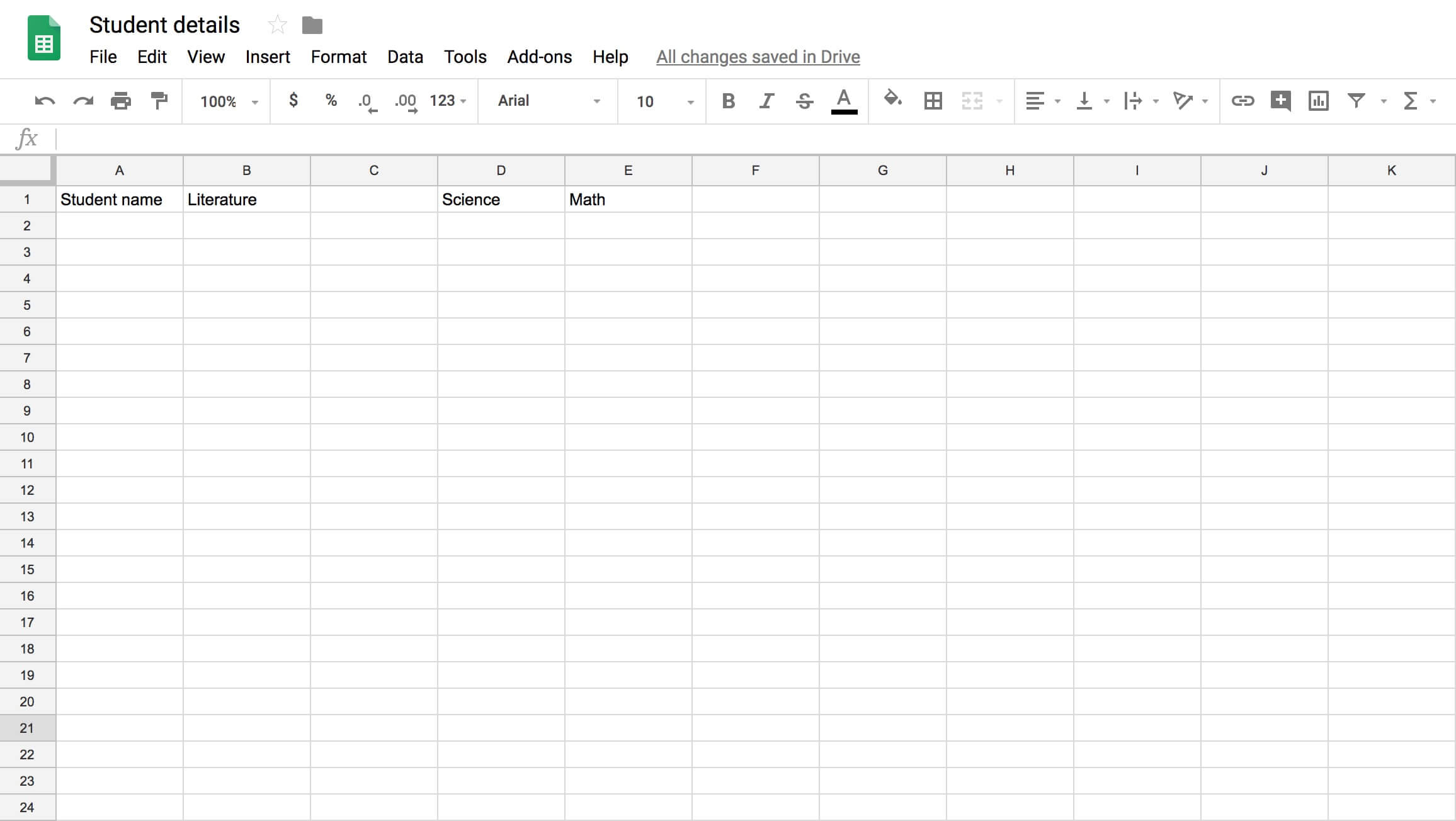
For this sheet, Zoho Flow will only fetch Student name and Literature as the column names.
How flow handles empty rows in your worksheet
Let's say you've entered values in the first three rows. You leave the next two rows empty and then enter values in the sixth row.
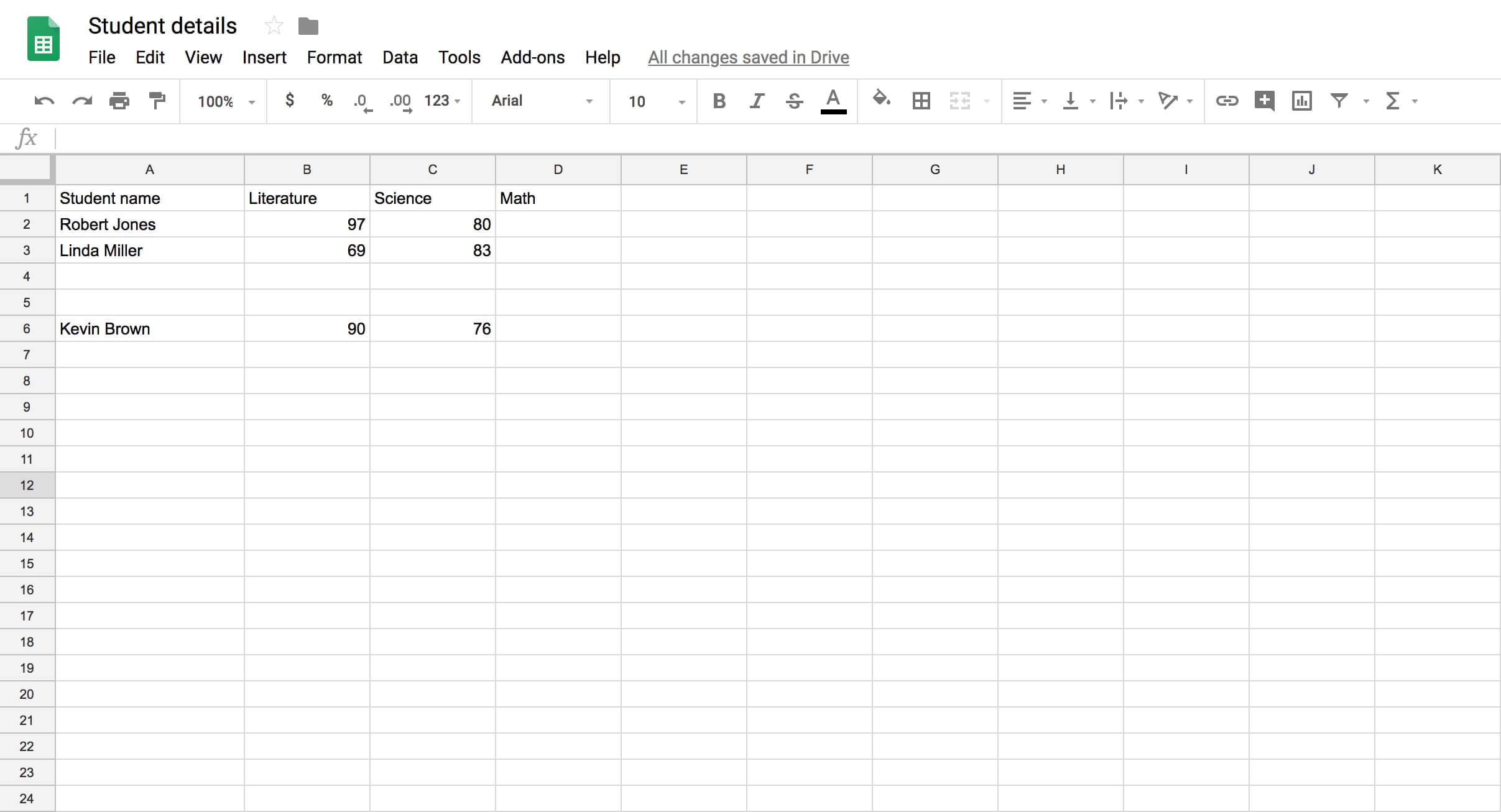
This value will not trigger your flow because Zoho Flow would have recorded the third row as the last. So it'll trigger only when data is added in the fourth row.
After the flow triggers for values in the fourth and fifth rows, it will trigger for the value in the sixth row.
 Note: If you have data in the first ten rows and then delete rows 5-10, your flow will not trigger when data is added again in these rows. It will trigger only for the eleventh row after data is added in rows 5-10. If you want the flow to trigger for the data you add in rows 5-10, switch off your flow and then switch it on again.
Trigger a flow when a row is updated in your spreadsheet
Limitation with merged cells
- Avoid using merged cells in the Google Sheets worksheets that you plan to connect with Zoho Flow.
- If you encounter issues with existing workflows, check your sheets for any merged cells and unmerge them to restore functionality.
- If your flow includes a sheet with merged cells, then data will be entered only till the cell preceding the merged cell.
Common problems
- I'm not able to create a new row in Google Sheets using Zoho Flow.
Make sure that you have labeled all your columns in the worksheet in Google Sheets with no gaps. When you configure the New row action on Zoho Flow, it will fetch the names of the columns as fields. You can then enter or map the values you want to add in each column.