Gravity Forms
What is Gravity Forms?
Gravity Forms is a tool to create forms for your WordPress powered websites. It provides ready-to-use form fields, conditional logic, and more.
How to connect your Gravity Forms account to Zoho Flow
- Select the required trigger or action. If you select a trigger, click Next.
- If there are no existing Gravity Forms connections in your account, click Connect. Otherwise, click New.
- Alternatively, you can create a new connection by navigating to Settings, then Connections. Click Create connection and choose Gravity Forms.
- Enter a connection name.
- You will need Consumer key, Consumer secret, and Base URL of your WordPress website to proceed.
Finding the Base URL of your WordPress website
- In a new browser tab, log in to your WordPress admin dashboard.
- Navigate to WP Admin dashboard > Settings > General > Site address (URL).
- Copy the URL and paste it in the Base URL field in Zoho Flow.
Finding the Consumer Key and Consumer Secret
- Return to your WP Admin dashboard.
- On the left panel, navigate to Forms > Settings > REST API > Authentication (API version 2) > Add key.
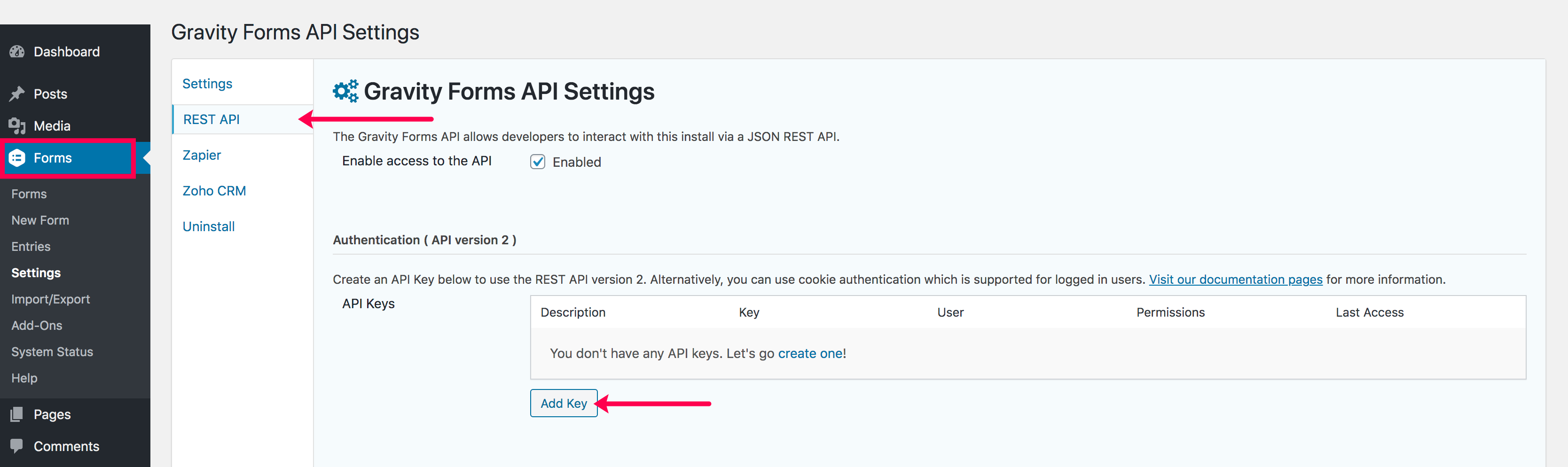
- Select the user. Set the permissions as Read/Write, then click Add Key.
- Copy the Consumer key and Consumer secret key from this box and paste it in the respective fields in Zoho Flow.
- Once you have pasted the keys, return to the WordPress tab, click Back to API settings, then click Update.
API documentation
If you experience any Gravity Forms-related errors in your flows or if you wish to learn more about the Gravity Forms API, the API documentation can be found here.
Triggers and Actions in Zoho Flow
Triggers
Form submitted
Use this trigger to create leads, add tasks, or track employment applications using form submissions.
How do I set up the trigger?
After selecting the trigger, Zoho Flow will provide you a Unique URL that needs to be inserted to your Gravity Forms Webhook Add-On.
Installing Gravity Forms Webhook Add-on
- Log in to your WP Admin dashboard.
- Navigate to Forms on the left panel > Add-Ons.
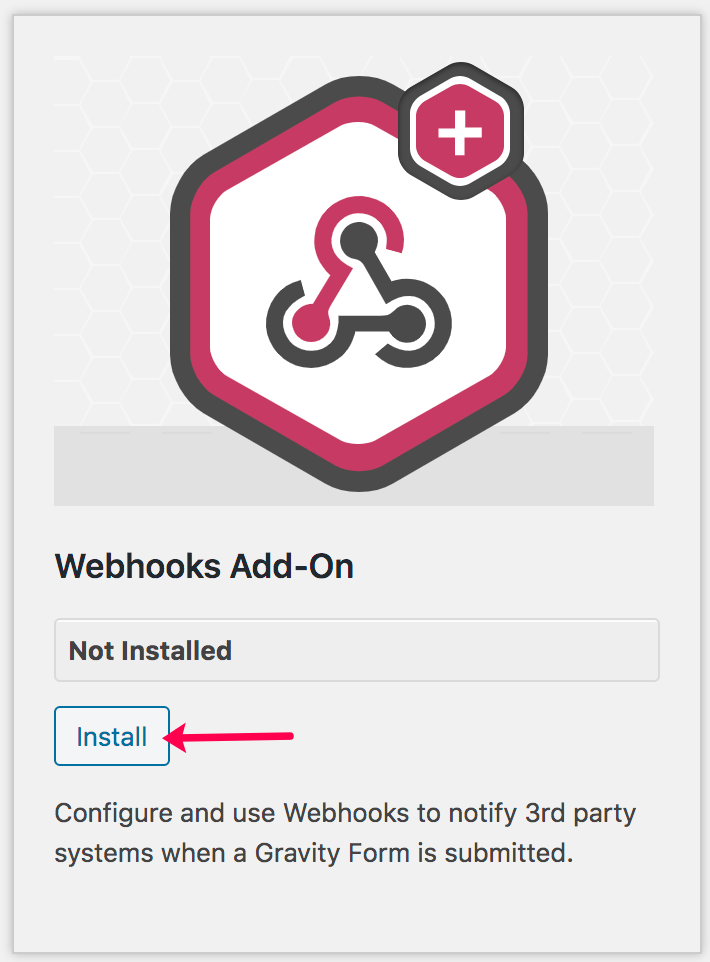
- Scroll down and find Webhooks Add-On.
- Click Install. Once the installation is complete, click Activate.
Once you have installed Gravity Forms Webhook Add-on
- Navigate to Forms (the Gravity Forms section) on the left panel > Forms.
- Scroll down and hover over your required form, then navigate to Settings > Webhooks > Add new.
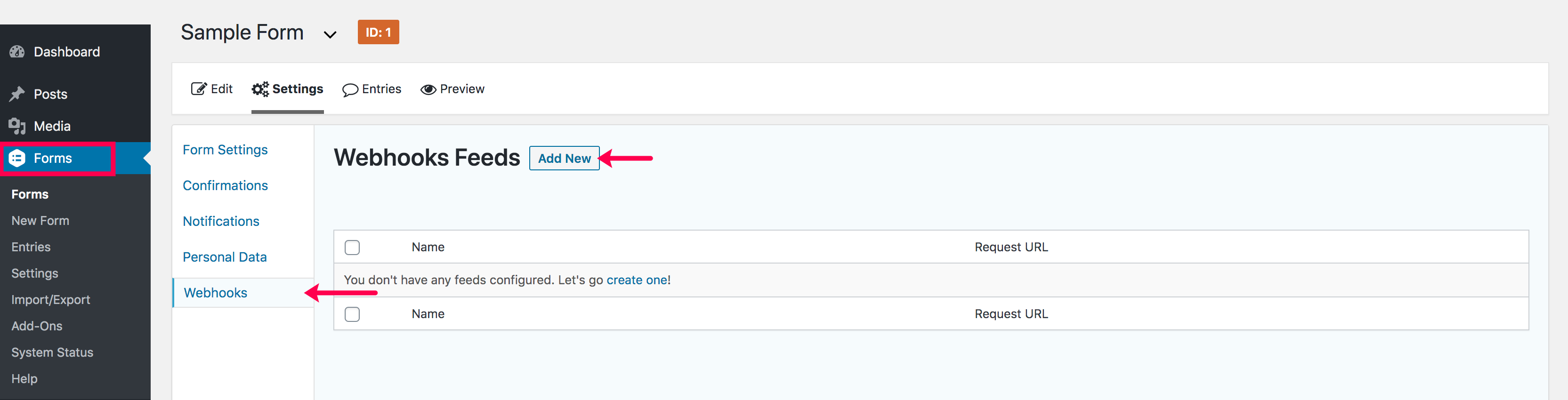
- Provide a name for your webhook feed.
- Copy the URL provided in your trigger configuration, then paste it into the Request URL field.
- Click Update settings.
Actions
Fetch entry
Use this action to find details such as email address, phone number, or other fields from an existing form entry.