WooCommerce
What is WooCommerce?
WooCommerce is an open-source ecommerce plugin for WordPress that provides secure payments, configurable shipping options, and more.
How to connect your WooCommerce account to Zoho Flow
- Select the required trigger or action. If you select a trigger, click Next.
- If there are no existing WooCommerce connections in your account, click Connect. Otherwise, click New.
Alternatively, you can create a new connection by navigating to Settings, then Connections. Click Create connection and choose WooCommerce.
- Enter a connection name.
You will need Consumer key, Consumer secret, and Base URL of your WordPress website to proceed.
Finding the Base URL of your WordPress website
- In a new browser tab, log in to your WordPress admin dashboard.
- Navigate to WP Admin dashboard > Settings > General > Site address (URL).
- Copy the URL and paste it in the Base URL field in Zoho Flow.
Note: If the displayed site address starts with "http:// " instead of "https://", it means that your WordPress account is running on a local server. In that case, Zoho Flow connection will not work.
Finding the Consumer Key and Consumer Secret
- Return to your WP Admin dashboard.
- Navigate to WooCommerce in the left panel > Settings > Advanced > REST API.
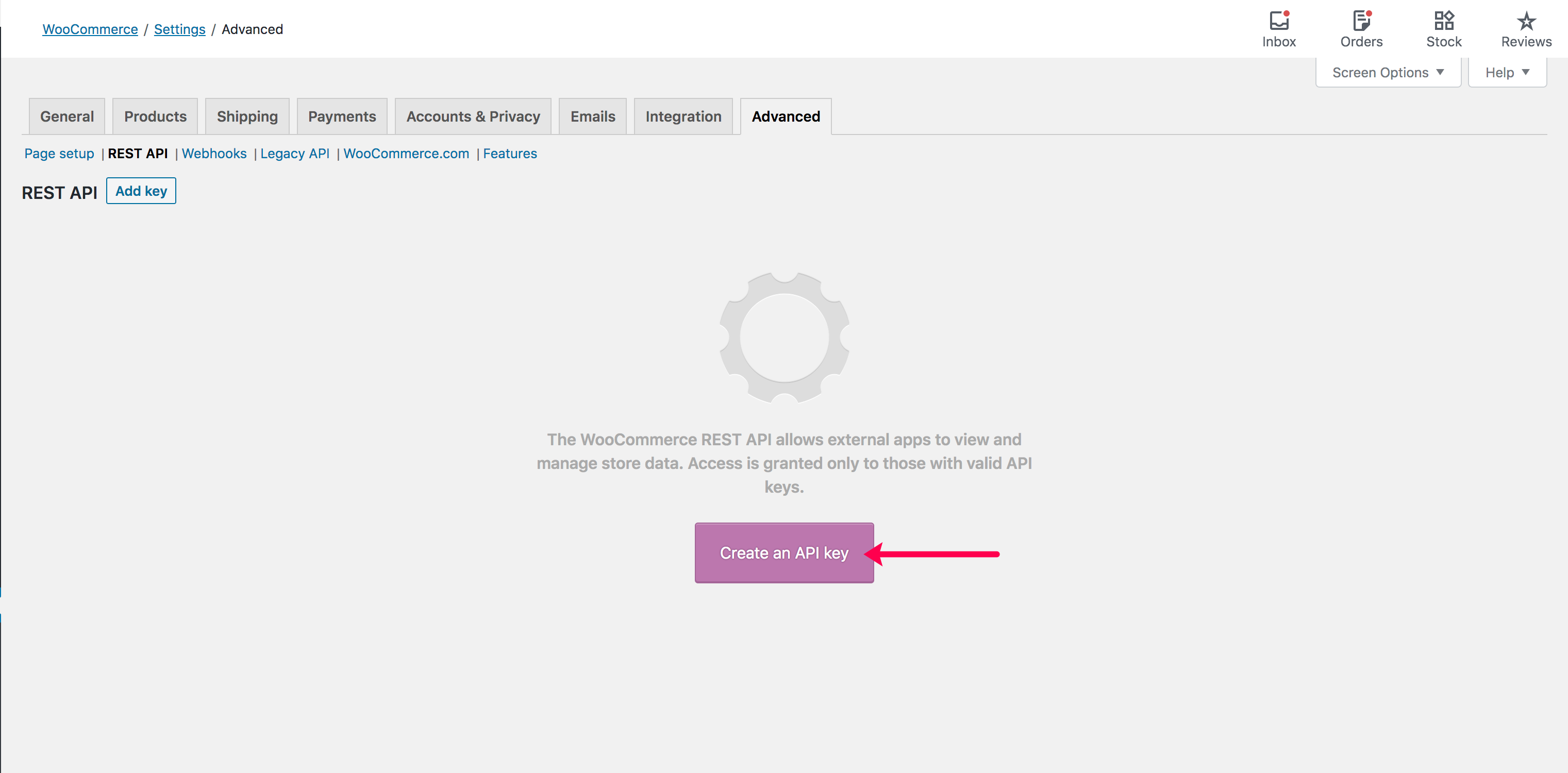
- Click Add key.
- Provide a description for the API key.
- Select the User, then set Permissions to Read/Write. Then click Generate API key.
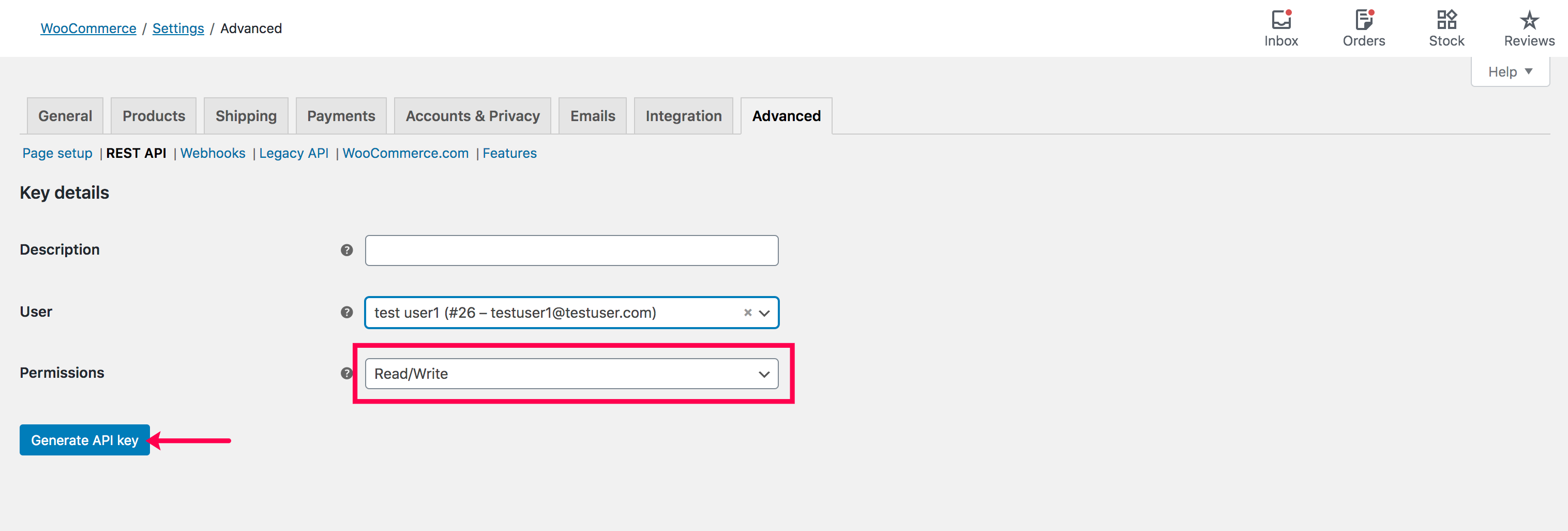
Note: Ensure that the selected user has super admin access to provide Read/Write permissions. - Copy the Consumer key and Consumer secret key from this box and paste it in the respective fields in Zoho Flow.
API documentation
Triggers and Actions in Zoho Flow

Important note
Some security plugins for WordPress could interfere with the proper functioning of your WooCommerce triggers and actions in Zoho Flow. If you experience any such issues, switch off your flow, disable the security plugin and switch the flow back on.
Triggers
Customer added
You can use this trigger to automatically add new WooCommerce customers to your marketing campaign list.
Customer updated
Automatically update the details of your contacts when the details get updated in WooCommerce.
Order created
Use this trigger to add new orders to your spreadsheet automatically.
Order updated
Keep your team notified about order updates, send a confirmation message to customers, and generate estimates or invoices based on the update, automatically with this trigger.
Product category created
Notify your partners when a new product category is added.
Product created
Trigger workflows to notify customers who pre-booked the product, keep your inventory updated, and share details of the new product on social media.
Product updated
Keep your customers notified about the changes in their favorite products with this trigger.
Actions
Create category
This action lets you create a new category based on product information, emails, or inventory information.
Create product
This action helps you create products in your shop with details from the inventory.
Fetch category
This action will help you retrieve information about your product categories, and lets you compare with your inventory.
Fetch customer
Use this action to check if a customer is present in your CRM. You can also add the details of the customer to your CRM if it's not already present.
Fetch order
Use this action to fetch order details when status is updated, and notify the customer and your team.
Fetch product
This action allows you to fetch the product details, or to check if it's available.
Update category
Keep your category details updated with the details in your database with this action.
Update product
Use this action to update product details from documents or sync data with your inventory.