X-Cart
What is X-Cart?
X-Cart is ecommerce shopping cart software. You can add features with open source PHP code, install add-ons, and manage orders and inventory easily.
How to connect your X-Cart account to Zoho Flow
- Select the required trigger or action. If you select a trigger, click Next.
- If there are no existing X-Cart connections in your account, click Connect. Otherwise, click New connection.
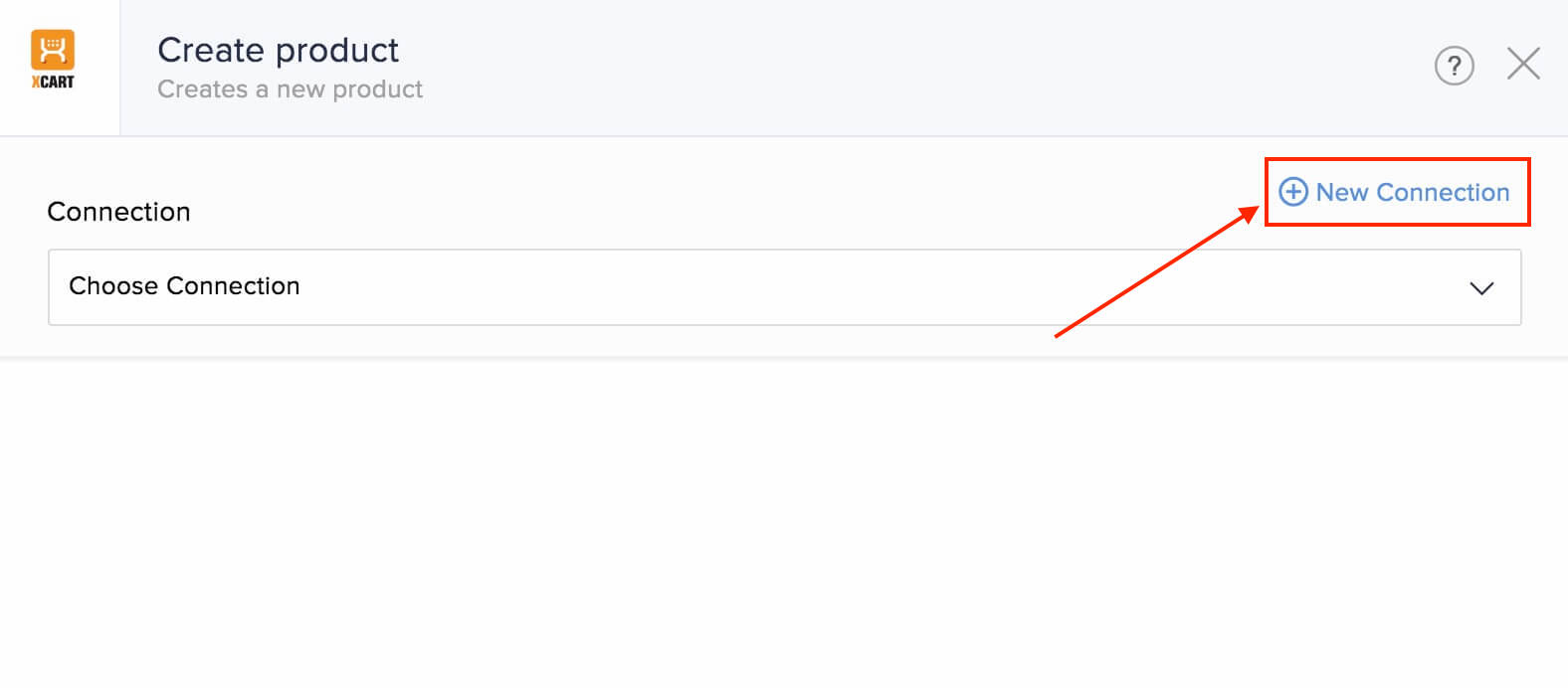
Alternatively, you can create a new connection by navigating to Settings, then Connections. Click Create connection and choose X-Cart. - Enter a connection name.
- Log in to your X-Cart account in a different browser tab and navigate to My addons in the left bar.
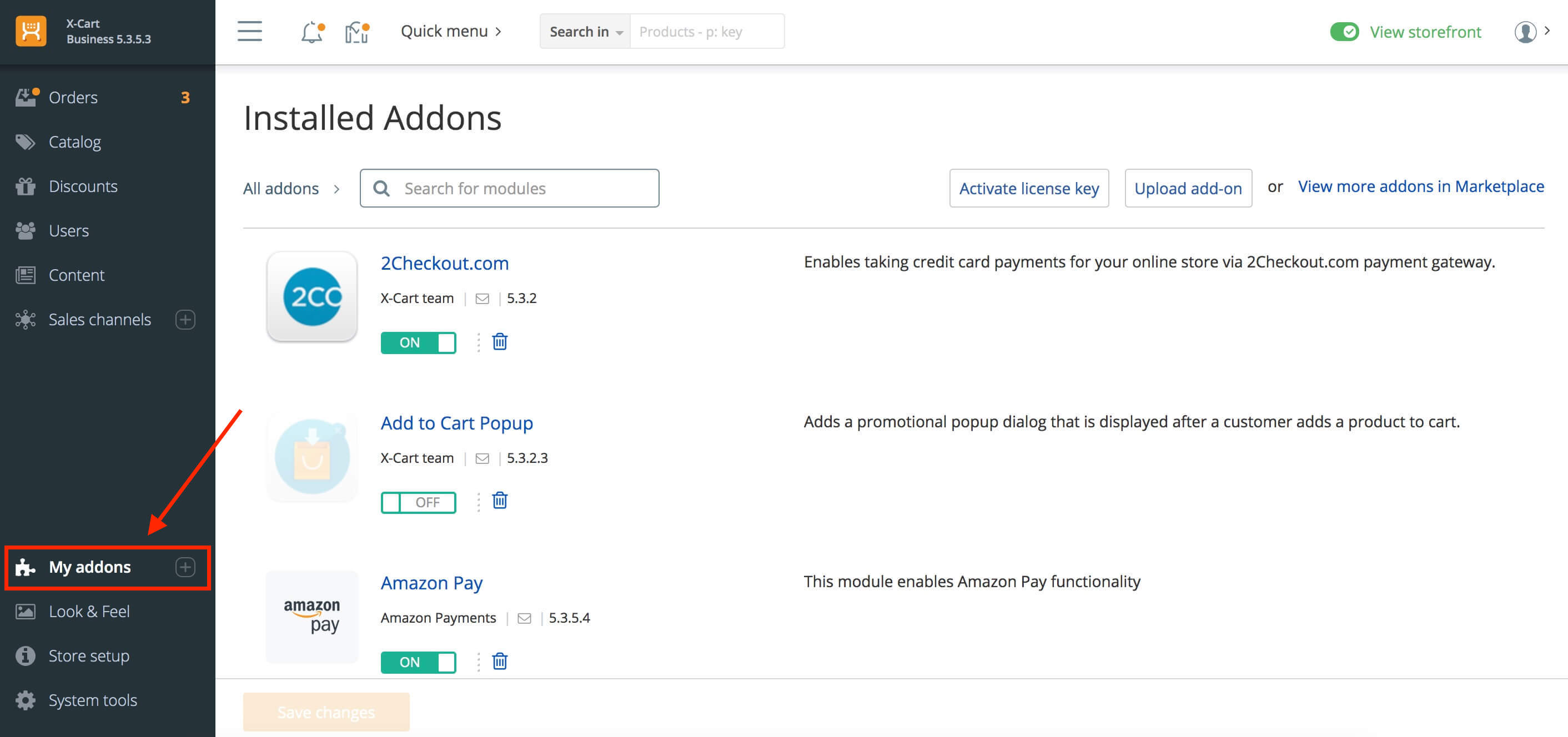
- Install and set up the REST API module if you haven't already.
- Your API keys will be available in the Settings section of the REST API module. We recommend using API key (read/write) to allow Zoho Flow to exchange data with X-Cart.
- Copy and paste the API key in your flow configuration.
- Copy the value of {path} from your X-Cart URL: https://{path}/admin.php. For example, if you access your X-Cart account using https://example/admin.php, then example is your path.
- Click Authorize to allow Zoho Flow to access your account.
API documentation
Triggers and actions available in Zoho Flow
Triggers
New customer
Use this trigger to automate adding data to your CRM and verifying emails when a new customer is created in your X-Cart account.
New order
Send a confirmation SMS, create a spreadsheet row, and generate an invoice when a new order is placed.
New paid order
When a new paid order is created, use this trigger to add tasks and notify your team via chat.
New product
Email customers who have requested the product, generate a short product URL, and announce on social media using this trigger.
Unfinished order
This trigger lets you remind customers a day after the order is left unfinished, and create a task to help your team keep track.
Actions
Create customer
Use this action to add customers based on sign-up form entries, support requests, or orders.
Create product
Create new products based on form submissions or new products in your inventory.
Fetch customer
This action lets you fetch details about a customer to send personalized emails and update data in your CRM account.
Fetch order
Use this action when you need more details on a specific order, such as basic customer or product information, to generate invoices.
Fetch product
This action allows you to fetch product details regularly and notify via email if the available quantity falls below a certain value.