Zoho Books
What is Zoho Books?
Zoho Books is online accounting software to manage your accounting, inventory and to file your GST returns. You can manage your contacts, set up rules to categorize banking transactions, make informed decisions based on accurate reports, and keep track of every expense.
How to connect your Zoho Books account to Zoho Flow
- Select the required trigger or action. If you select a trigger, click Next.
- If there are no other Zoho Books connections in your account, click Connect. Otherwise, click New connection.
Alternatively, you can create a new connection by navigating to Settings, then Connections. Click Create connection and choose Zoho Books . - Enter a Connection name and click Authorize.
- Click Accept to allow Zoho Flow to access your Zoho Books account.
API documentation
How to migrate to the latest version
To ensure a smooth transition to the latest version, we strongly recommend you to follow these steps:
- Switch off the flows that include Zoho Books triggers and actions.
- Create a copy of the flows by clicking the Create copy button.
You could use the original flows as a reference in case something goes wrong.
- In the copied flows, reconfigure the Zoho Books trigger and actions by clicking on the Edit button.
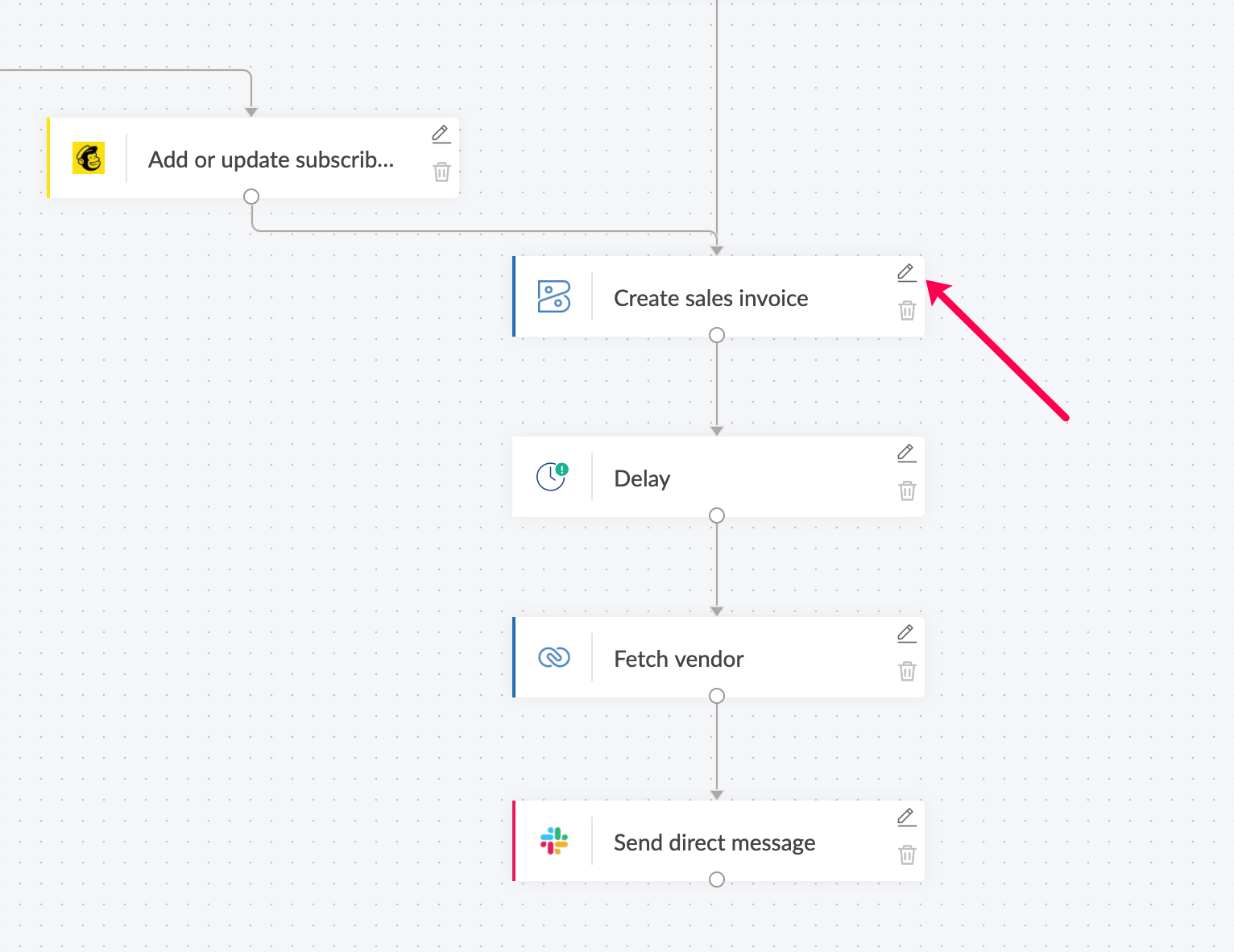
- Even though most of the data mappings will be unaffected, we strongly recommend that you remove the existing mapping and insert variables to the desired fields again.
Note: Since you are working on a copy of your flow, you can always refer to the original setup to verify if you have mapped the fields correctly. - Switch on the new flows.
Major changes from the previous version
Authentication
Previous version
Current version
The authentication scheme was API key based.
The authentication scheme is OAuth V2.Fetch actions
Fetch actions like Fetch item, Fetch invoice, and Fetch estimate now provide you a dropdown list to select the field you wish to use to search for a record. For example, in the case of Fetch invoice,
Previous version
There were three separate Fetch Invoice actions - Fetch invoice by ID, Fetch invoice by invoice number, and Fetch invoice by CRM Potential ID.
Current version
You can fetch the details of an existing invoice by ID, invoice number or CRM potential ID from the drop-down list in the Fetch invoice action.
Separate Contact modules for Customer and Vendor
Previous version
Create contact, Fetch contact and Update contact.
Current version
You have separate actions for Customer contacts and Vendor contacts.
Customer: Create customer, Fetch customer and Update customer.
Vendor: Create vendor, Fetch vendor and Update vendor.
Fetch salesperson action dropped
Due to technical difficulties, Fetch salesperson action was dropped, and will no longer be available.