Zoho CRM
What is Zoho CRM?
Zoho CRM is on-demand customer relationship management software. You can customize your workflows and information, predict sales with detailed reports, and even monitor trends on social media and discover leads.
How to connect your Zoho CRM account to Zoho Flow
- Select the required trigger or action. If you select a trigger, click Next.
- If there are no other Zoho CRM connections in your account, click Connect. Otherwise, click New connection.
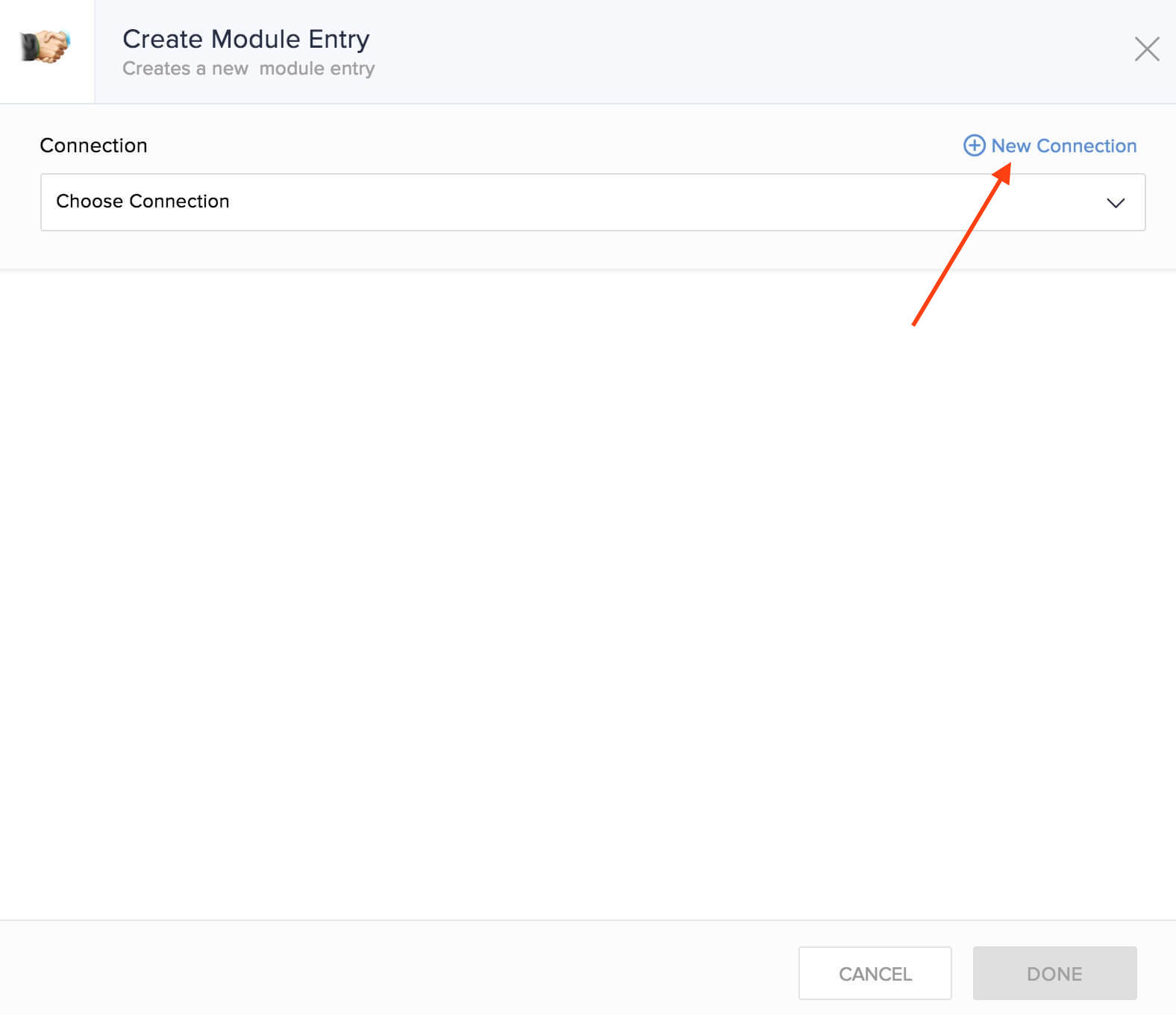
Alternatively, you can create a new connection by navigating to Settings, then Connections. Click Create connection and choose Zoho CRM. - Enter a Connection name and click Authorize.
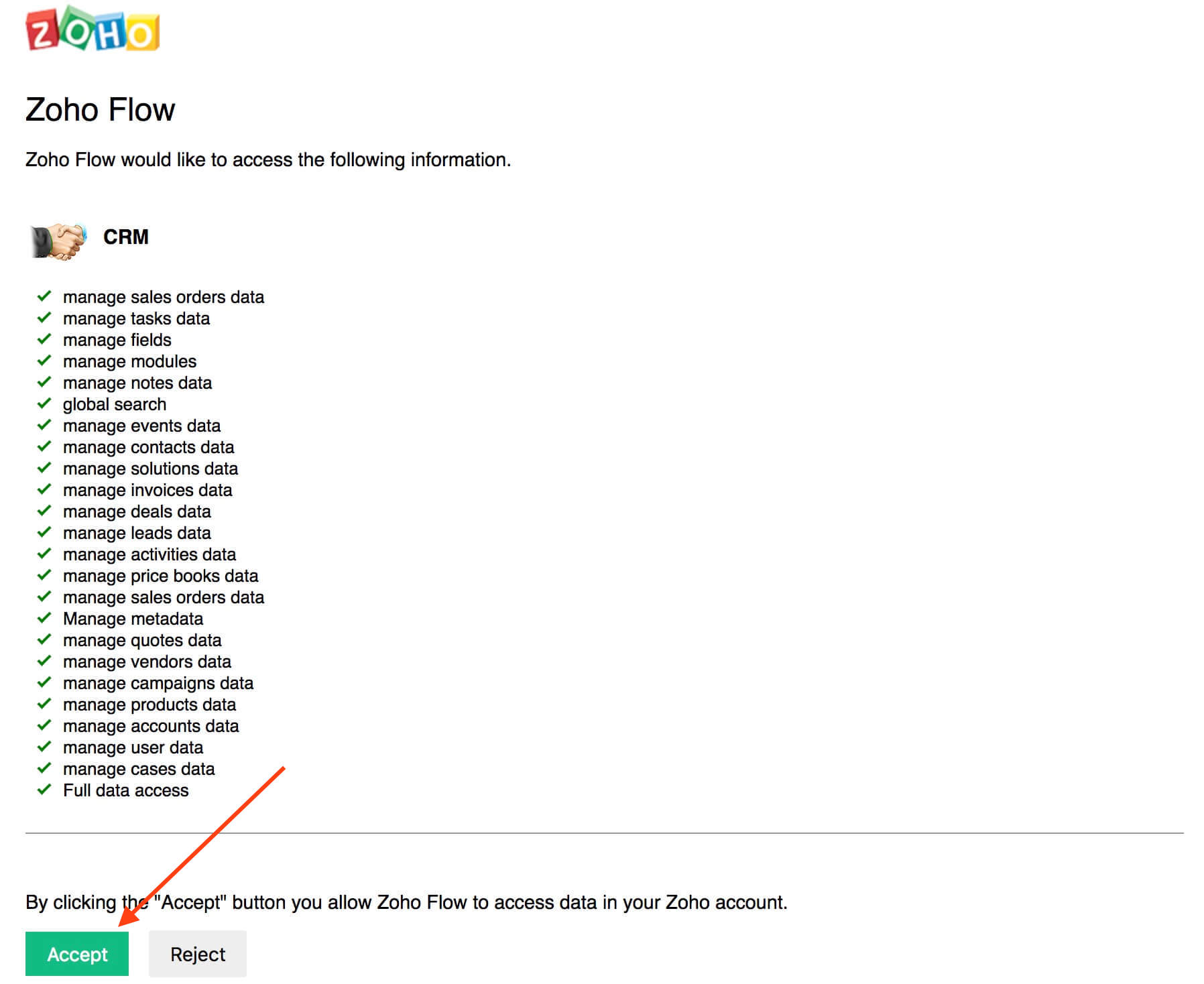
- Click Accept to allow Zoho Flow to access your Zoho CRM account.
API documentation
Triggers and actions available in Zoho Flow
General triggers and actions
Specific to Contacts
Specific to Leads
Specific to Deals
Other triggers and actions
Creating and updating module entries
To create a record in the events module with this action, use the following custom function. This function modifies the date fields to the format required by the events module of Zoho CRM.
- string dateFormatISO(string myDate, string fromFormat)
- {
- mydateObj = myDate.toTime(fromFormat);
- resultDate = mydateObj.toString("yyyy-MM-dd'T'HH:mm:ss'Z'");
- return resultDate;
- }
This action creates a new entry in the selected module. If the entry already exists, the action updates the entry details. Zoho CRM checks for duplicate records using the following criteria.
| Module name | Criteria |
|---|---|
| Leads | Email |
| Accounts | Account name |
| Contacts | Email |
| Deals | Deal name |
| Campaigns | Campaign name |
| Cases | Subject |
| Solutions | Solution title |
| Products | Product name |
| Vendors | Vendor name |
| Price books | Price book name |
| Quotes | Subject |
| Sales orders | Subject |
| Purchase orders | Subject |
| Invoices | Subject |
| Custom modules | Name |
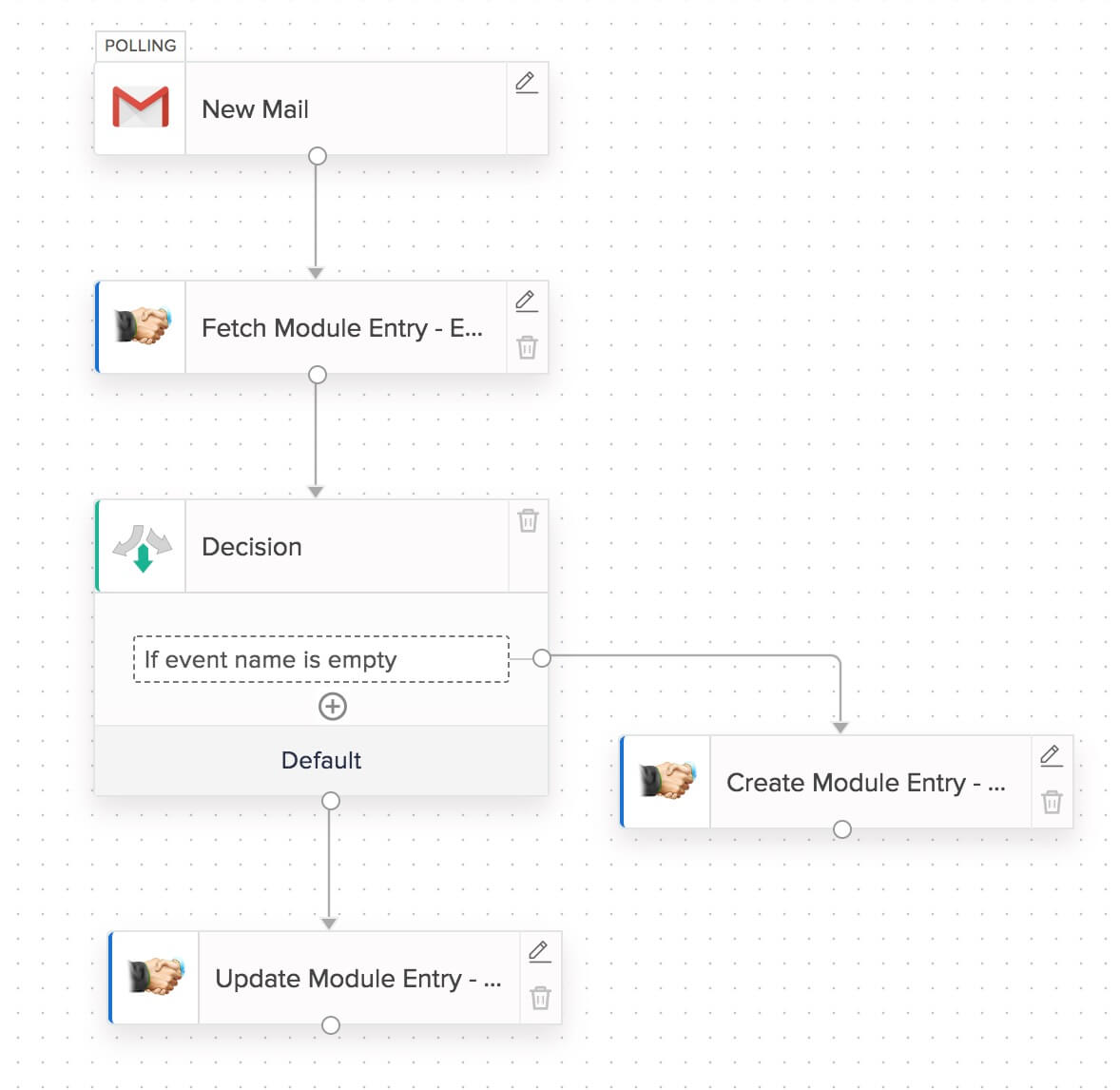
Note: Zoho CRM's API does not support create or update as a single action for tasks, calls, or events. Use the Fetch module entry action to fetch variables from the module to map. Then configure a decision to check if a particular field is empty. If it is empty, this means the record does not exist. You can then branch your flow using Create module entry and Update module entry.
Working with unique fields in a module
In Zoho CRM modules, a field becomes a unique field when you have enabled duplicate check on that field. For such fields, if a duplicate value is passed using an action such as Create module entry, the flow would fail. In your Zoho CRM Module Settings, disable duplicate checking for the required field if you think it need not be a unique field.
Otherwise, you can use a Fetch action and Decision logic to:
- Filter out duplicate entries and avoid passing them on to a Create action
- Check if the record already exists, and use an Update action to update the existing record with the new information.
Triggering native workflow rules in Zoho CRM
In generic module based actions, such as Create module entry, the Trigger for option lets you choose whether the action should trigger workflow, approval, or blueprint rules in Zoho CRM. Choose None if you don't want the action to trigger any rules. If you leave the option unattended, the default option, All of the above will be in effect.
However, this option is not available for the specific module based actions, such as Create or update lead, and will always trigger any existing workflow rules you have set up in Zoho CRM.
Working with the Add notes action
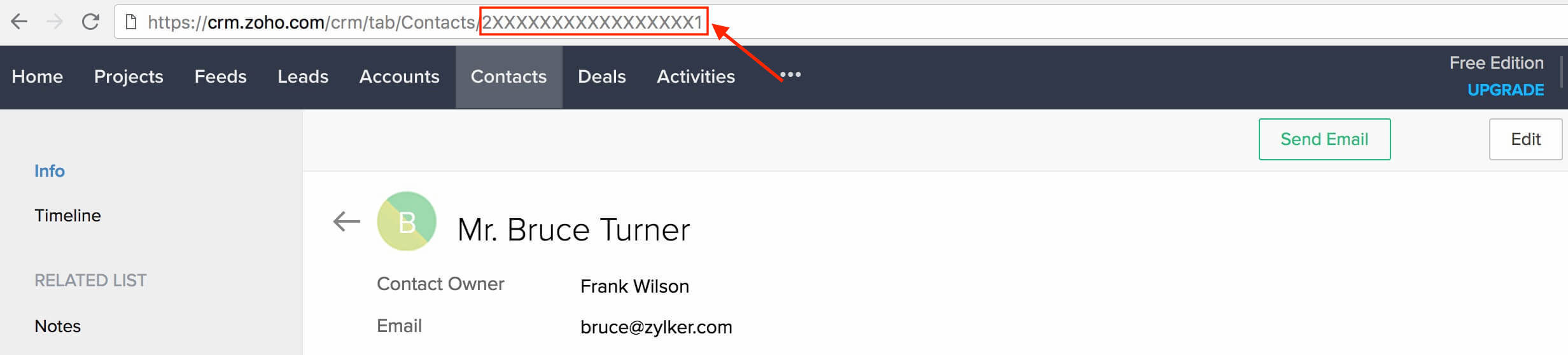
While configuring the Add notes action on Zoho Flow, you need to enter a value for Entity ID. This is a unique ID associated with the entity (record) in Zoho CRM. To get this ID, go to your Zoho CRM account and select the module and entity you want to add the note to. Your URL will be in the format:
https://crm.zoho.com/crm/tab/{module_name}/{Entity_ID}.
Use the value in the place of {Entity_ID} to fill in the entity ID field in your configuration.
For example, if you select the Contacts module and click on a particular contact, your URL will look something like: https://crm.zoho.com/crm/tab/Contacts/2XXXXXXXXXXXXXXXXX1. Your entity ID is: 2XXXXXXXXXXXXXXXXX1
Common problems
- I can't enter boolean values as inputs.
Use ${false} and ${true} to add boolean values as the input in your configuration.
- My flow with Zoho CRM as the trigger app does not start.
Zoho CRM triggers will not start your flow if the records are imported or if data updates occur through Zoho CRM's custom functions.
- I get the error message "Module limit exceeded."
Limits in Zoho CRM depend on your subscription level. Check this link for more details. You can delete some of your existing workflow rules (Zoho CRM -> Settings (gear icon) -> Automation -> Workflow Rules) and try to switch on the flow again. Alternatively, you can write to Zoho CRM support (support@zohocrm.com) to increase your workflow limit in CRM.
- What value should I enter in the 'Owner' field when working with module entries?
This field only accepts an ID value. You can use the Fetch user action to get the user ID from CRM and then map it to the 'Owner' field.
- I get the error message "The expected input type is jsonarray"
Sometimes, a variable holding an array can get auto-converted to a string datatype. In such cases, when you insert that variable into a field that requires a JSON array, you will encounter this error. In such cases, you can pass the string or Multi-select pick list values as a JSON array using the following custom function:
list convertToList(string listStr)
{
return listStr.toList(",");
}
The above custom function will create a JSON array by looking for values that are separated using comma (eg., a,b,c). If you want to do the same from a semicolon-separated string (eg., a; b; c), replace the comma in the third line (listStr.toList(","); ) with a semicolon.