Zoho WorkDrive
What is Zoho WorkDrive?
Zoho WorkDrive is an online file management platform for teams. You can share files with teams and stakeholders, keep track of usage reports, and secure folders with restricted access.
How to connect your Zoho WorkDrive account to Zoho Flow
- Select the trigger or action required. If you select a trigger, click Next.
- If there are no existing Zoho WorkDrive connections in your account, click Connect. Otherwise, click New connection.
Alternatively, you can create a new connection by navigating to Settings, then Connections. Click Create connection and choose Zoho WorkDrive. - Enter a connection name, then click Authorize.
- Click Accept to allow Zoho Flow to access your account.
API documentation
If you experience any Zoho WorkDrive-related errors in your flows, or if you wish to learn more about the Zoho WorkDrive API, the API documentation can be found here.
Important points to note while using Zoho WorkDrive triggers and actions
How to find file and folder IDs in Zoho WorkDrive
File IDs and Folder IDs might be required to configure a number of Zoho WorkDrive triggers and actions. Follow the steps below to find the ID of your required file or folder:
- In your Zoho WorkDrive account, navigate to the required file or folder.
- Right-click on the required file or folder and click Properties.
- Under General info, its permalink will be displayed.
The part of that link that follows the last slash (/) will be the ID of that file or folder. For example, if a folder's permalink is https://workdrive.zoho.com/folder/o3mmdf33ac9fbbf40ab9f9432421ad7f8c, then o3mmdf33ac9fbbf40ab9f9432421ad7f8c is the folder ID.
While using triggers
Configuring Team, Team Folder, and Folder fields
While using Zoho WorkDrive triggers, the Team and Team Folder fields are required. After selecting these, you can also select a folder that is inside the Team Folder using the Folder dropdown.
Accessing sub folders
To access a subfolders, you need to:
- Configure the Team and Team Folder fields.
- Under Folder, choose Use a Custom Value.
- In another window, open Zoho WorkDrive.
- Navigate to the required folder and open it. Copy the last part of the URL (following the last '/') from the address bar. For example, when the required folder is opened, if the URL looks like https://workdrive.zoho.com/home/6oq3d00e1e05d7/teams/780xuad72c/ws/ibnf21fc09bcf56/folders/ibnf2b6445fe562ba49189a7f7556f39057b5, then, ibnf2b6445fe562ba49189a7f7556f39057b5 is the custom value.
- Return to Zoho Flow. Paste the above value under Custom Value for Folder, then click Done.
Accessing personal folders
To select your personal folder in Zoho WorkDrive, i.e., My Folders, select the Team, then select My Folders in the Team Folders dropdown.
Selecting Team folder
If you want to select a Team folder as your required folder for a trigger, you need to select the Team and the Team Folder, and leave the subsequent Folder field unattended.
Using the File created trigger
The File created trigger will work for two events:
1. When a new file is created in the selected folder.
2. When a file is uploaded in the selected folder.
Selecting multiple events for File or Folder event triggers
In the File event occurred and Folder event occurred triggers, you can select more than one event to trigger your flow. To do so:
- Select the required Team and Team Folder.
- In the Event dropdown, select Use a Custom Value.
- Enter the events that you want separated using commas.

Note: You can identify the values to enter for each event from the Event dropdown. For example, if you want the events to be folder created and folder moved, then enter folder_create,folder_move.
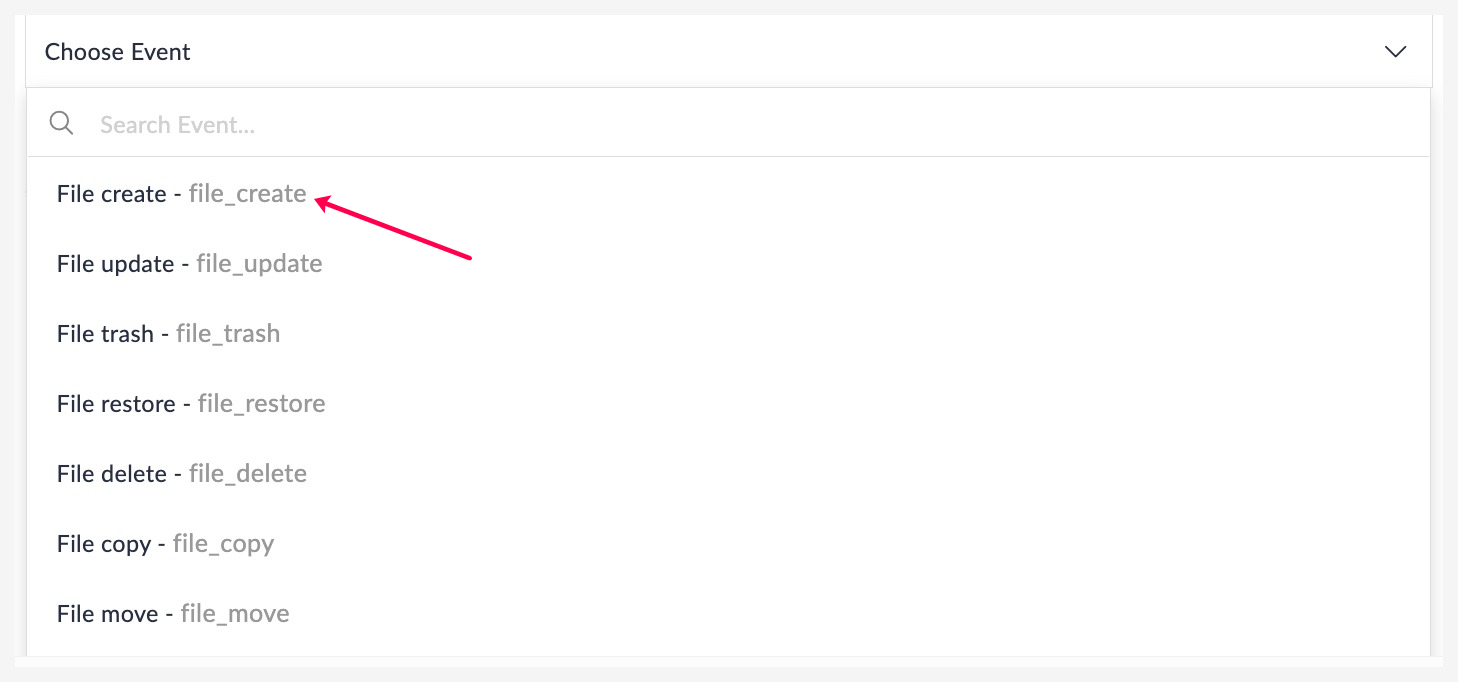
You can enter up to 10 events.
While using actions
Adding and updating members in team folder
You can add users as members to a Team folder and assign roles and permissions to them using the Add member to team folder action. You cannot add members to the folders and their sub folders in a Team folder.
You can also use the Add member to team folder action to update the role of an existing member. To do so, enter the email address of the member you wish to assign a different role and select the role.
Associate data template action
You can assign an existing data template with a file or folder using this action.
While changing share permissions
When you are using actions such as Update share permission, take note of the following for configuring the Share type:
- Set Share type as "Organization" only if you are using the Enterprise edition of Zoho WorkDrive
- For other editions, set Share type as "Team members" to share file or folder with everyone in your team