Common problems
- Problems with Flow Creation
- Problems with Flow Execution
- Flow is switched off
- Limitations
- Organization is Inactive
- Unable to authorize new connections
Problems with Flow Creation
Here's what to do when you face these common problems when setting up your flow.
Unable to create connections in Zoho Flow
Browser extensions might prevent you from creating connections in Zoho Flow. Disable them and try again.
New fields are not available as variables
When you add fields in a third-party app after you set up the trigger or action, the newly created fields might not show up as variables in the next step. To resolve this, click the edit icon and then click Done again. You will now be able to view and use them as variables.
Problems with Flow Execution
If your flow isn't running as expected or is switched off, here are a few things you might want to check before reaching out to support.
Flow is configured incorrectly
Verify that you have configured your flow properly. Here is a checklist to help you do this:
- Mandatory fields are not empty. If you have mapped variables to mandatory fields, make sure they provide values in the expected format when the flow is executing.
- Dates and times are formatted correctly. Sometimes the format used in one app might not be accepted by another.
- Logic is configured properly. For further help determining whether the logic is working, read this guide.
- Character limits aren't exceeded. Some application fields limit how many characters they accept.
You made changes in connected apps
If the flow uses custom fields which have then been removed or modified, the flow may not execute.
Your pricing plan for a connected app does not support your trigger or action
If a trigger or action in a connected app is causing issues, make sure your account supports the action. Sometimes, flows stop working when you lose access to features in a connected app, e.g., after a trial ends or if you don't have sufficient permissions
Pricing plan needs to be upgraded
You might have used up your tasks for the month on Zoho Flow. You can upgrade to a higher plan or purchase an add-on.
You reached your app's API rate limit
Some apps have a limit that defines how many API calls are allowed for a particular period of time. Since Zoho Flow uses APIs to execute workflows, the flow will stop working after you've reached your API call limit for the third-party app. Contact your application's support to find out how many API calls you're allotted with each plan and how often they're replenished.
App-specific issues
If you're having trouble with a particular app, refer to our app-specific documentation.
Flow does not trigger
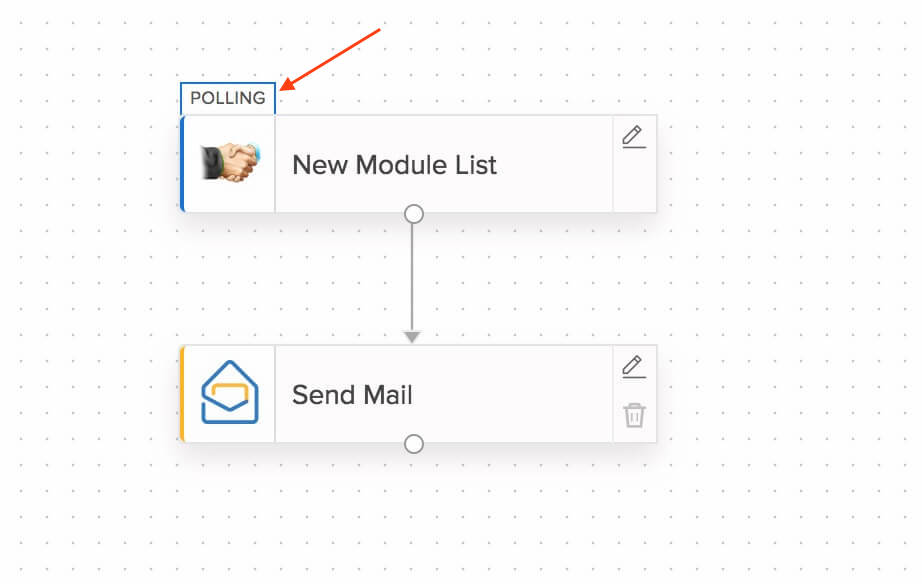
Check the small tag near your trigger app. If it says Polling, the trigger will execute at an interval of 5-15 minutes based on your Zoho Flow plan. If it says Webhook, the trigger will execute when the respective third-party app sends data to Zoho Flow.
Flow is Switched Off
Flow switched off due to consecutive failures
A flow is switched off after 20 consecutive failures in execution. Check your flow for possible errors in configuration, data mapping, or app connections. You can resolve the problem and switch it on again.
Flow switched off due to trigger app authentication failure
If the app connection for your flow's trigger (polling) is facing authentication errors, the flow will be switched off. This usually happens due to one of two reasons:
- Invalid user: The user might be removed from the connected account.
- Invalid authorization: During a password change, the existing access tokens may be revoked.
You can reconnect your app connection and switch the flow back on.
Limitations
Importing past data
A flow can work with data changes in the trigger app after it is set up and switched on. Past data cannot be used to trigger a flow.
Two-way syncing
Zoho Flow does not support two-way syncing between apps, but you can create the same effect by using two flows, one the reverse of the other. Make sure you follow the necessary steps to prevent a flow loop where data moves back and forth between apps continuously.
File support and email parsing
File support and email parsing are the most requested features on Zoho Flow. We're working to make them available as soon as possible.
This is a living document that we will keep updating to make sure you have everything you need to get your flows up and running.
Organization is Inactive
Your organization can become inactive, and access can be denied if the owner of the organization has closed their Zoho account. In such a scenario, all your live flows will remain functional. Auto-rerun will also be functional. However, access to the organization will not be provided to the members as well as the admins while it is inactive.
I am an admin of the organization. What can I do to resolve the issue?
If you do not already own any Zoho Flow organization, you will be provided an option to claim the ownership and reactivate the organization.
To claim ownership, you can,
- Log in to your Zoho Flow account.
- Navigate to Manage Organizations.
- Click Claim Ownership adjacent to the inactive organization.
- Confirm the action by clicking Yes.
In a few minutes, your role will be upgraded to the owner of the organization.
What can I do if I am a user?
If you are a user, you can contact one of the admins for more information. The contact details of the admins will be provided on the Manage Organizations page.
You can also avoid seeing the "Inactive Organization" message every time you open Zoho Flow if you:
- Set another organization as default.
- Leave the inactive organization.
- Create a new organization.
What happens if the previous owner reactivates their Zoho account?
A Zoho account holder can reactivate their account within 30 days of closing the account. For the same period, the previous owner will remain in the organization as an inactive admin. If their account is reactivated, they will continue as an admin until a request is made to support@zohoflow.com.