Date-Time Availability
The Date-Time Availability allows users to book a slot for a specific date and a precise time. This field is essential when you require exact appointment times and need detailed control over the limits for each time slots.
When to Use Date-Time Availability
- Precise Appointments: When the start and end time of a booking is necessary. Example: Dental appointment.
- Layered Limit Restriction: When you need to set a limit for individual time slots and also put a limit on the total bookings per day.
Configuring Date-Time Availability Field
To create a Date-Time Availability field in your form:
- In your form builder, locate the Date-Time Availability under the Availability section.
- Drag and drop the field on to your form.
- In the Date-Time Availability field creation popup, you will configure four main settings:
General
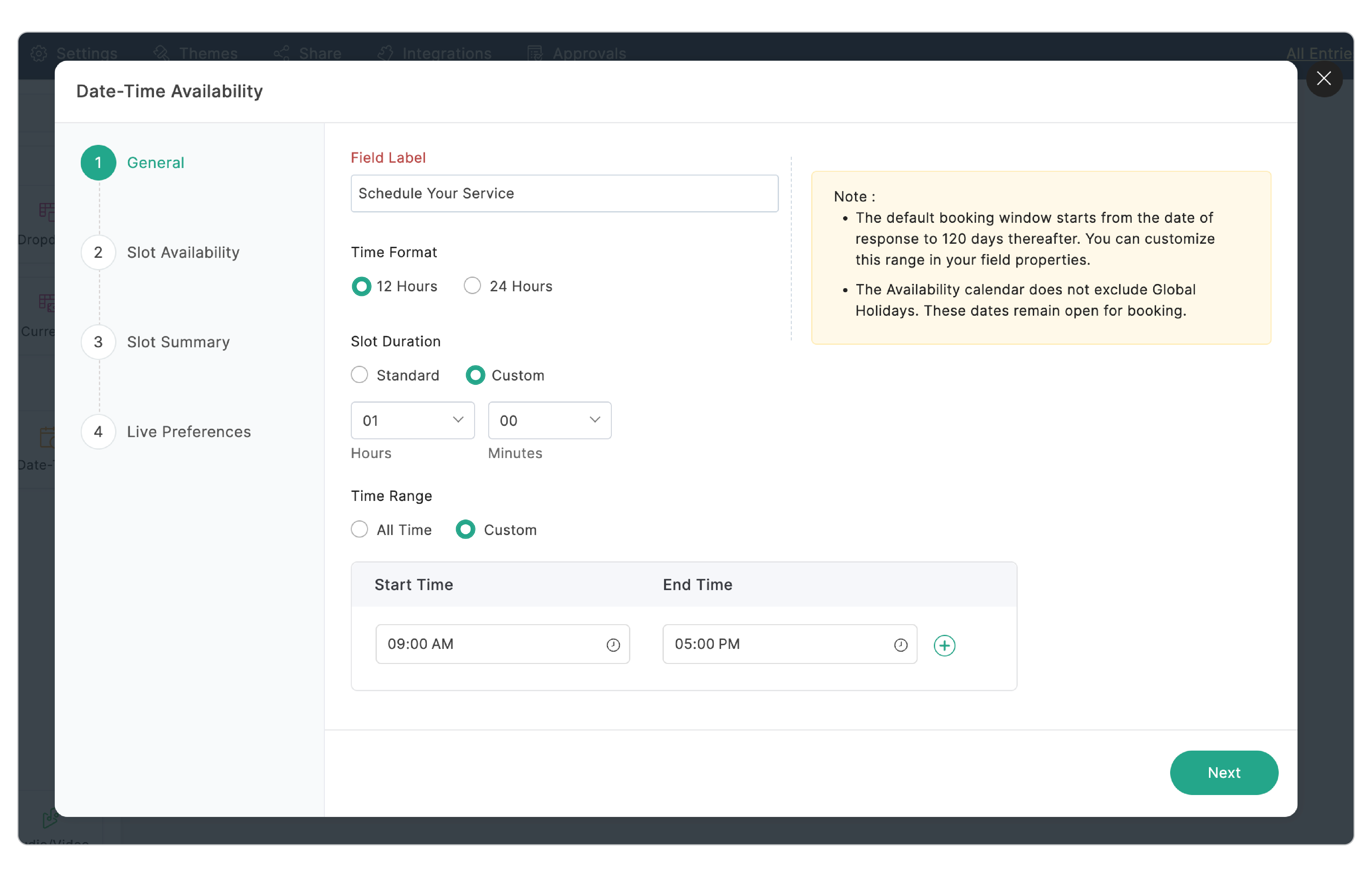
Field Label: Provides a clear title for the field. Example: "Schedule Your Service"
Time Format: Select a desired time notation (12-hour or 24-hour), based on regional or organizational preferences.
Slot Duration: Lets you define the duration for your slots.
- Standard: Choose a fixed interval of either 15 or 30 minutes.
- Custom: Allows you to specify a custom duration, such as 1 hour or 1hour 30 minutes.
Time Range: Define the hours of operation for the calendar.
- All Time: Generates slots for the entire 24-hour period.
- Custom: You can define a specific Start Time and End Time (e.g., 9:00 AM to 5:00 PM). You can further customize this range to account for a mid-day break. For example, setting the range as 9:00 AM - 12:00 PM and 1:00 PM - 5:00 PM, which makes the 12:00 PM - 1:00 PM slot unavailable for booking).
Slot Availability
Availability Configuration: This lets you choose how the slot limit is set for the field.
Time Slot Limit
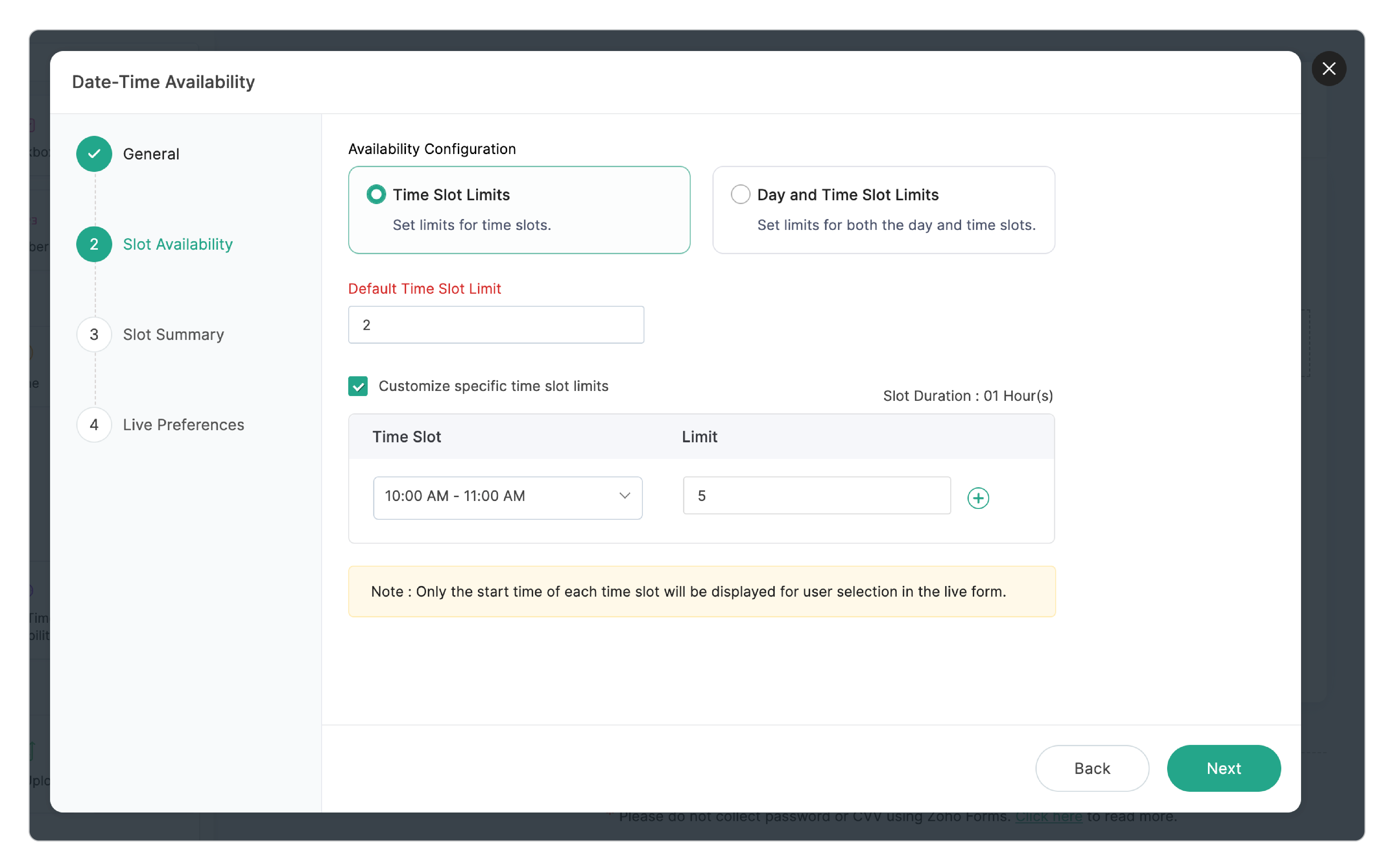
This allows you to set limits only on time slots.
Default Time Slot Limit: Input here sets a uniform booking limit for all time slots defined by the Time Range and Slot Duration.
Customize specific time slot limits: Enable this to override the default limit for specific time intervals.
For example, if the Time Range is 9 AM to 5 PM and the Slot Duration is 1 hour, you will have 8 time slots per day. If the default limit is set as 2, this applies to all 8 slots. To override specific time slots, such as increasing the limit for the 10 AM - 11 AM slot to 5, select the desired time interval and specify the corresponding slot limit of 5.
Day and Time Slot Limit
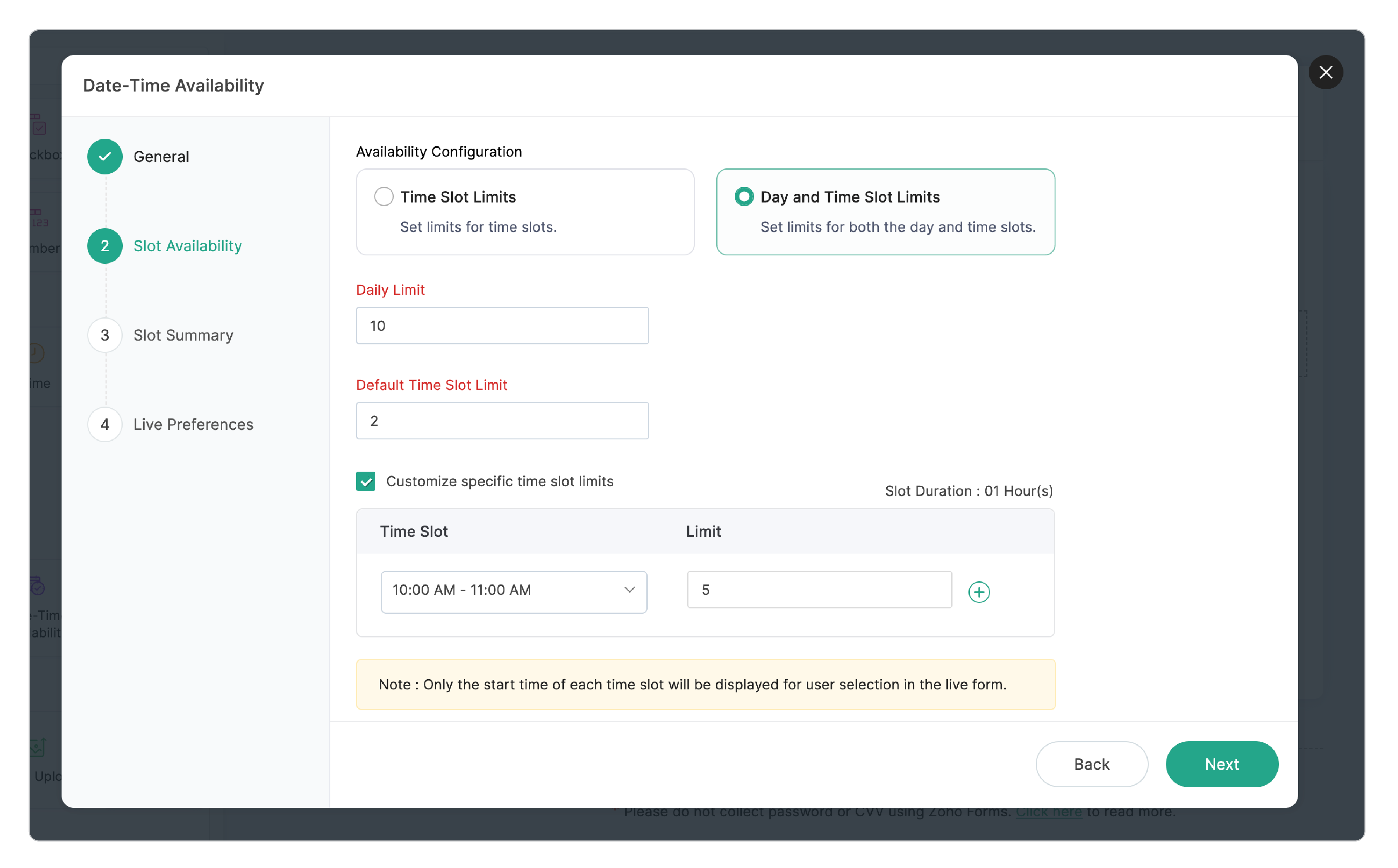
This adds an additional restriction: Daily Limit. With this you can restrict the total bookings per day, irrespective of individual time slot availabilities.
For example, if your time slots allow for a total of 17 bookings, but you set the Daily Limit to 10, then that specific date will become unavailable after the 10th booking is made.
Slot Summary
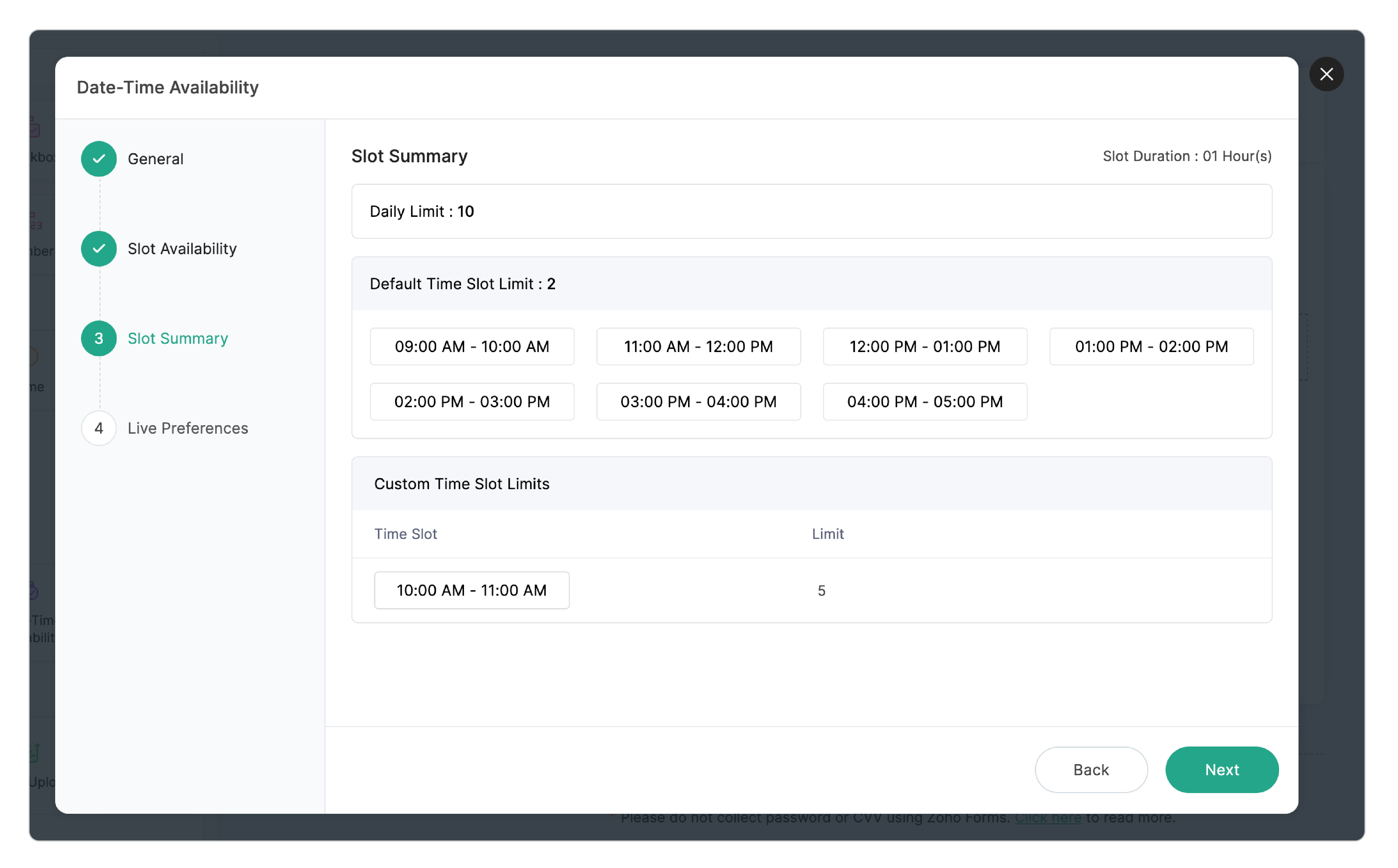
Slot Summary provides a detailed view of all your slot configurations. You can see all individual time slots based on your Slot Duration and Time Range configuration, Daily Limit, and Custom time slot limits if configured.
Live Preferences
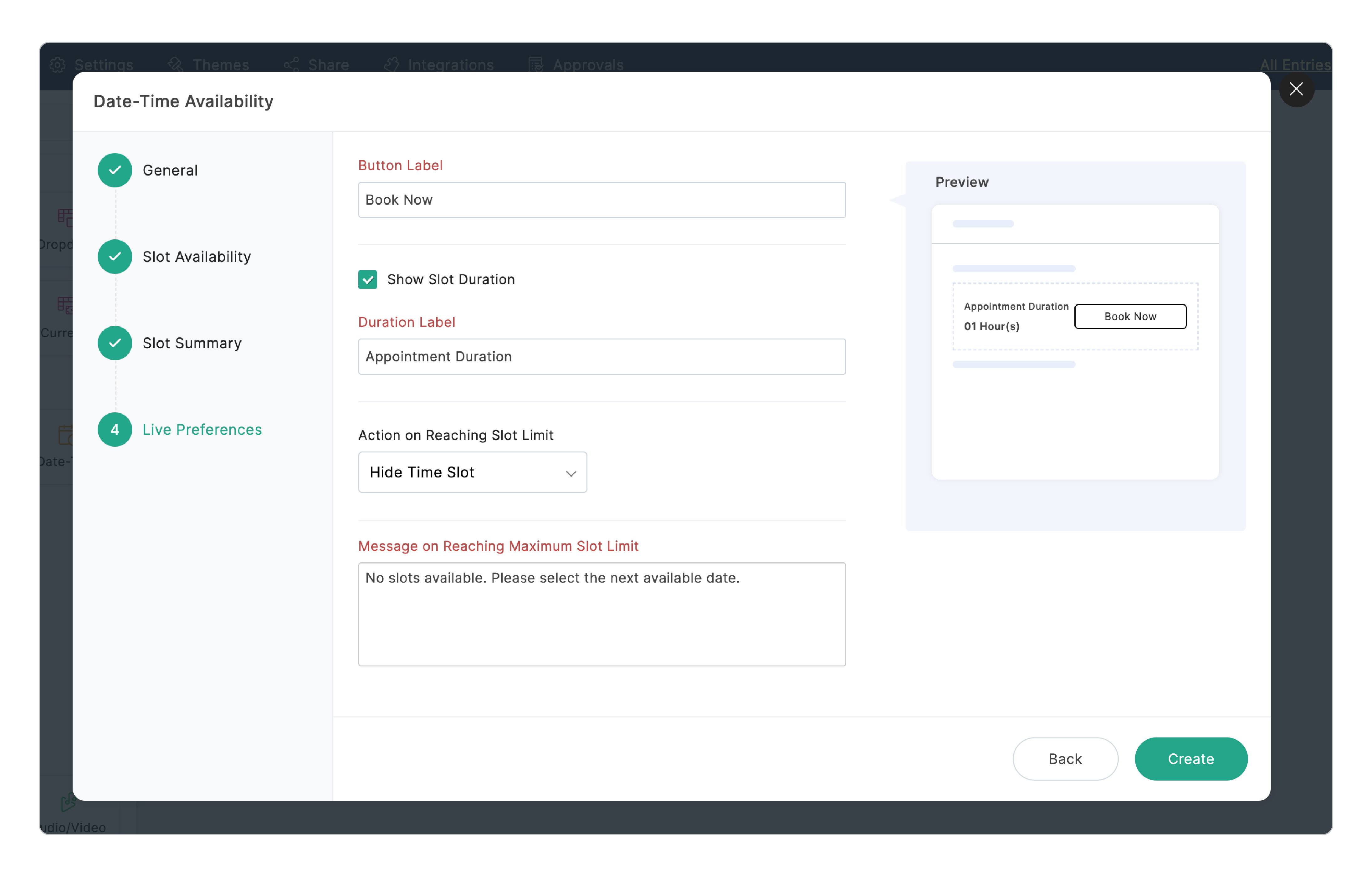
Button Label: The text displayed on the calendar button. Example: "Book Now".
Show Slot Duration: Enable this to make the duration of the slot visible to the respondent.
Duration Label: If showing the duration, you can customize the label displayed above it. Example: "Appointment Duration"
You can see how the above settings will appear on the live form using the preview section in the configuration screen.
Action on Reaching Slot Limit: Once the time slot limit is reached, you can choose to Hide the slot from the calendar entirely or Disable it, making the slot visible but unbookable.
Message on Reaching Slot Limit: Provide a message to be displayed to respondents when the maximum limit is reached. Example: "No slots available. Please select the next available date".
After setting all the configurations, click Create. The field will now be created in the form.
Field Properties
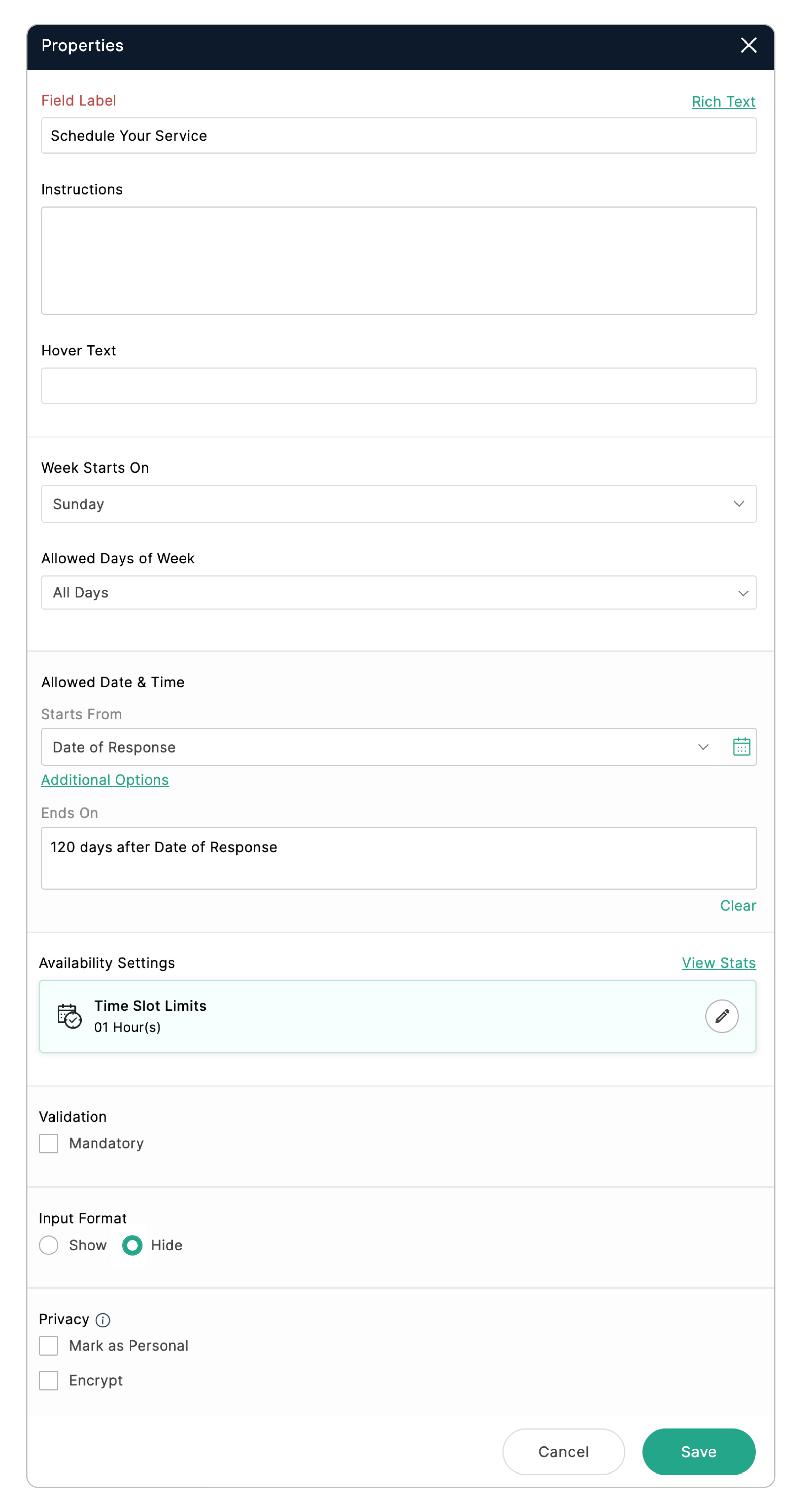
Field Properties
After creating the field, click on it to access its properties panel. Here, you can perform the following customizations:
Week Starts On: Select your preferred day for the calendar week to begin with. For example, if you select Monday as the start of the week, the calendar will start from Monday.
Allowed Dates: This controls the timeframe during which the bookings are accepted.
- Start From: Here you can provide a specific date or select the Date of Response as the start date.
If you select Date of Response as the start date, you can click Additional Options to delay the booking start. If a user opens the form on November 1st, setting the delay to +10 Days means the first available slot they can choose is November 11th. - Ends On: Here you can define the last date available for booking.

Note:
- By default, the booking window starts from the Date of Response and extends to 120 days thereafter.
- The range between the Start and End dates should not exceed 120 days.
Availability Settings: All configurations done during the initial field creation (General, Slot Availability, Live Preference) can be edited here.
View Stats: After receiving responses, click View Stats in the right corner of Availability Settings section to monitor your bookings. This provides a detailed view of the number of slots booked and the remaining slots available for each day.
Editing the Date-Time Availability Field
To edit the slot configuration:
- Navigate to Availability Settings in the field properties.
- Click Edit.
- Make the required modifications in the slot configurations.
- Upon editing, you will see the modifications in the following sections:
Slot Summary
The Slot Summary section will immediately show the updated limits. For example, if the existing daily limit is 10 and you have edited it to 15, the summary will display the new edited limit and other configuration changes.
Recent Edits
This new section appears upon editing the field. It shows a clear distinction between the existing (current) settings and the newly updated settings. Here, side-by-side, you can compare what changes have been made to your slot configurations due to your edits.
For example, if the Time Range is changed from 9:00 AM - 5:00 PM to 9:00 AM - 7:00 PM with 1 hour slot duration, you can see the following change in the Recent Edits screen.
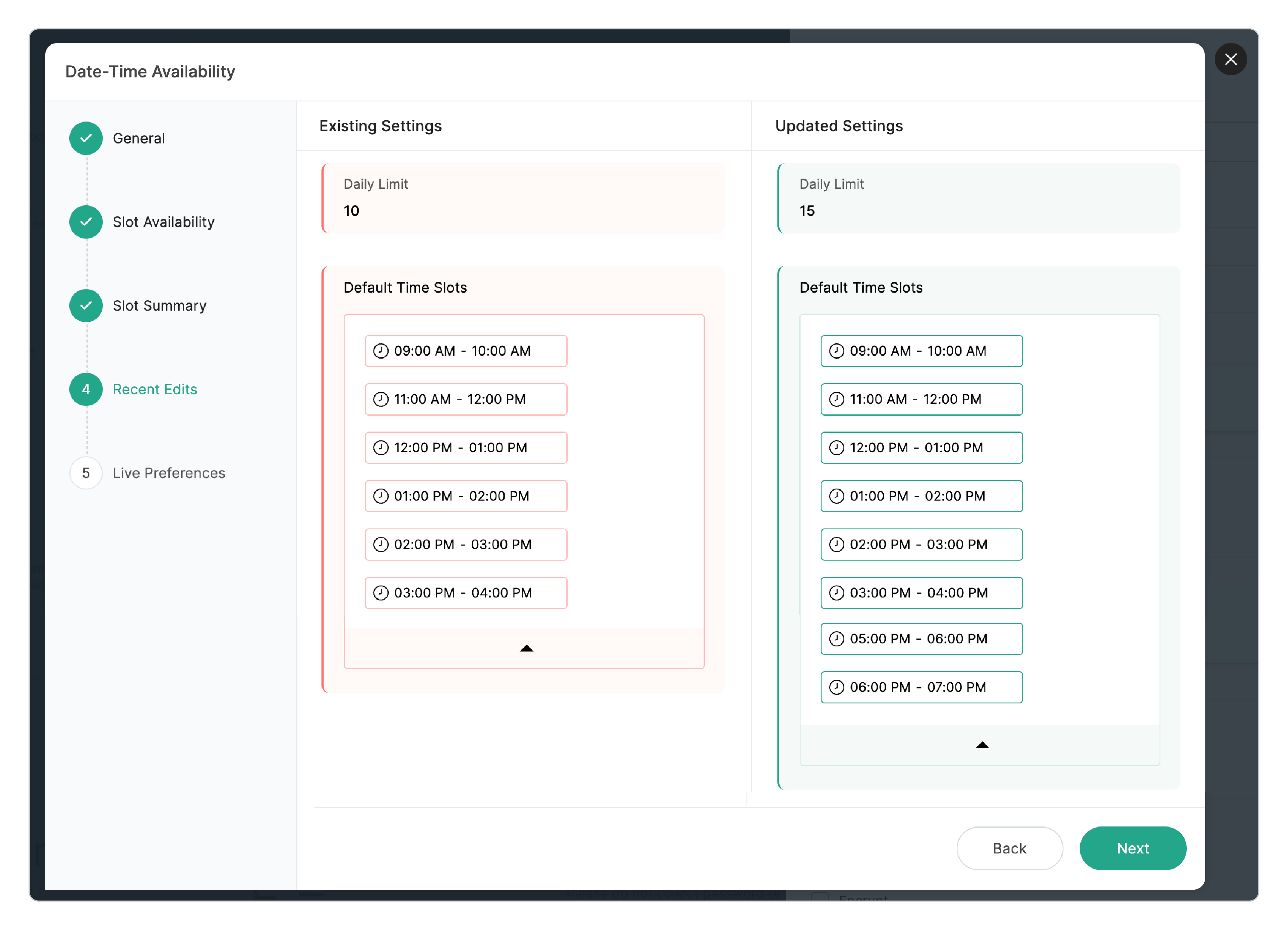
This comparison helps you understand the impact of your edits on your time slots so that you can confidently save your changes.
Viewing Statistics
After receiving responses, click View Stats to monitor your bookings and remaining slots.
When Day and Time Slot Limit is configured:
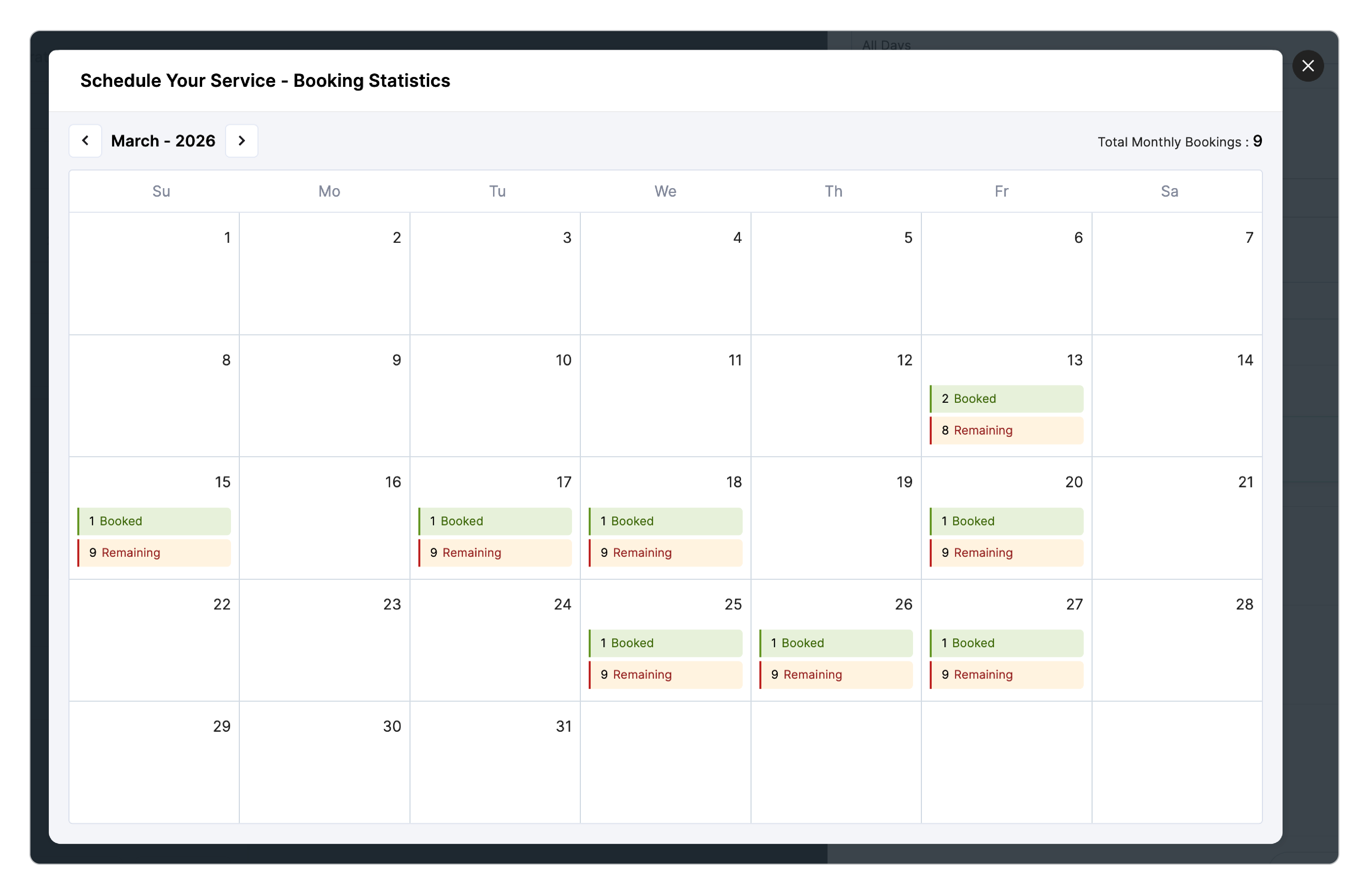
- The number of slots booked and remaining for the entire date is displayed upfront on the calendar date itself.
- Clicking on a date provides a detailed view of the booked and remaining status for each specific time slot.
When Time Slot Limit is configured:
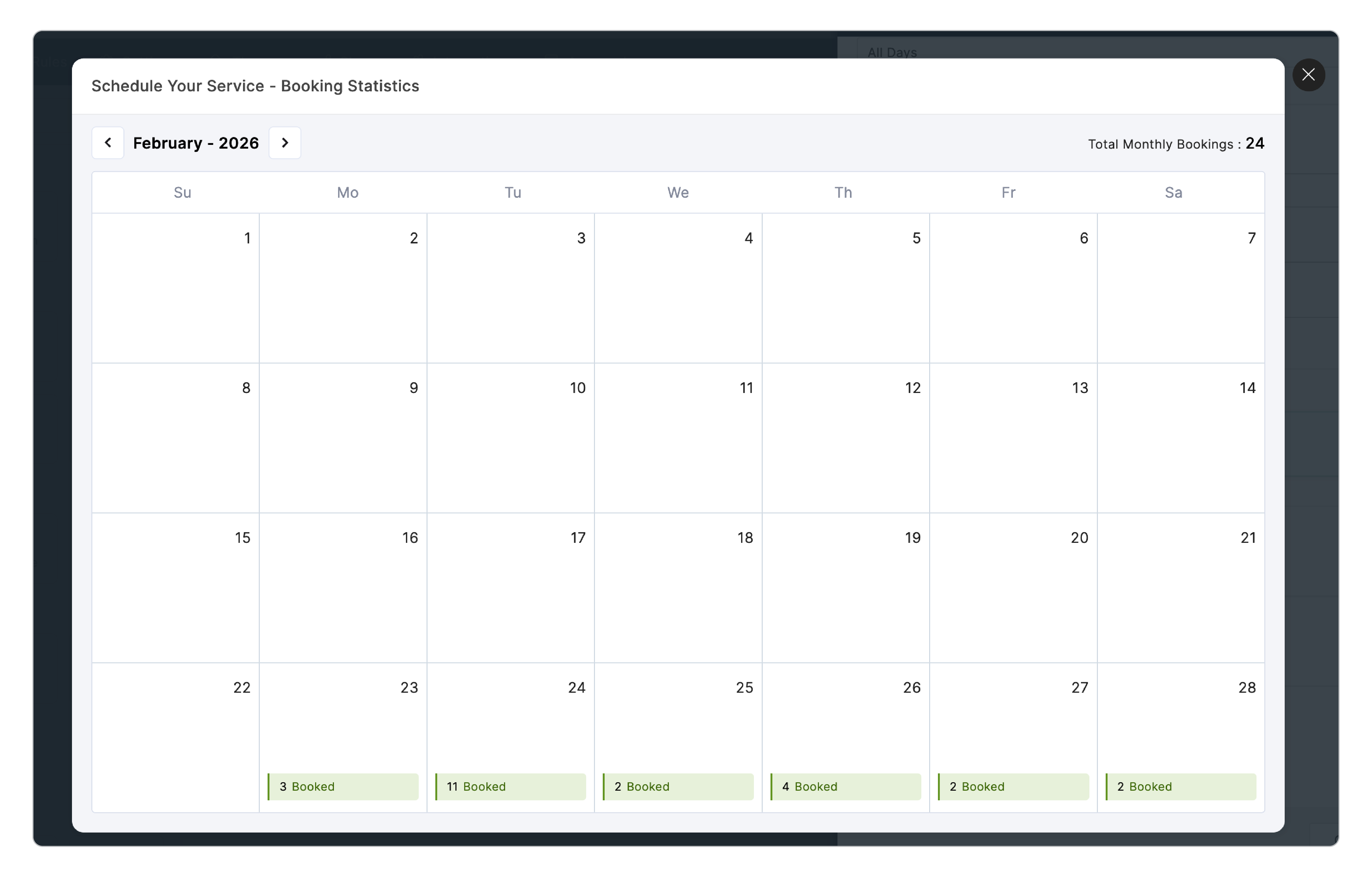
- The calendar date shows the booked count.
- Clicking the date provides a detailed view of the booked and remaining status for each time slot.
Monthly Booking: The total number of bookings done for the entire month is displayed in the top-right corner of the calendar.
Note:
- For Free Plan, only one Availability field per form can be configured.
- For Paid Plans, two Availability fields per form can be configured.
- The Availability calendar does not exclude Global Holidays. These dates remain open for booking.
- If the form contains an Availability field, you cannot delete more than one entry at a time.
- Bulk deletion of entries is not allowed if the form includes an Availability field.
- If the form contains an Availability field, entries are deleted permanently and cannot be restored.
- Availability field values cannot be edited within the submitted record (Record Edit).
- The Availability field is not supported when using the Double Opt-In feature, and vice versa.
- Timezone cannot be edited if Date-Time field is configured in the form.