Google Sheets Integration
Overview
Integration Setup
To integrate your form with Google Sheet,
Navigate to the Integrations tab under Sheet & Calendar select Google Sheets.
Click Integrate.
If you have not authenticated Zoho Forms to connect with your Google account already, you will see an authentication pop-up. Click Authenticate Google.
Select the sheet to store your form responses from the below options:
New sheet: Creates a new spreadsheet to store your form responses. Give the sheet a name of your choice in Sheet Name.
Existing sheet:Stores form responses in a new spreadsheet of an existing Workbook. Select an existing workbook in Sheet Name.Under Integration Settings, you can choose to add additional information, such as Added Email ID, Referrer Name, Payment Information, etc., under separate dedicated columns in the sheet for each form entry pushed.
If you have a Matrix Choice field (in Dropdown, Text Box, Number, Currency type) on your form, you can choose to send it's data into the sheet in any of the following 2 formats depending on how you want to analyze the data:
- Combine answers in a cell: In this format, all the choices selected within the Matrix Choice field are combined into a single cell in the exported data. This can be useful when you want a quick overview of the respondent's choices without the need for detailed analysis.
- Provide individual cells for each answer : In this format, each selected choice within the matrix choice field is exported into a separate cell. This format provides a more detailed view of the respondent's choices and allows for more granular analysis.
You can choose to store all the file attachments and signatures received via your form in Google Drive.
Click Save.

- Data saved in Zoho Forms and Google Sheets are independent of one another. Editing the records in Zoho Forms will not alter the data in the Google spreadsheet.
- Entries from Subform will be pushed to Google Sheets and grouped under the Subform's name. File and image attachments from Subforms can also be pushed to Google Drive.
- Once saved, the columns in the spreadsheet cannot be removed. If you wish to deselect any of the information, the integration setup must be removed completely and reconfigured. The new integration can be configured to a new worksheet within the same spreadsheet or to a new spreadsheet.
Integration Settings
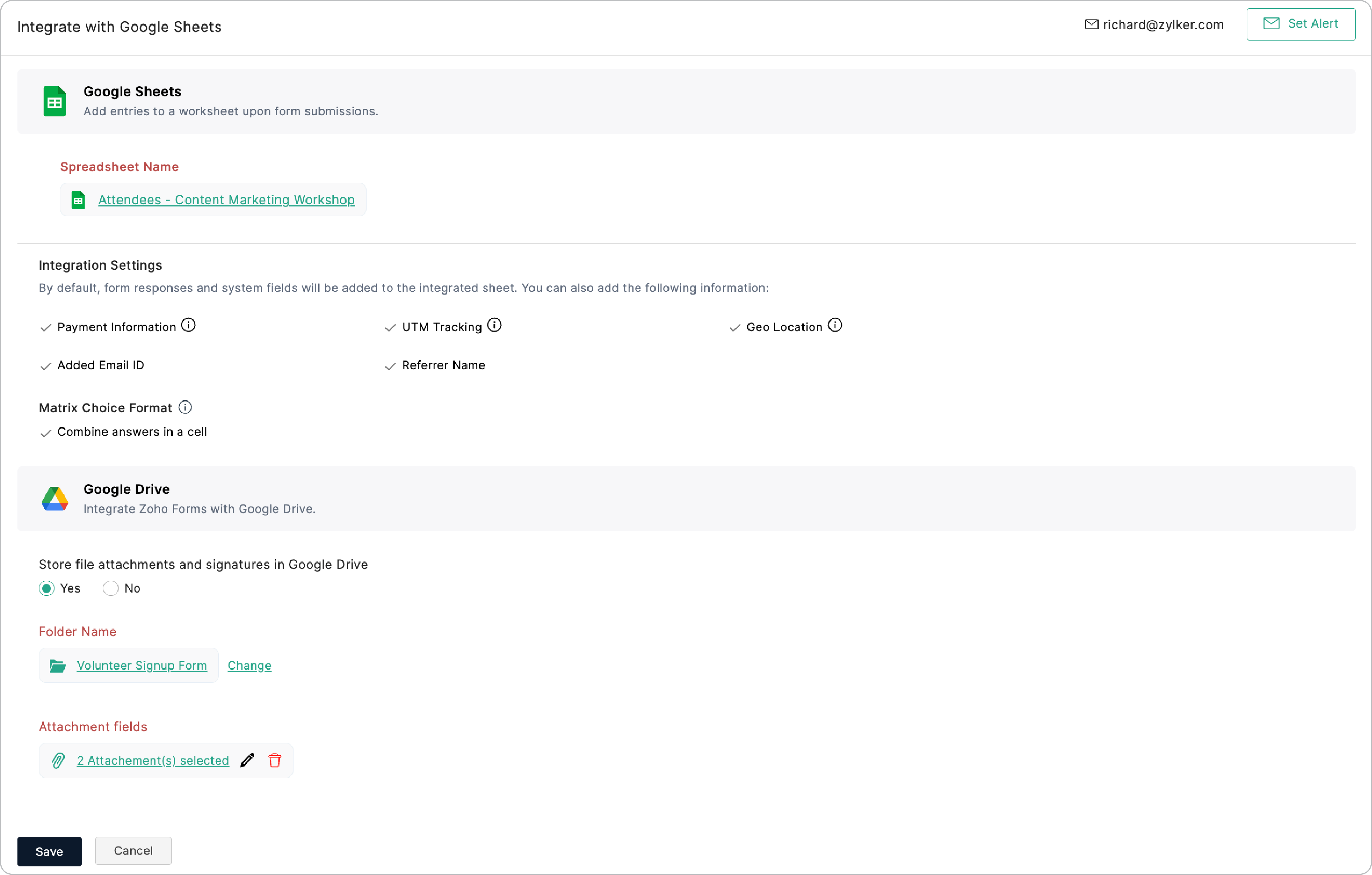
To do this, while setting up Google Sheets integration, select the information you wish to add to the spreadsheet from the following options under Integration Settings:
Set Alert on Integration Failure
- Click Set Alert in the top-right corner.
- Configure the email alert template and clickSave.
- To stop receiving email alerts on integration failure, click Remove Alert.

- The option to set an email alert on integration failure is available only in our paid plans.
- You can send email alerts to a maximum of 5 users within your organization.
- An email alert will be triggered only on the first occurrence of integration failure every 24 hours.