Why am I seeing an "SR not found" error when adding a user to a Crew in Zoho FSM?
The SR not found error occurs when there is a date mismatch between the Crew’s assignment and the user's Territory assignment.
- To add a user to a Crew, the user must be active in the same territory and for the same date range as the Crew.
- If the user is not active in that territory, the user cannot be added to that Crew.

To view the assigned territory of a Crew, check the top-left corner of the Crew details page.
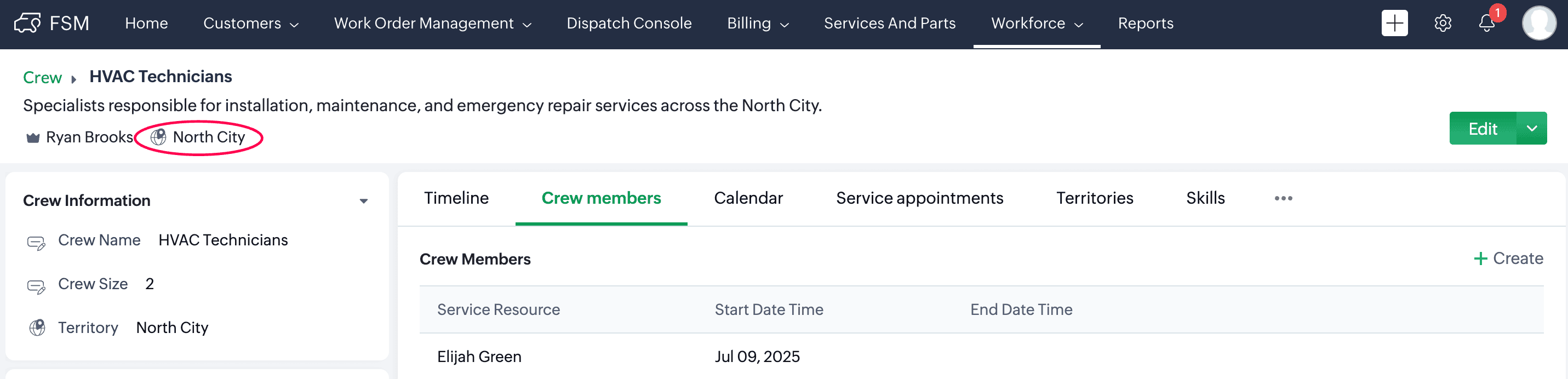
Example:
James Venera (a user from your organisation) is assigned to the North City territory starting August 25, 2025.
You try to add James to the HVAC Crew, which starts on July 9, 2025.
In this case, you will receive the “SR not found” error because James is not active in North City territory as of the Crew's start date.
To resolve this, add the user to the territory with a start date on or before the Crew’s start date.
To assign a Service Resource (user) to a Territory:
- Go to Setup > Workforce > Territories.
- Click the name of the Territory you want to assign the user to and click Add Resource,
(or)
Hover over the territory and click Add Resource from the More Options (⋮) - In the Add Resource box:
- Select the user you want to add.
- Set the Start Date and End Date to define the period during which the user will be active in that territory.
- Click Save.
- The user will now be available for scheduling in this territory during the specified date range.
- Now add the user to the Crew.