Can I schedule one appointment for all the services in a work order?
Yes, you can schedule a single service appointment that covers all services in a Work Order — as long as no appointments already exist for the individual service line items.
To create a service appointment :
To create a service appointment :
- Go to:
Work Order Management > Service Appointments > Create Service Appointment - Select the work order for which you want to create the appointment.
The system will load all its details. - Enter the appointment timing:
- Scheduled Start Date & Time
- Scheduled End Date & Time
(Both should fall on the same day unless multi-day scheduling.) - Assign one or more Service Resources (Field Agents or Crews):
- Resources appear only after start and end times are selected.
- Only active field agents/crews in the selected territory and time slot will be listed.
- Field agents who are part of a crew won’t appear individually during crew time.
- Hover over an unavailable resource to see why they're unavailable.
If you’ve selected more than one individual resource (not a crew), you must choose a Lead
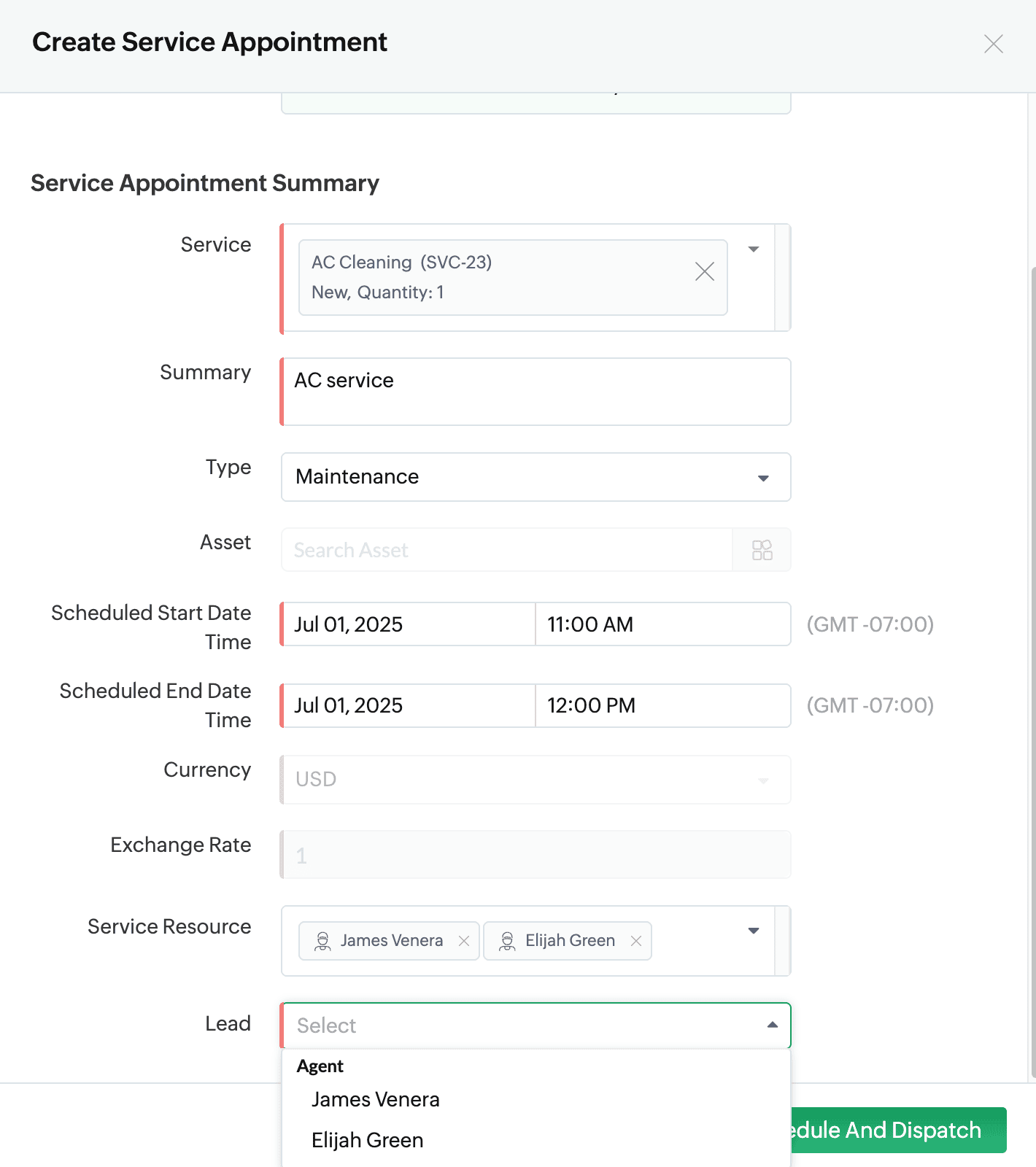
You can now choose to either Schedule or Schedule and Dispatch.
When to use Schedule
Click Schedule if you want to:
- Save the appointment with all details entered
- But notify the field agent later
This keeps the status as Scheduled (not yet dispatched)
When to use Schedule and Dispatch
Click Schedule and Dispatch if you want to:
- Immediately notify the field agent via push notification
- Automatically change the appointment status to Dispatched
After choosing Schedule or Schedule and Dispatch, confirm.
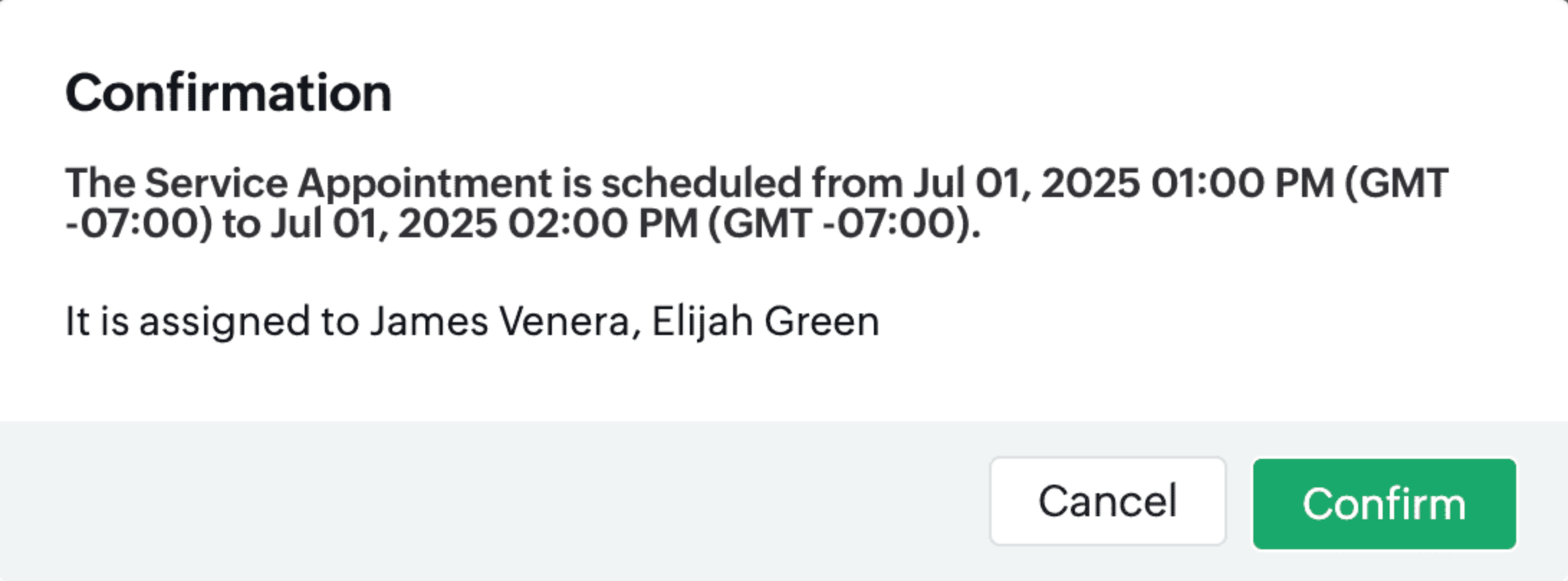
After creation:
- You’ll land on the Service Appointment Details page.
- From here, you can Dispatch(if you've only scheduled), Reschedule, Terminate, or Cancel the appointment as needed.

The appointment will also be visible:
- Under the Appointments tab of the Work Order
- In the Service and Parts tab (next to each related service line item)