How can I create a Service Report at the customer location in Zoho FSM?
Generating service reports in Zoho FSM
Step 1
- Navigate to the Service Report tab of the service appointment
- Click the ‘+’ icon at the bottom-right corner
- Choose a PDF Template:
- Standard
- Spreadsheet
- Premium
- Click Next under Model Preview
Step 2
This step is not mandatory. Click Skip to continue without adding technician feedback.
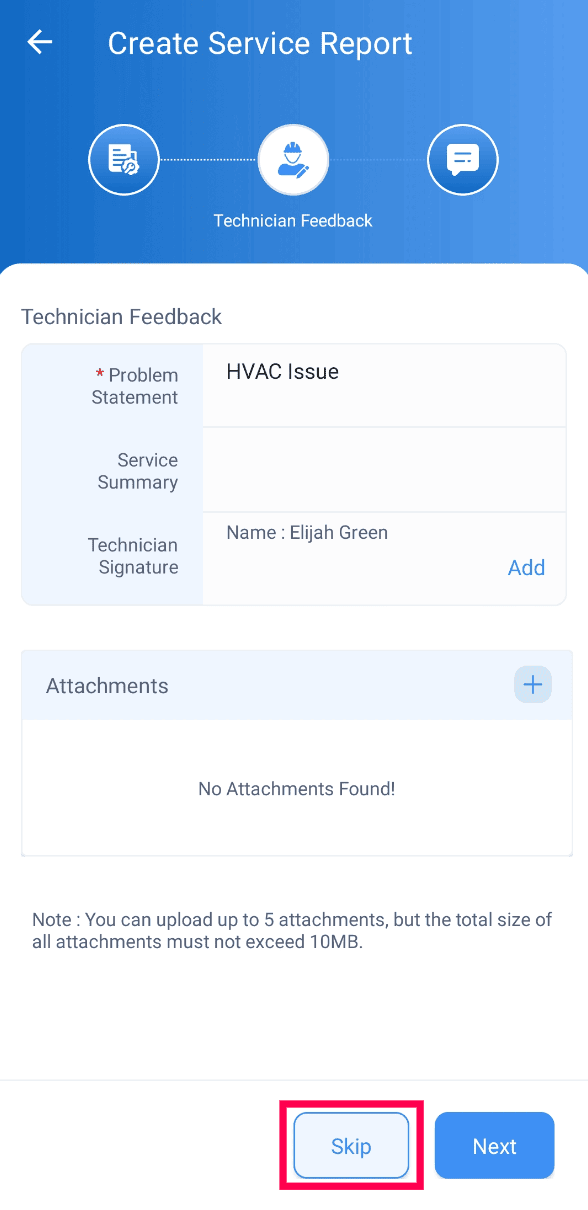
Adding Technician Feedback in Service Reports in Zoho FSM
- Enter the Problem Statement (auto-filled, can be edited)
- Provide the Service Summary
- Verify the Technician Name (auto-filled, can be edited)
- Click Add to include the technician’s signature
- Click Save
- Click Next to proceed
Step 3
This step is not mandatory. Click Skip to continue without adding technician feedback.
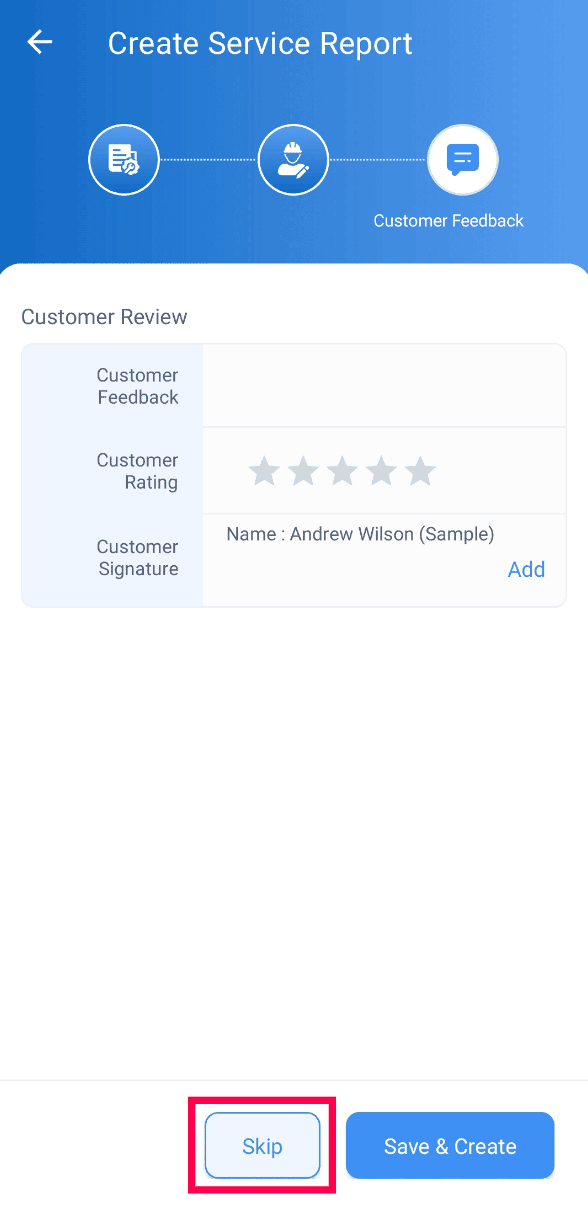
Capturing Customer Feedback in Service Reports in Zoho FSM
- Hand over the device to the customer
- Ask them to:
- Enter feedback
- Provide a rating
- Verify their name (auto-filled)
- Add their signature and click Save
- Click Save & Create
The Service Report will be generated instantly.