User Management
Zoho FSM offers a multi-user environment by supporting different profiles. A Profile defines the set of permissions and accessibility within the application. There are five built-in profiles in the Zoho FSM application: Administrator, Dispatcher, Call Center Agent, Field Agent, and Limited Field Agent. While adding a user, the appropriate profile needs to be assigned to it. This way, you can regulate the access that your users have to the application's features and data.
Creating Users

- Permission Required: User Management
- Find out the Edition-specific limits for the Number of Users.
To add users to the application:
- Navigate to Setup > Workforce > Users and click New User
- Enter a First Name and Last Name.
- Enter an Employee ID, if present.
- Enter the user's valid Email address that has not already been used to create an account.
An invitation will be sent to this email address. The invite link will be valid only for seven days. - Choose a Profile.
- Choose the language.
- Click Save.
The details of the invitation sent to a user are now displayed in the left panel of the User Details page. Information such as the invite link status, date and time of the invitation, and other relevant details will be shown. Additionally, the subject of the invite email will be provided, allowing users to easily copy and search for the email if required.
User joins Zoho FSM organization using invite link
When the user accesses the invite link, they will be presented with either of the below two options:
- If the invited user doesn't have a Zoho account, then they will be prompted to create a Zoho account and accept the invite.
- If the invited user has a Zoho account, then they can directly accept the invite.
User joins Zoho FSM organization using application URL
If the invited user tries to join Zoho FSM by directly accessing the application URL (instead of using the invite link), and before their Zoho account has been confirmed, then they will be prompted to confirm their Zoho account. They need to do the following:
- Click Accept the Invite.
- Click Send Code.
- Enter the code received and click Verify.
If an user receives invites from different Zoho FSM organizations, then they can choose the organization they want to join and accept that invite. They can also choose to create a new Zoho FSM organization. A maximum of five invites will be listed.
If the user is already part of a Zoho FSM organization, then they will not be able to accept the invitation from another Zoho FSM organization. If they need to join a new Zoho FSM organization, they must be deleted from the Zoho FSM organization they are currently part of.
Accept invite from a different organization during onboarding
While onboarding, the Manage Organization link will be shown next to the profile icon if the user is part of multiple Zoho FSM organizations or has invites from other Zoho FSM organizations. Clicking on the Manage Organization link will take them to the Organizations List page.
If any invites are present for the user, the Organizations List page will list those under the Invited List section. From here, the user can accept the invite.
When an user accepts an invite from a Zoho FSM organization while already part of another organization whose onboarding has not been completed, then the newly joined organization is set as the default org for the user.
Assigning Territories
To assign a territory to an user:
- Navigate to Setup > Workforce > Users.
- Click the name of the user you want to add the territory to.
- Click + New Line for Territories to add the territories for the user.
Select a territory, and set the Start Date Time and the End Date Time and click Save.
The period between the Start Date and the End Date is when the user will be active in that territory.Only after you assign a territory to the user, will:
- The user be listed in the Service Resource dropdown of the Create Appointment overlay, provided the service appointment is created for the same territory.
- The user be listed under the territory in the Gantt view of Dispatch Console.
Hover over an entry and click the Edit [ ] icon to modify it.

Points to remember
- Start Date is a mandatory field.
- If an End Date is not provided for a territory, then the user will continue to be active in that territory until one is set.
Assigning Skills
To assign a skill to an user:
- Navigate to Setup > Workforce > Users.
- Click the name of the user you want to add the skill to.
- Click + Assign for Service Resource Skills to add the skills for the user. Enter the necessary details and click Create.
Ensure that you create Skills before you attempt to assign it to a user.
Assign Crews
Managing Users
You can perform the following actions on users:
- Edit: The user details can be modified including the profile of the user.
- Reinvite: The email invite to provide access to the FSM account can be re-sent using this option. This option will be available for users with the status Unconfirmed.
- Deactivate: The access of the user can be revoked and no tasks can be assigned to the user unless activated again. When deactivated, the status of the user changes to Inactive.
- Delete: The access of the user can be revoked and no tasks can be assigned to the user. Unlike the deactivated user, a Deleted user cannot be reactivated.
Options available for the Super Admin
Options available for Active users
Options available for Unconfirmed users
Options available for Inactive users
Points to remember
- In order to change the profile, deactivate, or delete a user with the profile Field Agent, any appointments assigned to the user should be reassigned.
- User Already Registered with Another Data CenterIf a user is already registered with a different data center (DC), they cannot be added to a Zoho FSM organization in another DC. In such cases, you will see the following error message:“This email address is already registered with another data center and cannot be used to register in this organization's data center.”How to ResolveIf you still need to add the user to your organization:1. Inform the user about the existing registration in another DC.2. Request the user to delete their current Zoho account in that DC.
- Deleting an account will also delete all associated data permanently.
- Ensure the user backs up any necessary data before proceeding.3. Re-add the user to your Zoho FSM organization in your DC.⚠️ Important: Once the account is deleted, the action is irreversible and all data will be lost.
Deactivating Users
You can temporarily remove a user's access to the application by deactivating them. To deactivate a user:
- Navigate to Setup > Workforce > Users and select the user you want to deactivate.
- In the User Details overlay, click Deactivate.
- Click Deactivate in the confirmation message.
The Super Admin of an organization cannot be deactivated.
Deleting Users
To delete a user:
- Navigate to Setup > Workforce > Users and select the user you want to delete.
- In the Delete User overlay, click Delete.
When you delete a user, you can transfer records and roles associated with it to another user. Select the user you want to transfer the records to from the dropdown Transfer Ownership to and click Delete to proceed.
You can transfer the following:
- Record ownership: All open records associated with the user. The table below lists the modules and the statues of the records that will be considered during the transfer:
Module
Status
Requests
New, Estimate Created, Estimate Rejected, Work In Progress, Completed
Work Orders
New, In Progress, Scheduled Appointment, Dispatched
Estimates
New, Approved, Waiting For Approval, Converted to Work Order
Service Appointments
New, Scheduled, Dispatched, In Progress, Completed, Payment Due, Invoice Generated
- Role of a Crew Lead: If the user is the lead of any Crews, then this role will be transferred to the new user
Additionally, any Trips, or Time Sheets associated with the user will be forcibly terminated and the user will be logged out of the mobile app.
The Super Admin of an organization cannot be deleted.
User Status
A user can have one of the following statuses:
Active: A user who currently has access to the application based on their permission. After a user is created, and the invite accepted, the status of the user will be active.
Deleted: A user who has been removed from the application.
Inactive: A user who has been deactivated.
Unconfirmed: A newly created user will be in this state unless the user accepts the invite sent to the its Email address provided during creation.
You can filter users based on the status.
Users Menu
The details of the users can also be accessed from the Users menu under the Workforce tab.
Manage Users
You can perform the following actions on users:
Create Users
To create a user:
- Select Users from the Workforce menu and click Create.
Refer to this section for the steps to create an user.
Edit Users
To edit an user:
- Select Users from the Workforce menu and click the user you want to edit. In the User Details page, click Edit.
- Click Save after making the changes.
Deactivate Users
To deactivate a user:
- Select Users from the Workforce menu and click the user you want to deactivate. In the User Details page, click Deactivate.
Refer to this section for details on deactivating an user.
Delete Users
To delete a user:
- Select Users from the Workforce menu and click the user you want to delete. In the User Details page, click Delete.
Refer to this section for details on deleting an user.
View User Details
On the User Details page, the following details about an user will be displayed under the following sections:
Timeline
Changes to the user can be tracked using its timeline.
Calendar
The appointments assigned to the user can be viewed in the calendar with Monthly, Weekly, or Daily views. Hover over an entry to view the details. Further details of the appointment can be viewed by clicking on the entry.
You can also see all the entries of a day in the List view.
You can do the following in the service calendar:
- Create appointment
- Reschedule through drag and drop
Create Appointment
- Click on the point in the calendar that corresponds to the day or time for which you want to create the appointment.
- In the Create Appointment popup, choose the work order for which you want to create the appointment.
- In the Create Appointment popup, the following details will be populated, which you can change if required. Click Schedule or Schedule and Dispatch to continue.
- Service
- Summary
- Scheduled Start/End Date Time
- Service Resource
You can create appointments from the Month, Week, and Day views.
Reschedule Appointment
From the service resource calendar, you can reschedule an appointment in the following ways:
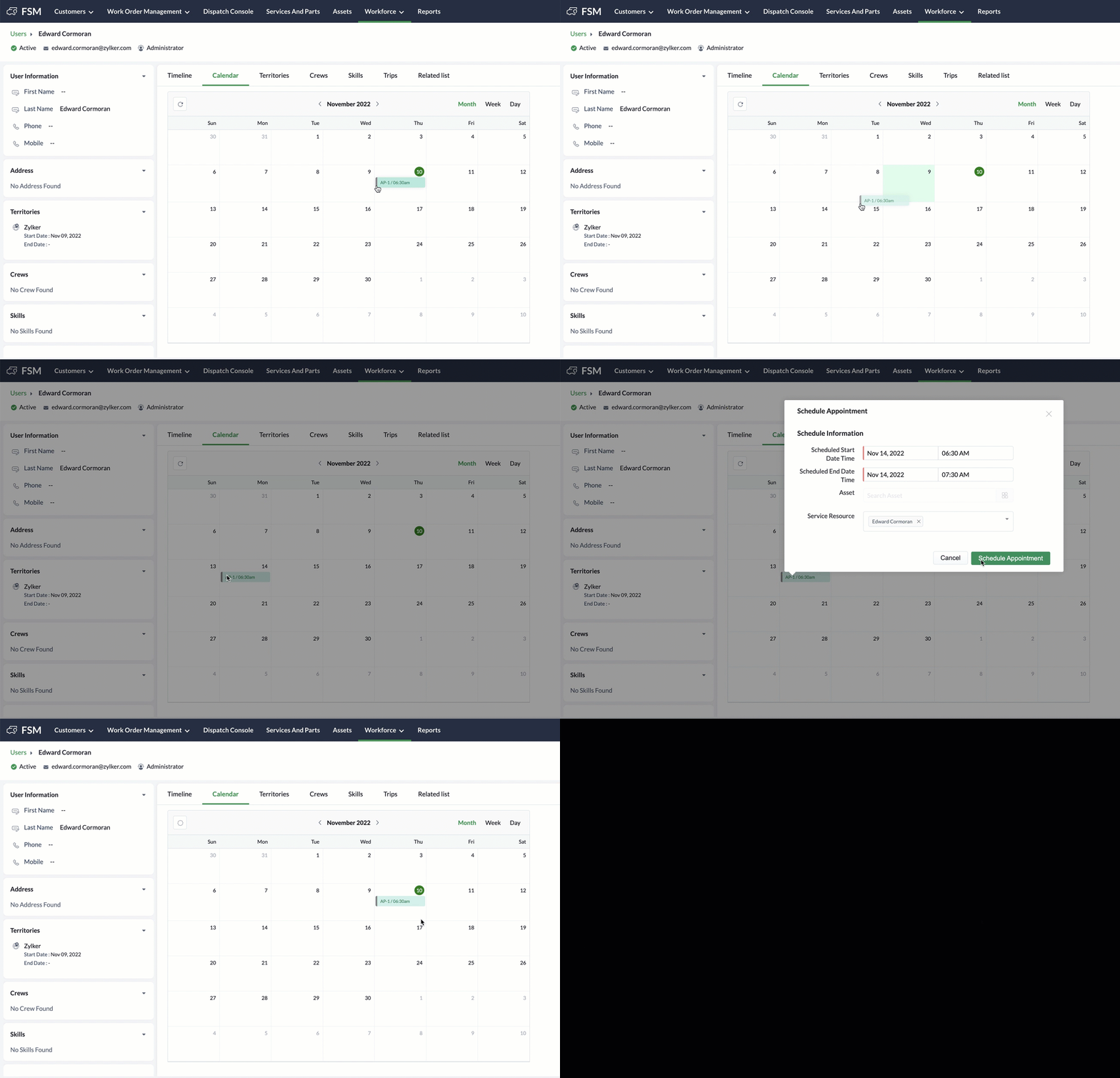
- Drag and drop an appointment to a different date or time
- Resize the appointment
You can reschedule an appointment by dragging and dropping it to a different date or time. In the Schedule Appointment popup, the details are prefilled. Make the necessary changes and click Schedule Appointment.
You can reschedule appointments from the Month, Week, and Day views.
You can also reschedule an appointment by resizing the appointment. Move your cursor to the bottom edge of the service appointment and when the cursor changes to a downward arrow, resize it to the duration you want for the service appointment. In the Schedule Appointment popup, the details are prefilled. Make the necessary changes and click Schedule Appointment.
You can resize and reschedule appointments only from the Week, and Day views.
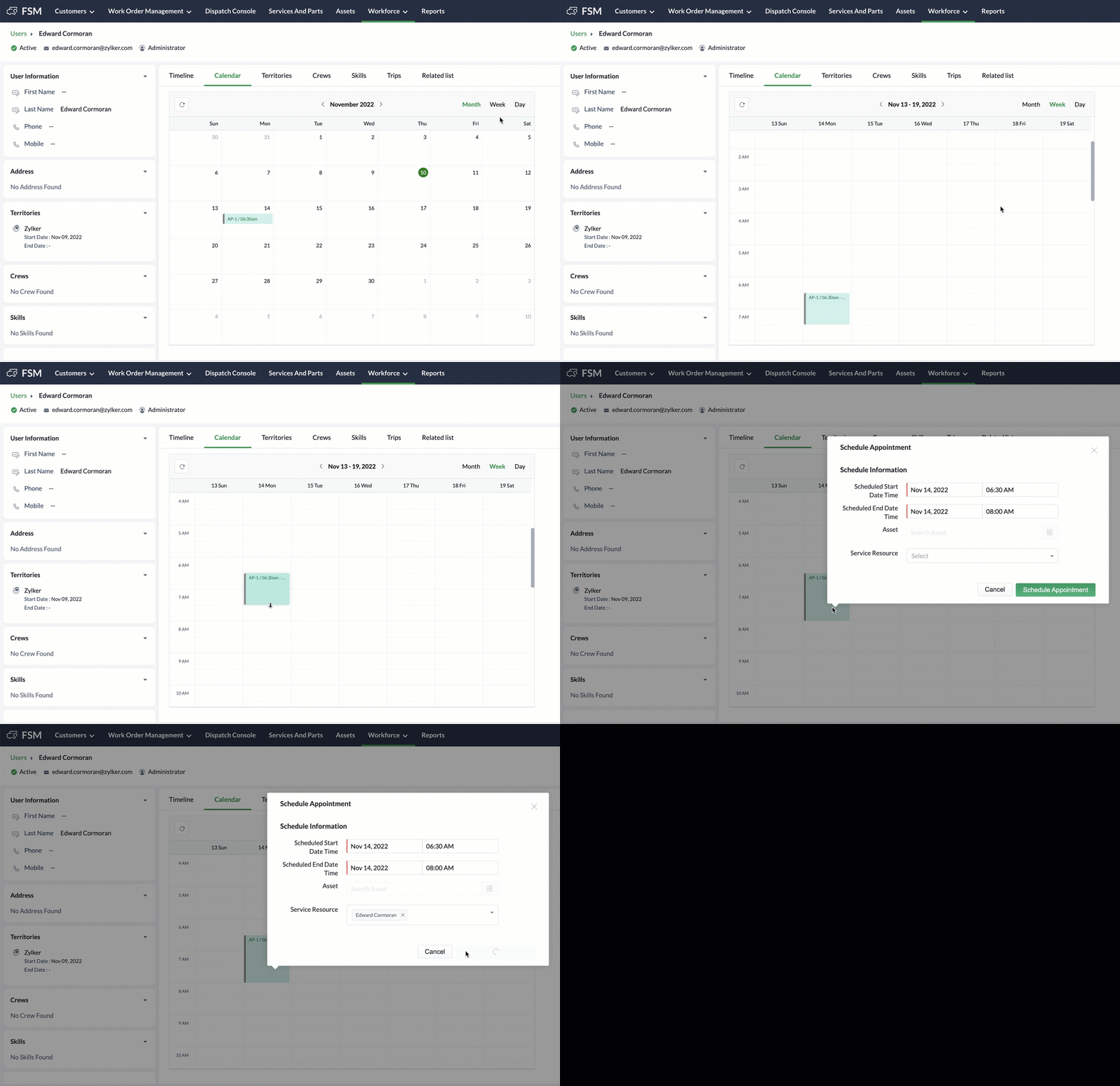
You can resize and reschedule appointments only from the Week, and Day views.
Tip: Click on the date in the Month view to go to the Day view.
Work History
Service Appointments
The service appointments assigned to the user as an individual resource and when part of a crew will be listed here.
Time Sheets
The time logged by the user working on service appointments.
Trips
The details of the trips undertaken by the user will be listed here. You can view the trip on the map.
Click on a trip and go to the Map view tab to view the trip on the map.
Availability
The details of the Time Off taken by the user will be listed here. The details of the user's check-in and check-out details will be listed under the Attendance section. The details of the Shifts that you are part of will also be listed here.
Work Profile
Territories
The territories assigned to the user will be listed here. Click + Create to add the territories for the user. Select a Territory, and set the Start Date Time and the End Date Time and click Save.
Crews
Details of the crew the user is part of will be listed here.
Service Resource Skills
Click + Assign to add the skills for the user. Enter the necessary details and click Create. Ensure that you create the skills before you attempt to assign them to an user. Hover over an entry and click the Edit [  ] icon to make changes.
Notes & Attachments
Add notes to record additional context about a user upload and store files related to a user.
Filter Users
You can filter the users based on their status.
Search Users
You can also perform search by applying search criteria on multiple fields.