View Journey Reports
Reports of your activated journey show you information about the list of contacts entering the journey and the goals they've achieved across a certain time line.
To view reports for activated journeys
-
From the navigation toolbar, select Journeys and click View Journeys.
-
Select the active journey for which you want to view reports.
-
Select the Reports tab.
-
Click the calendar icon to view reports for a specific time period :
-
Today
: To view the number of contacts who've entered, exited, re-entered and achieved their goals today,
-
Yesterday
: To view the number of contacts who've entered, exited, re-entered and achieved their goals the previous day,
-
This week
: To view the number of contacts who've entered, exited, re-entered and achieved their goals the past week,
-
Entire duratio
n : To view the number of contacts who've entered, exited, re-entered and achieved their goals from beginning.
-
Custom range
: To view the number of contacts who've entered, exited, re-entered and achieved their goal between specific dates.
-
Click the Filter icon to view reports for specific contacts. Select the criteria and click Apply. You can also save that list of contacts as a segment by clicking Save as segment.
The reports give you four statistics about the contacts as listed below
-
Entered
: The number of contacts who've entered the journey.
-
Exited
: The number of contacts who've exited the journey.
-
Re-entered
: The number of contacts who've re-entered the journey after they've satisfied the criteria you've set.
-
Goals achieved
: The number of contacts who've exited the journey after satisfying the goal criteria you've set.
Journey Metrics Across Time
This report gives you information about the number of contacts who've entered, exited and re-entered a journey over a time period. This information is displayed as a line graph as shown below.
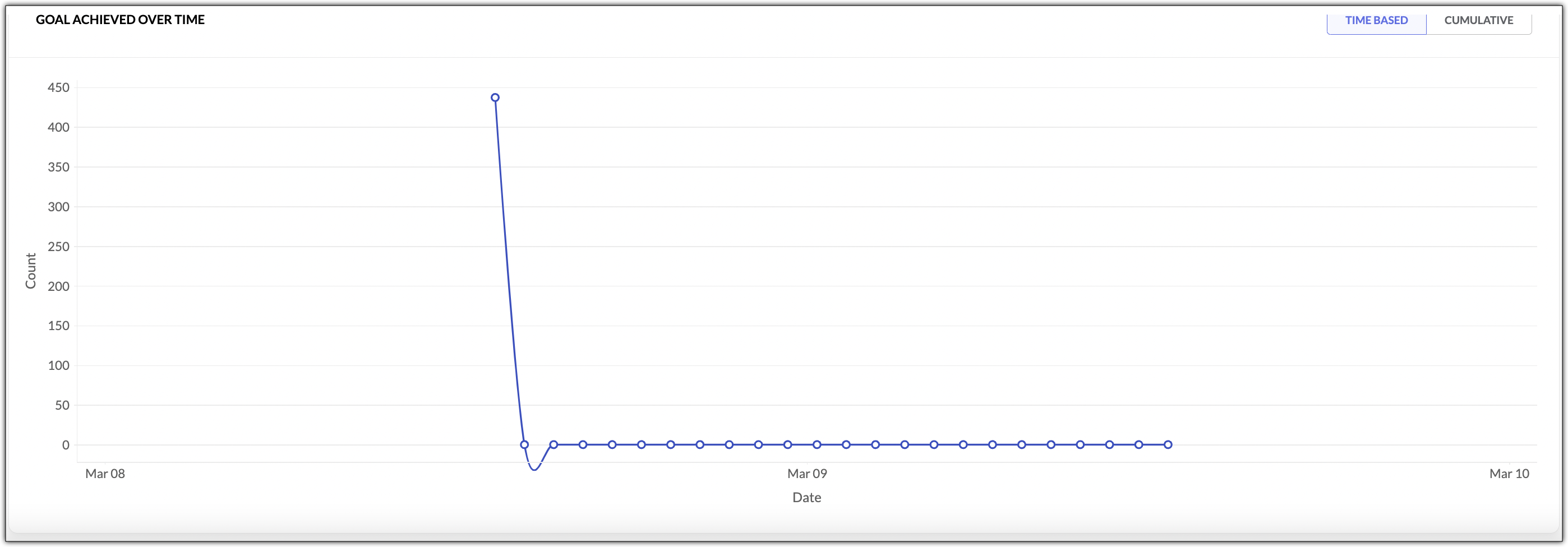
Goals Achieved Over Time
This report gives you information about the number of contacts who've achieved their goals in the journey over a time period.