Configure your campaign content
Zoho Marketing Automation provides predesigned email templates for you to use. Just pick an email template that meets your needs, then personalize it to suit your company's voice.
If this is your first email campaign, we recommend starting with the basic templates. Besides selecting a template, you can use the Template Editor to add design elements, such as images, text, buttons, anchor tags, and more to your email campaign. The drag-and-drop components in the Template Editor let you easily customize the layout of your emails campaigns.
Add content to your campaign
To add content to your email campaign:
- Choose Marketing Campaigns on the left panel, then select Email.
- Click Create in the top-right corner of the screen in the Email Campaigns list view.
- Enter a campaign name and select a topic for your campaign in the General Details section.
- Click Next.
- Select a suitable campaign type from the Type section. Zoho Marketing Automation offers you five types of email campaigns to choose from.
- Click Save and Proceed.
- Next, add your recipient details, sender address, and email subject line.
- Click Add Content under the Content section to start drafting your email campaign.
- After adding the content, click Save and Proceed.
Content types
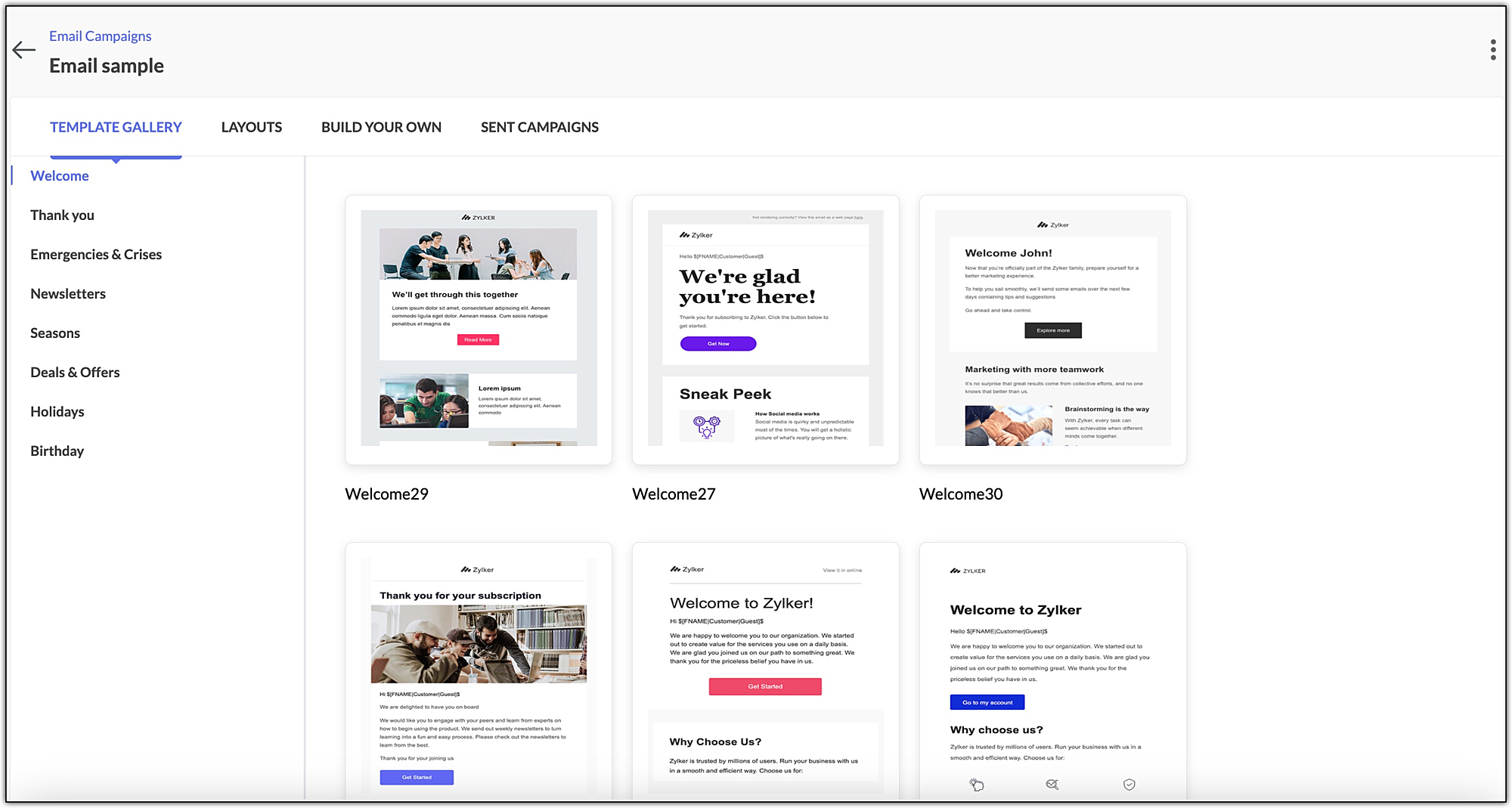
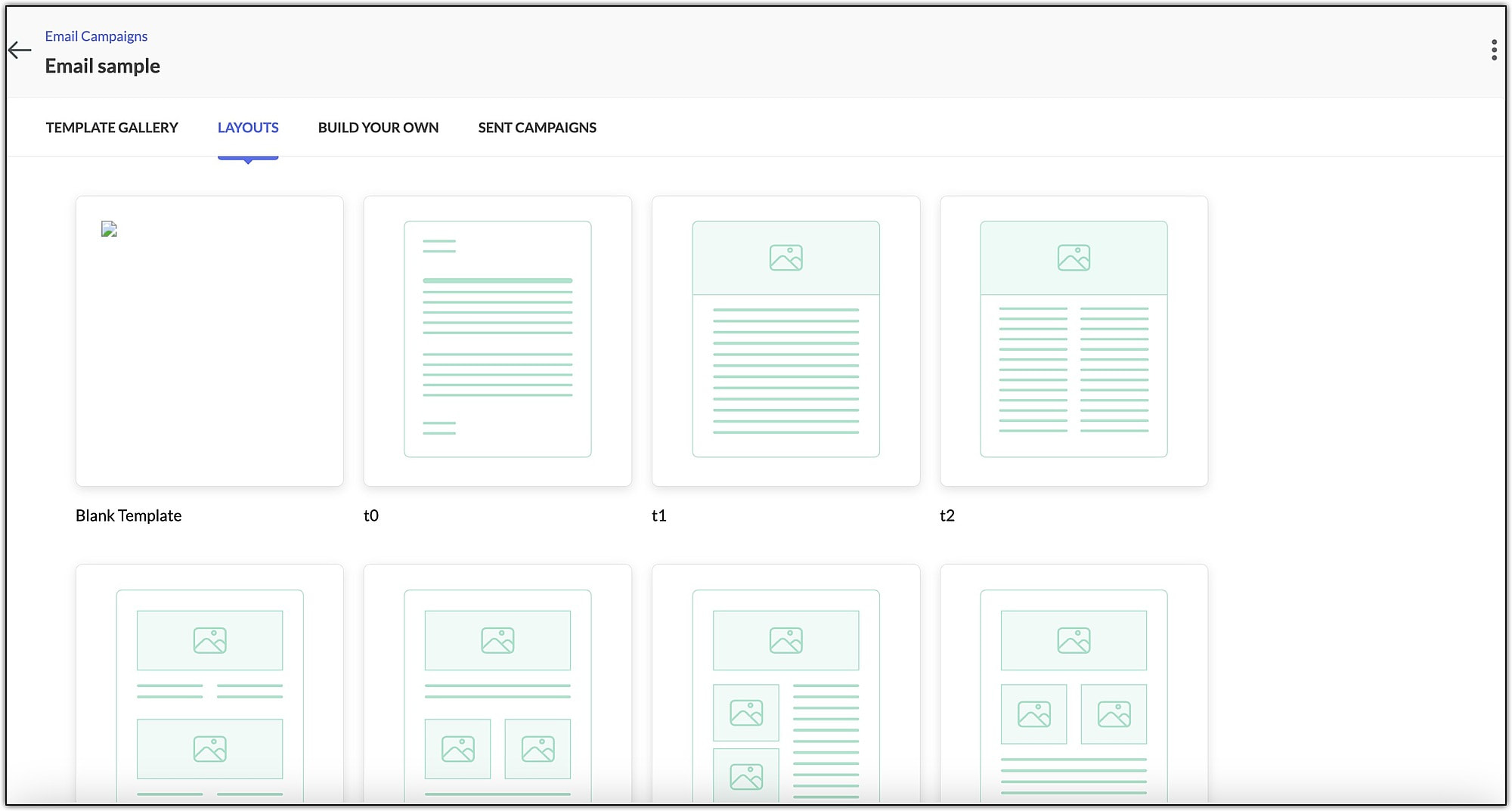
There are multiple content types offered by Zoho Marketing Automation to design captivating email campaigns that best suit your business needs. You can design your campaign with the help of Template Gallery, Layouts, Build your Own, or Sent Campaigns. You will be able to access them once you click Add Content on the Configuration page.
Template Gallery
Zoho Marketing Automation provides a number of email templates to suit various use cases. You can choose a specific template depending on your requirement. For instance, if you want to send your customer birthday wishes, you can choose a template from the Birthday section.
Layouts
You can use the layout option to build a structure of your choice for your campaign template. This helps you organize images, texts, buttons, and other elements within the body of your email campaign.
Build Your Own
Zoho Marketing Automation also provides alternate options to add content. The existing options are:
- HTML Editor - Select this option if you want to include visual images and logos in your campaign. The recipient of your campaign must be using a browser or email client and device that support this format.
- Plain Text Editor - These are simple emails without images or logos. Their purpose is to send your campaign without losing any content. Plain-text campaigns have a comparatively high degree of deliverability (no lost content).
- Import/Upload - With this option, you can import the HTML content for your email. You can browse and select the HTML file as well as any related images, and then upload them. You can either import the files from your desktop or from cloud services such as Zoho Docs, Google Drive, and Dropbox.
- Sent Campaigns - If you have already sent email campaigns, you can use the content from a previous campaign as a template for your new campaign.
Sent Campaigns
You can view all your previously sent campaigns on this screen. If you have to send a particular type of campaign on a regular basis, you can use this option to avoid creating the campaign from scratch each time.