DLT Registration on BSNL DLT
Entity registration
The steps are as follows:
- Visit the BSNL DLT registration portal and click Signup.
- Select area of operation: As Enterprise. Choose No for if you've used any other mobile network operators previously.
- Enter your business PAN number and click Verify and Continue.
- Enter the following information:
- Choose your business type.
- Enter your name and an email address, preferably with your company domain.
- Set your password and enter your phone number.
- Enter OTP and click Verify. A verification link will be sent to you. Click that and complete verification process. Click Continue.
- Enter your company's name, business type, business category, business PAN, your name, and your company address. Click Continue.
- Submit proof of business identity, proof of business entity, letter of authorization and authorized signatory. Click Continue.
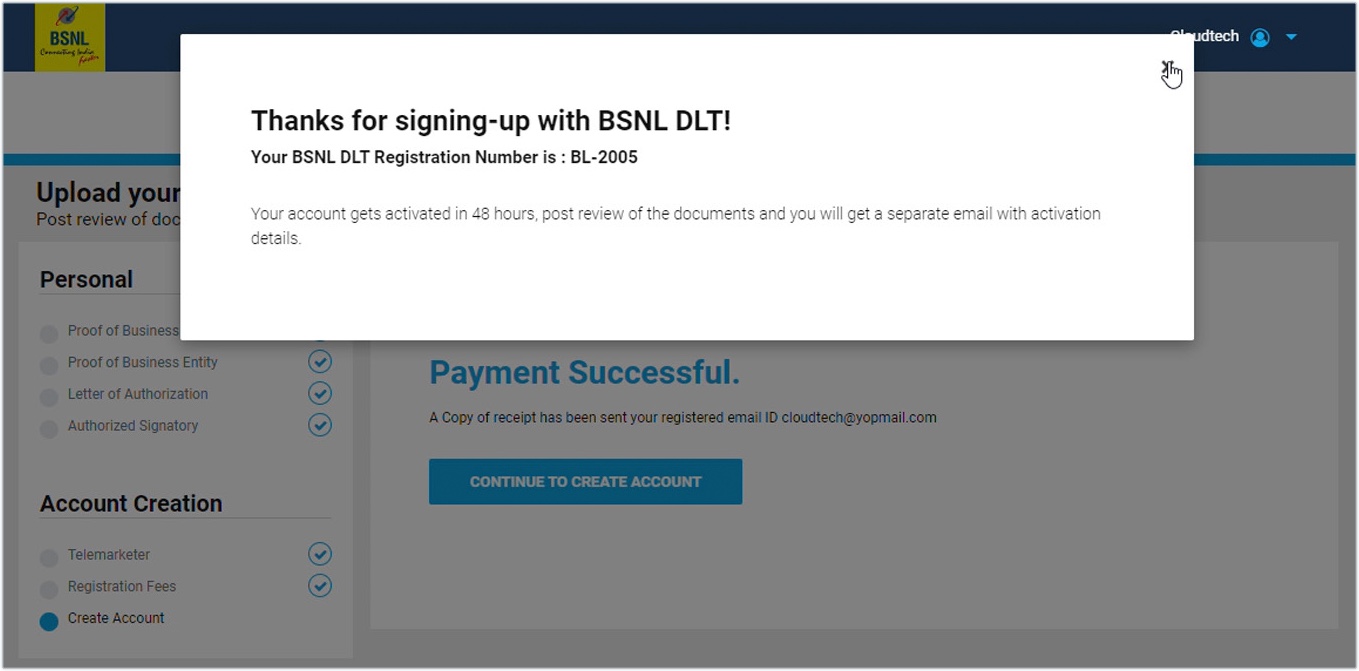
- Continue to pay the registration fee and create an account.
Your account will be reviewed and activated in 48 hours. After the review process is complete, you will get your account activation details via email.
Header registration
The steps are as follows:
- Visit the BSNL DLT registration portal and click Login.
- Choose area of operation As Enterprise and log in with the credential you've obtained after the entity registration.
- Verify with OTP to login.
- Click the Header tab and click the Add icon in the top-right corner.
- Enter the following data:
- Choose the header type as Promotional.
- Choose business category from the drop-down.
- Enter a header. Based on your business use case, you can either choose an alphanumeric or numeric sender ID. In this document, we have chosen a numeric sender ID to explain the process. However, the process for both ID types remains the same. Promotional headers must be six-digit numbers; the first number will vary based on your industry. You can choose a number that will represent your company.
- Select an attachment as a proof that you've chosen a relevant header according to your industry and also aligns with your company along with an explanation.
- Click Submit for approval.
Once you've submitted, the status of the header will be shown as Pending until it is verified from their end. The status will be changed to Approved after verification. You can check the status of header in the Header tab.
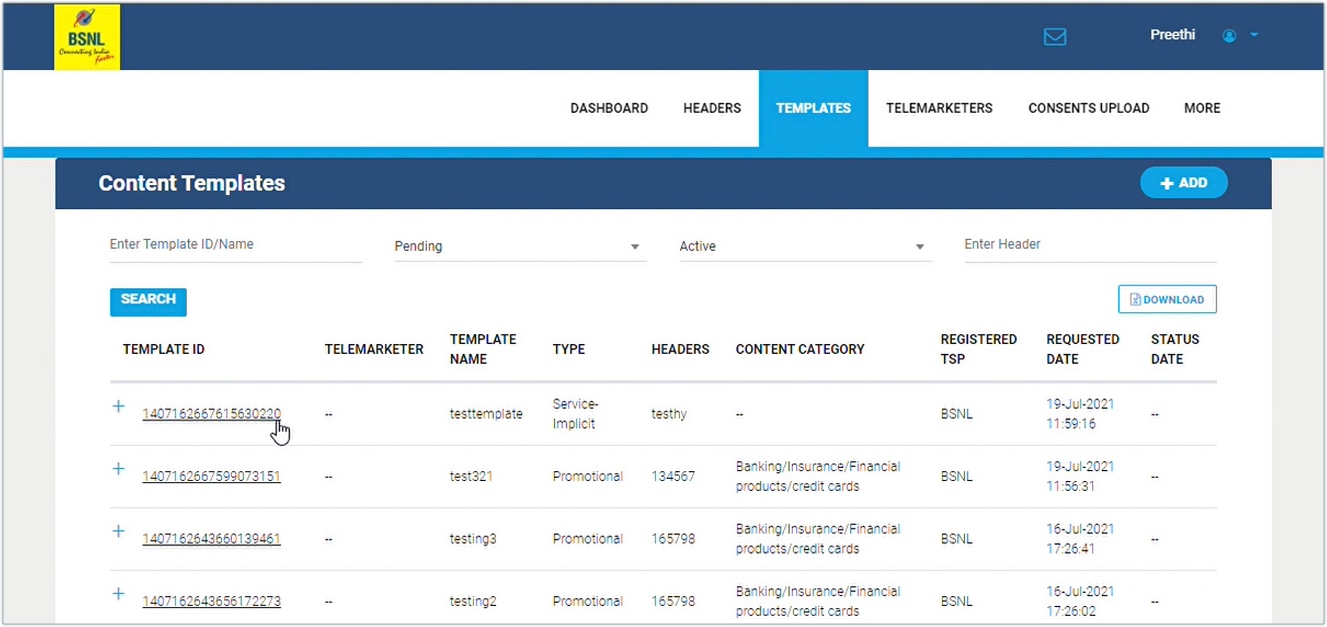
Content template registration
The steps are as follows:
- Visit the BSNL DLT registration portal and click Login.
- Choose area of operation As Enterprise and log in with the credential you've obtained after the entity registration.
- Verify with OTP to login.
- Navigate to the Templates tab and choose Content Template. Click Add icon on the top-right corner.
- Enter the following information:
- Choose Template Type as Promotional.
- Select your business category.
- Choose one of the approved headers from the dropdown.
- Enter a relevant template name. Avoid using names like Template or Test and use an appropriate name like promotions, offers, or something denoting the purpose of the template.
- Choose message type as Text or Regional according to your requirement.
- Type in your message template, you can click the Insert Variables button to add variable content like a link or a merge tag.
- Click Save.
Once you've submitted the status of the content template will be shown as Pending until it is verified from their end. The status will be changed to Approved after verification. You can check the status of header in the Templates tab.