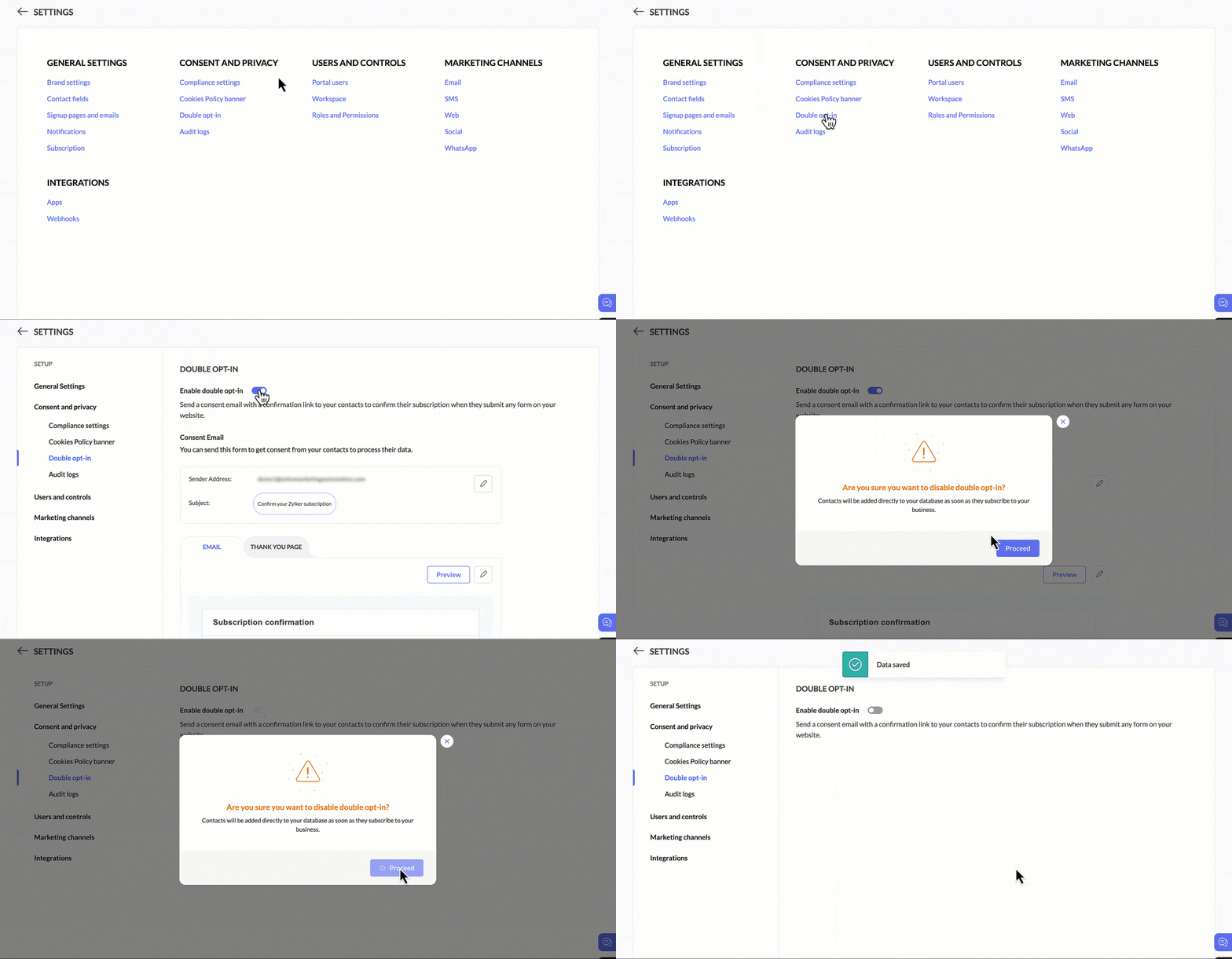
Enable double optin
Double opt-in provides an extra confirmation step to verify each email address added to your contact database. When this setting is enabled, contacts who have subscribed to your business through sign-up forms, any other form (newsletters, pop-ups etc) on your website, or via the Forms API will automatically receive a follow-up email with a link to confirm their subscription.
To enable double opt-in:
The steps to enable double opt-in are given below:
- Click Settings icon on the top-right corner of the screen, then click Double opt-in under Consent and privacy.
- Enable the double opt-in toggle. This will open up the consent email configuration.
- Click Edit icon on the right and enter the following details:
- Sender address - Select a sender address to send the email.
- Subject - Enter a suitable subject line. Click Personalize if you wish to add merge tags to your subject line
- Click Save.
- Click Edit icon on the right to create email content.
- Draft the email as per your requirement in the email editor
- Click Save and close.

To disable double opt-in, disable the toggle and click Proceed.