How to set up sync with Zoho CRM
Zoho CRM is an online sales CRM software for managing your business sales processes. Integrating Zoho Marketing Automation with Zoho CRM will allow you to sync contacts from Zoho CRM, engage them consistently and make them sales-ready.
Set up the sync
- Click Settings icon on the top-right corner of the screen, then click Apps under Integrations.
- Select Zoho CRM. Click Create Sync.
- Select the module to be synced, i.e., either Leads, Contacts or Custom Modules. Once you select the module, all the contacts in that module will be synced to All contacts module of Zoho Marketing Automation.
- Select a list if required to which you intend to sync the contacts. The synced contacts will be available in the selected list as well as in the All contacts module.
- Select Contact Subscription Type for the contacts. If you choose type as Marketing refer next step or ignore the next two steps.
- Select a topic if required to associate your contacts with a relevant topic if you want to send email campaigns to the contacts.
- Select a lawful basis. This option will be available only if you've opted to comply with GDPR in your Zoho Marketing Automation.
- Enable Update empty field value toggle if required. By enabling this, values of mapped fields removed in Zoho CRM will also be updated with empty values in the respective field of Zoho Marketing Automation.
- Enable the necessary toggles under Advanced options depending on your sync requirement,
- Enable Exclude opt-out contacts, if required. By enabling this, the leads/contacts who have opted out of Zoho CRM will not be synced to Zoho Marketing Automation.
- Enable Remove leads/contacts opted out of Zoho CRM, if required. By enabling this, the leads/contacts that are synced in Zoho Marketing Automation but have opted out of Zoho CRM will be removed.
- Enable Remove leads/contacts deleted in Zoho CRM, if required. By enabling this, all the leads/contacts that are deleted in Zoho CRM will be removed from Zoho Marketing Automation.
- Click Next and proceed to map fields.
Map fields
- Some Zoho CRM fields are mapped to the respective Zoho Marketing Automation fields.
- Click (+) icon to map additional fields. You can map Accounts and Deals fields as well. Syncing Accounts and Deals module will sync the relevant information about the associated Accounts and Deals along with the other fields. You can achieve this sync only if Contacts have been synced.
- Click Initiate.

Some fields cannot be mapped with Zoho Marketing Automation,
- Modified By
- Created By
- Modified Time
- Layout
- Wizard
- Lookup and multi-user lookup
- Profile/record image
- File upload
- Subform
- Image upload
- Data Processing Basis
- Last Follow Up By
- Territories
Sync Detail View
To see the detail view of the sync,
- Click Settings icon on the top-right corner of the screen, then click Apps under Integrations.
- Select Zoho CRM. Select the sync to see the detail view.
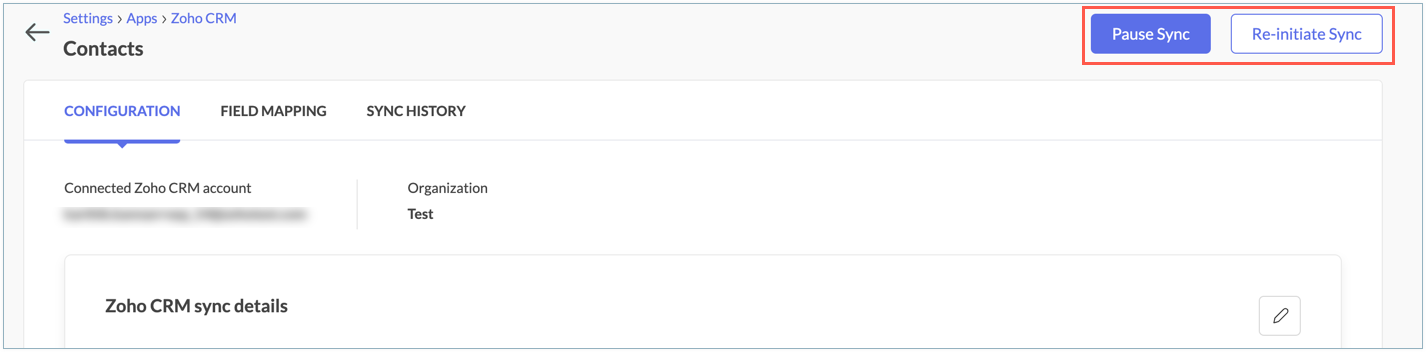
You can do the following actions on a sync:
Pause: This will stop adding new records or update existing records.
Re-initiate: This will add new records and update existing records if you've edited the sync settings.
Edit Sync Configuration
- Click Edit icon in the Configuration tab.
- Click the sync you would like to edit.
- You can edit sync details and advanced settings by clicking Edit icon in the respective section.
- Click Save.
Edit Mapping
You can re-map or map more fields for your sync settings by clicking the Edit Mapping in the Sync Detail View.
- Navigate to Field Mapping tab.
- Click the sync you would like to edit.
- Click Edit icon and edit.
- Click Save.
View sync history
- Navigate to Sync history tab.
- Here you can see a detailed view of your sync list:
- Sync time - The time and date at which the sync was configured.
- Total records - Total number of contacts synced at the given time.
- Added - Number of new contacts added at the given time.
- Updated - Number of existing contacts updated.
- Skipped - Number of contacts not synced since they didn't match the sync criteria.

You can export your skipped contacts as a .csv file by clicking the export icon next to the skipped value.
Push data to Zoho CRM
- Click Settings icon on the top-right corner of the screen, then click Apps under Integrations.
- Select Zoho CRM. Navigate to Settings tab.
- Click the edit icon of the required field to be updated.
- Enable the toggle and select the appropriate field to be updated in Zoho CRM for each module.
- You need to select appropriate field in Zoho CRM to push data from Zoho Marketing Automation.
- Click Save.