How to set up sync with Zoho Creator
Zoho Creator is an online custom apps builder through which you can create different applications using drag & drop feature. Any Zoho Creator will have a form, reports and pages and in reports section, you can view the contacts and other details. These contact details can be imported from Creator to your Marketing Automation.
How to sync Zoho Creator with Zoho Marketing Automation?
To sync your Zoho Creator account with Zoho Marketing Automation:
- Click Settings icon on the top-right corner of the screen, then click Apps under Integrations.
- Navigate to Zoho Creator sync setup. Click Create Sync.
- Enter the following details in Set up Sync page,
- Applications - Select the Creator application from which you want to import data.
- Select the corresponding form or database from which contacts can be imported.
- Sync To - Select the list you want to sync details to.
- Topics - Select topics to associate the contacts
- Update empty value fields - By enabling this, values of fields removed in will also be updated with empty values in the respective field of Zoho Marketing Automation.
- Sync time (optional) - Schedule a time to sync the records periodically. However, the first sync will be initiated immediately as soon as you initiate a sync
- Click Next to proceed to map the fields.
Map your Fields
In Map your Fields, you can choose Creator fields such as Email Address, First Name, Last Name, Mobile Number against the fields you create in Zoho Marketing Automation.
For instance, you can map the email address field in Zoho Creator against Contact email field in Zoho Marketing Automation.
Email Address (Zoho Creator) = Contact Email (Zoho Marketing Automation)
First Name (Zoho Creator) = First Name (Zoho Marketing Automation)
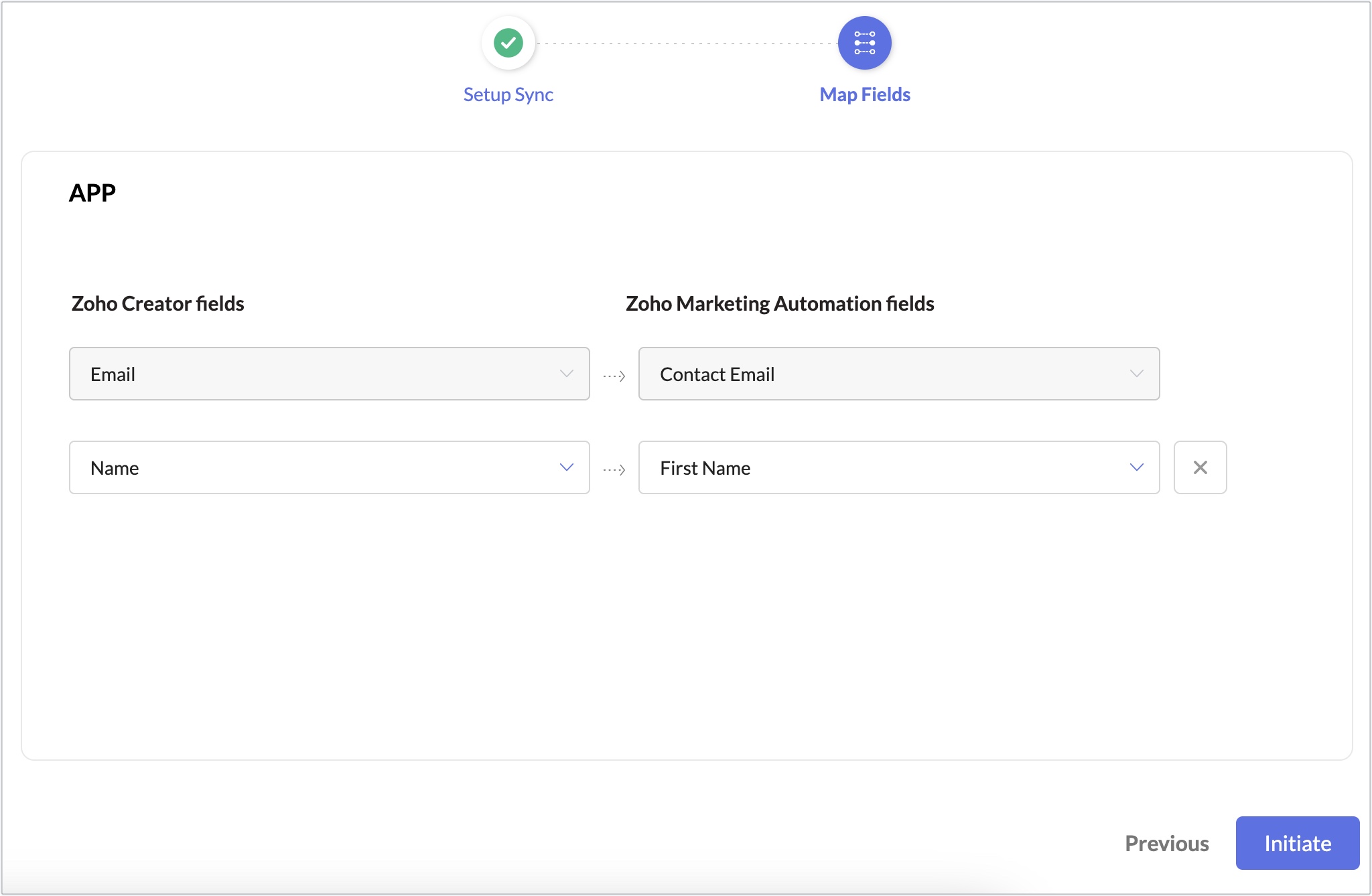
You can create a new Campaign field by checking the option New Field found above the Marketing Automation' field selection menu. Once done, click Initiate.
Sync Detail View
To see the detail view of the sync,
- Click Settings icon on the top-right corner of the screen, then click Apps under Integrations.
- Click Zoho Creator to view the sync setup.
Edit Sync Configuration
- Click Settings icon on the top-right corner of the screen, then click Apps under Integrations.
- Click Zoho Creator to view the sync setup.
- Click Edit icon and edit the required details.
- Additionally you can enable the following options in the Configuration tab,
- Sync tags from Zoho Creator toggle - By enabling this, we will sync all tags associated with Leads/Contacts to Zoho Marketing Automation
- Update Consent status from Zoho Creator - By enabling this, the consent status provided by the lead/contact in Zoho Creator will be pushed to Marketing Automation.
- Update empty field value - By enabling this, values of fields removed in Zoho Creator will also be updated with empty values in the respective field of Zoho Marketing Automation.
- Click Save.
Edit Mapping
You can re-map or map more fields for your sync settings by clicking the Edit Mapping in the Sync Detail View.
- Click Settings icon on the top-right corner of the screen, then click Apps under Integrations.
- Click Zoho Creator to view the sync setup.
- Navigate to Field Mapping tab.
- Click Edit icon.
- Make necessary changes and click Save.
View Sync history
To view sync history:
- Click Settings icon on the top-right corner of the screen, then click Apps under Integrations.
- Click Zoho Creator to view the sync setup.
- Navigate to Sync history tab. Here you can see a detailed view of your sync list:
- Sync time - The time at which the sync was performed.
- Total records - Total number of contacts synced at the given time.
- Added - Number of new contacts added at the given time.
- Updated - Number of existing contacts updated.
- Skipped - Number of contacts not synced since they didn't match the sync criteria.

You can export your skipped contacts as a .csv file by clicking the export icon next to the skipped value.