Moderate registrations
Webinar organizers can regulate attendance in webinars through Registration Moderation. Use this feature to limit the number of attendees in your webinar, or to require attendees to make a payment before they attend your webinar.
How it works
You can set the registration moderation setting of any scheduled webinar in one of the following modes:
- Manual approval mode - If anyone registers for your webinar, you can allow or deny them entry to your webinar.

The Manual Approval feature is available only in the Professional and Enterprise Webinar editions of Zoho Meeting
-
Automatic approval mode - Anyone who registers for your webinar will be automatically approved to attend your webinar. You will still be able to cancel anyone's registration.
Registration Moderation
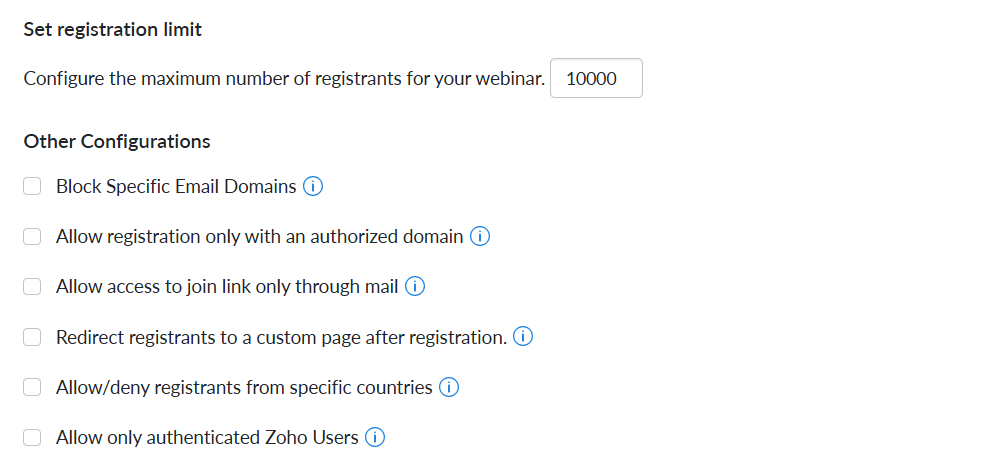
Changing registration moderation settings
1. After you schedule the webinar, you can customize registration moderation.
2. Click the Registration Setup section.
3. Change the settings under Moderation.
Viewing registration details
- Log in to Zoho Meeting, click Webinars on the left pane.
- Select Upcoming webinars.
- Click any webinar and go to the Webinar details page.
- Click Webinar Info tab
- Click any registrant's name to view their registration details.
Approving or denying entry
-
Log in to Zoho Meeting, click My Webinars on the left pane.
-
Select Upcoming webinars.
-
Click any webinar and go to the Webinar details page.
-
Click Webinar Info tab
-
Under Registrants section, click Approve or Cancel under actions to accept or restrict each registrant.
Approving a denied entry
- Log in to Zoho Meeting, click My Webinars on the left pane.
- Select Upcoming webinars.
- Click any webinar and go to the Webinar details page.
- Click Webinar Info tab
- Under Registrants section, select the Denied list, then click Approve to accept any registrant.
Canceling registrations
- Log in to Zoho Meeting and click My Webinars on the left pane.
- Select Upcoming webinars.
- Click any webinar and go to the Webinar details page.
- Click Webinar Info on the top right.
- Under Registrants section, select the Approved list, then click Cancel to restrict any registrant.
Generating registration report
The registration report contains the names and email addresses of registrants by default along with other details provided while registering the webinar.
- To export, click My Webinars on the left pane.
- Select Upcoming webinars.
- Click any webinar and go to the Webinar details page.
- Click Webinar Info on the top right.
- Under Registrants section, click Export as CSV.