Introducing the New Editor in Zoho Notebook
Overview
We've rebuilt the writing experience from the ground up. Whether you're jotting down a quick idea, writing code, or building a structured reference, the new editor gives you the tools to do it faster and with less effort.
The New Editor in Zoho Notebook Web introduces a more powerful and flexible editing environment that improves the way you create and format your notes. With enhanced formatting tools, Markdown support, URL embedding, advanced table options, and improved editing controls, the editor provides a smoother and more efficient writing experience. This article explains the new enhancements available in the New Editor, editor toolbar options and the keyboard shortcuts.
What's New?
1. Markdown Syntax Support (New)
The New Editor supports Markdown syntax, allowing users to format notes using Markdown commands. You can use Markdown prompts to quickly structure content such as:
The New Editor supports Markdown syntax, allowing users to format notes using Markdown commands. You can use Markdown prompts to quickly structure content such as:
- Lists
- Code blocks
- Quotes
- Formatting styles
Markdown support provides flexibility for users who prefer writing with lightweight formatting syntax.

Try it! Open any note in the new editor, type ## at the start of a line, and start writing. You'll see it become a heading instantly.
2. URL Embed Support (New)
URL embedding allows external content to be displayed directly within your notes, creating a richer and interactive experience without needing to leave the editor. Instead of viewing a plain link, supported URLs are automatically converted into live previews that can be viewed and interacted with inside the note.
How to Use:
• Place the cursor where you want to insert the embed
• Use the Embed URL option or paste a supported link directly into the note
• The editor will automatically render the content as an embedded preview.
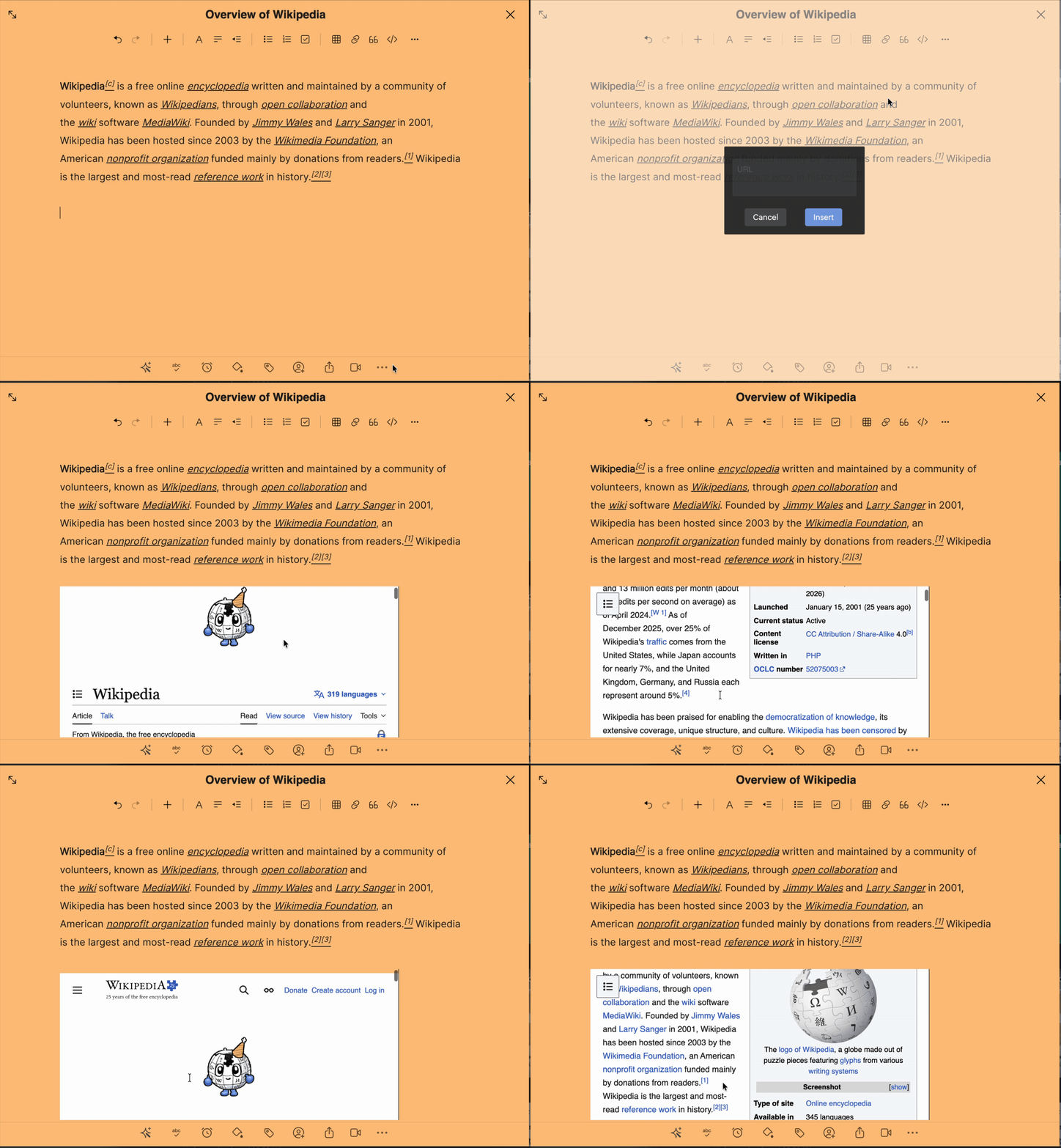
This helps you keep all relevant information, such as videos, articles, or other media, in one place while making your notes more dynamic and easier to work access.
Try it! Copy any web URL and paste it into a note. Use Insert option and look for the Embed URL field to embed it as a preview instead of a plain hyperlink.
3. Advanced table features (New)
The new editor gives you full control to add or remove rows and columns, toggle header rows, resize columns, and adjust table width — all from a single right-click.
Right-click anywhere inside a table to access the full set of options:
Try it! Insert a table from the toolbar, then right-click inside it. Try toggling the header row - notice how the first row switches to a styled header automatically.
4. Enhanced undo & redo (Improved)
Undo and redo actions now work more efficiently, allowing smoother correction of editing changes during note creation.

5. Code Block Preview (Improved)
Code blocks are now highlighted for better readability, making it easier to distinguish code content from normal text.
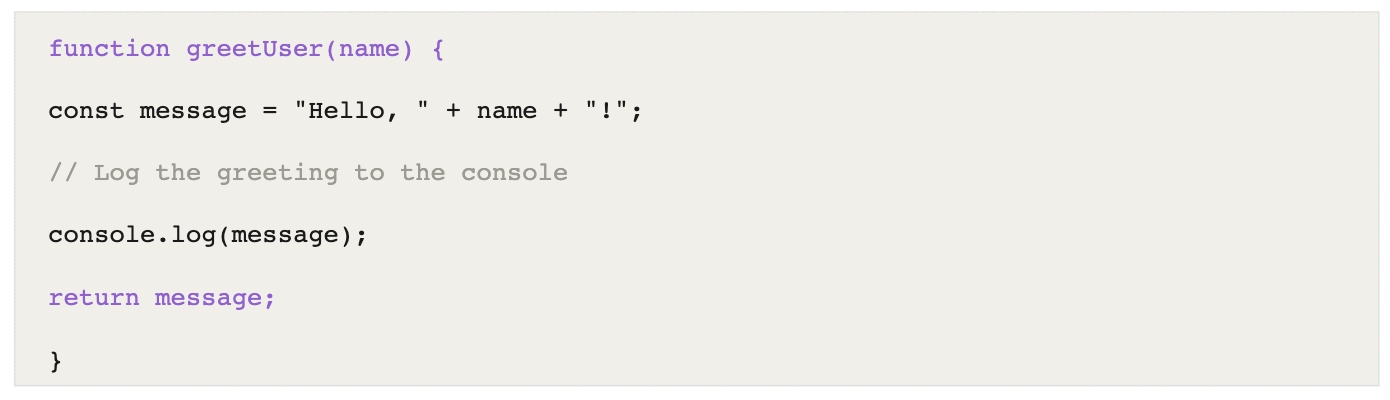
Try it! Type ``` in any note and press Enter. Paste in a code snippet — you'll see syntax highlighting kick in automatically.
The New Editor has been redesigned to deliver:
- Seamless editing
- Improved formatting controls
- Better content structure
- A smoother writing experience within Zoho Notebook Web
Complete toolbar guide
This section covers every tool in the editor toolbar in detail - what each option does, how to use it, and the keyboard shortcuts available for each.
Toolbar overview: The editor toolbar contains the following tools. Each is covered in detail below.
- Undo & Redo
- Insert (Image / File)
- Styles
- Alignment
- Indentation
- Lists
- Checklist
- Table insertion
- Link insertion
- Additional formatting options
Undo and redo:
The Undo and Redo options let you quickly revert or restore changes while editing a note. Undo reverses your most recent action; Redo restores an action you previously undid.
The Undo and Redo options let you quickly revert or restore changes while editing a note. Undo reverses your most recent action; Redo restores an action you previously undid.
Insert (image and file):
The Insert option lets you add media directly into your note card. Using this option you can:
- Insert an image
- Attach a file
This keeps related documents, screenshots, and references in the same note without needing to switch between apps.
Styles:
The Styles icon applies text formatting to selected content. Clicking it reveals the following options:
- Bold
- Italic
- Underline
- Strikethrough
- Font colour
- Background colour
- Change font size for the note card
Text alignment
The alignment option controls how text is positioned within your note. Available options are:
- Align Left
- Align Center
- Align Right
- Justify
Indentation:
The indentation feature adjusts the spacing of content within a note. Click the indent icon and choose from the drop-down to increase or decrease indent. This is especially useful for structuring nested content, sub-lists, or formatted sections.
Lists and checklists:
The editor supports three list formats for organising information.
- Unordered list: Creates a bullet-point list. Best for items where order doesn't matter.
- Ordered list: Creates a numbered list. Best for steps, rankings, or sequences.
- Checklist: Creates a task list within a note. You can check off items as they're completed — useful for to-do lists, meeting action items, and reminders.
Insert table:
To insert a table, click the Insert Table option in the toolbar, choose the table size, and it will be placed directly into your note. Once inserted, right-click anywhere inside the table to access the full set of editing options — see the Advanced table features section above for a complete list.
The new editor also lets you resize column widths and adjust overall table width directly by dragging the column borders.
Insert link:
The Insert Link option attaches a hyperlink within your note. When selected, a dialog appears with the following fields:
- Link URL — the destination address
- Link Note — the label displayed in your note
- Embed URL — paste here to embed the link as a rich content preview
Insert Code:
Inserts a formatted code block with syntax highlighting. Particularly useful for developers storing commands, scripts, or code examples alongside notes that explain them.
Insert Quote:
Formats selected text as a block quote. Useful when documenting meeting notes, references, or copied excerpts that should stand apart from your own writing.
More options:
The More Options menu contains additional formatting tools that don't live in the main toolbar.
- Insert Horizontal line: Inserts a horizontal divider to visually separate sections within a note. Useful when a note covers multiple topics or time periods.
- Clear formatting: Removes all styling from selected text and restores it to the default format. Useful when pasting in text that carries unwanted formatting from another source.
- Markdown Syntax: Allows users to format notes using Markdown commands.
Got any feedback or suggestions for us?
These improvements allow users to create rich, structured, and visually organized notes more easily. Please feel free to give these features a try and if you have any questions or need any help with accessing the features, drop an email at support@zohonotebook.com and we're glad to assist you.
Happy Note-taking :)
Happy Note-taking :)