Zoho Notebook offers flexible customization options that allow users to personalize both the appearance of the app and the way notes are displayed and organized. These options help improve readability, reduce visual clutter, and adapt Notebook to different workflows and devices.
Users can customize themes, notebook covers, layouts, fonts, note appearance, and sorting preferences to create a workspace that feels intuitive and comfortable.
Notebook-Level Customization
Changing the Notebook Cover
Each notebook includes a unique hand-drawn cover created by Zoho’s in-house artists, making notebooks visually distinct and easy to identify. Users can also upload a custom image as a notebook cover. Covers can be changed at any time and are synced across devices. Note Layout and View Options
Users can control how notecards are displayed within a notebook based on their working style.
Preview Size
Small
Medium
Large
Adjusting preview size helps users either view more notes at once or focus more clearly on note content.
Layout Options
Grid Layout – Displays notecards in a compact grid
Multi-Plane Layout – Organizes notecards across multiple sections for easier navigation
Theme and App Appearance
Zoho Notebook allows users to control the overall appearance of the application across devices.
Available theme options include:
Light mode
Dark mode
Device theme (automatically follows system settings)
Theme settings affect only the application interface and help improve visual comfort, especially during extended use or low-light conditions.
Notecard Content Customization
Zoho Notebook supports flexible font handling to ensure readability across different devices while maintaining a consistent writing experience.
Section titles within a notecard follow the default fonts supported by the device or platform (web, desktop, or mobile). This ensures clear structure and optimal rendering across screen sizes and operating systems.
Content inside the notecard (main body text and title) uses the font selected within the Zoho Notebook app. This allows users to control the writing style and maintain consistency across notes.
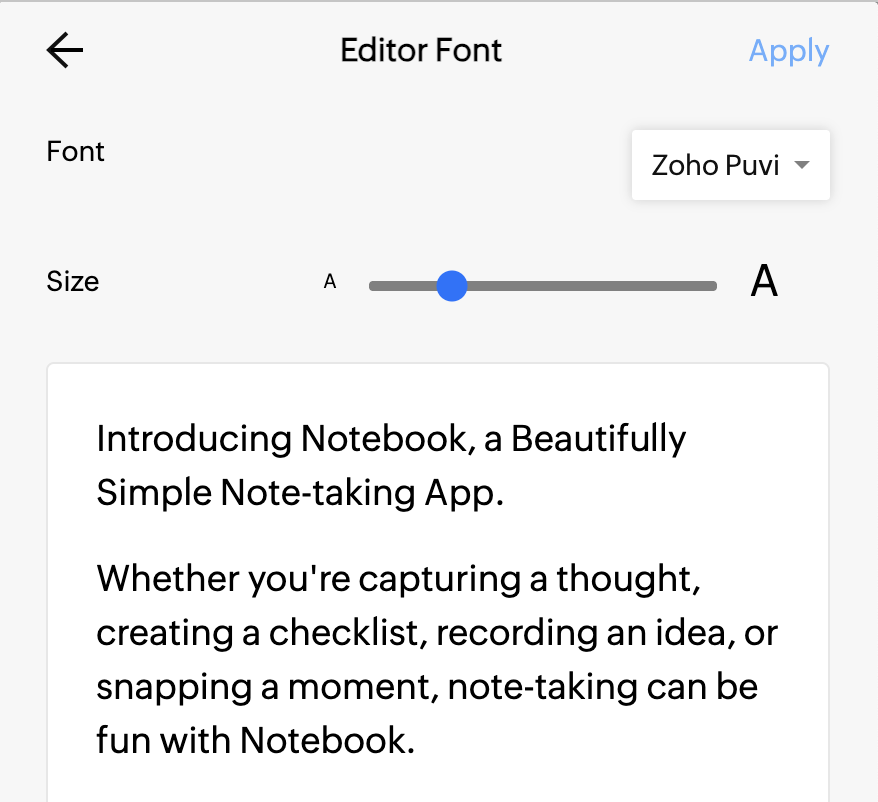
Font style changes apply at the globally across all notes not in the individual notecard level. This ensures consistent structure while adapting to different devices.
Advanced Notecard Preferences
Zoho Notebook also provides several additional customization options that allow users to tailor how notecards behave and appear while creating and viewing content.
Open Notes as Tabs
Users can choose to open notecards in separate tabs when working on the web app. This helps switch between multiple notes quickly and improves multitasking while researching or editing content.
Show Time on Notes
Users can enable or disable the display of creation and modification times on notecards. This helps reduce visual clutter or provide quick reference to note activity based on personal preference.
Default Notecard Color
A default color can be selected for newly created notecards. This helps maintain visual consistency and can be useful for organizing notes by category or workflow.
Generate Smart Cards
Notebook can automatically detect supported content such as links and convert them into Smart Cards, providing a richer preview and improved readability without requiring manual formatting.
Photo Card Grouping
Users can enable photo grouping to organize multiple images into a single grouped photo card. This makes image-heavy notebooks cleaner and easier to navigate.
Spell Check
Spell Check can be enabled to identify potential spelling errors while typing. This helps improve writing accuracy and ensures notes remain polished and professional.
Link Preview
When enabled, Notebook automatically generates a preview for supported URLs pasted into notes. Previews display relevant information such as titles, descriptions, and images, making links easier to identify at a glance.
Bookmark Card Preference
Users can choose to save web links as dedicated Bookmark Cards. Bookmark Cards provide a visually rich representation of saved webpages and make important references easier to access later.
Customizing Notecard Appearance
Users can visually personalize individual notecards to make important notes stand out. Customization options include:
Assigning a color to a notecard
Fixing a notecard color so it remains consistent
Enabling or disabling the time display on notecards
These options help users quickly identify priority notes or group related content visually.
Organizing Notes with Filters and Sorting
Zoho Notebook provides tools to quickly locate and manage notes in large notebooks.
Filtering
Notecards can be filtered by:
Favourites
Tags
Reminders
Notecard types
Filtering helps reduce clutter and focus on relevant information.
Sorting
Notecards can be sorted by:
Date created
Date modified
Date accessed
Title
Custom order
Sorting allows users to organize notes based on priority or frequency of use.
Combine filters and sorting options to quickly focus on the most relevant notes in large or information-heavy notebooks.
Frequently Asked Questions (FAQ)
1. Can I customize the appearance of individual notecards?
Yes. You can assign a color to a notecard, fix the color so it remains consistent, and enable or disable the time display on notes.
2. Can I change the cover of a notebook?
Yes. Each notebook includes a default hand-drawn cover, and you can change it at any time. You can also upload your own image to use as a custom notebook cover.
3. Does changing the theme affect my notes?
No, Changing the theme only affects the appearance of the application interface. Your notes and content remain unchanged.
4. Are customization settings synced across devices?
Most customization settings, such as notebook covers, layouts, and notecard appearance, are synced across devices when notes are connected to the Zoho cloud.
Need Further Assistance?
Related articles

