Add field
Prerequisites
Roles required:
Organization Owner/ Admin
To add field:
The steps vary for the three User Interface versions supported in Zoho One. Select the UI version you use from the tabs below and proceed with the steps that follow.
One Experience UI
Spaces UI
Unified UI
One Experience UI
1. Sign in to Zoho One, then click Admin Panel icon  on the top-right corner.
2. Click Portals on the left menu.
3. Under the Clients tab, click Manage Fields.
4. Click Add a Custom Field.
5. Enter Field Name and choose a Field Type.
6. Fill in the maximum character limit and the default value.
7. If you chose Pick List as the field type, enter at least two input options. To simplify adding multiple options, click Add Options in Bulk and enter one input per line in the text box. Click Add Options after entering all the inputs.
8.
Switch on Mark as mandatory field if you'd like to make it mandatory
for admins to fill in the field when adding clients. If you have already
added clients, this field will be mandated when you edit those clients.
9. Switch on Contains Health Information (ePHI) if
the custom field prompts clients to fill in important health
information, like their social security number or medical record number.
If this option is enabled, the Encrypt option will also be
automatically enabled.
10. Switch on Encrypt the data provided in this field to
encrypt client data in the field before storing it. It's a good idea to
encrypt fields containing personal, sensitive, or classified data.

The data will only be encrypted when it is within our servers. It will be decrypted before being retrieved and displayed.
11. Switch on Show Tooltip for this field to add a description or example to the field label. Up
to two types of tooltips may be available, based on the field type:
- Info Icon: This displays a message upon hovering over the icon next to the label.
- Static Text: This displays a message as grayed-out placeholder text in the field.
12. Click Add.
Spaces UI
1. Sign in to Zoho One, then click Directory Settings icon  on the top-right corner.
2. Click Portals on the left menu.
3. Under the Clients tab, click Manage Fields.
4. Click Add a Custom Field.
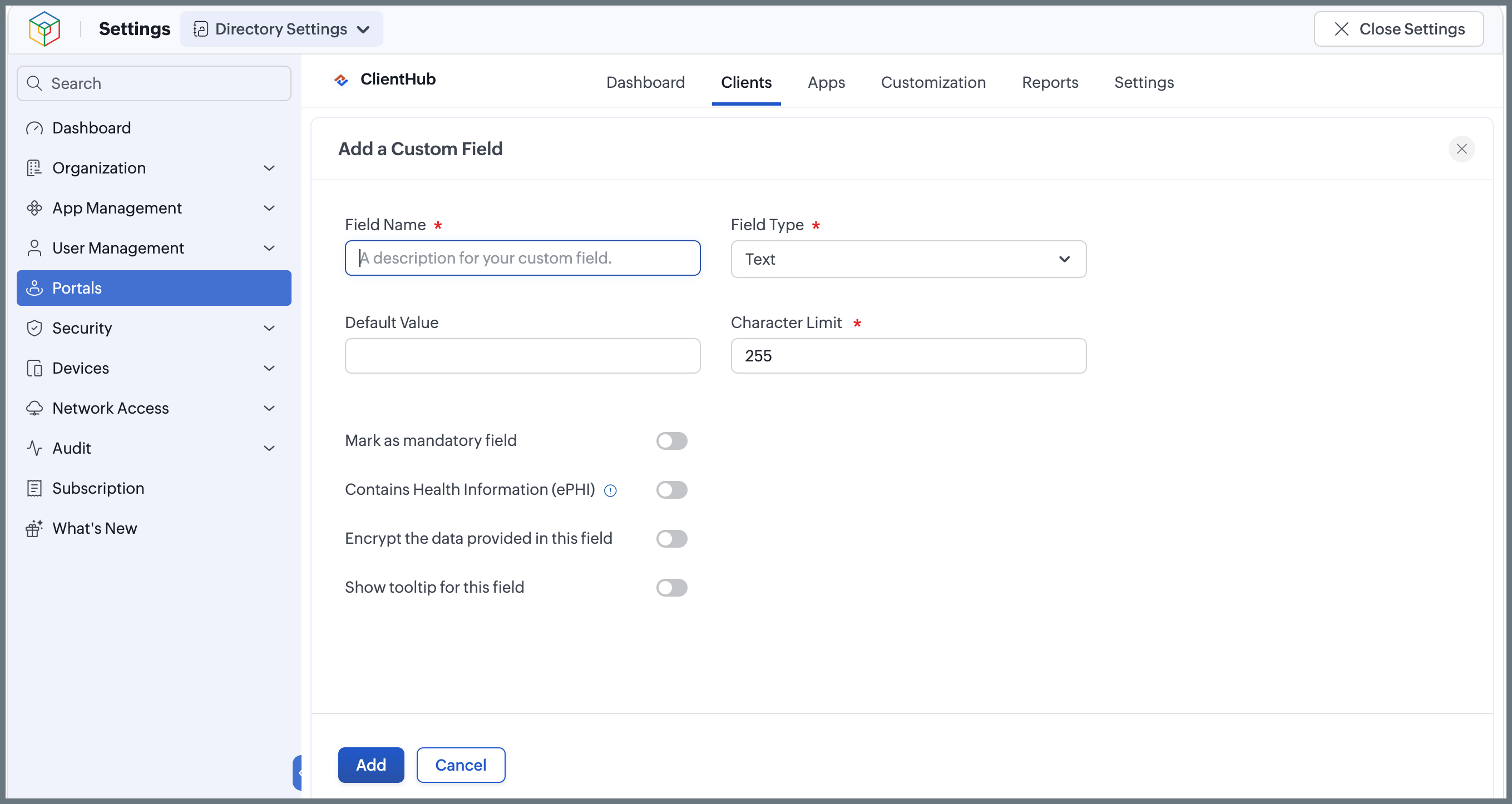
5. Enter Field Name and choose a Field Type.
6. Fill in the maximum character limit and the default value.
7. If you chose Pick List as the field type, enter at least two input options. To simplify adding multiple options, click Add Options in Bulk and enter one input per line in the text box. Click Add Options after entering all the inputs.
8.
Switch on Mark as mandatory field if you'd like to make it mandatory
for admins to fill in the field when adding clients. If you have already
added clients, this field will be mandated when you edit those clients.
9. Switch on Contains Health Information (ePHI) if
the custom field prompts clients to fill in important health
information, like their social security number or medical record number.
If this option is enabled, the Encrypt option will also be
automatically enabled.
10. Switch on Encrypt the data provided in this field to
encrypt client data in the field before storing it. It's a good idea to
encrypt fields containing personal, sensitive, or classified data.
The data will only be encrypted when it is within our servers. It will be decrypted before being retrieved and displayed.
11. Switch on Show Tooltip for this field to add a description or example to the field label. Up
to two types of tooltips may be available, based on the field type:
- Info Icon: This displays a message upon hovering over the icon next to the label.
- Static Text: This displays a message as grayed-out placeholder text in the field.
12. Click Add.
Unified UI
1. Sign in to Zoho One, then click Directory in the left menu.
2. Click Portals.
3. Under the Clients tab, click Manage Fields.
4. Click Add a Custom Field.
5. Enter Field Name and choose a Field Type.
6. Fill in the maximum character limit and the default value.
7. If you chose Pick List as the field type, enter at least two input options. To simplify adding multiple options, click Add Options in Bulk and enter one input per line in the text box. Click Add Options after entering all the inputs.
8.
Switch on Mark as mandatory field if you'd like to make it mandatory
for admins to fill in the field when adding clients. If you have already
added clients, this field will be mandated when you edit those clients.
9. Switch on Contains Health Information (ePHI) if
the custom field prompts clients to fill in important health
information, like their social security number or medical record number.
If this option is enabled, the Encrypt option will also be
automatically enabled.
10. Switch on Encrypt the data provided in this field to
encrypt client data in the field before storing it. It's a good idea to
encrypt fields containing personal, sensitive, or classified data.
The data will only be encrypted when it is within our servers. It will be decrypted before being retrieved and displayed.
11. Switch on Show Tooltip for this field to add a description or example to the field label. Up
to two types of tooltips may be available, based on the field type:
- Info Icon: This displays a message upon hovering over the icon next to the label.
- Static Text: This displays a message as grayed-out placeholder text in the field.
12. Click Add.