Convert External Users in Bulk
Prerequisites
Roles required to convert external users in bulk:
- Organization Owner
- Organization Admin
External users of an organization refer to individuals who are part of another organization but are present in this organization solely to perform specific functions. As external users, they will have limited roles and restricted access within the organization.
Zoho One lets you convert multiple external users into organization users in a single action. This helps admins to streamline user management and quickly onboard external collaborators, customers, clients, or users who already use Zoho services with their work email domain. Upon conversion, the external users will receive the same full privileges as organization users. How to convert a single external user to an organization user?
The steps to convert external users vary between the three User Interface versions supported in Zoho One. Select the UI version
you use from the tabs below and proceed with the steps that follow.
One Experience UI
Spaces UI
Unified UI
One Experience UI
To convert multiple external users
- Sign in to Zoho One, then click the Admin Panel icon
on the top-right corner.
- Click User Management on the left menu, the Users tab will open by default.
- Click the kebab menu
in the top-right corner.
- Click Convert External Users.
- Select
either Convert All or Convert Specific Users based on your preference.
Under Convert All, you have the option to exclude certain users.
- After selecting, click Next.
Conflict handling during conversion
Domain Conflict
A domain conflict arises when an external user belongs to an email domain that has not yet been verified in your organization. To complete the conversion, you can choose one of the following options for all the users involved in the conflict:
- Send Invite:
Invite those users regardless of whether their domains have been
verified. They will be added as users in your organization once they
accept your invite.
- Skip: Skip the users associated with unverified domains. You can choose to convert them later.
- Otherwise,
click Manage Individually to choose a different action for each user
involved in the conflict.
- Click Save and Convert.
- Once you are done with domain conflicts, click Next.
Organization Conflict
An organization conflict arises when the user already belongs to another Zoho organization account. To add them to your organization and for further queries, contact support@zohoone.com.
- Click Confirm.
- A summary page of the conversion will be shown. After reviewing the information, click Done.
Spaces UI
To convert multiple external users
- Sign in to Zoho One, then click the Directory Settings icon
in the top-right corner.
- Click User Management on the left menu, the Users tab will open by default.
- Click the kebab menu
- Click Convert External Users.
- Select
either Convert All or Convert Specific Users based on your preference.
Under Convert All, you have the option to exclude certain users.
- After selecting, click Next.
Conflict handling during conversion
Domain Conflict
A domain conflict arises when an external user belongs to an email domain that has not yet been verified in your organization. To complete the conversion, you can choose one of the following options for all the users involved in the conflict:
- Send Invite:
Invite those users regardless of whether their domains have been
verified. They will be added as users in your organization once they
accept your invite.
- Skip: Skip the users associated with unverified domains. You can choose to convert them later.
- Otherwise,
click Manage Individually to choose a different action for each user
involved in the conflict.
- Click Save and Convert.
- Once you are done with domain conflicts, click Next.
Organization Conflict
An organization conflict arises when the user already belongs to another Zoho organization account. To add them to your organization and for further queries, contact support@zohoone.com.
- Click Confirm.
- A summary page of the conversion will be shown. After reviewing the information, click Done.
Unified UI
To convert multiple external users
1. Sign in to Zoho One, then click Directory in the left menu.
2. Go to Users, click  in the top-right corner.
3. Click Convert External Users.
4. Select
either Convert All or Convert Specific Users based on your preference.
Under Convert All, you have the option to exclude certain users.
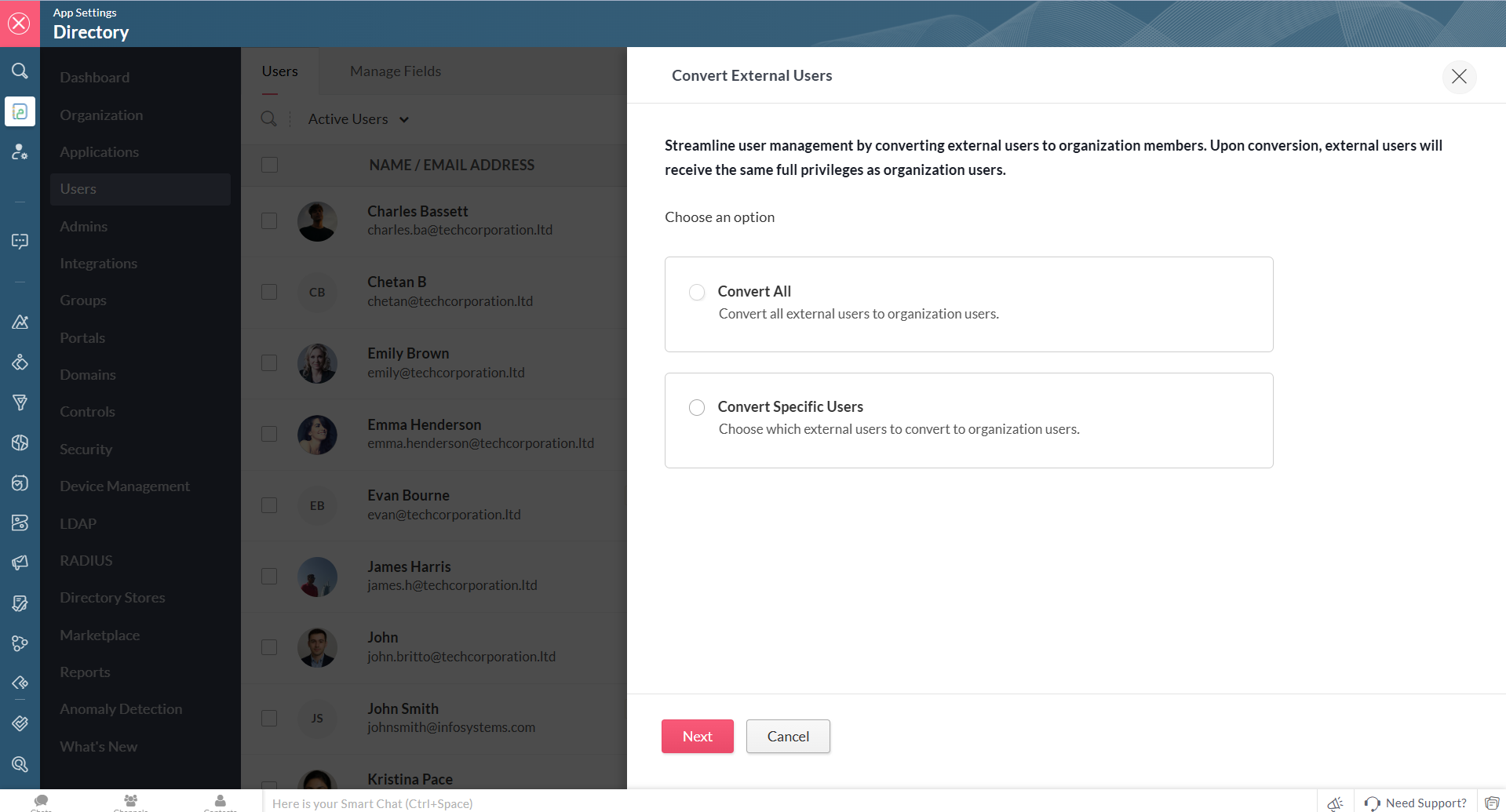
5. After selecting, click Next.
Conflict handling during conversion
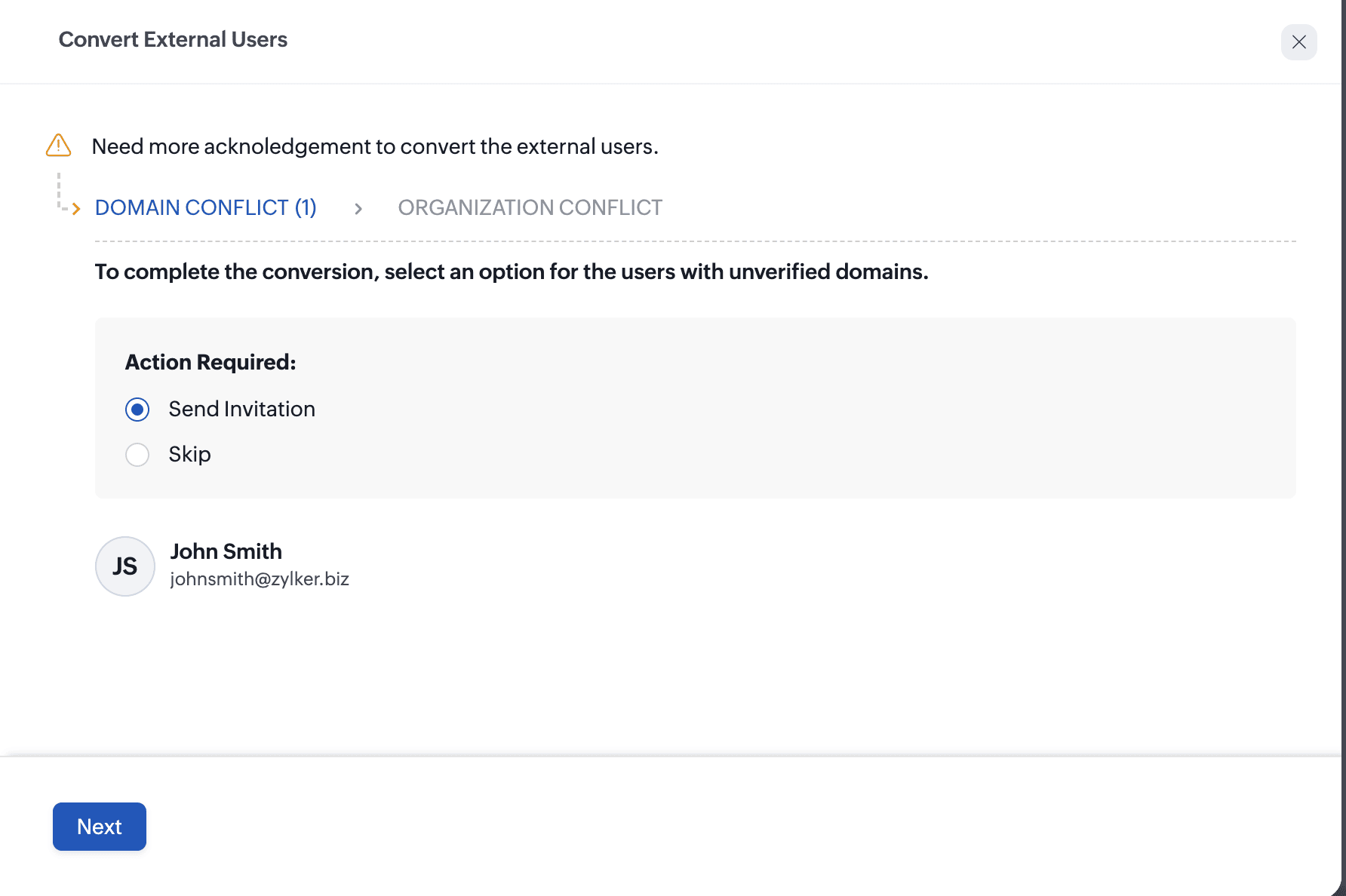
i. Domain Conflict
A domain conflict arises when an external user belongs to an email domain that has not yet been verified in your organization. To complete the conversion, you can choose one of the following options for all the users involved in the conflict:
- Send Invite:
Invite those users regardless of whether their domains have been
verified. They will be added as users in your organization once they
accept your invite.
- Skip: Skip the users associated with unverified domains. You can choose to convert them later.
6. Otherwise,
click Manage Individually to choose a different action for each user
involved in the conflict. Click Save and Convert.
7. Once you are done with domain conflicts, click Next.
ii. Organization Conflict
An
organization conflict arises when the user already belongs to another
Zoho organization account. To add them to your organization and for
further queries, contact support@zohoone.com.
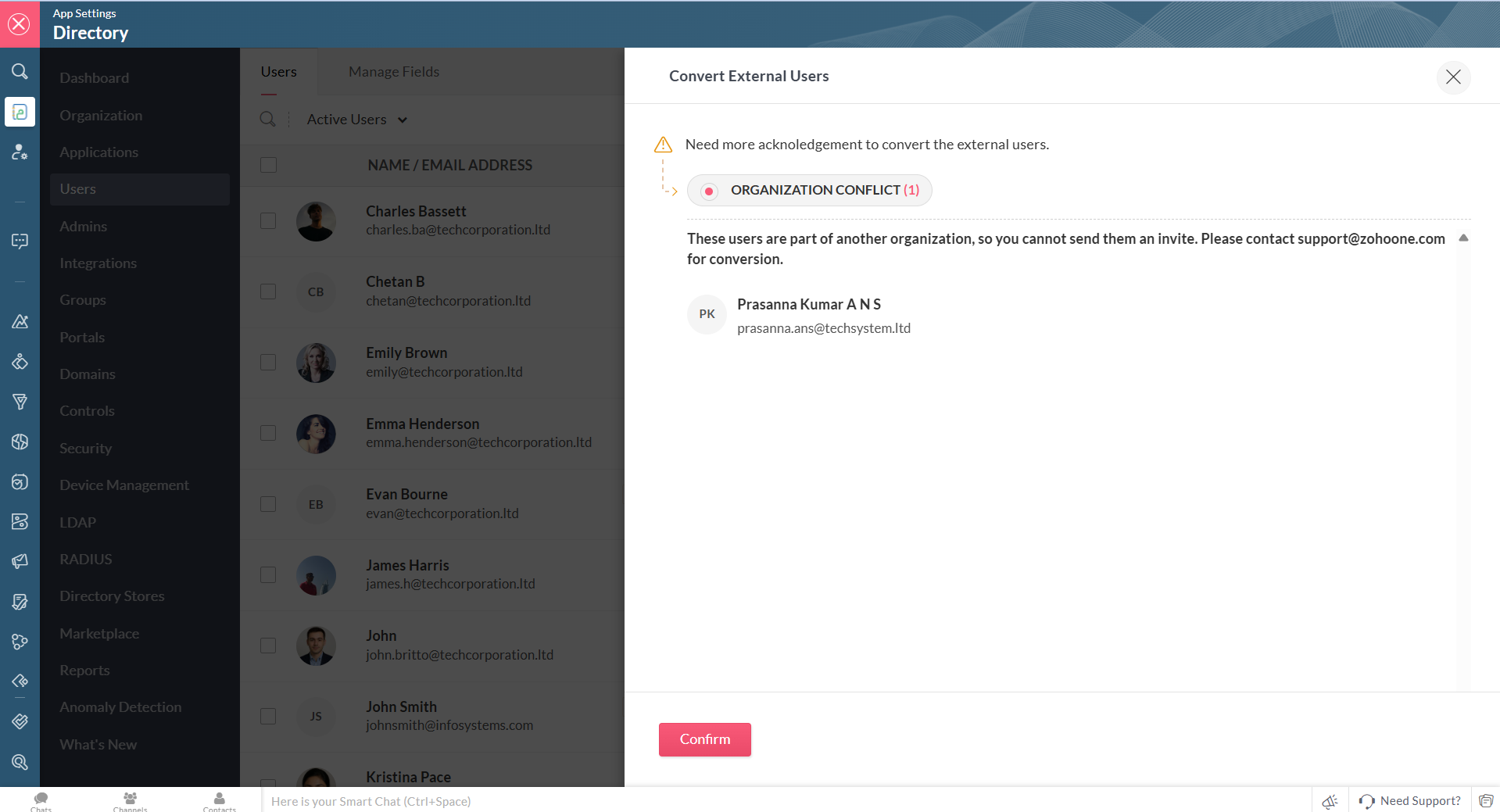
8. Click Confirm.
9. A summary page of the conversion will be shown. After reviewing the information, click Done.