Install the PageSense snippet on Zoho Sites
If you are using Zoho Sites, to create visually appealing websites, then you can easily add the Zoho PageSense snippet on your Sites websites and start tracking visitor data in a few simple clicks , without the need to install the snippet manually. Once you complete the snippet installation, you can start setting up your website goals, measure their performance against your business objectives, figure out your visitor-to-customer journey (session recordings), track the flow of visitors across different pages (funnel analysis), give everyone a personalized website experience, and much more — all from one place.
To install the PageSense snippet using Zoho Sites:
1. Login to Zoho Sites account on your web browser and choose your website to open the editor.
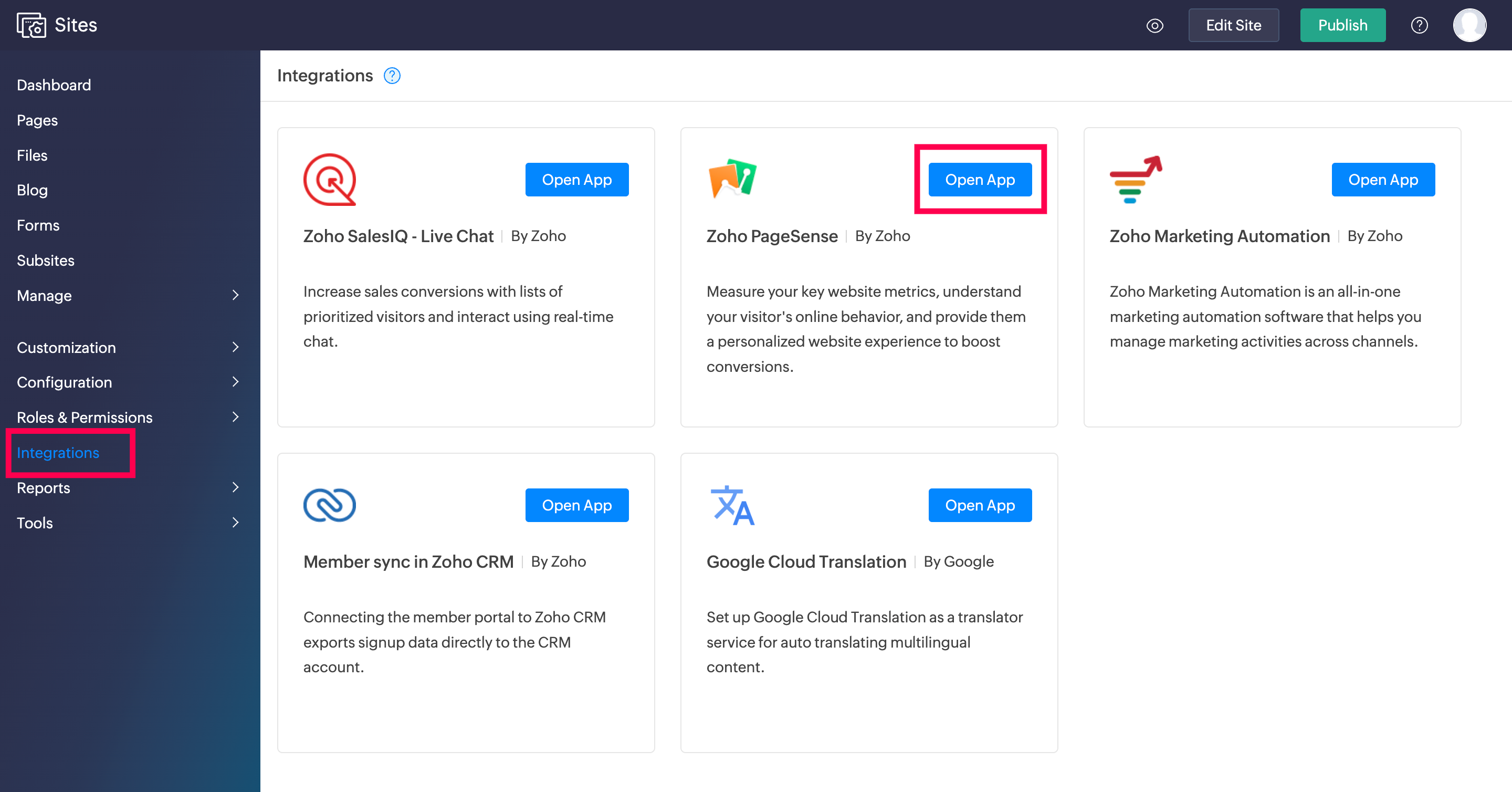
2. Click on Integrations in the bottom left and then Zoho PageSense.
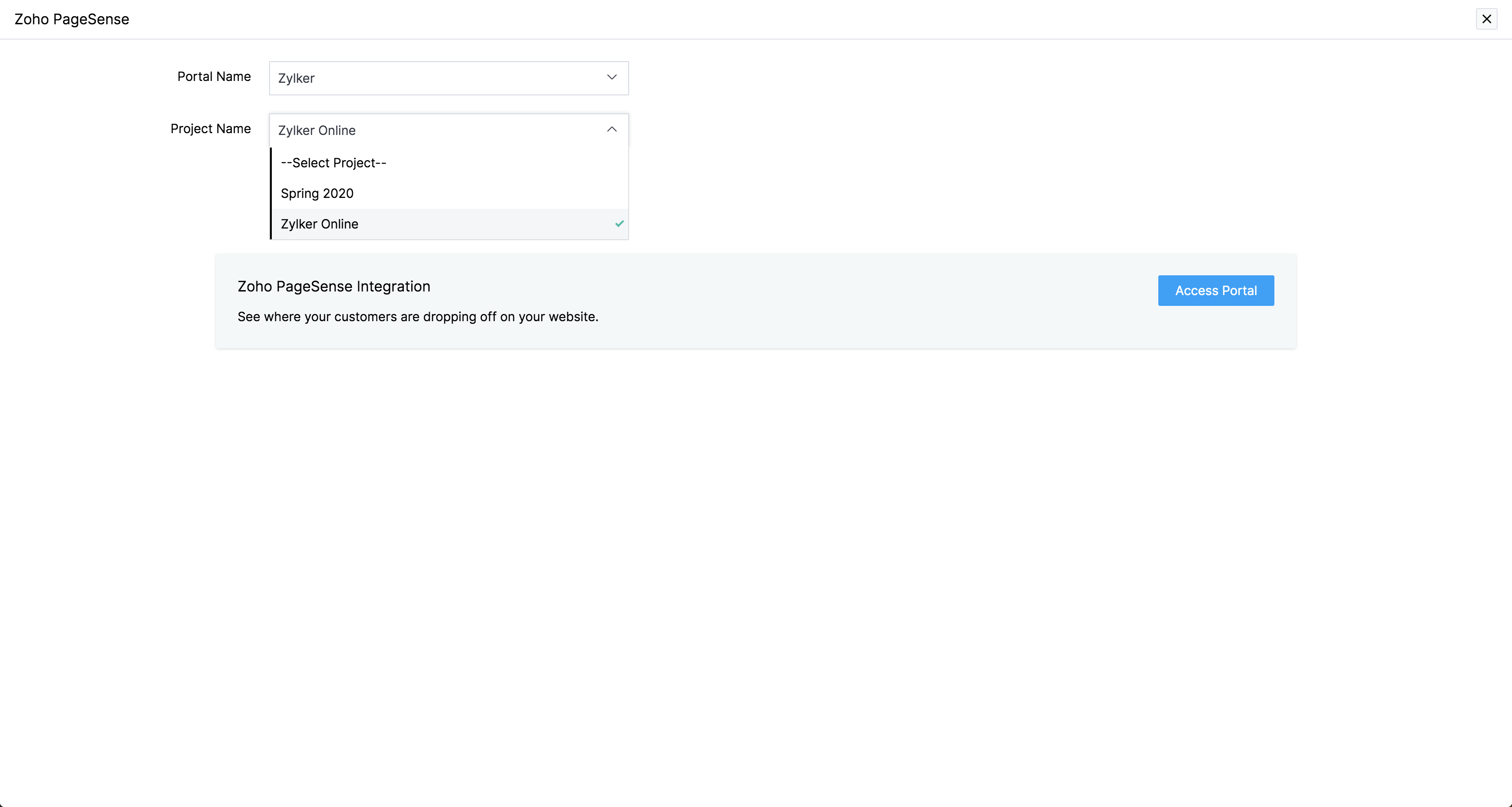
3. Click on the Portal Name dropdown and choose the Space you want to access in Zoho PageSense.
In case you are accessing Zoho PageSense for the first time, a default portal will already be available.
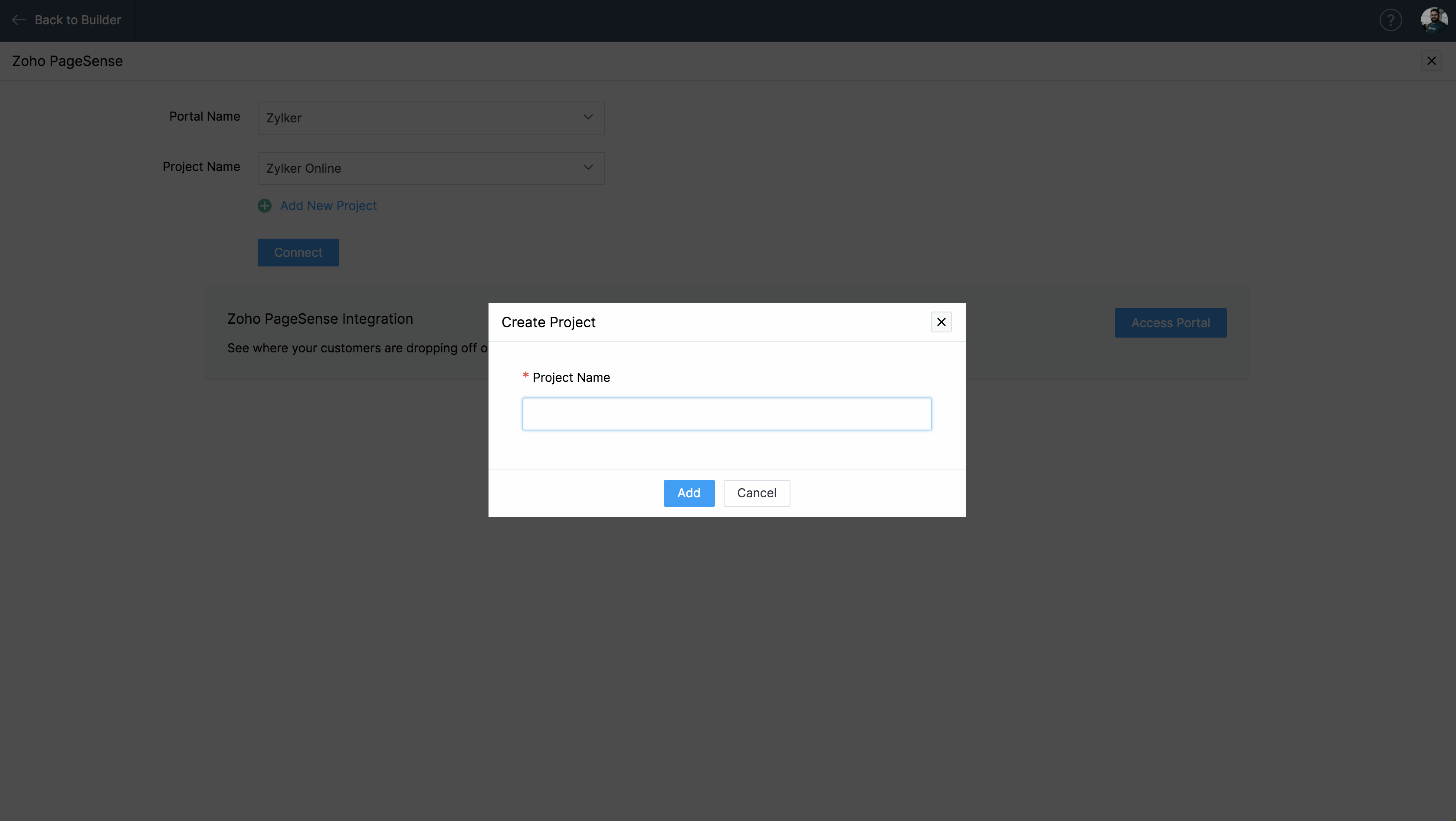
In case you haven't created any projects yet, click on + Add New Project, enter your project a name and click Add.
5. Click Connect to enable the integration. You can disconnect or update this integration at any time.
4. Next, click Project Name dropdown to choose the project you want to access in Zoho PageSense.
In case you haven't created any projects yet, click on + Add New Project, enter your project a name and click Add.
5. Click Connect to enable the integration. You can disconnect or update this integration at any time.
6. Finally, click Access Portal button to open your corresponding Zoho PageSense portal and start creating your experiments.

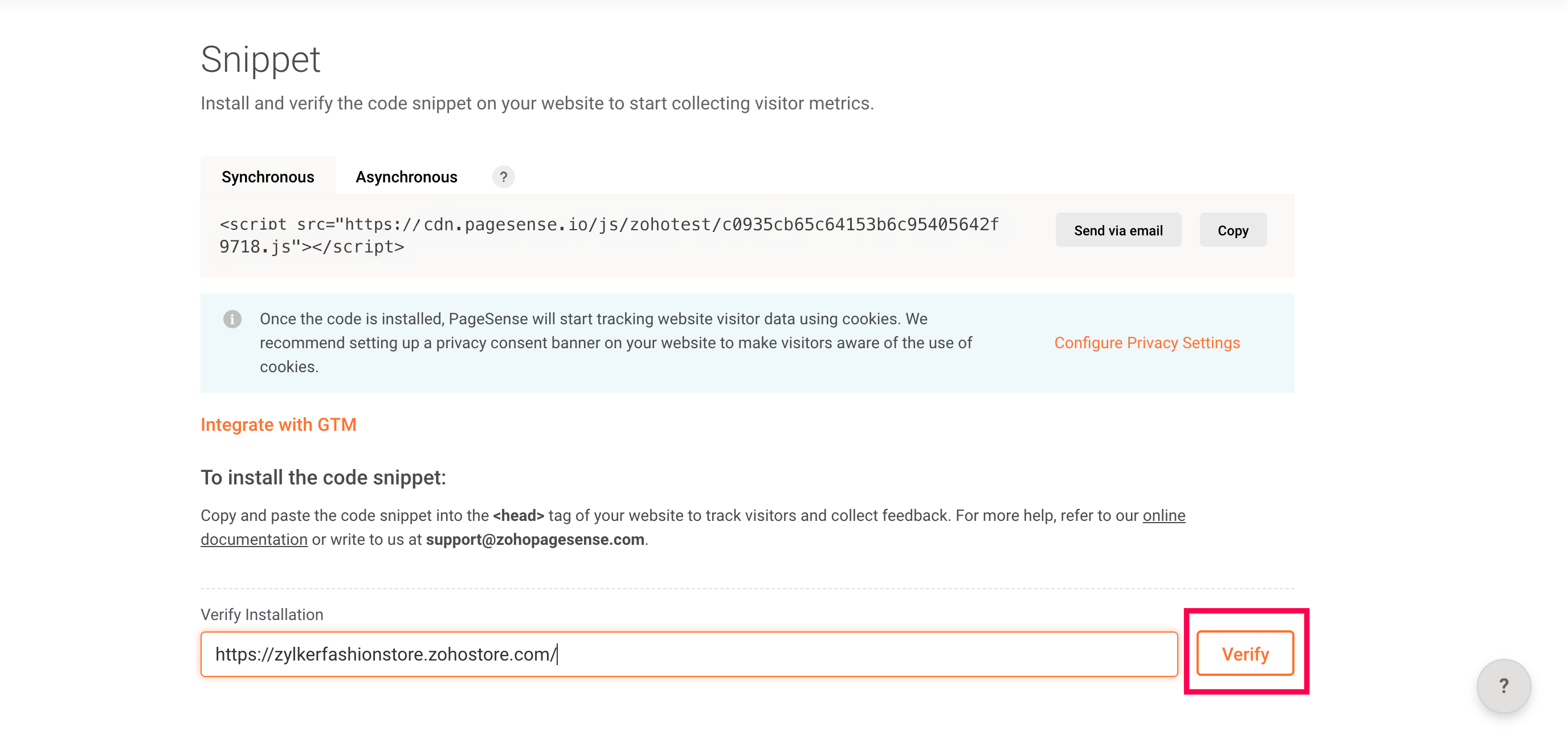
Note: To verify whether the PageSense snippet is successfully installed on your Sites' website, go to the Snippet tab of PageSense, enter the URL of the web page within the URL text box and click Verify as shown in the figure below.
We hope this documentation helps make the process easy for you. Please feel free to reach out to us anytime by dropping an email to support@zohopagesense.com if you need more explanation or have any questions.