Sync Files from Zoho CRM to Zoho WorkDrive Using Automation
Objective
To:
Automatically create a WorkDrive folder for each new CRM record.
Sync files from a File Upload field in CRM to the corresponding WorkDrive folder using a checkbox trigger.
Scenario:
A real estate agency uses Zoho CRM to manage incoming property leads. For each potential client (record), they collect important documents such as:
Identity proof (e.g., Passport, Driver’s License)
Property preferences or legal forms
Signed agreements
Solution with Automation:
Folder Creation on Lead Creation:
When a new lead is added in Zoho CRM, a folder is automatically created in a predefined WorkDrive location using the lead’s name (e.g.,John_Doe_Lead_#1294). The folder ID is stored in a hidden custom field in CRM for future reference.Sync Files on Upload:
When the agent uploads documents to the file upload field in the CRM lead record, they simply check a box labeled “Sync to WorkDrive.” This triggers a workflow that uploads all attached files to the corresponding WorkDrive folder, keeping things perfectly organized.Centralised Access for Legal and Sales Teams:
Since all documents are now stored in a structured WorkDrive hierarchy, internal teams can easily access client-specific files for legal review, contract generation, or future reference without digging through CRM attachments.
Step 1: Create a Folder in WorkDrive When a CRM Record is Created
What You'll Need:
A custom field in CRM to store the WorkDrive Folder ID (e.g.,
WorkDrive_Folder_ID)A workflow in Zoho CRM to run on record creation
A custom function to create a folder in WorkDrive
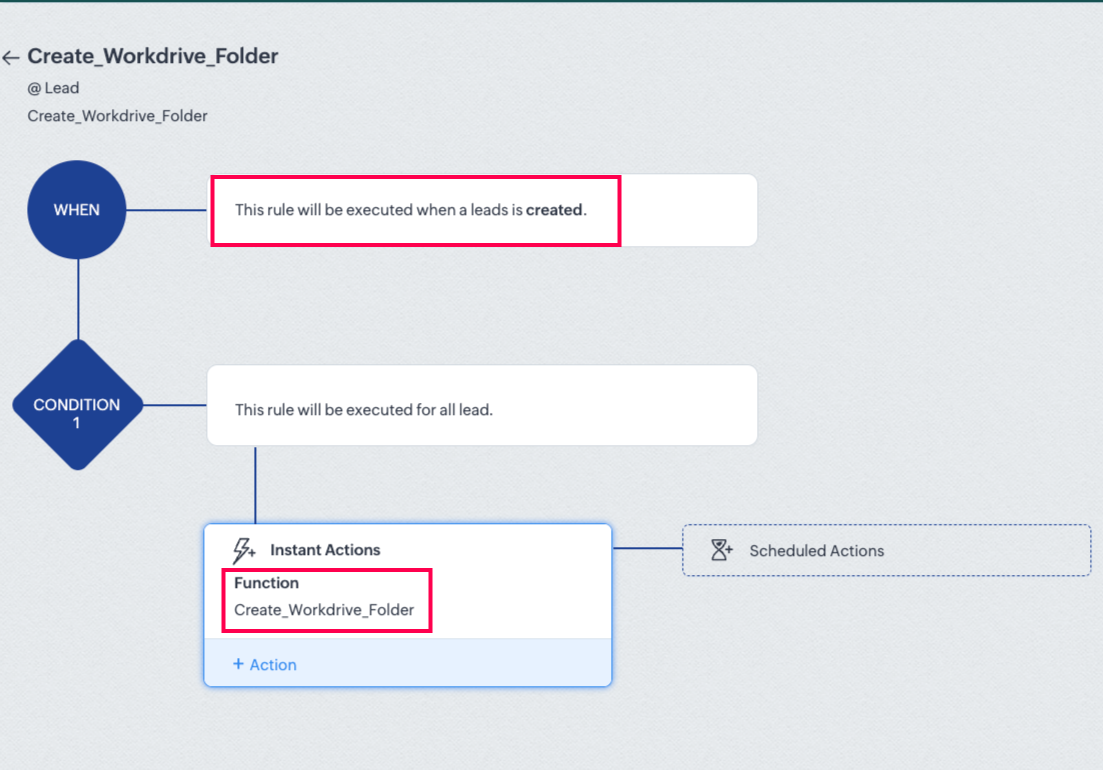
Workflow Setup:
Module: Leads / Deals / [Your Module]
Trigger: On record creation
Action: Custom Function (Create WorkDrive Folder)
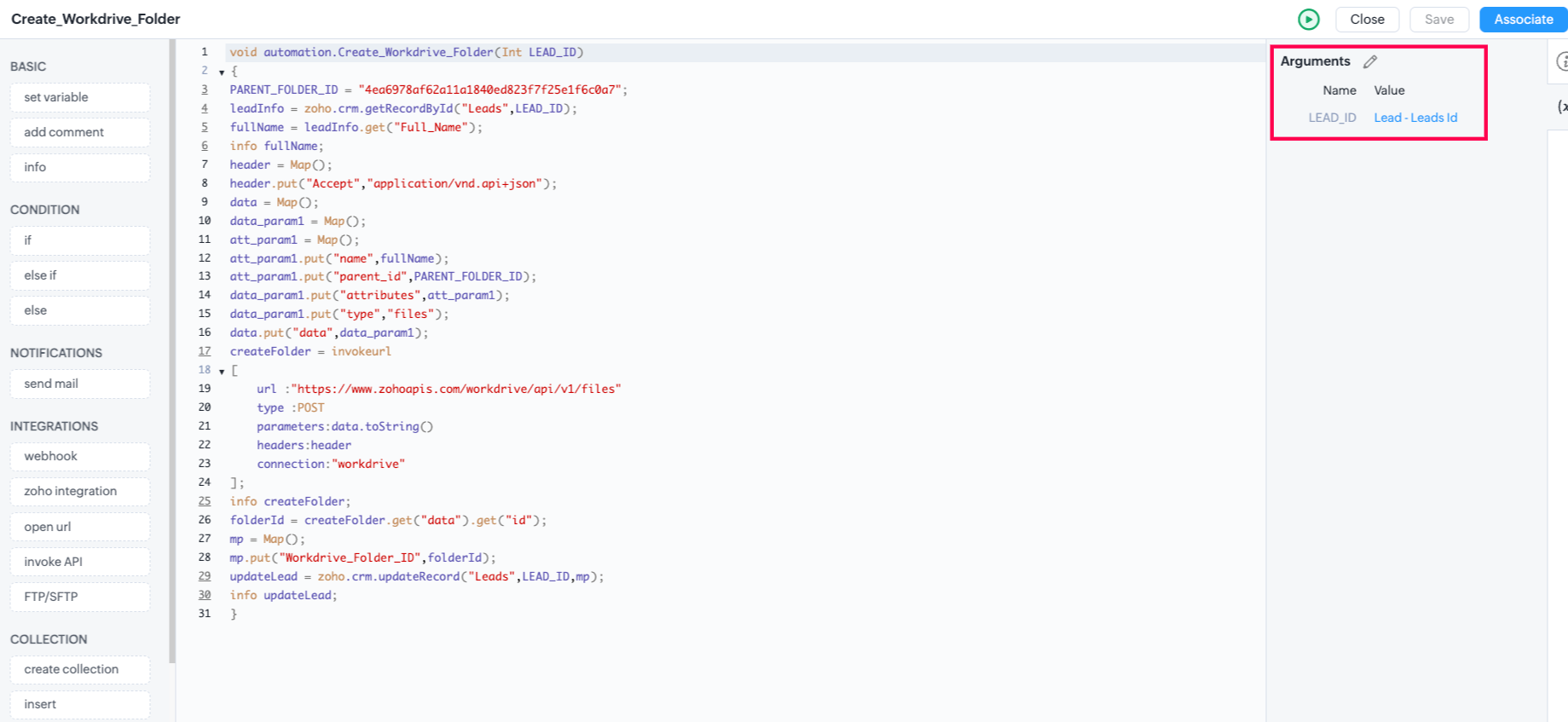
Sample Deluge Function: Create Folder in WorkDrive
- LEAD_ID= "3361723000090030015";
- PARENT_FOLDER_ID= "4ea6978af62a11a1840ed823f7f25e1f6c0a7";
- leadInfo = zoho.crm.getRecordById("Leads", LEAD_ID);
- fullName =leadInfo.get("Full_Name");
- info fullName;
- header = Map();
- header.put("Accept","application/vnd.api+json");
- data=Map();
- data_param1=Map();
- att_param1=Map();
- att_param1.put("name",fullName);
- att_param1.put("parent_id",PARENT_FOLDER_ID);
- data_param1.put("attributes",att_param1);
- data_param1.put("type","files");
- data.put("data",data_param1);
- createFolder = invokeurl
- [
- url :"https://www.zohoapis.com/workdrive/api/v1/files"
- type : POST
- parameters : data.toString()
- headers : header
- connection : "workdrive"
- ];
- info createFolder;
- folderId = createFolder.get("data").get("id");
- mp= Map();
- mp.put("Workdrive_Folder_ID", folderId);
- updateLead = zoho.crm.updateRecord("Leads",LEAD_ID,mp);
- info updateLead;
Step 2: Sync Files to WorkDrive on Checkbox Trigger
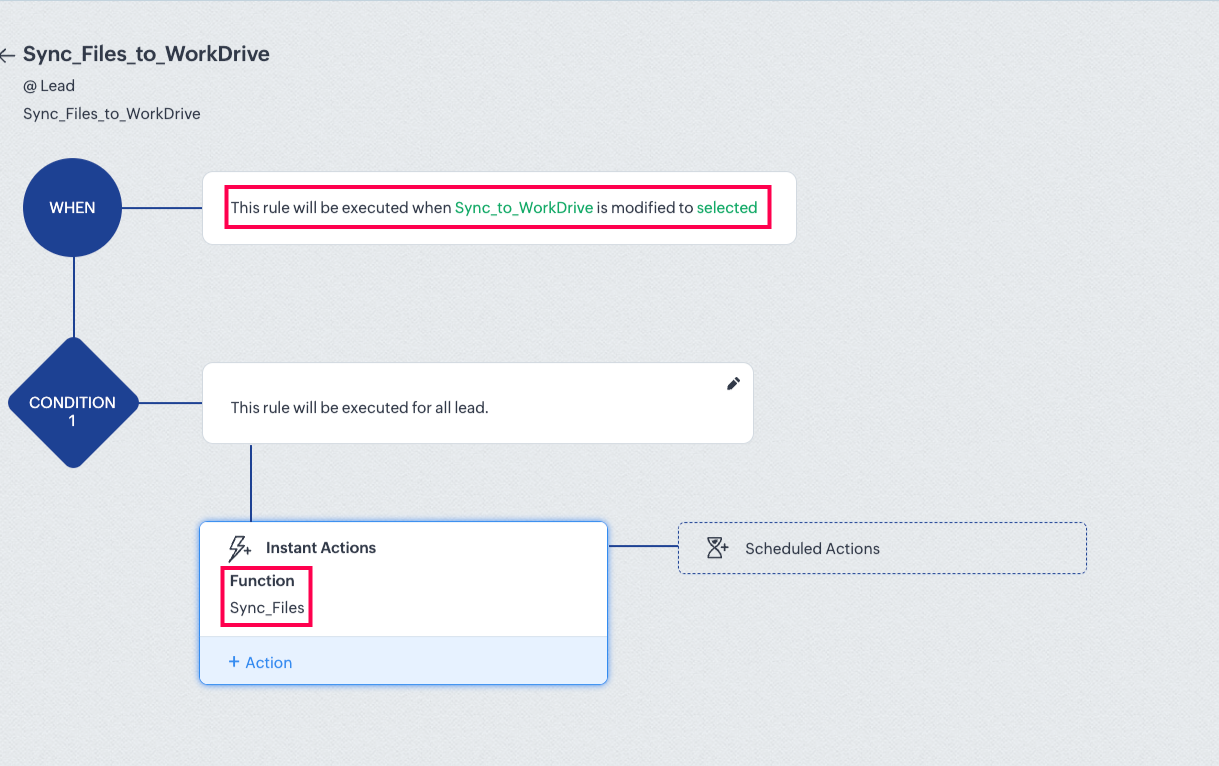
CRM Setup:
Add a Checkbox field (e.g.,
Sync_to_WorkDrive)Workflow: Runs On Edit when
Sync_to_WorkDrive == true
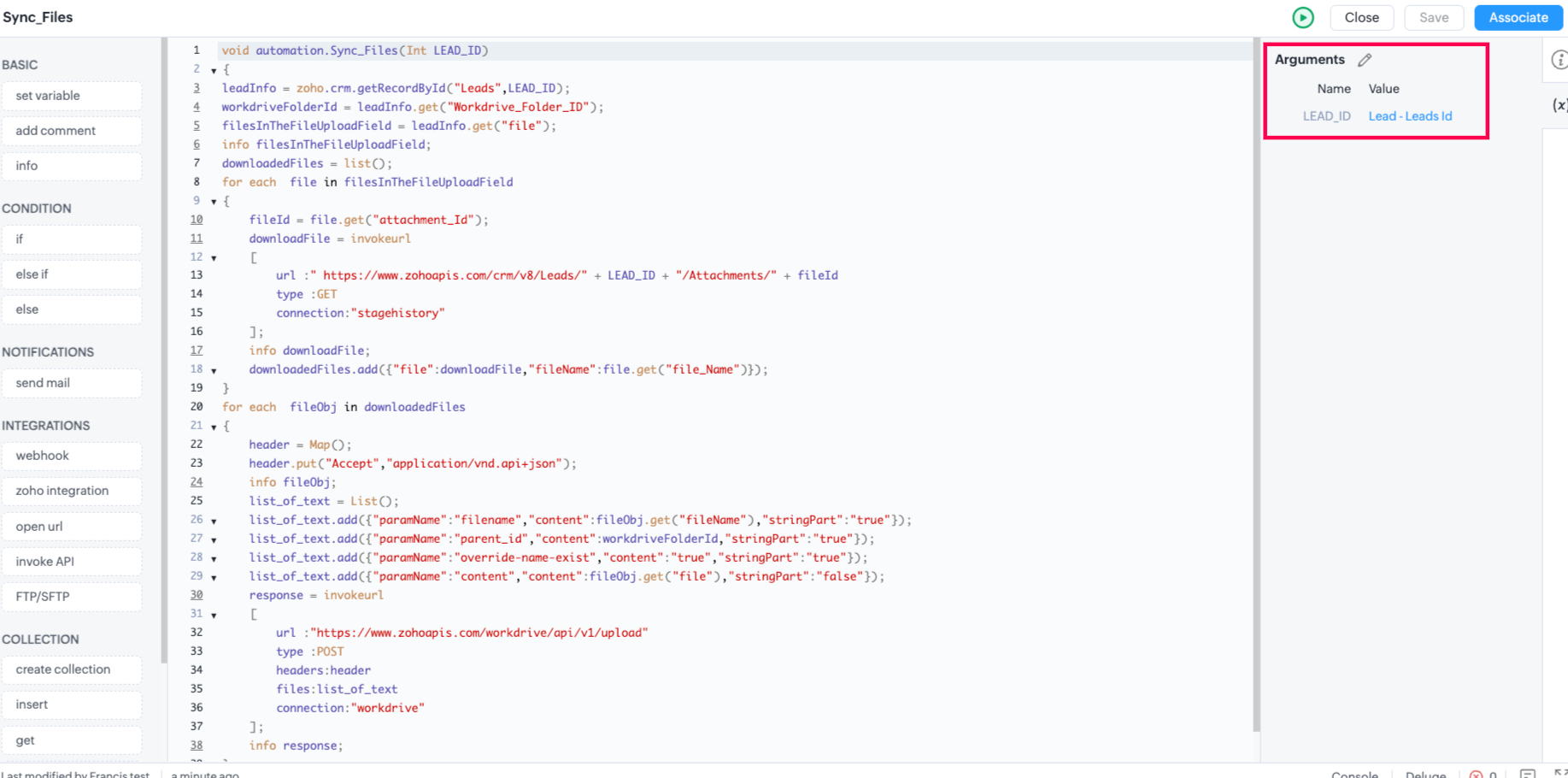
Sample Deluge Function: Upload Files to WorkDrive Folder
- leadInfo = zoho.crm.getRecordById("Leads", LEAD_ID);
- workdriveFolderId =leadInfo.get("Workdrive_Folder_ID");
- filesInTheFileUploadField = leadInfo.get("file");
- info filesInTheFileUploadField ;
- downloadedFiles = list();
- for each file in filesInTheFileUploadField
- {
- fileId = file.get("attachment_Id");
- downloadFile = invokeurl
- [
- url :" https://www.zohoapis.com/crm/v8/Leads/"+LEAD_ID+"/Attachments/" + fileId
- type :GET
- connection:"stagehistory"
- ];
- info downloadFile;
- downloadedFiles.add({"file": downloadFile, "fileName": file.get("file_Name")});
- }
- for each fileObj in downloadedFiles
- {
- header = Map();
- header.put("Accept","application/vnd.api+json");
- info fileObj ;
- list_of_text=List();
- list_of_text.add({"paramName":"filename","content":fileObj.get("fileName"),"stringPart":"true"});
- list_of_text.add({"paramName":"parent_id","content":workdriveFolderId,"stringPart":"true"});
- list_of_text.add({"paramName":"override-name-exist","content":"true","stringPart":"true"});
- list_of_text.add({"paramName":"content","content":fileObj.get("file"),"stringPart":"false"});
- uploadFile = invokeurl
- [
- url :"https://www.zohoapis.com/workdrive/api/v1/upload"
- type : POST
- files : list_of_text
- headers : header
- connection : "workdrive"
- ];
- info uploadFile;
- }
