Troubleshooting Slowness and Performance Issues: A Guide for Zoho Partners
Raising Awareness and Improving Performance: A Collaborative Approach
It has been our goal to make Zoho services fast and responsive to our users so that they stay productive. By users, I mean customers, partners, and our own (customer and partner-facing) teams based in our offices across the globe. So this is a priority for us.
It's also important to note that the responsiveness of the Zoho service depends not only on the underlying application but also on the network. We now have a dedicated Data Center Operations (DC Ops) team to support Data center expansion, upgrades, compliance and managing operations in every region. When faced with latency issues, It's important for our DC Ops teams to have the required information to troubleshoot and address the problem quickly. The purpose of this post is to raise awareness about what is needed to identify and troubleshoot these issues and provide guidance to partners on the steps needed to take before reaching out to support or posting generic messages on Partner Connect.
It's also important to note that the responsiveness of the Zoho service depends not only on the underlying application but also on the network. We now have a dedicated Data Center Operations (DC Ops) team to support Data center expansion, upgrades, compliance and managing operations in every region. When faced with latency issues, It's important for our DC Ops teams to have the required information to troubleshoot and address the problem quickly. The purpose of this post is to raise awareness about what is needed to identify and troubleshoot these issues and provide guidance to partners on the steps needed to take before reaching out to support or posting generic messages on Partner Connect.
Why This Is Important:
We value your insights regarding concerns with the Zoho Data Center. While we understand that some issues may be account- or cluster-specific, which can impact multiple organizations or users relying on the same ISP, we’re committed to addressing the broader issues. For instance, issues like packet loss are often outside Zoho's control, as they are tied to the ISP, but we are still dedicated to improving the overall performance.
What we need from Partners:
When you face slowness or delay in accessing Zoho services, we would like you to provide detailed answers to the following questions?

Please do not skip any questions.
- Is the issue affecting all pages of Zoho Services, or is it limited to specific links or modules?
- Is the slowness related to specific actions (e.g., loading pages, submitting forms), or does it occur with all actions?
- Does the issue occur at all times, or is it specific to certain times of day?
- Is the slowness consistent, or does it occur during certain times, such as peak hours?
- Have you checked the status of Zoho services at https://www.zohostatus.com/?
- Confirm if you’ve reviewed the Zoho Status page for any ongoing issues.
- What is your Internet Service Provider (ISP)?
- Provide the name of your ISP, as it may help identify network-related issues.
- What is your public IP address?
- Visit http://whatsmyip.org/ and share your public IP address.
- Have you completed a TraceRoute for Minimum 2 Zoho Services in which you are facing the slowness?
- Perform a TraceRoute and share the results with us. (Instructions on how to complete a TraceRoute are below.)
TraceRoute Instructions:
- For Windows: Open the Command Prompt > Type
"tracert zoho.com" / "tracert zoho.eu" / Type "tracert [Service URL]"and press Enter. - For Mac: Launch Network Utility > Click the "Traceroute" tab > Type
"zoho.com" / "zoho.eu" / Type "[Service URL]"and hit Trace. - For Mac (Latest OS): Launch Terminal > Type
"traceroute zoho.com" / "and hit Trace.traceroutezoho.eu" / Type "traceroute[Service URL]" Example: tracert crm.zoho.eu or tracert crm.zoho.com- We need the following
tracert js.zohocdn.com
Screenshot for Reference from MAC OS:
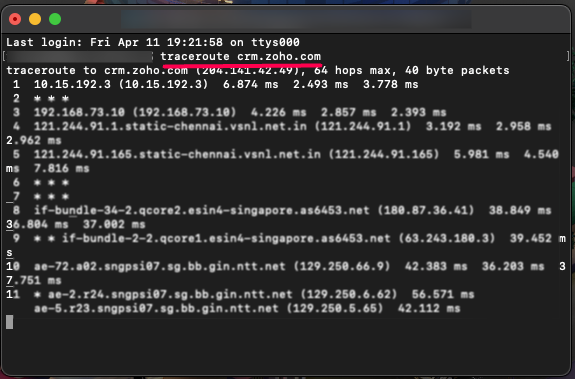
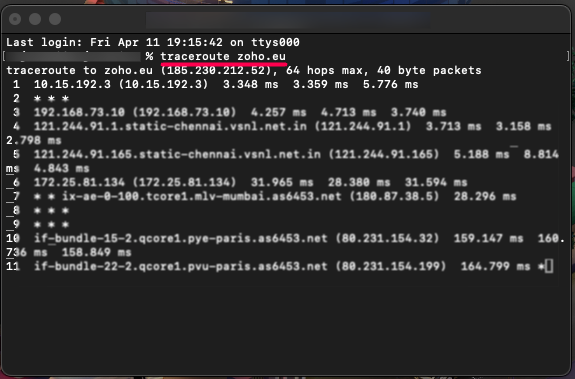
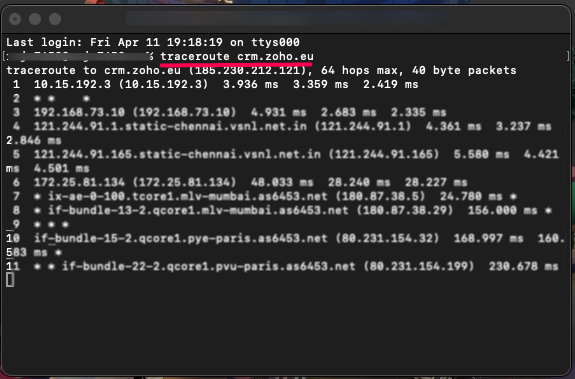

Please provide the complete TraceRoute result in your response.
Additionally, please share the results of "nslookup" and "tracert" for the respective Zoho services using the Command Prompt in Windows or Terminal on Mac.
Other Considerations:
- Firewall or Proxy Configurations: Please ensure that Zoho services are not blocked by your firewall or proxy settings. If blocked, whitelist Zoho and update your settings accordingly.
- Account-Specific Issues: The information provided above is specific to individual accounts. If you’re facing issues with different accounts, please provide the relevant details.
Please share all the above information collectively with partner-support@zohocorp.com.

Likewise, for all Europe & UK partners, please share the above information collectively with partner-support@eu.zohocorp.com.
What Zoho Will Do:
In cases where slowness or performance issues arise, we will take the following steps while maintaining transparency:If the TraceRoute does not reach our circuit/border:
- We will validate the logs with our NOC and, if necessary, make adjustments with our upstream provider or advise you to contact your upstream provider.
- We will validate the logs with our NOC and take necessary actions with our upstream provider or advise you to contact your upstream provider.
- We will investigate with our ISP or DDoS solutions.
- We will request a remote session via Zoho Assist to check for issues caused by antivirus or firewall rules.
- We will verify if the destination is accessible and explore alternative ISPs or DDoS solutions if necessary.
Why This Matters:
Monitoring network speeds and latencies is essential to ensure a smooth user experience. Our teams are working hard to improve network performance and prioritize load balancing issues based on the user input we receive.
We appreciate your cooperation in providing the necessary insights and detailed information.
We appreciate your cooperation in providing the necessary insights and detailed information.