Benefits Management in Zoho People

The Benefits Management feature in Zoho People is currently available only for US data center accounts and can be enabled by contacting support@zohopeople.com
What is Benefits Management Service in Zoho People?
The Benefits service in Zoho People provides organizations with a centralized, structured platform for managing employee benefits. It is designed to help HR teams manage the complete lifecycle of employee benefits: from plan setup and eligibility definition to employee enrollment and dependent tracking.
The Benefits service encompasses benefits plans of varied categories (Medical, Dental, Vision, HSA, 401(k), STD, LTD, and more), annual plan years, time-bound enrollment windows, benefit providers, and employee self-service enrollment into one integrated system.
Benefit Management Process Flow
How Does The Benefits Service Help?
- Add and maintains all benefit plans available in your organization.
- Records which employees are enrolled in which plans and at what coverage tier.
- Stores employee contribution and employer contribution amounts as reference figures.
- Tracks enrollment statuses (Awaiting Confirmation, Enrolled, Completed, Terminated, Waived Off, Declined, Withdrawn).
- Manages dependent records and beneficiary assignments for enrolled employees.
- Controls enrollment eligibility based on employee attributes such as designation, location, and employment type.
- Define enrollment windows to facilitate employee benefit enrollment.
- Generates reports showing enrollment statistics, beneficiary data, and plan-year summary.
Watch Our Help Video on Zoho People Benefits Service
Purpose: The Benefits module is designed specifically for benefits administration and record-keeping. It does not support payroll deductions, integrations with payroll systems or benefit providers for automated claims processing, or reimbursement management. However, benefits data can be exported and shared with payroll systems, insurance carriers, and other benefit providers.
Setting Up Benefits Service
Prerequisites
Before setting up the Benefits Service in Zoho People, please check the following:
- Make sure access to the benefits service is granted to authorized personnel. (Settings and Data). Benefits Administrators can be managed from Settings > Benefits > Permissions > Benefits Administrator tab. By default only the super administrator will have access.
- Ensure that the base currency is defined and add any additional currencies in Settings > Benefits > Configuration > Currencies tab
- Review default benefit categories and add any additional categories if needed. Navigate to Settings > Benefits > Configuration > Categories for list of default categories (11 in total). These categories will be available for selection when creating benefit plans. Click Add Category to add new categories if needed.
- Import or add employee dependents data. Navigate to Operations > Benefits > Dependents tab > Add Dependents (or) More Options (ellipses icon) > Import Dependents. Or ask your employees to add/import the dependents data from the Benefits user service (left tab) > Dependents page.
Now let us proceed with the setup process for Benefits Service:
The following represents the typical sequence for configuring and managing employee benefits in Zoho People:
Add Benefits Providers → Create Benefit Plans → Configure Benefits Plan Year → Configure Enrollment Windows → Add or Import Employee Dependents → Allow Employees to Add Dependents → Employees Enroll in Benefit Plans
Step 1: Add Benefit Providers

What is a benefit provider?
A Benefits Provider is an insurance carrier, vendor, or third-party organization that offers the benefit plan. Before creating any benefit plans, you must add at least one provider. Every plan in Zoho People must be linked to a provider.
Follow these steps to add or manage benefit providers:
- Navigate to Settings > Benefits > Configuration > Providers
- To add a new provider, click on the Add Provider button
- Fill in the required details, this includes:
Name (mandatory)
Provider ID (mandatory)
Contact Email (mandatory)
Contact Phone, Description, Address, Logo (non mandatory) - Click Submit to save.
Similarly, proceed with adding any other providers, carriers of benefits that your organization wants to list.
Step 2: Create Benefit Plans
What is a Benefit Plan?
A Benefit Plan represents a specific insurance or benefit offering from a provider. Each plan belongs to a benefit category and defines how coverage is structured, who is eligible, and what the contribution amounts are. Plans must be Published before they can be added to a Plan Year or Enrollment Window.
Follow these steps to add benefit plans:
- Navigate to Settings > Benefits > Configuration > Plans
- Click on the Add Plan button
- Fill in the basic details and click Save to proceed.
- On clicking Save, the detailed benefit plan addition page will appear. Fill in the following information:
Plan Details tab:
Name
Short Description
Plan Provider (Carrier)
Currency (Currency for premium and contribution amounts. Defaults to organization's home currency (USD for U.S. companies))
Plan ID (Plan ID provided by the provider for this plan. e.g., LIFE-MET-GROUP-01)
Plan Summary (Short summary displayed in the employee self-service enrollment view.)
Website (Link to the plan's official Summary of Benefits Coverage (SBC) or plan portal)
Reference Documents to attach (Upload plan documents (Summary of Benefits, SBC, plan brochures). Up to 10 files)
ACA eligibility (Toggle ON if this plan qualifies as minimum essential coverage under the ACA. This option is only displayed for medical plans
- Next, proceed to the Eligibility tab.
Eligibility rules define which employees are eligible to enroll in a particular plan. When an employee opens the enrollment view, only plans for which they meet all eligibility criteria are displayed. This page includes the following options:
Location: Restrict plan availability to specific office locations.
Designation/Job Title: Limit to certain job roles.
Employment Type: Full-time, Part-time, Contract, etc.
Age Range: Specify minimum and maximum employee age for eligibility.
Salary Range: Restrict enrollment to employees within a salary band.
When do new employees become eligible?: Define a waiting period after hire before an employee becomes eligible (Available options: On the first day of the employee's joining month, immediately on the joining date, after a certain period)
When do exiting employees lose eligibility??: Define when coverage ends relative to the employee's exit date.
Proceed with configuring plan eligibility as required and mandated for the benefit plan you are adding. - Next, proceed to the Coverage Tiers tab.
Each benefit plan supports up to four coverage tiers. These determine who can be covered under the plan and the corresponding contribution amounts. Choose between:
Employee Only
Employee + Spouse (can include domestic partner if required)
Employee + Children (4 max)
Employee + Family (4 max) - Next, proceed to the Contribution tab
Here, For each coverage group, administrators configure:
Employee contribution amount (flat amount or percentage of salary)
Employer contribution amount (flat amount or percentage of salary) - Finally click Save and Publish (use the "Save" option if you want to publish at a later time)
-> Note on HSA | STD | LTD | Insurance Benefit Plans

Important note regarding HSA (Health Savings Account) plans
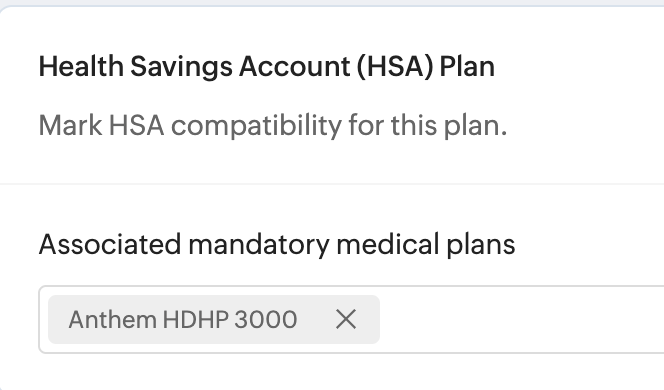
If you select Health Savings Account (HSA) as the benefit category when adding a benefit plan, an additional required field appears "Associated mandatory medical plans". Administrators must link the HSA plan to one or more qualifying high-deductible health plans (HDHPs). Employees can only enroll in the HSA plan if they are already enrolled in an associated medical plan. Refer screenshots below to understand this scenario.
 →
→ 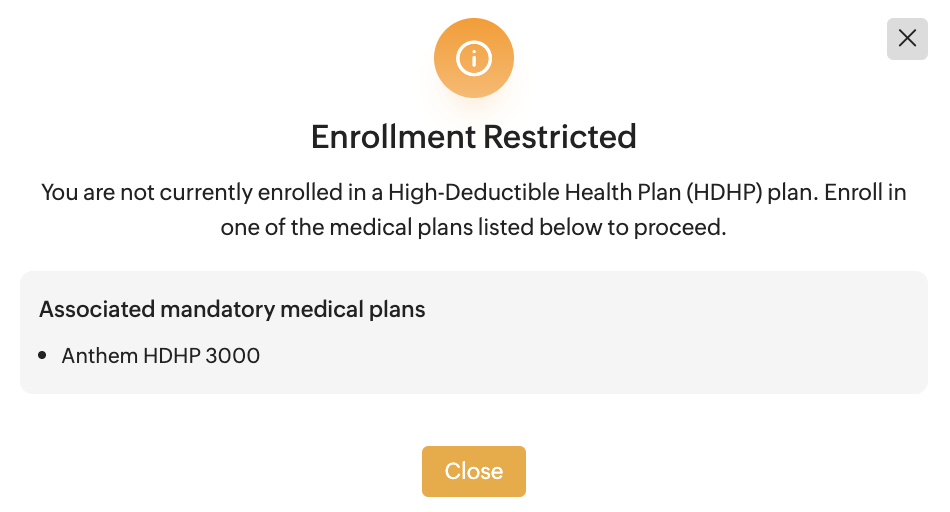
🇺🇸 IRS RULE: Under IRS rules, employees must be enrolled in a qualified HDHP to contribute to an HSA. The HSA plan association in Zoho People enforces this requirement by checking the employee's medical plan enrollment before allowing HSA enrollment.
If you select Health Savings Account (HSA) as the benefit category when adding a benefit plan, an additional required field appears "Associated mandatory medical plans". Administrators must link the HSA plan to one or more qualifying high-deductible health plans (HDHPs). Employees can only enroll in the HSA plan if they are already enrolled in an associated medical plan. Refer screenshots below to understand this scenario.
🇺🇸 IRS RULE: Under IRS rules, employees must be enrolled in a qualified HDHP to contribute to an HSA. The HSA plan association in Zoho People enforces this requirement by checking the employee's medical plan enrollment before allowing HSA enrollment.
Important note regarding STD (Short Term Disability) plans
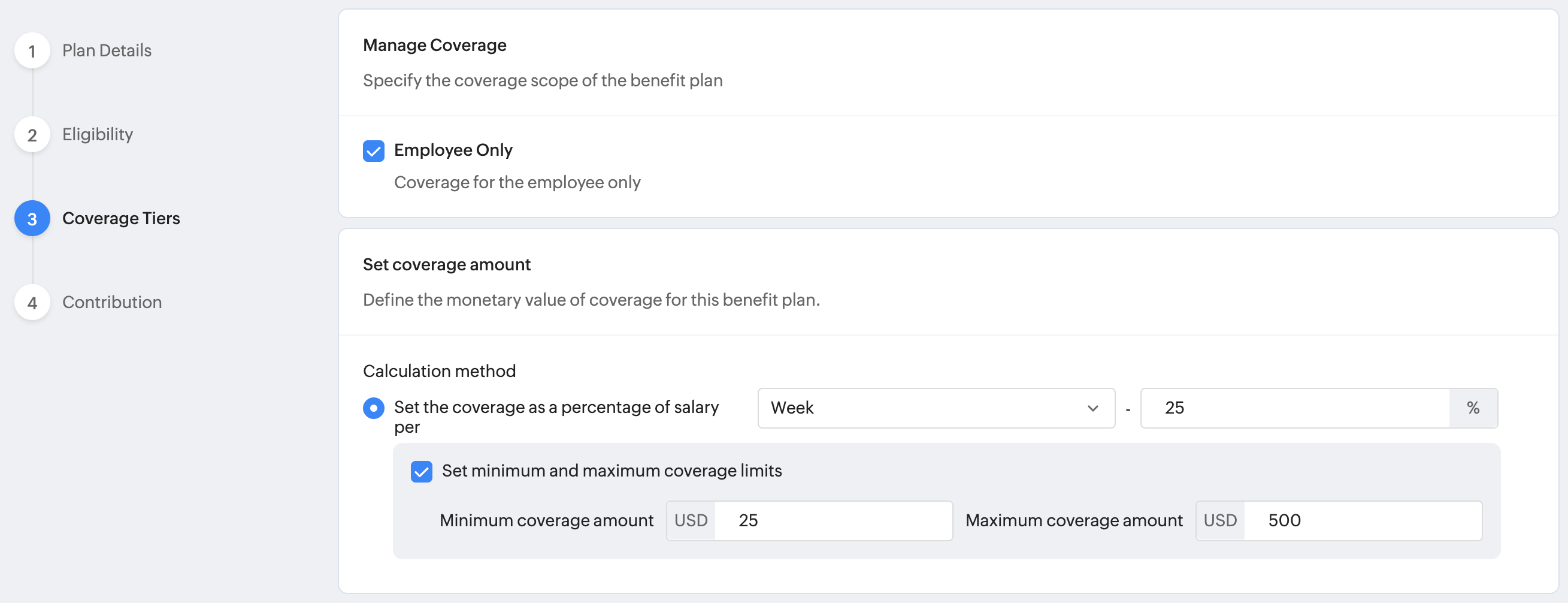
If you selected Short Term Disability as the benefit category when adding a benefit plan, then the Coverage tier will be limited to Employee Only, and the amount calculation will be based on a percentage of the employee's weekly pay. Refer screenshot below for an example:
Important note regarding LTD (Long Term Disability) plans
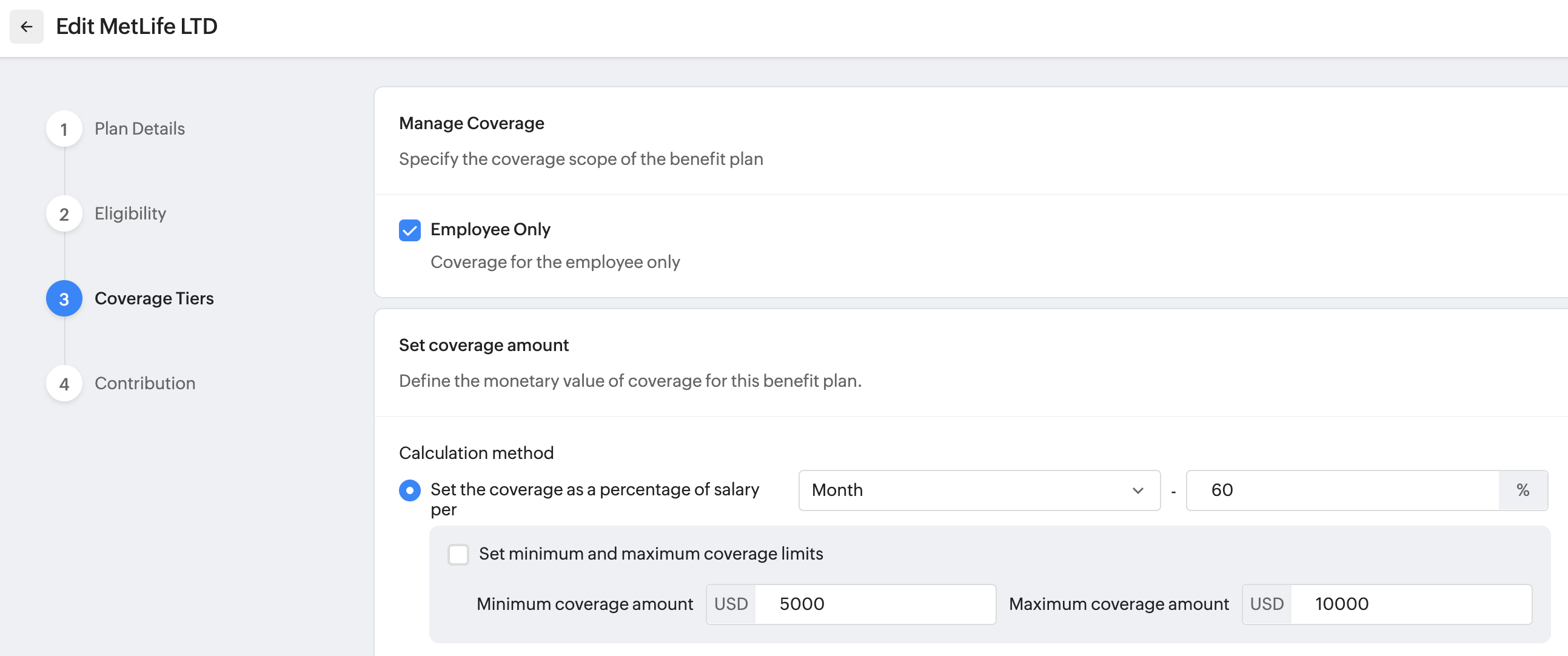
If you selected Long Term Disability as the benefit category when adding a benefit plan, then the coverage tier will be limited to Employee Only, and the amount calculation will be a percentage of the employee's monthly pay. Refer screenshot below for an example:
Important note regarding Insurance plans
if you selected Insurance as the benefit category when adding a benefit plan, then coverage options will include both 'fixed coverage amount', and 'multiples of salary' options along with minimum and maximum limits.
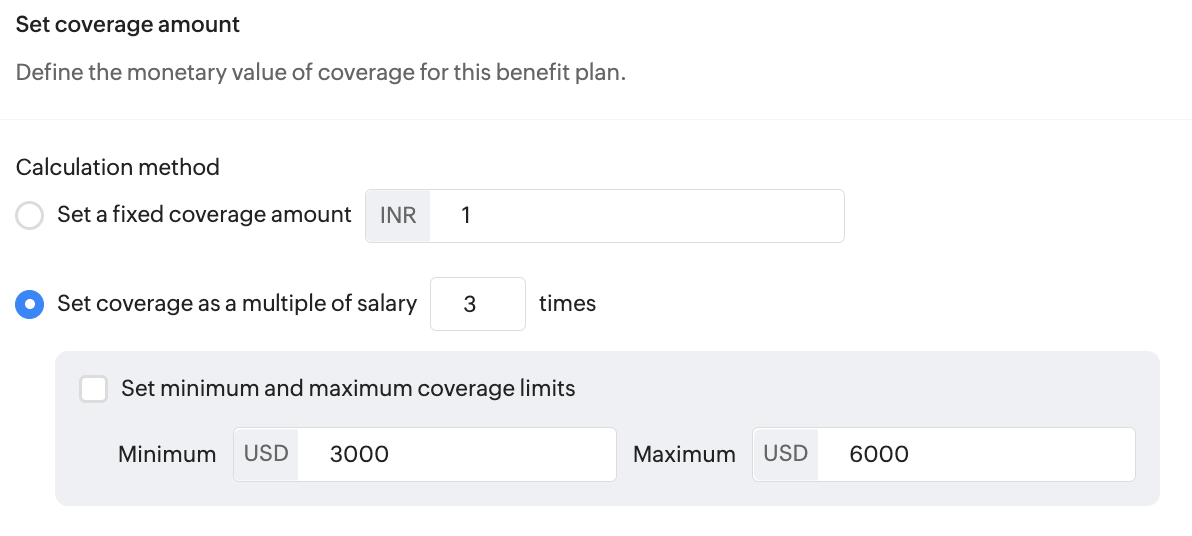
Additionally, for insurance-associated benefit plans it will be imperative to set up Premium Calculation
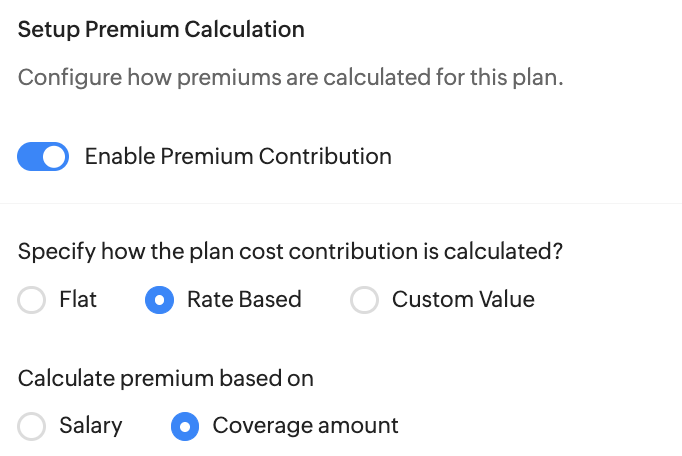
Additionally, for insurance-associated benefit plans it will be imperative to set up Premium Calculation
Only active, published plans will be listed in Operations > Benefits
Step 3: Configure Benefit Plan Year
What is meant by "Benefit Plan Year"?
A benefit plan year is the defined time period during which specific benefit plans are active and available for employee enrollment. It determines the duration of the plan and when employees can enroll or make changes.
Benefit Plan Year in Zoho People can span from 3 to 12 months.
A benefit plan year is the defined time period during which specific benefit plans are active and available for employee enrollment. It determines the duration of the plan and when employees can enroll or make changes.
Benefit Plan Year in Zoho People can span from 3 to 12 months.
Follow these steps to configure benefit plan year:
- Navigate to Operations > Plans > Plan Year
- Click on the Add Plan Year button and fill the following details:
Name for benefit plan year - Descriptive label (e.g., '2025 Benefits Year', 'Benefits PY 2025-2026'). Must be unique.
Description - Add information about the plan year.
Start date - First day of the benefit period (e.g., January 1, 2026).
End date - Last day of the benefit period (e.g., December 31, 2025).
Note: A span of 3-12 months is supported.
Applicable locations - Associate the plan year with specific office locations. Leave blank to apply globally. - Next, navigate to the Included Plans tab. Here you will see the various benefit cateogories and associated plans (benefits). Select the ones that you want to include in the plan year
- Finally click Save to proceed.
You can add, enable/disable, clone, edit, or delete plan years from Operations > Benefits > Plans > Plan Year. Filter options are available too. Plan years can only be deleted if there are no enrollment windows created for it. Disabling a plan year will suspend new enrollments.


TIP: Create the next plan year before the current one ends so that enrollment windows for the upcoming benefits year can be opened well in advance.
Step 4: Configure Enrollment Windows
What is an Enrollment Window?
An Enrollment Window is a specific time period during which eligible employees can actively enroll in benefit plans associated with a Plan Year. Enrollment Windows are the mechanism that controls when employees can make benefit elections.
Follow these steps to create an enrollment window:
- Navigate to Operations > Enrollment tab
- Use the Plan Year dropdown to select the plan year you would like to associate with enrollment window.
- Click on the Add Enrollment Window button
- In the "Add Enrollment Window" fill in the details:
Enrollment window name - Descriptive name (e.g., '2026 Enrollment', '2026 New Hire Window – Q1').
Description - Notes about the enrollment window purpose or instructions for employees.
Plan effective year - Select the benefit plan year to associate with this enrollment window
Applicable locations - Limit applicability to employees of specific locations. Leave the field blank to make it available for all locations.
Start and end date of when employees can enroll - Set the date for when the enrollment window opens and closes. - Next, Proceed to the Included Plans tab, Here you can include, or exclude plans that will be available for enrollment for the employees (sub set of plans selected in the benefit plan year).
- Finally, Click Save.
You can add, edit, delete, enable / disable enrollment windows from the Enrollment tab in Operations > Benefits page. Filters can be applied too. The Status of the Enrollment window will also be displayed in this page. These include:
Yet to Start - Window has been created but the Start Date has not been reached yet.
In Progress - Current date is between Start Date and End Date. Employees can actively enroll.
Closed - End Date has passed. No new enrollments accepted, but existing enrollments can remain in Awaiting Confirmation status if they are yet to be approved.
Completed - Administrator has completed the Complete Enrollments action. All pending (Awaiting Confirmation) enrollments are moved to Enrolled status.

Yet to Start - Window has been created but the Start Date has not been reached yet.
In Progress - Current date is between Start Date and End Date. Employees can actively enroll.
Closed - End Date has passed. No new enrollments accepted, but existing enrollments can remain in Awaiting Confirmation status if they are yet to be approved.
Completed - Administrator has completed the Complete Enrollments action. All pending (Awaiting Confirmation) enrollments are moved to Enrolled status.
Employee Enrollment
After setting up the plan year and opening the enrollment window, employees can proceed with their enrollments. Here is the step-by-step process of how employees enroll through an active enrollment window:
- Employee logs in to Zoho People and navigates to Benefits > My Plans.
- The system displays the current active enrollment window.
- Employees can add any dependents they wish to include.
- Employee clicks Enroll. The detailed Enrollment Window will appear, which will list the applicable benefit plans which employees can choose from.
Employees can proceed by clicking Enroll Now in the plans that they would like to take. - Employee selects their desired Coverage Group (Employee Only, Employee + Spouse, etc.).
- If the plan includes beneficiary designation (Life, AD&D), the employee selects dependents from their Dependents list and allocates coverage percentages.
- Employee reviews the contribution amounts and any required associated plan enrollment (e.g., HSA requires HDHP enrollment).
- A summary will be displayed at the bottom displaying all enrolled benefits and associated costs.
- Employee submits the enrollment. A success message will be displayed.
→ Important Questions on Benefits Enrollment
Can an employee edit their benefit plan enrollment?
Until the enrollment window closes or the admin has manually completed enrollment, enrollment window can be edited. Use the Edit Enrollment option in the Benefits user service (left tab) > My Plans)

Until the enrollment window closes or the admin has manually completed enrollment, enrollment window can be edited. Use the Edit Enrollment option in the Benefits user service (left tab) > My Plans)
What if an employee wishes to withdraw an enrollment?
It is possible to withdraw an enrollment, until the enrollment is marked complete. Click on Edit Enrollment option in the Benefits user service (left tab) > My Plans and scroll down to the plan you wish to withdraw from and click Withdraw Plan button.
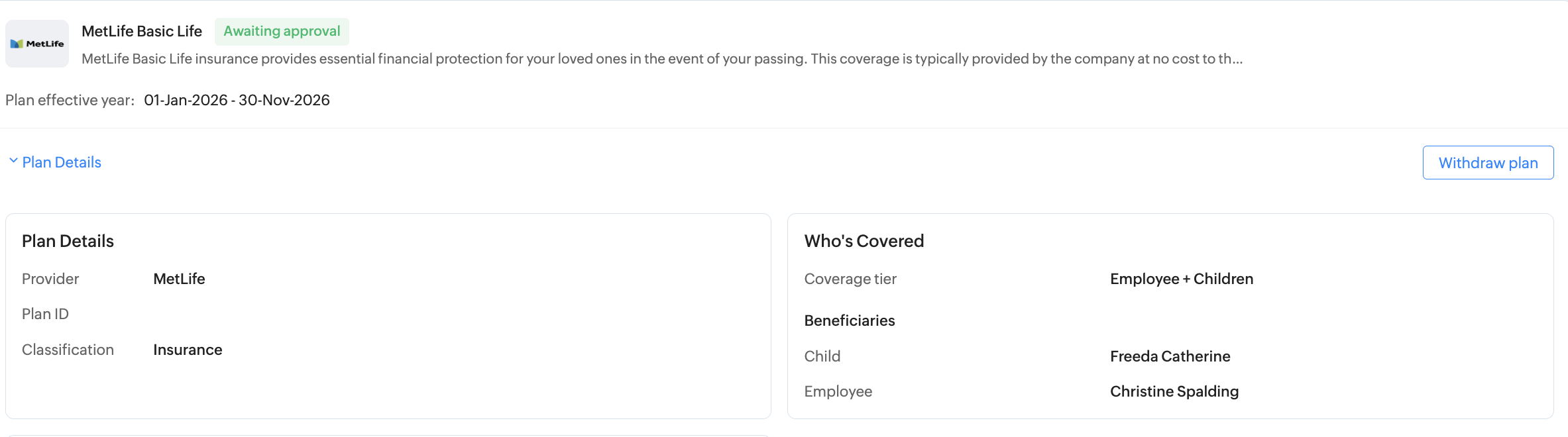
It is possible to withdraw an enrollment, until the enrollment is marked complete. Click on Edit Enrollment option in the Benefits user service (left tab) > My Plans and scroll down to the plan you wish to withdraw from and click Withdraw Plan button.
Can employees waive coverage?
Yes. If the benefit plan is configured with Waive Coverage enabled, employees have the option to skip enrollment. Waive option becomes available only after the corresponding enrollment is marked complete by the administrator.

Can employees update beneficiaries once enrollment window is closed?
Yes. By navigating to Benefits user service (left tab) > My Plans > SelectUpdate Beneficiariesoption within the drop-down option of an individual plan.
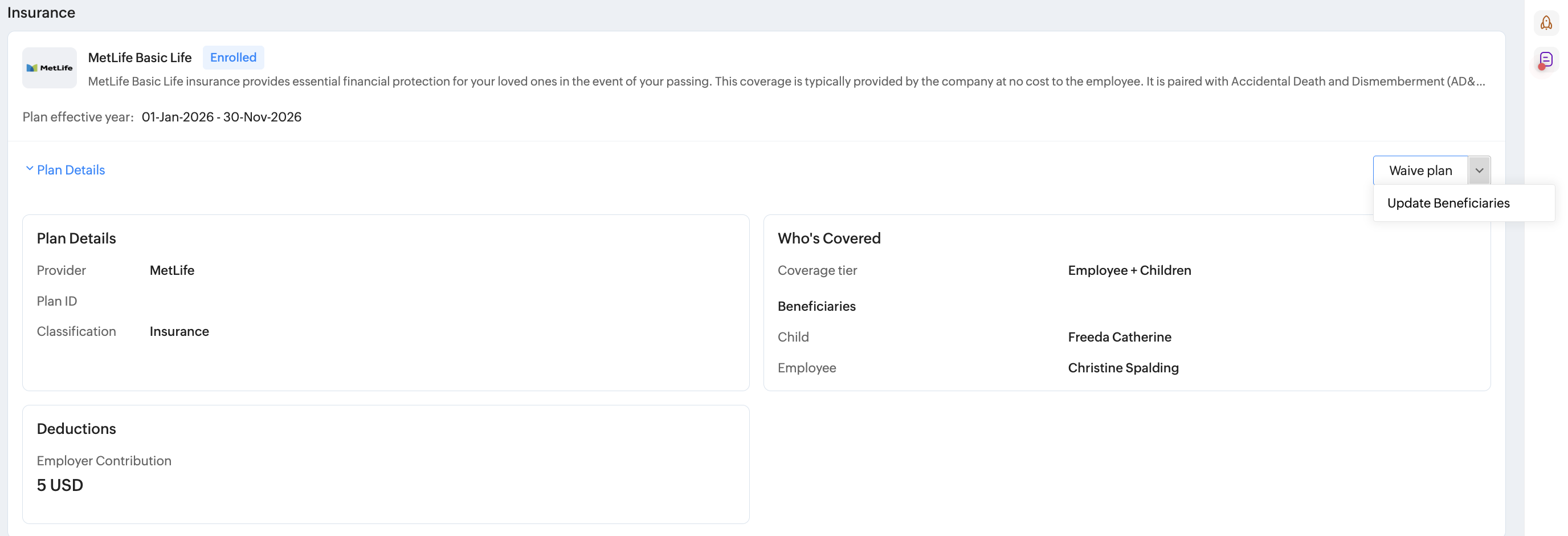
Important note regarding enrollment contribution update (post-enrollment)
For HSA, FSA, 401(k), Savings, and Pension plans, employees are permitted to update their contribution amounts after enrollment. This allows employees to adjust their pre-tax contribution levels without creating a new enrollment record.
Employees can do this by navigating to Benefits > My Plans > [Select Plan] > Update Contributions

Employees can do this by navigating to Benefits > My Plans > [Select Plan] > Update Contributions
🇺🇸 For U.S: 401(k) plans, employees typically need to update their deferral percentage mid-year. The contribution update feature in Zoho People allows them to record this change. Ensure your payroll team is notified of contribution changes to apply the correct deferral in the payroll system.
Managing and Completing Enrollment
To see the status of an active enrollment window, navigate to Operations > Benefits > Enrollment tab.
Click on an active enrollment window. A detailed enrollment window overview will be presented:
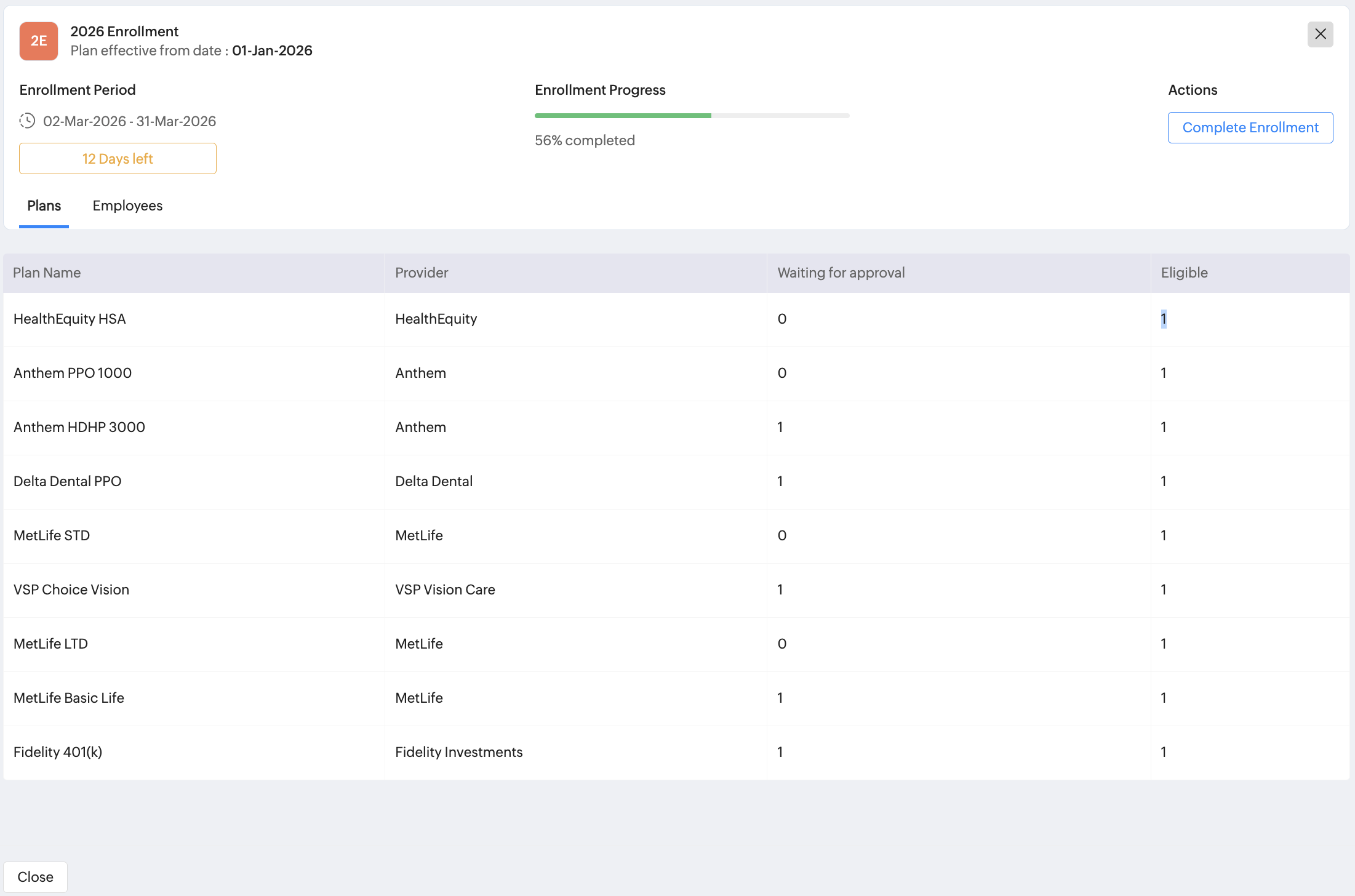
This includes:
Click on an active enrollment window. A detailed enrollment window overview will be presented:
This includes:
- Associated plans and the number of employees awaiting approval, eligible for enrollment.
- Enrollment progress bar.
- Number of days left.
- Option for the admin to complete enrollment.
Furthermore, navigating to the Employees tab within allows selecting individual plans to see the associated employees, their enrollment date, and total contribution. Administrators can Unenroll Employees from here if required.
To complete enrollment, select an individual enrollment window and click on the Complete Enrollment button. This will update the status from in-progress to Completed in the Operations > Enrollment tab.
Benefits Reports | Exporting Data
Benefits service in Zoho People includes three reports. Within each report use the Filter option ( ) to control the data displayed. E.g, to view only the list of medical plans within a plan year and the corresponding contribution data.
Click on the More option (ellipses icon ) to access the Export option. Data can be exported for sharing with service providers, government agencies (such as IRS), insurance carriers, health care administrators, etc.
Click on the More option (ellipses icon
To access Benefit Reports, navigate to Reports (lower left corner) > Organization Reports and select one of the following reports:
- Plan Year Enrollment
Description:
Shows all enrollments for a selected plan year, grouped by plan and status.
Example Use Case:
Annual enrollment summary; ACA offering records. - Plan Enrollment
Description:
Detailed enrollment records for a specific plan, including employee names, coverage groups, contribution amounts, and effective dates.
Example Use Case:
Share with insurance carriers for enrollment verification. - Beneficiaries
Description:
Lists all beneficiary designations across enrolled plans, including allocation percentages.
Example Use Case:
Life insurance beneficiary audit; ERISA compliance.
Data exported from reports can be used for:
- Insurance carriers and benefits administrators for enrollment verification.
- Payroll teams for benefit premium deduction setup.
- Benefits brokers for plan performance analysis.
- Internal compliance teams for ACA, ERISA, and HIPAA record-keeping.
Glossary of Terms Associated with Benefits
ACA (Affordable Care Act): U.S. federal law requiring applicable large employers to offer minimum essential health coverage to full-time employees or face tax penalties.
ALE (Applicable Large Employer): An employer with 50 or more full-time equivalent employees, subject to ACA employer shared responsibility requirements.
Beneficiary: A person designated to receive benefits (e.g., life insurance proceeds).
Benefits Plan Year: A defined period of 3 to 12 months during which specific benefit plans are active for enrolled employees.
Coverage Group: A tier of benefit coverage defined by who is covered: Employee Only, Employee + Spouse, Employee + Children, or Employee + Family.
Dependent: A family member (spouse, child, domestic partner, etc.) who can be covered under an employee's benefit plan.
Enrollment Window: A specific time period during which eligible employees can submit their benefit elections.
ERISA: Employee Retirement Income Security Act — U.S. federal law setting standards for employee benefit plans.
FSA (Flexible Spending Account): A pre-tax benefit account that can be used to pay for eligible healthcare or dependent care expenses.
HDHP (High-Deductible Health Plan): A health plan with a higher deductible than traditional plans, which qualifies employees for HSA contributions.
HIPAA: Health Insurance Portability and Accountability Act — U.S. law protecting employee health information privacy.
HSA (Health Savings Account): A tax-advantaged savings account for employees enrolled in an HDHP, used to pay for qualified medical expenses.
LTD (Long-Term Disability): Insurance that replaces a portion of an employee's income when they are unable to work for an extended period (typically > 6 months).
MEC (Minimum Essential Coverage): The minimum level of health coverage required under the ACA for employees to avoid the individual mandate penalty.
Provider: An insurance carrier, benefit administrator, or third-party organization that offers a benefit plan.
STD (Short-Term Disability): Insurance that temporarily replaces income when an employee is unable to work due to a medical condition (typically < 6 months).
Waive Coverage: The act of an employee skipping or passing enrollment in an offered benefit plan.
Window Enrollment: An enrollment type where employees can only enroll during a specifically created, time-limited enrollment window.
401(k): A tax-advantaged employer-sponsored retirement savings plan that allows employees to contribute pre-tax dollars from their salary.