Organization Space Tab in Zoho People
What is the Organization tab?
The organization tab centralizes organization-wide announcements and ensures easy access to important policies, providing employees with easy access to essential information and regulatory guidelines. It lets employees see how and where they fit into the organization by using the hierarchical structure and departmental layout through interactive employee and department trees. This feature promotes a sense of belonging and alignment among employees, ensuring they stay well-informed and connected to the broader organization. Learn more about the Organization tab in Employee Perspective (Non-Administrator).
Features of the Organization tab:
Overview
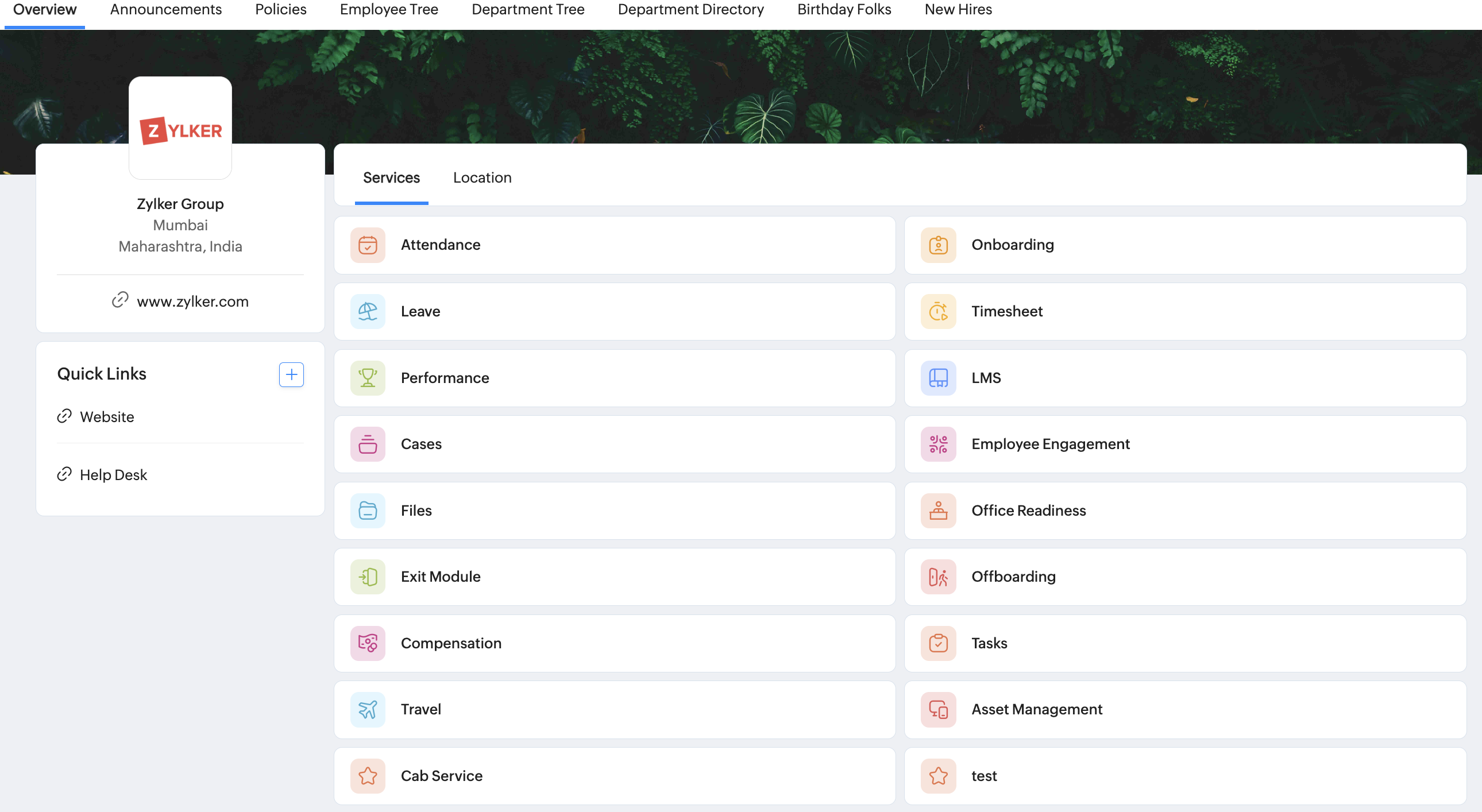
The Overview tab lists all the Zoho People Services and organization locations. This ensures employees have quick access to all the services they have access to from one single page. Additionally, administrators can add "Quick Links" to organization-related websites.
Announcements
View and post organization-wide announcements in the Announcements tab. Have a big alert to share?, or just some great news? Post it! An announcement can be categorized, location-specific, and have an expiration date. You also have options to notify employees via email, pin the announcement, or disable comments.
To post a new announcement, Navigate to Settings > Organization > Announcements and click on the Add Announcement button.

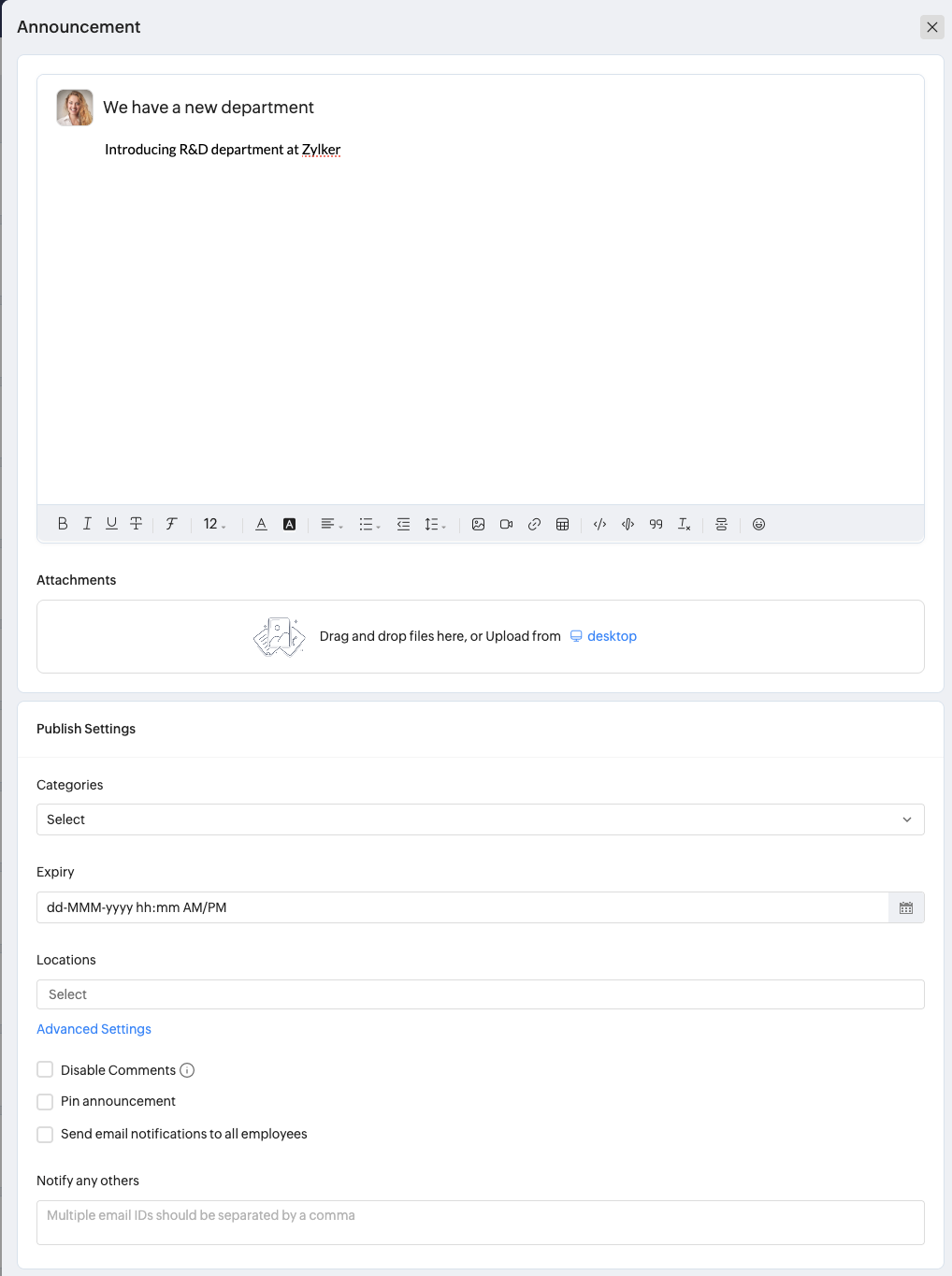
Here is a quick walkthrough on the options provided:
Here is a quick walkthrough on the options provided:
Title: Enter a clear and descriptive title for your announcement.
Message: Add the announcement content using the rich text editor. You can format text, add lists, insert links, images, tables, and more.

Announcement must contain only UTF-8 standard characters. Content with non-BMP (Basic Multilingual Plane) characters such as emojis, certain rare Kanji, and other extended Unicode symbols are not supported.
Attachments: Upload supporting documents by dragging and dropping files or selecting them from your desktop.
Publish Settings
Categories: Select a category to classify the announcement for easy filtering and organization.
Expiry: Set a date and time after which the announcement will no longer appear as active.
Locations: Choose specific office locations if the announcement applies only to certain branches.
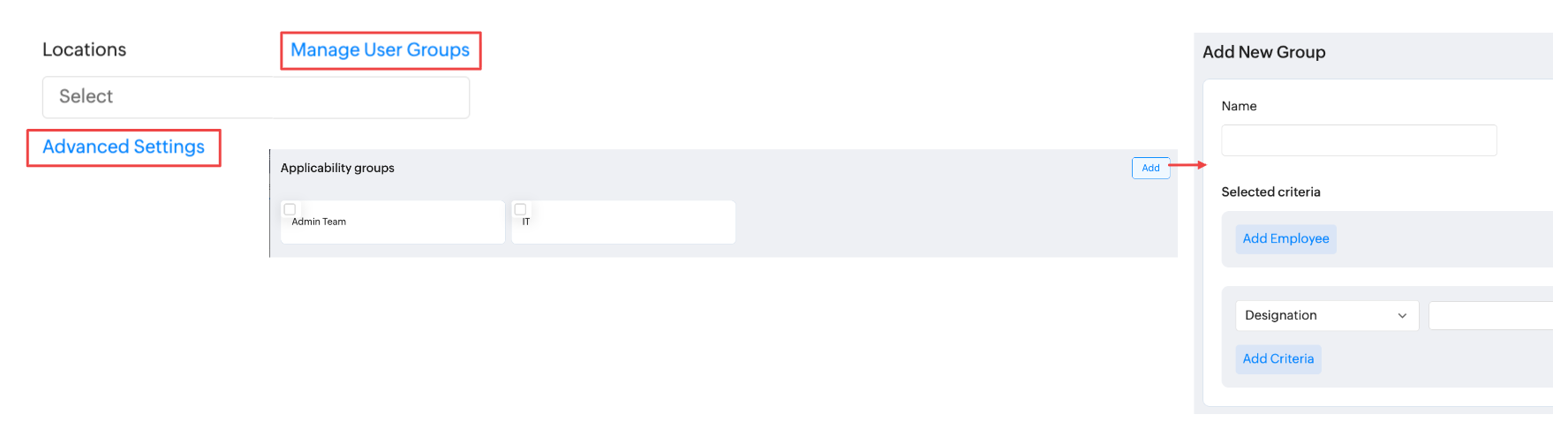
Advanced Settings: Click on the Advanced Settings option to reveal the Manage User Groups option, which allows for creating user groups comprising of individually selected employees or criteria-based rosters.
Additional Options
Disable Comments: Turn off employee comments for this announcement.
Pin Announcement: Keep the announcement fixed at the top of the list for better visibility.
Notify All Employees: Send a notification to all employees about this announcement.
Notify Any Others: Enter additional email addresses (separated by commas) to notify specific individuals outside the default audience.
Once posted, users can click on an announcement, to reveal options to react (through the like icon) and add comments (if enabled). Click on the More Options (ellipses icon) to reveal options to Copy post URL, Edit, Disable, Disable Comments, Pin, Delete announcements. These options will vary based on user permissions.
The Announcements posted here will be displayed in Home > Organization > Announcements, Home > My Space > Dashboard and in the Home > My Space > Activities Page. In The Activities page, the Announcement will be displayed for a maximum of 14 days (even ones with a longer expiry period).
Policy Documents
The Policy tab is a critical repository for essential documents vital to all employees. Such as anti-sexual harassment policies, updated leave protocols, or government mandates. This centralized space ensures universal access to key information. This resource is paramount for fostering compliance, transparency, and informed decision-making across the organization.
To add a new policy document, click on Manage. You will be moved to Files > Organization Files tab. From there you can edit (Ellipses icon > Edit) one of the organization file documents, and also you can enable the checkbox Mark as organization policy document. Or you can also add a new organization file and enable the same option. There are options to have an expiration date, making it downloadable and more when adding a new organization file.
Employee Tree
Employee Tree visually represents the hierarchical structure of an organization, illustrating reporting relationships and team compositions. This helps employees stay well-informed and connected to the broader organization.
Department Tree
The department tree visually represents the hierarchical structure of departments within an organization, showing the organizational layout that includes its parent department, departments, and sub-departments.
Department Directory
Department Directory gives you quick access to a searchable department list. Upon selecting a department, you can see the various employees who are part of it. You have the option to quickly call an employee or mark them as your favorite if required.
Birthday Folks & New Hires
As the name suggests, these two spaces list the employees celebrating their birthdays and those who recently joined. With options to send a wish, call, mark as favorite, or send a welcome note. Don't forget to always make your employees feel special!
Calendar
The organizational calendar provides details on employees who are on leave or absent, helping you understand their availability for better planning and coordination. This insight enables you to make informed decisions on resource allocation.

You can set restriction on who can view this data in Settings > Leave > Reports section.