User Service Overview: Leave
What is "Leave" user service?
The "Leave" user service refers to the Leave tab accessed through the left bar in Zoho People. It displays all the necessary leave-service related information such as leave summary, leave balance, etc. It allows users to raise leave related requests, view upcoming holidays and more. This space is intended for all users and is accessible by all roles (team members, managers and even administrators).
How to navigate to user service?
Simply click on the Leave icon in the left bar in Zoho People.
What can employees do here?
- View Leave Summary (Leave > My Data > Leave Summary) for a quick overview of the available leave policies and their corresponding balance, shortcuts to apply leave, check recent absence, upcoming holidays or leave information, past leave and holidays information.
- Apply leave, or raise compensatory / leave grant requests. You can do this by using the Apply Leave button or from within the corresponding tabs.
- Click on an absence record to apply leave for that specific day quickly.
- Cancel a leave request by navigating to Leave Requests tab and selecting an unapproved leave and clicking on Cancel Leave. For leave requests with multiple days, employees can partially cancel by using the checkboxes adjacent to the dates when canceling a leave request (if your organization has enabled this feature).
- View Bradford score information from the Bradford Score tab (if feature is enabled).
- View shift information and assign Shift (if applicable) from the Shift
tab.
Calendar View
Use the Calendar view option to check your leave and holiday information for the current month. You can also navigate between future and past months of the current year to view the data.
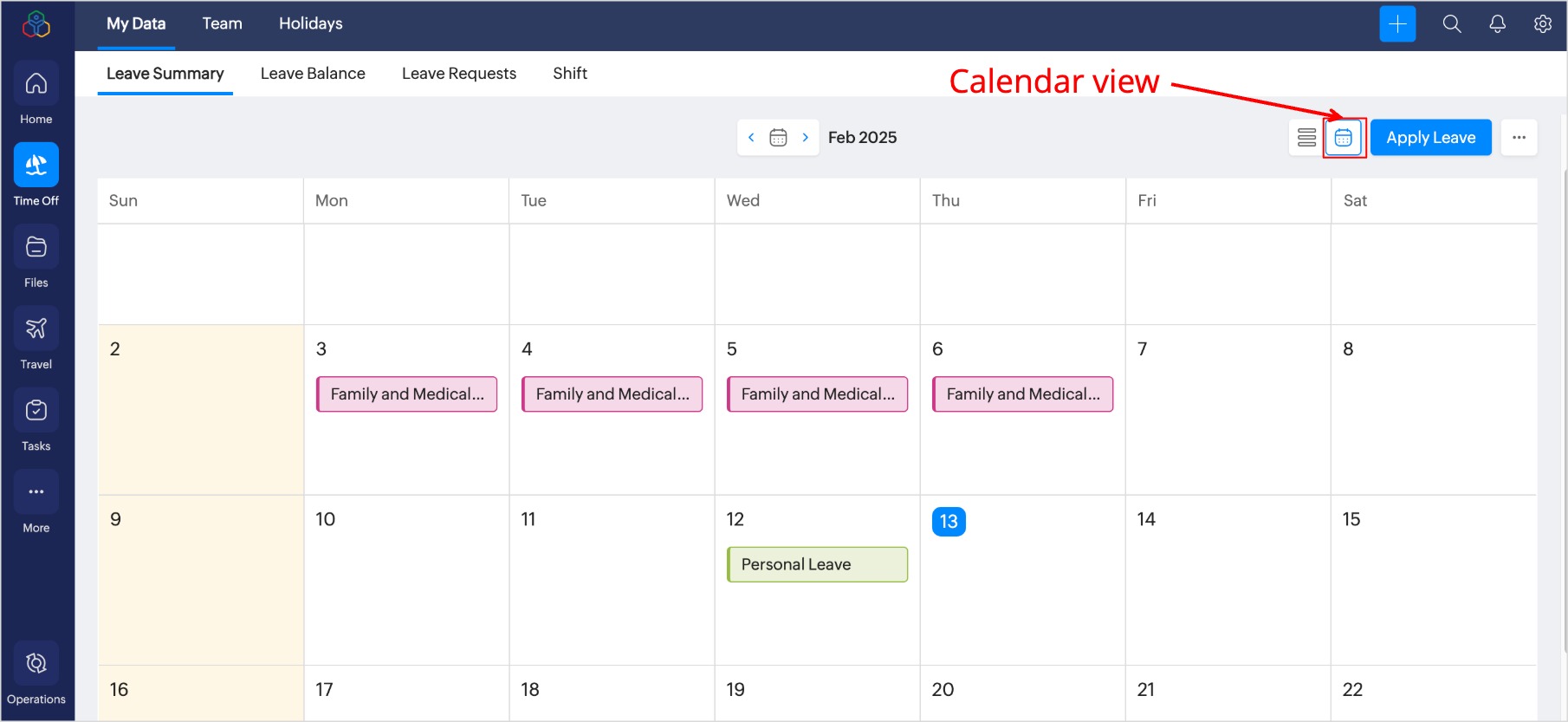
Sync Leave Calendar
Use the Calendar view option to check your leave and holiday information for the current month. You can also navigate between future and past months of the current year to view the data.
Sync Leave Calendar
By default, Zoho People is integrated with Zoho Calendar. Enable or disable the setting in Zoho Calendar to view your leave and holiday information in Zoho Calendar.
Additionally, Zoho People provides an option to sync your approved leaves and holiday information to Microsoft 365 or Google Calendar upon authentication. Access the sync options from the More options menu (three-dot ellipses icon).

You must revoke Microsoft 365 or Google Calendar before you can switch to the other.
Zoho | Microsoft | Google Calendar Views
Team tab
- Employees can quickly check their team / project members on leave by navigating to the Team tab.
Holidays tab
- Employees can view upcoming holidays, and holidays specific to the various locations and shifts.
What can managers do here?
- Managers can do all the above actions and additionally perform more actions from the Team tab this includes:
- Check reportees on leave and related information (Reportees tab) both for direct reportees and employees who report to their reportees. (select All view within the Reportees tab).
- Approve or cancel Leave Requests, Compensatory Off, Leave Grant requests and raise requests for their reportees as well.
What can administrators do here?
- Within the user service, administrator role is similar to the above roles. Similar to managers they can also view reportee data and add requests, delete, approve or reject requests.
- Administrators can configure Google Calendar sync by clicking on the ellipses icon from the Leave Summary tab. (requires integration and authentication).
Administrators role users have access to Leave Settings, and Operations (Administrators can view, raise, approve, cancel, delete leave requests of all employees from Operations)