Zoho People for Office 365 | Microsoft Outlook
Installing Zoho People app for Office 365
Install the Zoho People app for Microsoft Office 365 to seamlessly synchronize data between the two applications.
Installing the Zoho People app for Office 365 consists of two cases.
If you want to create a new Zoho People account from Office 365's portal
- Log in to your Office 365 account.
- From the Office 365 store section, select category as 'Web apps'' and browse for Zoho People.
- On clicking the Zoho People app, you will be taken to an intermediate Zoho People accounts page.
- Accept the terms and conditions and click Continue.
A new Zoho People account in the same email address as that of your Office 365 account will be created for you.
If you want to associate your already existing Zoho People account with your Office 365 account
To associate an existing Zoho People account that has been created with the same email address as the one used for Office 365, click 'Associate My Account' in the Zoho People accounts page.
You can now begin to use your Zoho People account.
 Note: The password of your Zoho People account should be used to associate your accounts.While only an administrator in Office 365 can enable the Office 365 integration, it can be used by all the users of the organization that the administrator has approved. The administrator who installs the Zoho People app for Office 365 becomes the super administrator in Zoho People by default.
Adding users from Office 365
Once you have enabled Zoho People for Office 365, you can add users from your Office 365 account as users in Zoho People.
In this case, an administrator adds the Office 365 user into Zoho People.
- To add users from your Office 365 account.
- In your Zoho People account, click Settings > Employees > Users.
- Click Sync > Import from Office 365.
- You will find the users from Office 365 listed. Select users from the list to be added to your Zoho People account and click Import User.
- The imported users will be added as 'Active Users' in your Zoho People account.
- The added users can now log into Zoho People using the 'Sign in using your Office 365 work account' in the login page.
Note: The administrator should have logged into Zoho People app from Office 365 store at least once to be able to add users.
Manage Zoho People requests from Microsoft Outlook
To use Microsoft Integration, navigate to Settings > Marketplace > Third-party Integrations > View Details (within Microsoft)
Click on Enable in the Outlook card.
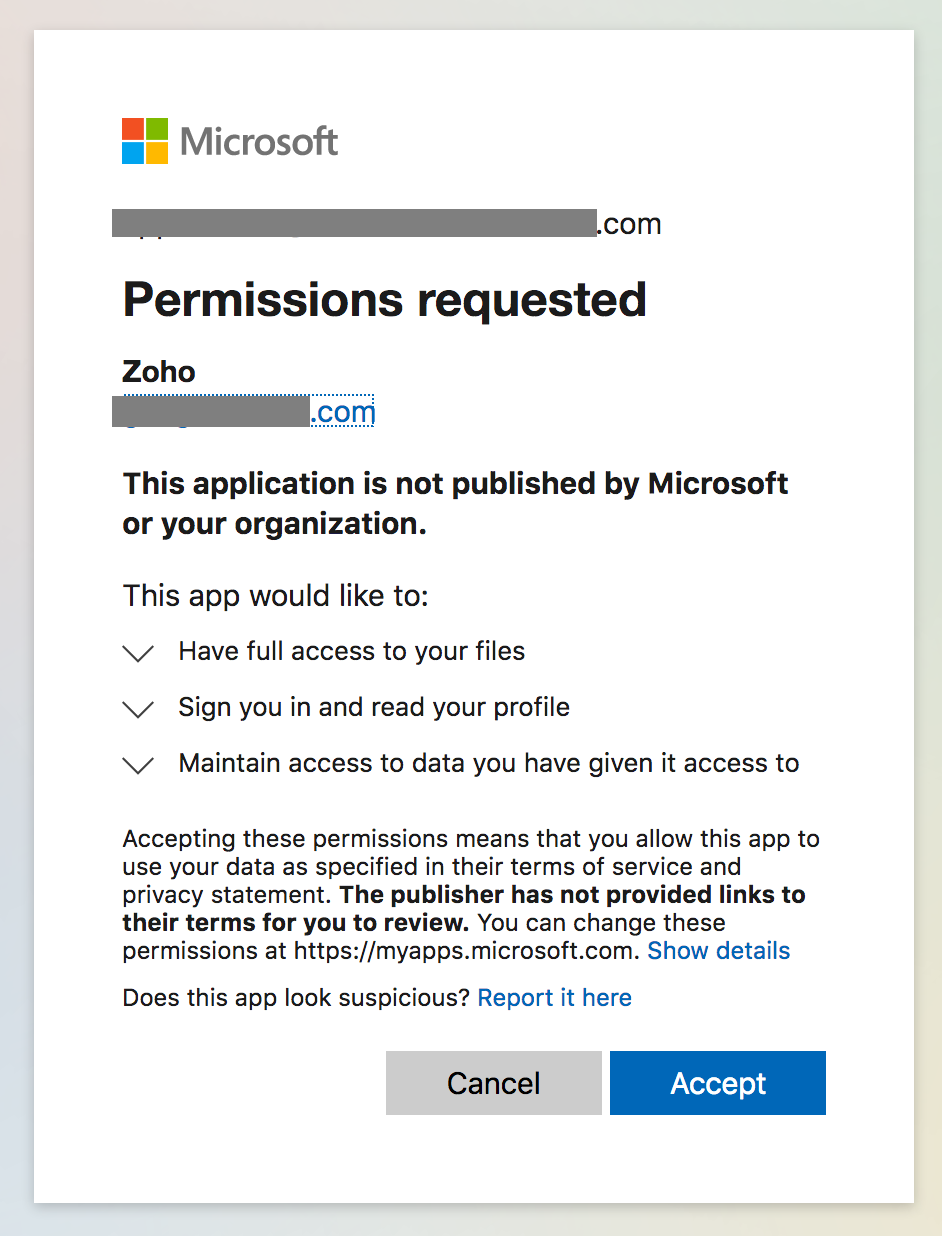
Follow this step by clicking on Authenticate, which will take you to a login screen. Log in and authenticate your Microsoft account to use these services. Click on Accept to confirm.
ALERT: To use Outlook actionable cards, You have to sign up to Zoho People using your Microsoft Account. For other services, this is not necessary.
Outlook Actionable Cards
This feature enables viewing, approving, and rejecting approval requests right from your Outlook inbox. This feature is handy for all Zoho People admins and approvers.
All users listed in the 'To' address of the approval emails can view, approve, and reject. Additionally, a comment can also be added when approving or rejecting requests.
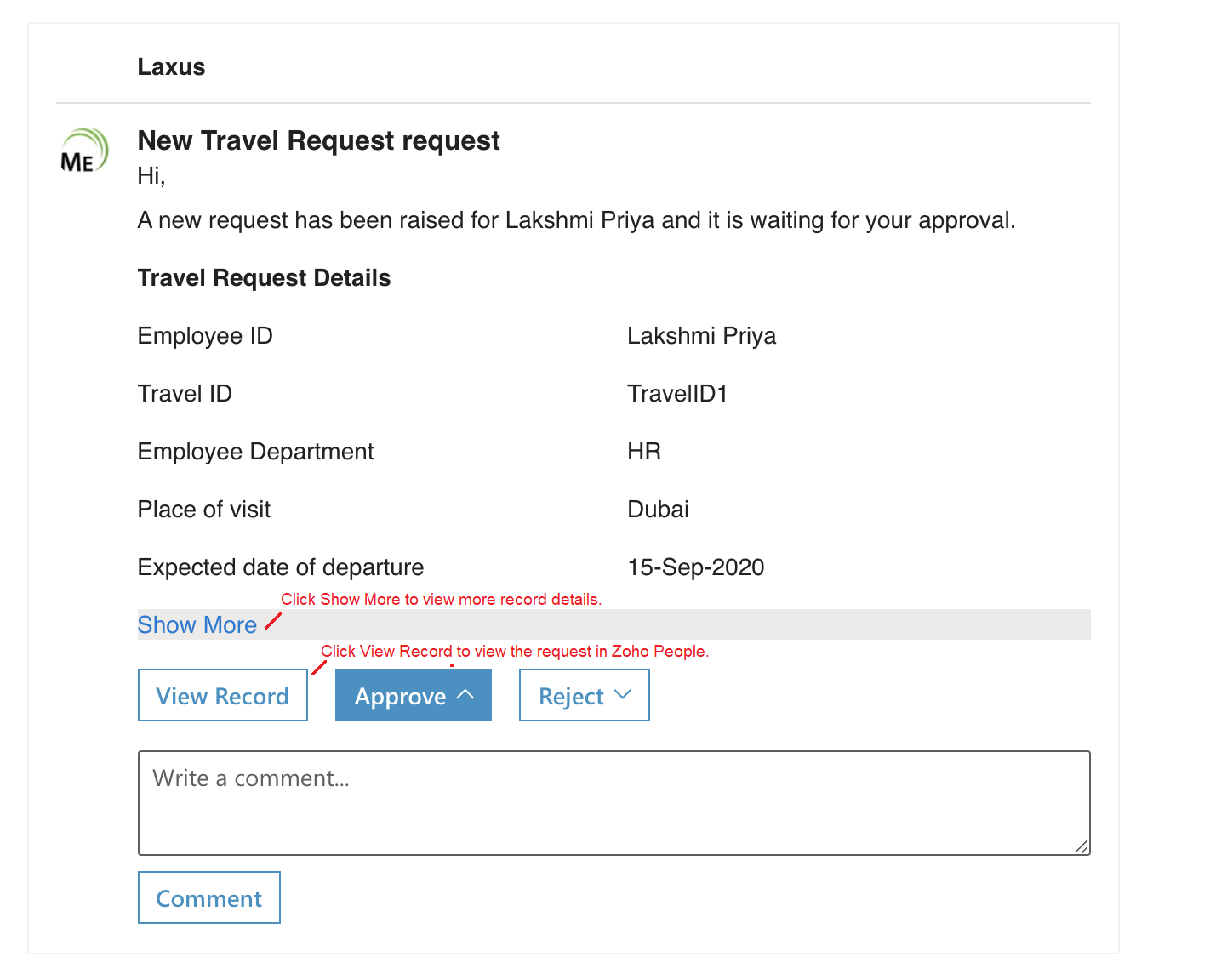
Note 1: When using Outlook actionable cards, In approver view, note that the first 10 fields of the approval request are displayed for all users (users added in 'To' section of approval emails). This is inclusive of non-admin users.
Note 2: This feature is not applicable to Zoho People users from China data center.
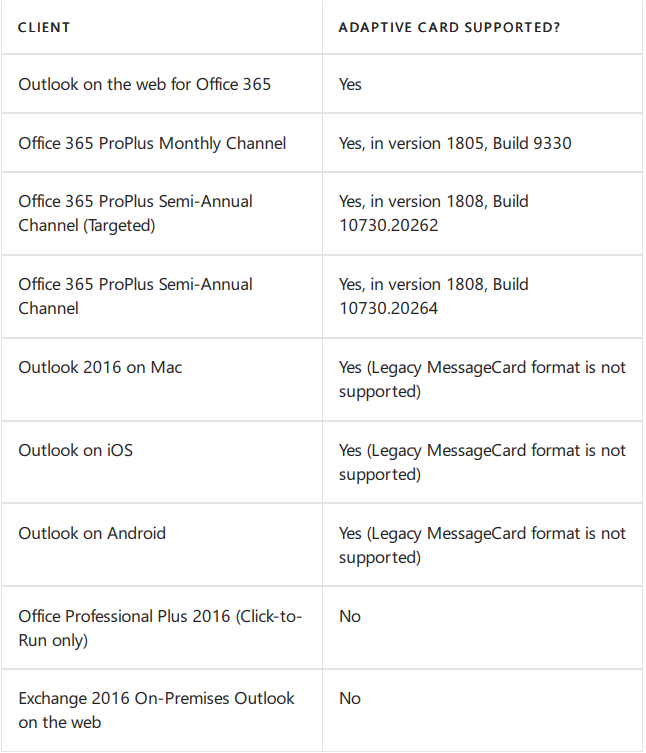
Refer the table below for details on supported versions: