Offer and Appointment Management Zoho People
Offer and Appointment Management

This feature is not available for all users, write to support@zohopeople.com to get it enabled.
Overview
Zoho People streamlines the candidate onboarding process by enabling you to create, customize, and send professional offer and appointment (confirmation) letters. Once sent, candidates can accept or reject the letters, and their responses can be tracked independently.
Recommended Process Flow
How Does This Feature Help?
- Create Customized Letters
Generate customized offer and appointment letters with your organization's branding and specific employment terms and compensation information. - Send and Track
Send letters electronically and track candidate acceptances and rejections independently, giving you immediate visibility into hiring progress. - Streamline Onboarding
Automate formal documentation at critical stages of the hiring process, reducing manual work and ensuring consistency and transparency in candidate communications.

What is an Offer Letter?
An offer letter is a formal document that extends a job offer to a candidate. It can outline the offered role, salary, and key terms of employment. Once accepted by the candidate, the offer letter confirms their intent to join your organization and serves as a formal commitment.
What is an Appointment Letter?
An appointment letter is a formal contract that confirms employment. It is sent to the candidate shortly before their official date of joining, typically after the completion of onboarding formalities and acceptance of the offer letter. This letter finalizes the employment agreement and provides official confirmation of employment terms.
An appointment letter is a formal contract that confirms employment. It is sent to the candidate shortly before their official date of joining, typically after the completion of onboarding formalities and acceptance of the offer letter. This letter finalizes the employment agreement and provides official confirmation of employment terms.
Steps to Enable Offer and Appointment Letter Features
Step 1: Enable the Required Features
- Navigate to Settings > Onboarding > Configuration > Preference
- Enable Offer Letter
- Enable Appointment Letter

Note:
Typically, an appointment letter can be sent only to candidates who have accepted the offer letter. However, if only one feature is enabled (either Offer Letter or Appointment Letter), this dependency does not apply.
Step 2: Set up the Offer and Appointment Letter Template Content (for Mail Merge)
- Navigate to Settings > Onboarding > Configuration > Offer Letter Templates
- Add or Import a Template
- Repeat the process for Appointment Letter Templates. Learn more about mail merge template creation.
The templates created here can be selected when generating offer letters. You can create multiple templates based on different hiring scenarios—for example, separate templates for experienced hires and fresh graduates, or based on region, role, or designation.
Step 3: Customize the Email Notifications Sent to Candidates.
- Navigate to Settings > Onboarding > Automation > Notifications
- Scroll down to the "Customize offer/appointment letter email template" section. Click on the corresponding Edit Template button to make any changes to the default email notification used. These emails will contain a link to the offer letter or appointment letter.
Now you are ready to send offer and appointment letters.
Who has access?
By default, the Onboarding Service Administrator manages offer and appointment letter processes. However, this can be changed, and access can be granted to additional users. To configure this, navigate to Settings > Onboarding > Permissions > Offer & Appointment Permissions.
Generate and Send Offer Letters
Prerequisites
⬡ Complete configuration steps mentioned above. In short, the Offer Letter option must be enabled. At least one offer letter template must be added in the system.
⬡ Complete configuration steps mentioned above. In short, the Offer Letter option must be enabled. At least one offer letter template must be added in the system.
⬡ Candidates must be added.
⬡ All required salary packages must be added through Settings > Onboarding > Compensation > Salary Packages tab.
⬡ All required salary packages must be added through Settings > Onboarding > Compensation > Salary Packages tab.
Follow these steps to generate and send offer letters to candidates:
- Navigate to Operations > Onboarding > Offer Letter tab and click on the Generate Offer Letter button.
- The Add Offer Letter screen will appear; select the salary package to use, enter the offered salary, select the offered designaton, and set an offer expiry date and date of joining.
- Select the offer letter template that you want to use (which will be suitable for the candidate the offer is going to be sent to).
- Click Next to proceed to view the preview of the generated offer letter.
- The screen will advance to the Preview tab.
- The offer letter is now generated and is ready to be sent. Click on Send to Candidate to send it to the candidate.
Note
⬡ Every time a letter is generated, it consumes credits. Learn more about mail merge credits here.
⬡ Every time a letter is generated, it consumes credits. Learn more about mail merge credits here.
⬡ If you want to make any changes, we recommend opening Zoho People in another tab, and navigating to Settings > Onboarding > Configuration > Offer Letter Templates to make changes to the template. Once the changes are done you can click on Regenerate Letter in the original tab once again to see the updated template.
⬡ If you want to make any changes to the offered salary, click on the Previous button and click the Regenerate button to get access to edit the fields.
⬡ If you want to make any changes to the offered salary, click on the Previous button and click the Regenerate button to get access to edit the fields.
The offer letter will now be sent to the candidate. The candidate will receive an email with a link to access the offer letter. The candidate can choose to Accept or Reject the job offer.
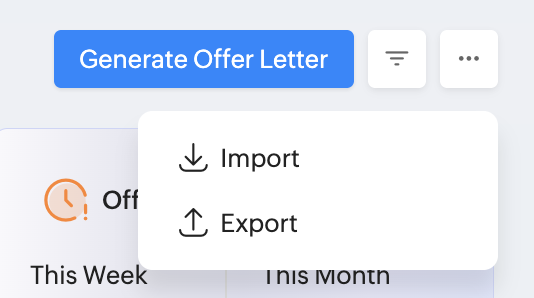
If you want to import multiple records at once, use the Import option available in Operations > Onboarding > Offer Letter > More option (ellipses icon). Records can also be exported using the Export option available within the same menu.

How to Proceed?
⬡ Track offer acceptance/rejections in Operations > Onboarding > Offer Letter tab by clicking on the respective filter.
⬡ If there any changes or negotiations post offer rejection, a new offer can be extended to the candidate if required.
⬡ Once the candidate onboarding formalities are completed, an Appointment Letter can be issued to the candidate (only for those who have accepted the job offer; this dependency will not hold if the Offer Letter feature is disabled in your organization). To send an appointment letter, navigate to Operations > Onboarding > Appointment Letter tab.
⬡ At any stage, the candidate can be converted to an user or employee profile from Operations > Onboarding > Candidate tab.
Generate and Send Appointment Letters
Prerequisites
⬡ Ensure that the Appointment Letter feature is enabled in Settings > Onboarding > Configuration > Preferences and the necessary mail merge templates to use are added in the Settings > Onboarding > Appointment Letter Templates tab.
⬡ If your organization uses both the Offer Letter and Appointment Letter features, then the Appointment Letter can only be sent to candidates who have accepted an Offer Letter. This dependency is ignored if only the Appointment Letter feature is used.
Follow these steps to send an appointment letter.
- Navigate to Operations > Onboarding > Appointment Letter and click on the Generate Appointment Letter option.
- Now in the Add Appointment Letter window, select the candidate you wish to send the appointment letter to. Finalize the date of joining, and select the appointment letter template to be used from the available drop-down.
- Click on Save and Generate to proceed to the Preview screen.
- The screen should now display the Appointment Letter preview. Click Send to Candidate to send the appointment letter to the candidate.
Note
⬡ Every time a letter is generated, it consumes credits. Learn more about mail merge credits here.
⬡ If you want to make any changes, we recommend opening Zoho People in another tab, and navigating to Settings > Onboarding > Configuration > Appointment Letter Templates to make changes to the template. Once the changes are done, you can click on Regenerate Letter in the original tab once again to see the updated template.
⬡ Changes to offered salary will be locked because the salary accepted by the candidate (in the offer letter) cannot be changed at this point. However, if your organization does not use the Offer Letter feature, editing and selecting offer-related details will be handled when sending the appointment letter.
The appointment letter will now be sent to the candidate. The candidate will receive an email with a link to access the appointment letter. The candidate can choose to Accept or Reject the appointment offer.
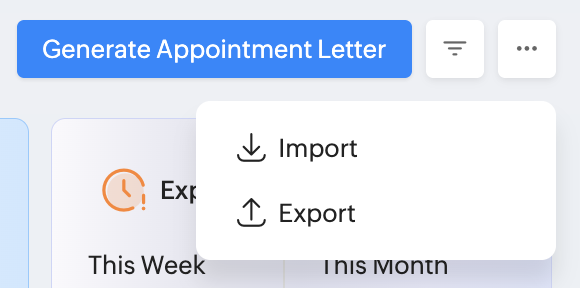
If you want to import multiple records at once, use the Import option available in Operations > Onboarding > Appointment Letter > More option (ellipses icon). Records can also be exported using the Export option available within the same menu.
How to Proceed?
⬡ Track appointment offer acceptance/rejections in Operations > Onboarding > Appointment Letter tab by clicking on the respective filter.
⬡ After the candidate has accepted the appointment offer, the candidate can be converted to a user or employee profile from Operations > Onboarding > Candidate tab.
Track Offer Letter and Appointment Letter Status
To track Offer Letter status, navigate to Operations > Onboarding > Offer Letter tab.
Use the predefined filter options that list the corresponding monthly records:
- Offer Pending
- Offer Sent
- Offer Accepted
- Offer Declined
- Offer Expired
Use the filter option ( ) to view records of customized time period and other filter options such as designation, status, and more.
When viewing Offer Sent and Offer Expired records, an additional Regenerate Letter option will be available for the corresponding records.
What can i do here?
⬡ If a candidate rejects an offer, a new offer can be generated if required.
⬡ If an offer expires, the offer letter can be regenerated and sent again with an updated expiry date.
⬡ At any stage, the candidate can be converted to a user or employee profile from Operations > Onboarding > Candidate tab.
To track appointment letter status, navigate to Operations > Onboarding > Appointment Letter tab.
Use the predefined filter options that list the corresponding monthly records:
- Pending Appointments
- Sent Appointments
- Accepted Appointments
- Declined Appointments
- Expired Appointments
Use the filter option () to view records of customized time period and other filter options such as designation, status, and more.
When viewing Sent Appointments and Expired Appointments, an additional Regenerate option will be available for the corresponding records.
What can I do here?
⬡ If a candidate rejects an appointment offer, a new appointment letter can be generated. However, the offered salary cannot be changed (when the Offer Letter feature is enabled and an employee has already accepted the offer).
⬡ If an appointment expires, the appointment letter can be regenerated and sent again with an updated expiry date.
⬡ At any stage, the candidate can be converted to a user or employee profile from Operations > Onboarding > Candidate tab.