HR Help Desk Reports
To access various case reports, navigate to Reports on the bottom left corner of your screen and go to the Organization Reports tab. You can use the filter feature available on the top right, corner (filter icon) to search based on time, category, and more.
Here is a detailed look of all the reports that are part of HR Help Desk in Zoho People:
Requested vs Closed
This is a report that compares all open and closed cases. Data for hours, weeks, and months can be selected for inclusion.
Overall status
This report represents the status of each case in the selected category. Click on each category to view a detailed list below.
Requested vs Escalated
When a case is not completed within the set time as per the SLA, it becomes an escalated case. This report shows the number of cases in escalation and the number of requested cases.
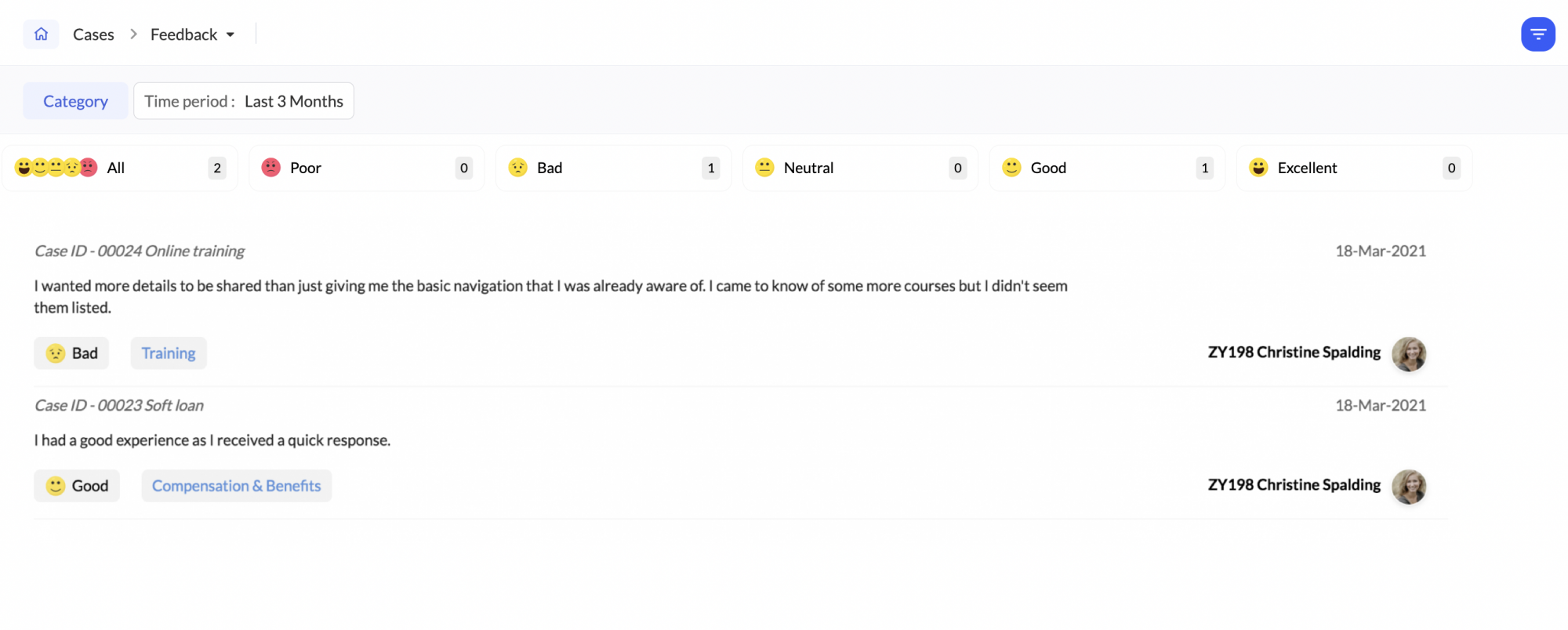
Feedback
This report displays feedback from requesters on how a case was handled by the agents and their overall experience with the case. Feedback can be configured for all categories or specific categories.
SLA Report
This report shows if cases followed SLA timelines or missed them. You can filter the data by hours, days, or weeks to track performance.

SLA report can be viewed only under Reports > HR Help Desk > Organization Reports.