Streams
Streams in simple words, would be the grouping of related designations under one name. Streams can be configured to work independently or in association with a particular designation based on your organization's requirements.
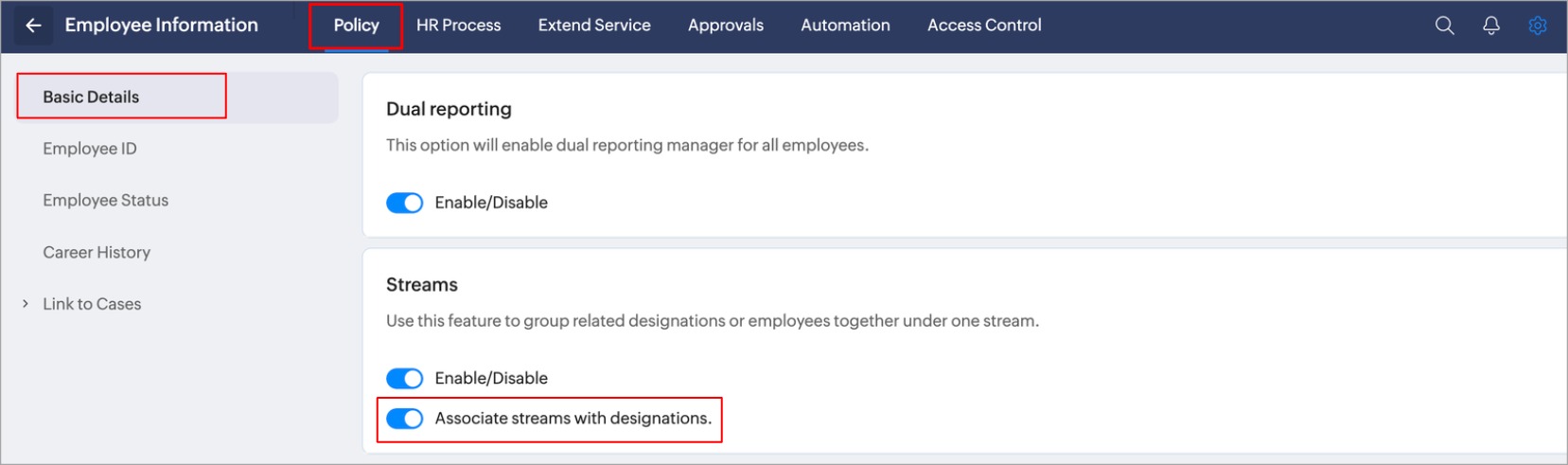
In Settings, Associate streams with designation checkbox is enabled by default, this would mean that only designations that belong to a particular stream can be tagged to employees. If disabled, any designation can be tagged irrespective of which stream they belong to, thereby making streams independent of designations.
Streams are helpful in two ways, it can either be used to group related designations in your organization, or it can be used to widely group employees who may have the same nature of jobs.
Configuring streams
- Navigate to Settings > Manage Accounts > Organization Setup.
- Select Streams tab, click on Add Stream.
- Enter the Stream Name, Description, and click Submit.
- Go to Settings > Employee Information > Policy > Basic Details and enable Associate streams with designations option if you want to change streams and designations dependency.
In Settings, Associate streams with designation checkbox is enabled by default, this would mean that only designations that belong to a particular stream can be tagged to employees. If disabled, any designation can be tagged irrespective of which stream they belong to, thereby making streams independent of designations.
To associate particular designations to a stream, edit two or more designations and tag the corresponding stream:
- Navigate to Operations > Employee Information > Designations.
- Click on the respective record that you want to edit.
- Once streams are configured, just like designation, location, department etc, Employee profiles can be edited to tag them to their respective streams.
- Employee streams will be displayed in the operations page (Operations > Employee Information > Employees > Select an employee's record) as shown below.
- To view employee streams only for your reportee's, it will be displayed in the home page (Home > Team > Reportees) as shown below.